To change the time in Windows 11, select Start > Settings > Time & language > Date & time. Leave Set time automatically on if you want Windows to keep the clock right for you, or turn it off and select Change to type in a time yourself.
Applies to: Windows 11. Checked against Microsoft Support on October 7, 2026.
Before you change the clock
Look at which part of the time is wrong, because that tells you which setting to fix:
- The minutes are right but the hour is wrong. The clock is fine and the time zone or daylight saving setting is off. Fix the time zone instead of the time.
- The minutes are wrong, or the date is wrong. The clock itself needs to be corrected, either by letting Windows set it automatically or by entering it manually.
- The time is right but shows as 14:30 instead of 2:30 PM. That is a display format, not a clock problem. See how to set a 12-hour clock in Windows 11.
On a computer managed by a workplace or school, the date and time controls may be locked. That case is covered in the troubleshooting section below.
Change the time manually in Windows 11
Use these steps when you want to enter the date and time yourself.
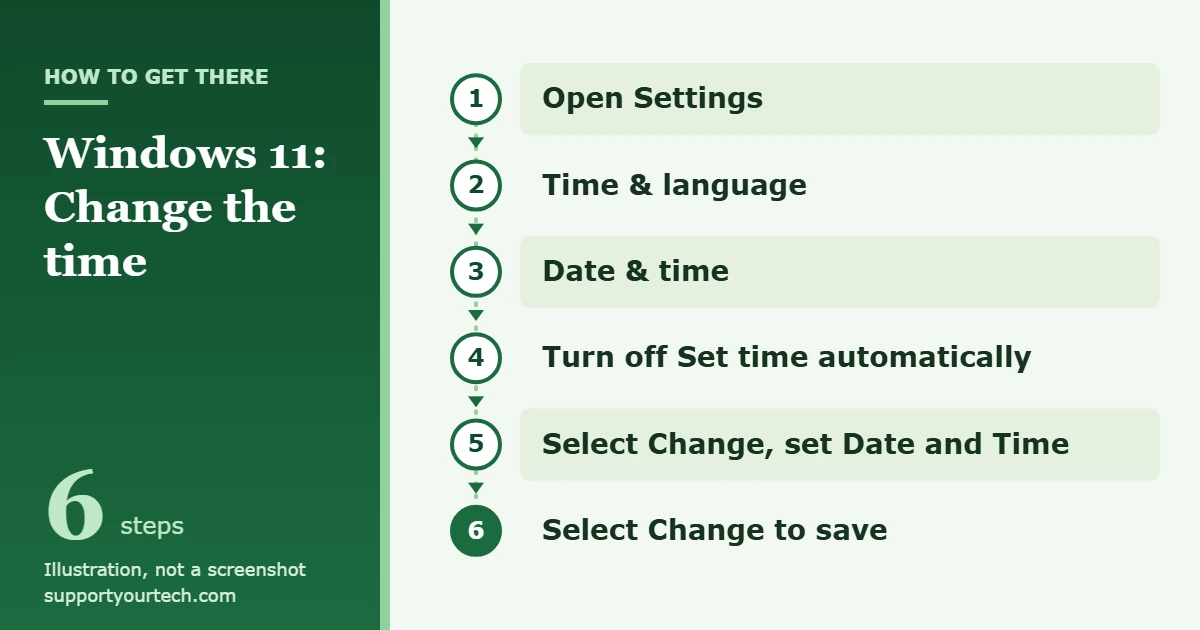
- Select Start, then select Settings. The Settings app opens.
- Select Time & language in the Settings menu.
- Select Date & time. This page shows the current date and time along with every clock setting.
- Turn Set time automatically to Off. The manual date and time setting below it becomes available.
- Select the Change button beside the manual date and time setting. A small window opens with Date and Time fields.
- Set the correct date and time, then select Change. The window closes and the clock on the taskbar shows the new time right away.
A manual clock stays where you set it and slowly drifts, so it is best kept for short-term needs. When you are done, turn Set time automatically back on.
Let Windows set the time automatically
For everyday use, the automatic setting is the better choice because Windows corrects the clock from an internet time server. On a home PC that is not joined to a work domain, Microsoft documents time.windows.com as the default server.
- Select Start > Settings > Time & language > Date & time.
- Make sure Set time automatically is On.
- Stay connected to the internet so Windows can reach the time server and correct the clock.
Fix the time zone and daylight saving time
When the clock is off by exactly one hour or several whole hours, change the zone and leave the time alone.
- Select Start > Settings > Time & language > Date & time.
- To let Windows pick the zone, turn Set time zone automatically to On. Daylight saving time is then adjusted for you.
- To choose the zone yourself, turn Set time zone automatically to Off and pick your zone from the drop-down menu next to Time zone.
- With a manually chosen zone, turn on Adjust for daylight saving time automatically so the clock moves forward and back on the right dates.
Our guide on how to change the time zone in Windows 11 goes through this setting in more detail.
Force a time sync from Command Prompt
If the automatic setting is on but the clock is still a few minutes out, you can tell Windows to resynchronize immediately with the built-in w32tm tool. Microsoft states that you must be a member of the local Administrators group to run it, so open Command Prompt as an administrator first.
- Open Command Prompt as an administrator.
- Type w32tm /resync and press Enter.
- Wait for the command to finish, then check the taskbar clock.
According to Microsoft, this command tells the computer to resynchronize its clock as soon as possible. If it reports an error, check your internet connection: the time client uses UDP port 123, which some firewalls and networks block.
Confirm the change or undo it
Look at the clock in the corner of the taskbar, or at the top of the Date & time page, which shows the current date and time. If the taskbar clock is missing, turn on Show time and date in the System tray on the same page. For a more exact check, turn on Show seconds in system tray clock (uses more power) and compare the result with a phone or another trusted clock.
To undo a manual change, return to Date & time and turn Set time automatically back to On. Windows replaces the time you typed with the time from the server.
Troubleshooting
The Change button is greyed out
Change is only available while Set time automatically is off. Turn that switch off first. If the switch itself cannot be moved, you are probably signed in without administrator rights or the PC is managed by an organization.
The settings are locked on a work or school PC
Microsoft notes that a computer joined to a domain synchronizes its time through the domain’s own hierarchy of time sources instead of the public server. Your IT department controls the clock in that case, so ask them to correct it instead of trying to override it.
Set time zone automatically picks the wrong zone or does nothing
Automatic time zone depends on Windows location services. Microsoft describes location services as a device-wide setting that lets features such as auto-setting the time zone work properly, and it can be controlled by the device administrator. If it is off or blocked, choose the time zone manually.
The time is wrong again after every restart
First confirm that Set time automatically is on and the time zone is correct. If the clock loses hours or resets to an old date each time the PC has been fully powered off, the cause is more likely the hardware that keeps time while the computer is off, and the PC manufacturer’s support is the right place to ask.
The clock changed by an hour on its own
That is normally daylight saving time. If your region does not observe it, turn off Set time zone automatically, select the correct zone, and turn off Adjust for daylight saving time automatically.
Frequently asked questions
Do I need administrator rights to change the time in Windows 11?
The w32tm command requires membership in the local Administrators group, according to Microsoft. If the controls on the Date & time page are unavailable on a shared or managed PC, sign in with an administrator account or ask the person who manages the computer.
Why does my clock show the wrong hour but the right minutes?
The time zone or the daylight saving setting is wrong. Correct the Time zone setting and the minutes and hours will both line up without touching the clock.
Is it better to set the time manually or automatically?
Automatically. Windows keeps correcting the clock from a time server, and many sign-ins, secure websites and file sync services expect an accurate clock. Set it manually only for a specific, temporary reason.
Can I show seconds on the Windows 11 clock?
Yes. On the Date & time page, turn on Show seconds in system tray clock (uses more power). As the label says, this uses more power, which matters most on a laptop running on battery.
Where does Windows 11 get the correct time?
Windows uses the Windows Time service. A PC that is not on a domain uses time.windows.com by default, and a domain-joined PC gets its time from the organization’s domain. Microsoft’s instructions are in Set time, date, and time zone settings in Windows, and the w32tm tool is documented in Windows Time service tools and settings.
Once the clock is correct, turn Set time automatically back on so it stays that way, and check the time zone again the next time you travel. To keep an eye on the time back home while you’re away, you can also show multiple clocks in Windows 11.

Matt Jacobs has been working as an IT consultant for small businesses since receiving his Master’s degree in 2003. While he still does some consulting work, his primary focus now is on creating technology support content for SupportYourTech.com.
His work can be found on many websites and focuses on topics such as Microsoft Office, Apple devices, Android devices, Photoshop, and more.