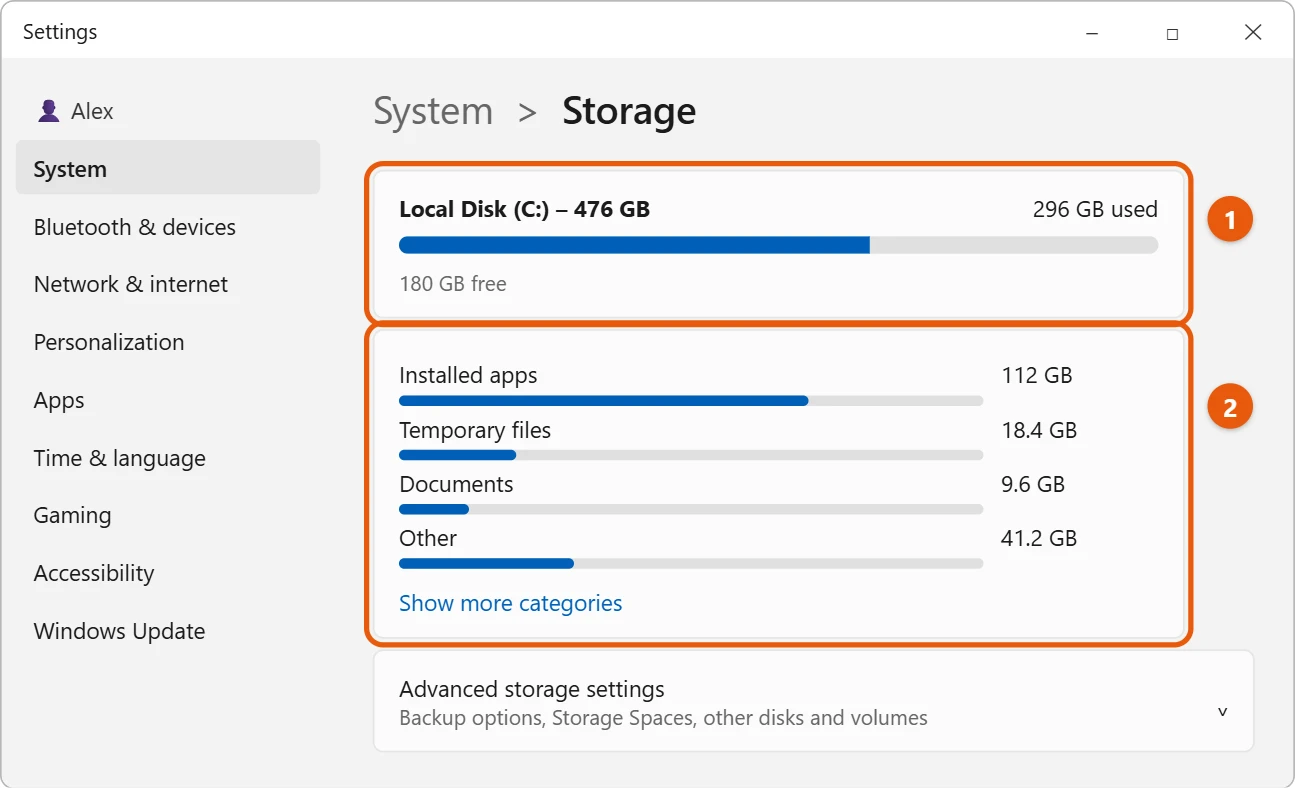
Open File Explorer and select This PC. Each drive shows a bar and a line such as 180 GB free of 476 GB. The second number is the total size of the drive. For a breakdown of what’s using the space, go to Settings > System > Storage.
Applies to: Windows 11. Checked against Microsoft Support on September 29, 2026.
See free and total space in File Explorer
- Press Windows logo key + E to open File Explorer.
- Select This PC on the left.
- Look under Devices and drives. Each drive shows how much space is free and how big it is.
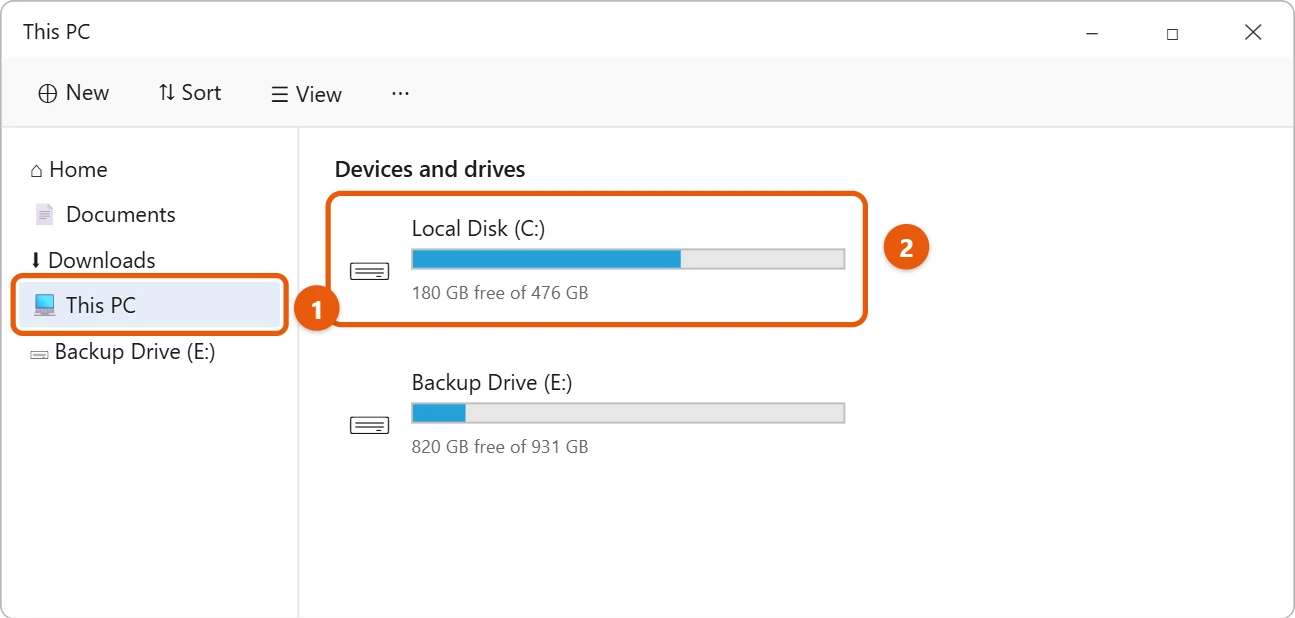
For exact numbers, right-click the drive and select Properties. You’ll see Used space, Free space and Capacity.
See what’s using the space in Settings
- Select Start > Settings > System > Storage.
- The bar at the top shows how much is used out of the total.
- Below it, Windows lists what’s using the space, such as apps, temporary files and documents. Select Show more categories for the full list.
Check every drive
In Settings > System > Storage, expand Advanced storage settings and select Disks & volumes. It lists every drive, including ones without a letter, with its size.
Why is the total smaller than the drive’s label?
A drive sold as 512 GB shows about 476 GB in Windows. Drive makers count 1 GB as 1,000,000,000 bytes, and Windows counts it as 1,073,741,824 bytes. Some space is also used by a small recovery partition. Nothing is missing.
Frequently asked questions
How do I free up space?
Start with temporary files. See how to clear cache in Windows 11.
Where’s my D drive?
See how to find the D drive in Windows 11.
To see which Windows 11 version and build your PC is running, see how to check your Windows version in Windows 11.
For more ways to speed up your PC, see how to make your PC faster in Windows 11.
To see which drives your PC has, see how to find your hard drive on a Windows 11 PC.
To track down what’s using the space, see how to find large files in Windows 11.
To see what’s using the space, see how to see what’s taking up space in Windows 11.
To see how big your SSD is and whether a drive is an SSD, see how to check SSD size in Windows 11.
To see how much of that is Windows itself, see how much space Windows 11 takes up.
Microsoft’s reference is Free up drive space in Windows. More help is on our Windows Help & Guides page.

Matt Jacobs has been working as an IT consultant for small businesses since receiving his Master’s degree in 2003. While he still does some consulting work, his primary focus now is on creating technology support content for SupportYourTech.com.
His work can be found on many websites and focuses on topics such as Microsoft Office, Apple devices, Android devices, Photoshop, and more.