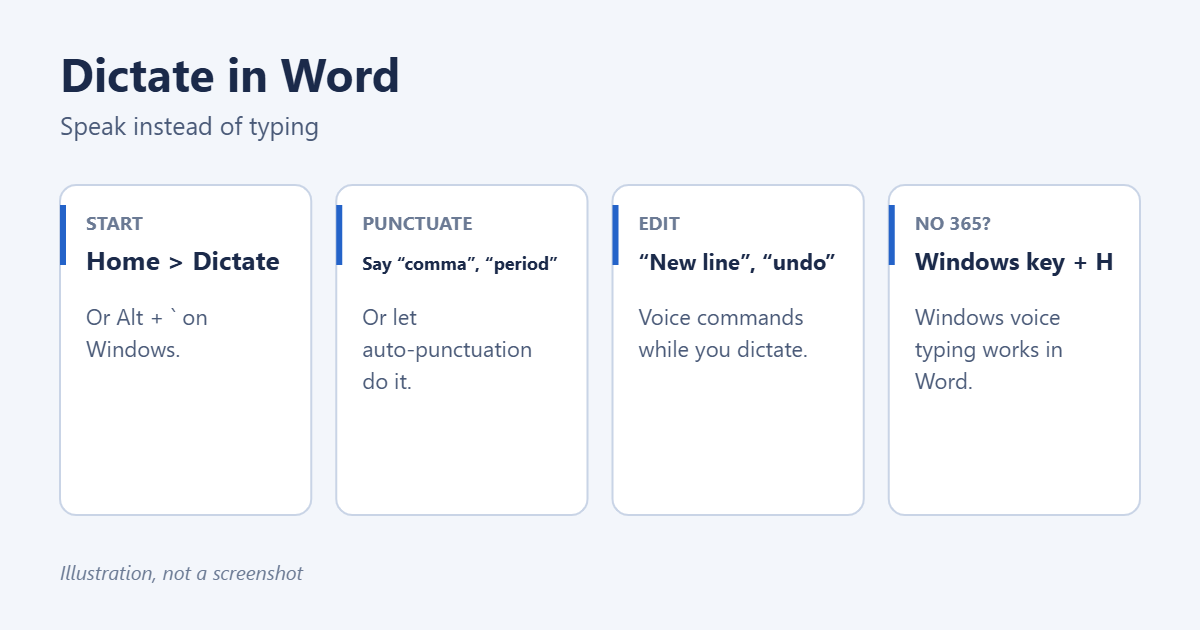
To dictate in Word, select Home > Dictate (the microphone icon), wait for it to turn on, and start speaking. Word types what you say, and you can add punctuation by saying it, such as “comma” or “new paragraph”. Select Dictate again, or say “stop dictation”, to finish. The Dictate button needs a Microsoft 365 subscription and an internet connection; if you don’t have one, press Windows key + H to use Windows voice typing in Word instead.
Applies to: Word for Microsoft 365 on Windows and Mac, Word for the web, and Windows 11 voice typing.
Before you start
- A microphone: a laptop’s built-in microphone works, but a headset is more accurate in a noisy room.
- Microphone access: in Windows, check Settings > Privacy & security > Microphone and make sure desktop apps are allowed. If Windows doesn’t hear you at all, work through fixing a microphone that isn’t working first.
- Sign in: Word must be signed in with the account that has your Microsoft 365 subscription.
- Open a document and click where you want the text to go.
- Select Home > Dictate. On Windows, you can also press Alt + ` (the key above Tab).
- Wait for the microphone icon to show it’s listening, then speak clearly at a normal pace.
- Say punctuation and commands as you go (see below).
- Select the microphone again, or say “stop dictation”, when you’re done.
A small toolbar appears while dictation is on. Select its gear icon to choose the spoken language, turn auto-punctuation on or off, and filter sensitive phrases.
Useful voice commands
Punctuation
- “period” or “full stop”, “comma”, “question mark”, “exclamation mark”
- “colon”, “semicolon”, “open quote” / “close quote”, “open parenthesis” / “close parenthesis”
Lines and editing
- “new line” starts a new line; “new paragraph” starts a new paragraph.
- “delete” or “backspace” removes the last word or character; “delete that” removes the last thing you said.
- “undo” reverses the last change.
- “insert space” adds a space.
Formatting and lists
- Select text by saying “select” followed by the word or phrase, then say “bold”, “italicize” or “underline”.
- “start list” and “start numbered list” begin a list; “exit list” ends it.
- “add comment” followed by your comment inserts a comment.
The full set of commands for each language is on Microsoft’s Dictate support page.
Tips for better accuracy
- Speak in full sentences rather than word by word. The context helps Word guess the right words.
- Pause briefly before saying a command, so Word doesn’t type it as text.
- Correct mistakes afterward with the keyboard; it’s faster than repeating yourself. If a dictated paragraph reads awkwardly, select it and ask Copilot in Word to rewrite it, provided your Microsoft 365 plan includes Copilot.
- Use a quieter room or a headset microphone.
Windows 11 has free voice typing that works in Word and almost any other app.
- Click in the document where you want the text.
- Press Windows key + H. A small voice typing bar appears.
- Select the microphone if it isn’t already listening, and speak.
- Select the gear on the bar to turn on Auto punctuation.
It supports similar commands, such as “comma”, “new line” and “delete that”, and the rest are covered in using speech to text on Windows 11. On a Mac, press the Globe key or Fn twice, or use Edit > Start Dictation.
Troubleshooting
The Dictate button is greyed out or missing
Check that Word is signed in with your Microsoft 365 account and that you’re online. Update Word in File > Account > Update Options, and make sure connected experiences are turned on in File > Options > Trust Center > Trust Center Settings > Privacy Options.
Word can’t hear you
Check that the right microphone is the default in Settings > System > Sound > Input, and that its volume isn’t muted.
Word types the wrong language
Select the gear on the dictation toolbar and change Spoken language.
Frequently asked questions
Is dictation in Word free?
The Dictate button needs Microsoft 365. Windows voice typing (Windows key + H) and Mac dictation are free.
Can Word read my document aloud?
Yes. Select Review > Read Aloud. Its controls are explained in using Read Aloud in Word.

Matt Jacobs has been working as an IT consultant for small businesses since receiving his Master’s degree in 2003. While he still does some consulting work, his primary focus now is on creating technology support content for SupportYourTech.com.
His work can be found on many websites and focuses on topics such as Microsoft Office, Apple devices, Android devices, Photoshop, and more.