Select Show hidden icons (^) on the taskbar, right-click the Safely Remove Hardware and Eject Media icon, and select Eject for your drive. When Safe To Remove Hardware appears, unplug it. You can also right-click the drive in File Explorer and select Eject.
Applies to: Windows 11. Works for external hard drives, SSDs and USB flash drives.
Eject from the taskbar
- On the taskbar, select Show hidden icons (^) next to the clock.
- Right-click the Safely Remove Hardware and Eject Media icon.
- Select Eject and the name of your drive.
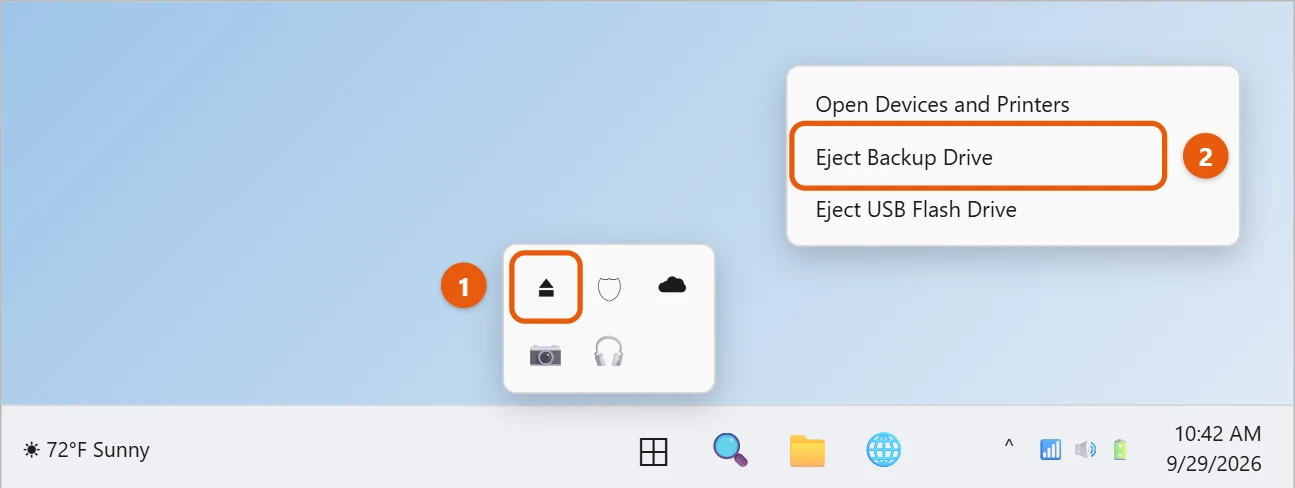
- Wait for the Safe To Remove Hardware message, then unplug the drive.
Eject from File Explorer
- Open File Explorer and select This PC. If you can’t find it, here’s how to get to This PC in Windows 11.
- Right-click the drive and select Eject.
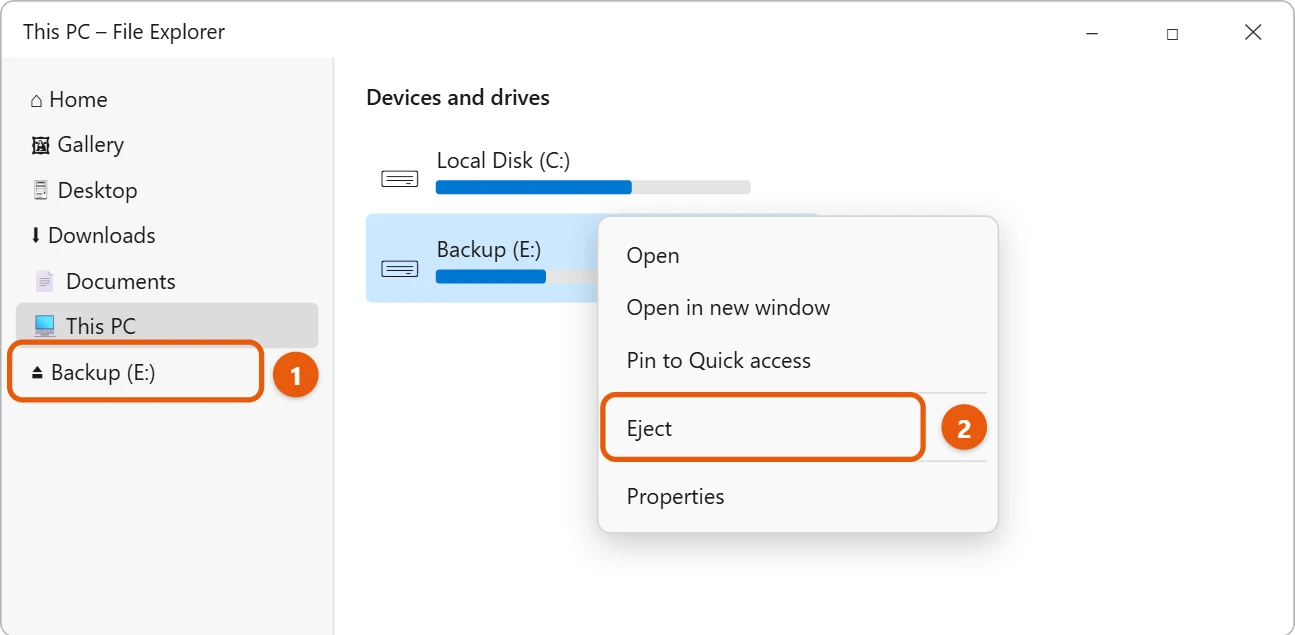
The drive disappears from File Explorer when it’s safe to unplug. To use it again later, plug it back in and open the flash drive from File Explorer.
If the eject icon is missing
- Right-click the taskbar and select Taskbar settings.
- Expand Other system tray icons.
- Turn on Safely Remove Hardware and Eject Media.
The icon only shows up when a removable drive is plugged in. A drive that’s connected but not showing in Windows needs a different fix: accessing an external hard drive on Windows 11.
If Windows reports the device is in use
- Close any files, folders or apps that are using the drive, then try again.
- Wait for copying or a backup to finish.
- Find what’s using it. Press Windows logo key + R, type resmon, and press Enter. On the CPU tab, type the drive letter, such as E:, in the Associated Handles search box. Close the programs it lists.
- Close File Explorer windows that show the drive, and turn off the preview pane if a file is selected. Backup apps, OneDrive and antivirus scans can also hold a drive open for a while.
- If it still won’t eject, shut down the PC, then unplug the drive.
Quick removal or better performance
Windows lets you choose how each drive is handled:
- Quick removal is the default. Windows writes changes to the drive right away, so unplugging it is less risky, though you should still eject it first.
- Better performance lets Windows hold some changes in memory to copy faster. With this setting, you must always eject before you unplug.
To check or change it, right-click Start, select Device Manager, expand Disk drives, and open your drive’s Properties. The choice is on the Policies tab.
Frequently asked questions
What happens if I just pull it out?
Usually nothing, but if Windows is still writing to the drive, you can lose or damage files. Ejecting first makes sure everything is saved.
Why can’t I see my drive?
Check whether Windows detects it in the list of connected USB devices on Windows 11.
Can I back up my PC to this drive?
Yes. You can back up Windows 11 to an external hard drive, then eject it when the backup finishes.
Do I need to eject an SD card or phone too?
Eject SD cards and USB card readers the same way. For a phone, finish copying files and close File Explorer, then unplug it. Phones don’t appear in the eject list.
Can ejecting damage my drive?
No. Ejecting just tells Windows to finish writing and stop using the drive. It’s the safe way to remove it.
Why does my drive keep disconnecting on its own?
Try a different USB port, ideally one directly on the PC rather than a hub. A worn cable or a drive that needs more power than the port gives can also cause it. Some large external hard drives need their own power adapter.
Does ejecting turn off the drive’s light?
Not always. Many drives keep their light on while they’re plugged in, even after ejecting. Wait for the Safe To Remove Hardware message instead.
If a port stops recognizing drives, you can reset USB ports on Windows 11. Own a WD easystore? It has its own setup and troubleshooting tips in using a WD easystore drive on Windows 11.
The same steps appear on Microsoft’s Safely remove hardware in Windows page.

Matt Jacobs has been working as an IT consultant for small businesses since receiving his Master’s degree in 2003. While he still does some consulting work, his primary focus now is on creating technology support content for SupportYourTech.com.
His work can be found on many websites and focuses on topics such as Microsoft Office, Apple devices, Android devices, Photoshop, and more.