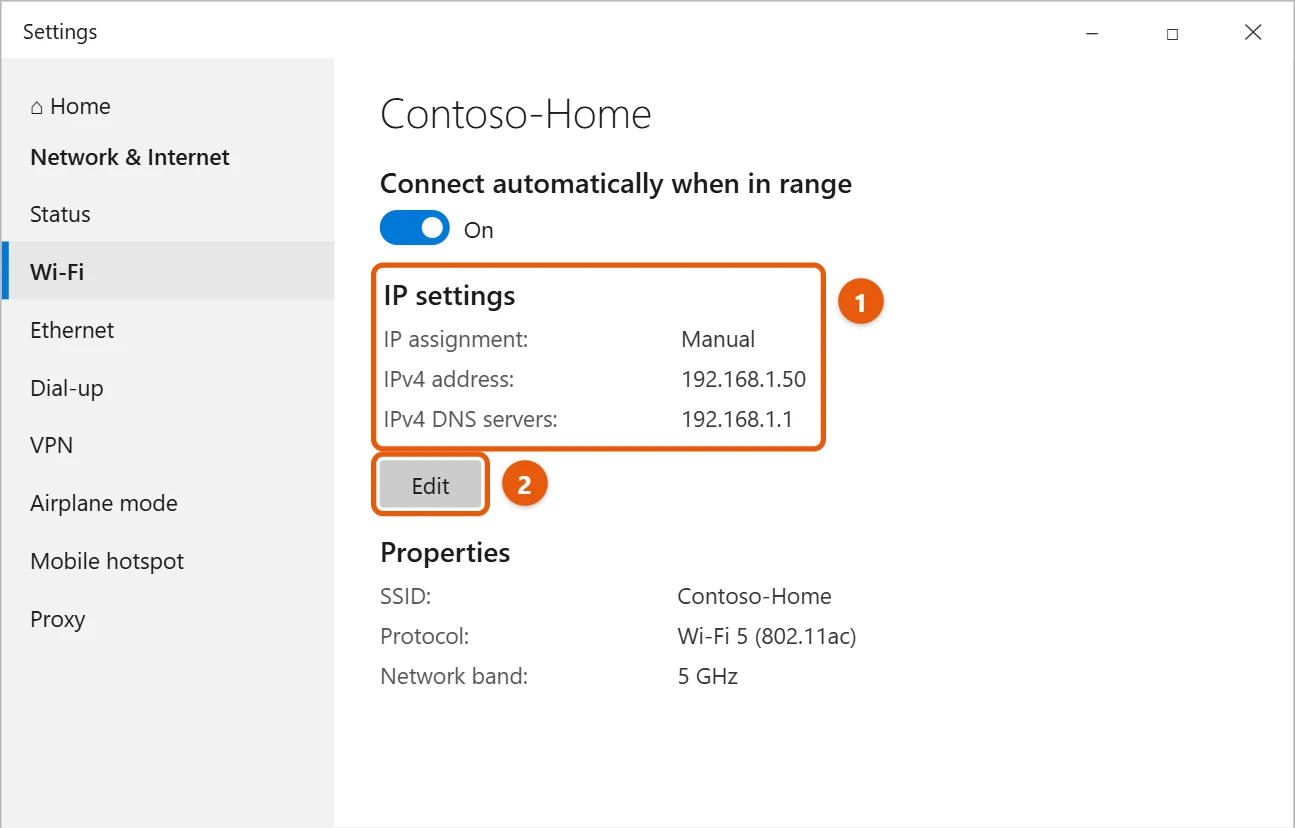
To enable DHCP in Windows 10, select Start > Settings > Network & Internet. Select Wi-Fi or Ethernet, then select your network. Under IP settings, select Edit, choose Automatic (DHCP), and select Save.
Applies to: Windows 10. Checked against Microsoft Support on September 27, 2026.
DHCP lets your router give your PC an IP address automatically. Microsoft recommends it for most networks, because you don’t have to change anything when you move to another network.
Turn on DHCP in Settings
- Select Start > Settings > Network & Internet.
- Select Wi-Fi (or Ethernet), then select the network you’re connected to.
- Under IP settings, select Edit.
- Choose Automatic (DHCP) and select Save.
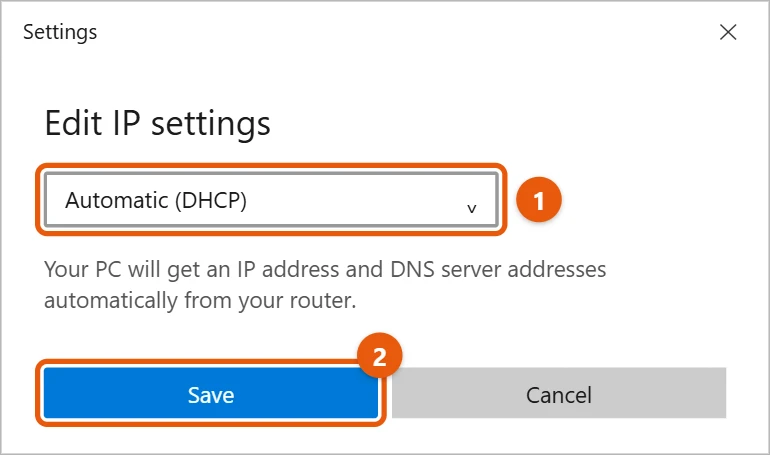
The IP address and DNS server now come from your router.
Turn on DHCP in Control Panel
- Press Windows + R, type
ncpa.cpl, and press Enter. - Right-click your network adapter and select Properties.
- Select Internet Protocol Version 4 (TCP/IPv4), then Properties.
- Select Obtain an IP address automatically and Obtain DNS server address automatically.
- Select OK, then Close.
Turn on DHCP with a command
First find the adapter’s name, usually Wi-Fi or Ethernet, in ncpa.cpl. Then open Command Prompt as an administrator and run:
netsh interface ip set address name="Ethernet" source=dhcpto get the IP address automaticallynetsh interface ip set dns name="Ethernet" source=dhcpto get DNS servers automatically too
In PowerShell as an administrator, Set-NetIPInterface -InterfaceAlias "Ethernet" -Dhcp Enabled does the same for the address, and Set-DnsClientServerAddress -InterfaceAlias "Ethernet" -ResetServerAddresses resets DNS.
Get a new address right away
Open Command Prompt and run these two commands, one at a time:
ipconfig /release
ipconfig /renew
To check that DHCP is on, run ipconfig /all and look for DHCP Enabled . . . : Yes. See how to find your IP address in Windows 10.
What DHCP does
DHCP lets your router hand out IP addresses automatically, so each device gets a free address, the router’s address (the gateway) and DNS servers without any typing. Almost every home network uses it. Turn it off only when a device must keep the same address, such as a printer or a home server, and even then a reservation on the router is usually the better choice.
Reserve an address on your router instead
If you need a device to keep the same address, leave DHCP on and set a reservation in the router. Open the router’s app or web page, find DHCP reservation or Address reservation, pick the device from the list, and save. The device still uses DHCP, but the router always gives it the same address, so there’s no risk of two devices clashing.
Troubleshooting
- ipconfig /renew says it can’t contact your DHCP server. Restart the router. If other devices also fail to connect, the router’s DHCP feature may be turned off.
- DHCP Enabled says No after you saved. Make sure you changed the right adapter, then restart the PC.
- You get an address but no internet. The DNS servers may still be set by hand. Set DNS to automatic too, or run the netsh DNS command above.
- The DHCP Client service isn’t running. Open services.msc, find DHCP Client, and make sure it’s set to Automatic and running.
Frequently asked questions
My IP address starts with 169.254. What does that mean?
Your PC couldn’t reach a DHCP server, usually the router. Restart the router and the PC. See how to fix Wi-Fi and network problems in Windows 10.
How do I set a fixed IP address instead?
Choose Manual instead of Automatic (DHCP). See how to change your IP address in Windows 10.
Can I keep DHCP but use a different DNS server?
Yes. See how to change DNS in Windows 10.
Microsoft’s references are Essential network settings and tasks in Windows (Change TCP/IP settings) and ipconfig. More help is on our Windows Help & Guides page.
Is DHCP safe to use?
Yes. It’s the standard way home and office networks hand out addresses. Your router controls it, and it doesn’t expose your PC to the internet.
How long does a DHCP address last?
Each address comes with a lease, often a day or more on home routers. Windows renews it automatically, so most PCs keep the same address for a long time. Run ipconfig /all to see when the lease expires.
Should DHCP be on for Wi-Fi and Ethernet?
Yes, in most homes. Each adapter has its own setting, so check both if you use both.

Matt Jacobs has been working as an IT consultant for small businesses since receiving his Master’s degree in 2003. While he still does some consulting work, his primary focus now is on creating technology support content for SupportYourTech.com.
His work can be found on many websites and focuses on topics such as Microsoft Office, Apple devices, Android devices, Photoshop, and more.