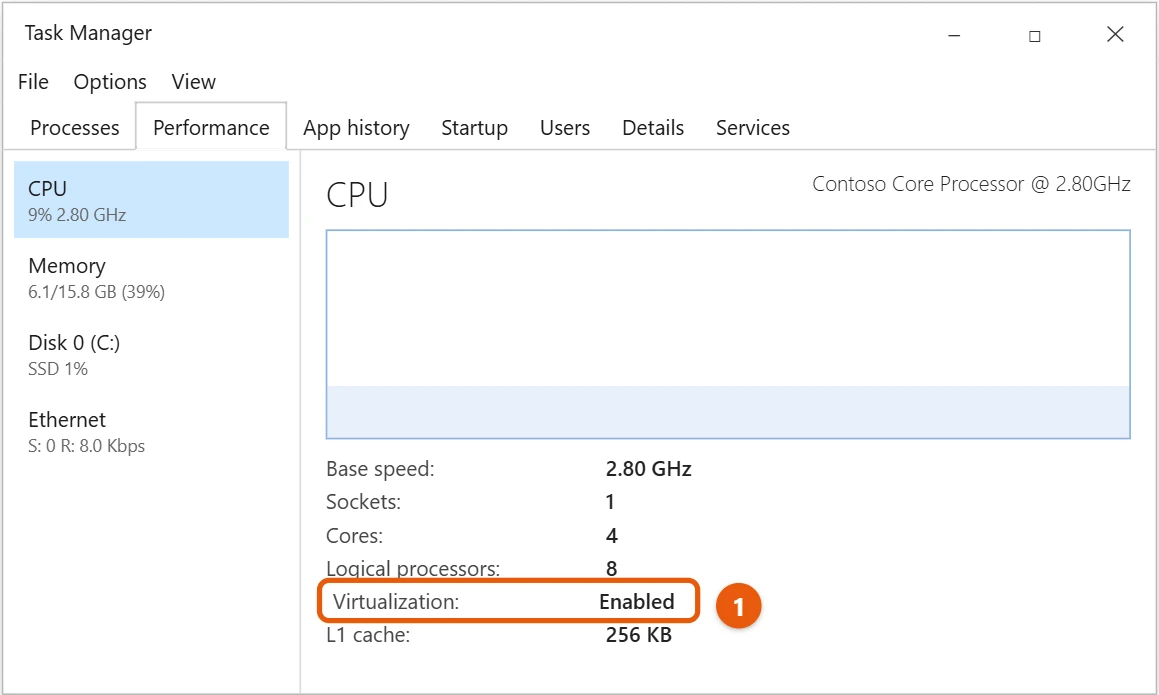
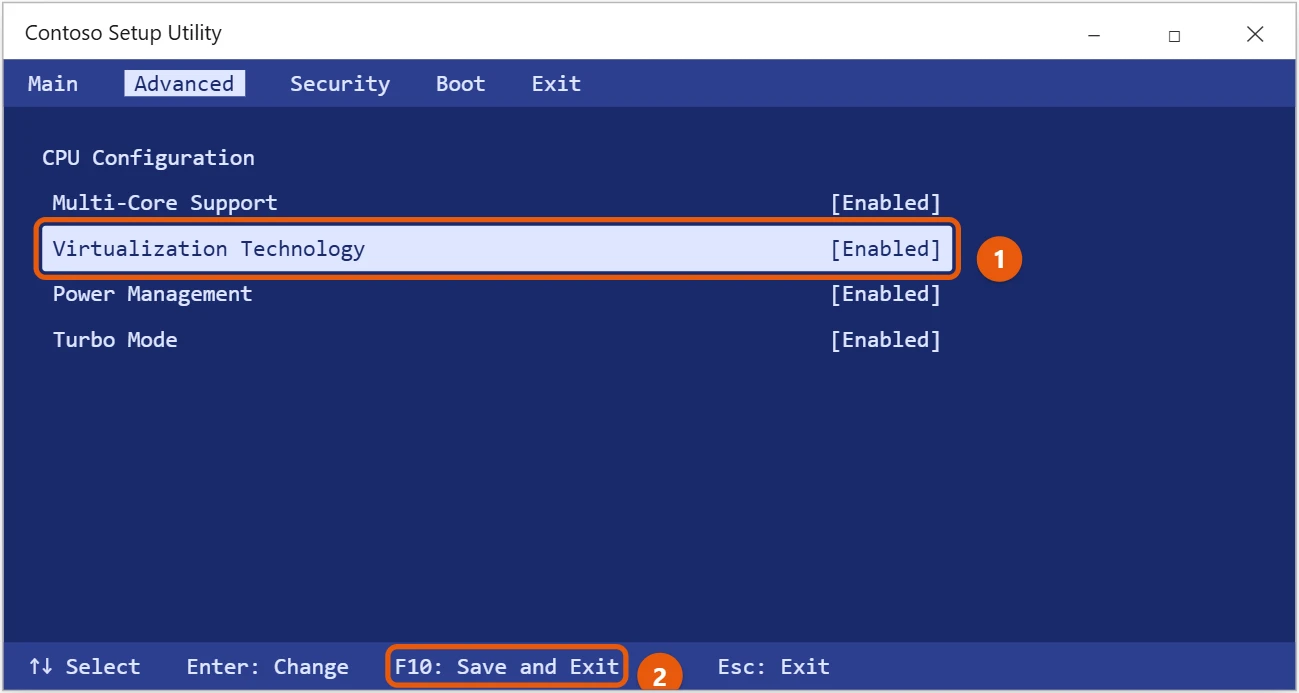
Enabling virtualization on your Windows 10 PC is pretty straightforward, but it requires a quick trip into your computer’s basic settings. You’ll first need to restart your computer and access the BIOS or UEFI firmware, which is where you can tweak core system settings. Once inside, navigate to a section usually labeled “Advanced,” “Security,” or “Configuration,” find the setting for “Virtualization Technology” (sometimes called Intel VT-x or AMD-V), and switch it to “Enabled.” Save your changes, exit, and let your computer restart normally. That’s really all there is to it, and your system will then be ready for virtual machines and other advanced features.
Tutorial – How to Enable Virtualization on Windows 10
Getting your Windows 10 machine ready for virtual environments, such as running another operating system inside your current one or using specific developer tools, often hinges on ensuring virtualization is enabled. It’s like flipping a switch that unlocks a lot of power for your computer. Let’s walk through the steps to get this done, so you can start exploring the cool stuff that virtualization brings to the table.
Step 1: Check if your CPU supports virtualization.
Before diving into any settings, it’s smart to make sure your computer’s brain, the CPU, actually has the chops for virtualization.
Most modern processors from Intel (VT-x) and AMD (AMD-V) have this capability built right in, but it never hurts to double-check. You can often find this information by looking up your CPU model on the manufacturer’s website or using a free utility like CPU-Z, which provides detailed information about your system hardware.
Step 2: Restart your computer and enter BIOS or UEFI settings.
This is where the real magic begins, as you’ll need to access your computer’s core setup menu.
When your computer is starting up, typically right after you press the power button, you’ll need to press a specific key repeatedly to enter the BIOS or UEFI. Common keys include F2, Delete, F10, F12, or even Esc, but this can vary a lot depending on your computer’s brand and model. Watch the screen carefully during startup; it usually flashes a message telling you which key to press.
Step 3: Locate the virtualization setting.
Once you’re in the BIOS or UEFI, it’s time to hunt down the specific option you need to change.
The layout of these menus can vary quite a bit, but you’ll generally find the virtualization setting under sections such as “Advanced,” “Security,” “Configuration,” or “CPU Features.” Look for terms like “Virtualization Technology,” “Intel VT-x,” “AMD-V,” or “SVM Mode.” Take your time navigating through the menus; they are usually controlled by your keyboard’s arrow keys.
Step 4: Enable the virtualization setting.
After you’ve found the correct setting, it’s just a matter of changing its status.
You’ll usually see an option that says “Disabled” or “Enabled” next to the virtualization technology. Use your keyboard to select the option and change it to “Enabled.” This is the key step in unlocking your computer’s virtualization capabilities.
Step 5: Save your changes and exit.
Once you’ve made the necessary adjustment, don’t forget this crucial final step.
After enabling virtualization, save your changes before exiting the BIOS or UEFI menu. There’s usually an option like “Save and Exit” or “Exit Saving Changes.” Select this option, confirm your choice if prompted, and your computer will then restart, applying the new settings.
Step 6: Verify in Windows (Optional, for Hyper-V users).
For those looking to use Microsoft’s own virtualization platform, Hyper-V, there’s an extra step you might want to take within Windows itself.
Once your system has restarted, and if you plan to use Hyper-V, you can enable it through Windows Features. Just type “Turn Windows features on or off” into the Windows search bar, open it, and then check the box next to “Hyper-V.” This will install the necessary components, and you’ll likely need another restart.
After you complete these steps, your computer will restart with virtualization enabled. This means your system is now capable of hosting virtual machines, running Windows Subsystem for Linux 2 (WSL2), or utilizing other virtualization-dependent applications without a hitch. You’ve essentially unlocked a powerful new dimension for your PC, allowing it to handle more complex software environments.
How to Enable Virtualization on Windows 10 Tips
- Check your motherboard manual: If you’re struggling to find the virtualization setting in your BIOS, it’s an excellent resource. It often has diagrams and specific instructions for navigating the setup utility.
- Update your BIOS/UEFI if necessary: Sometimes older BIOS versions may not clearly lay out virtualization options, or they may even have bugs. A BIOS update, while a bit advanced, can sometimes resolve these issues. Just be careful and follow manufacturer instructions precisely.
- Understand VT-x and AMD-V: These are just the names for Intel’s (VT-x) and AMD’s (AMD-V) specific hardware virtualization technologies. You only need to enable the one that matches your processor. Don’t worry if you only see one of them listed.
- “SVM Mode” is for AMD: If you have an AMD processor, look for “SVM Mode” in your BIOS settings; this is AMD’s term for virtualization technology. Intel processors will usually show “Intel VT-x” or “Intel Virtualization Technology.”
- Troubleshooting if it’s still not working: If you’ve enabled it in BIOS but virtualization software still complains, make sure Hyper-V isn’t conflicting (if you’re using another virtualizer like VirtualBox or VMware). Sometimes you need to disable Hyper-V for other solutions to work well.
- Performance considerations: While enabling virtualization doesn’t usually slow down your PC when it’s not in use, running multiple virtual machines simultaneously can consume significant system resources, such as RAM and CPU. Make sure your PC has enough power for what you plan to do.
Frequently Asked Questions
Why do I need to enable virtualization?
You need to enable virtualization to run virtual machines, which are like computers within your computer. This is super useful for testing new operating systems, running old software that doesn’t work on Windows 10, or using development tools like Windows Subsystem for Linux 2 (WSL2). Without it, many of these powerful features simply won’t work.
How do I know if my CPU supports virtualization?
The easiest way is to check your CPU model online on the manufacturer’s website (Intel or AMD) and look for features like “Intel Virtualization Technology” (VT-x) or “AMD Virtualization” (AMD-V). Alternatively, you can download a system information tool, such as CPU-Z, which often indicates whether your CPU supports virtualization.
What if I can’t find the setting in BIOS?
BIOS or UEFI menus can be tricky! Try looking under sections like “Advanced,” “CPU Configuration,” “Security,” or “Chipset.” Sometimes, the option might be hidden a few layers deep. If you still can’t find it, a quick online search for “enable virtualization [your computer model]” or “[your motherboard model]” often yields specific instructions or screenshots.
Is enabling virtualization safe?
Yes, absolutely! Enabling virtualization is a standard feature on modern processors and is completely safe. It just unlocks a capability your hardware already has. It won’t harm your computer or make it less secure on its own. The security of your virtual machines will depend on how you set them up and what software you run inside them.
Does enabling virtualization slow down my PC?
No, simply enabling the virtualization feature in your BIOS doesn’t slow down your PC when you’re not actually running any virtual machines or virtualization-dependent software. It’s like having an engine ready to go but not actively driving. Your PC’s performance will only be affected when you start running virtual environments, as they use your computer’s resources.
What’s the difference between BIOS and UEFI?
BIOS (Basic Input/Output System) and UEFI (Unified Extensible Firmware Interface) are both firmware interfaces that your computer uses to start up and manage hardware. UEFI is the newer, more modern version. It offers a graphical interface, supports larger hard drives, and has more advanced security features than the older text-based BIOS. To enable virtualization, the process is very similar in both; only the look and feel might be different.
Summary
- Check CPU for virtualization support.
- Restart, enter BIOS/UEFI.
- Find virtualization setting.
- Enable virtualization.
- Save changes, exit.
- (Optional) Enable Hyper-V in Windows Features.
Conclusion
So there you have it, a clear path to unlocking one of your Windows 10 PC’s most powerful capabilities, virtualization. It might seem like a daunting task at first to dive into the BIOS or UEFI, which feels like the hidden control room of your computer. But as we’ve seen, it’s really just a few straightforward steps, and anyone can do it. Think of it as opening up a whole new world of possibilities for your machine, transforming it from a single-tasking device into a multi-environment powerhouse.
Once you’ve successfully flipped that switch, you’re no longer limited to just one operating system or one set of tools. You can experiment with Linux distributions without messing up your main Windows installation, test out new software in a safe, isolated environment, or even run older versions of Windows for compatibility with legacy applications. Developers, students, and curious tech enthusiasts alike often find this feature indispensable. It’s like having a sandbox where you can play around without consequences for your main system.
Don’t be afraid to explore the options once virtualization is enabled. Whether you choose to install Hyper-V, VirtualBox, or VMware Workstation Player, each offers a unique way to harness this newfound power. The world of virtual machines is vast and incredibly useful, providing flexibility and security that you just can’t get otherwise. You’ve taken a significant step toward becoming a more advanced computer user by gaining control over a fundamental aspect of your system. So go ahead, download that virtual machine software you’ve been eyeing, and start building your own digital playground. The journey into virtualization is incredibly rewarding, and you’re now fully equipped to begin.

Matt Jacobs has been working as an IT consultant for small businesses since receiving his Master’s degree in 2003. While he still does some consulting work, his primary focus now is on creating technology support content for SupportYourTech.com.
His work can be found on many websites and focuses on topics such as Microsoft Office, Apple devices, Android devices, Photoshop, and more.