Ever found yourself staring at a “low disk space” warning on your computer, specifically for your C drive? It is a common problem and can significantly slow things down. Luckily, extending your C drive in Windows 10 is something you can totally do yourself, and it is not nearly as scary as it sounds. We are going to dive into Windows’ built-in Disk Management tool to reclaim unused space, either from an existing partition or from unallocated space, and add it to your C: drive. It is a bit like adding an extension to your house when you realize you need more room. By the time we are done, your C drive will have plenty of breathing room, and your computer will thank you for it with smoother performance.
Expanding Your C Drive: A Windows 10 Tutorial
This guide will walk you through the essential steps to give your C drive that much-needed breathing room. We will use Windows’ own Disk Management tool, so no extra software is required. You will be amazed at how straightforward this process can be, once you know what to do.
Step 1: Open Disk Management
To begin, open the Disk Management utility, Windows’ built-in tool for managing partitions.
This is your control center for hard drive partitions, kind of like a map of your entire storage setup. You can usually get there by right-clicking the Start button, that little Windows logo in the bottom-left corner of your screen, and then selecting “Disk Management” from the list that pops up. It is very important to be careful here, as messing with the wrong disk can lead to data loss, so pay close attention to what you are doing in the steps that follow.
Step 2: Identify Unallocated Space
Look for unallocated space on your hard drive: free space not currently assigned to any partition.
Unallocated space is key here, think of it like an empty plot of land on your hard drive, ready for new construction. Ideally, this space should be right next to your C drive, appearing immediately to its right in the Disk Management window. If you do not see any unallocated space right away, do not fret; we will address that situation in the next step, as it is a common scenario.
Step 3: Shrink a Neighboring Partition (If No Unallocated Space Exists)
If there is no unallocated space next to your C drive, you will need to shrink an adjacent partition to create some.
Sometimes, your hard drive is like a fully packed suitcase, with no room left anywhere. You might have a D: drive or another partition next to C: that has plenty of free space. To create some breathing room, right-click the partition, select “Shrink Volume,” and enter the amount of space you want to remove to create unallocated space. Remember, you can only shrink a volume to its available free space, so don’t be greedy and leave enough for the partition’s own needs. This action will create the precious unallocated space you need on your C: drive.
Step 4: Extend the C Drive
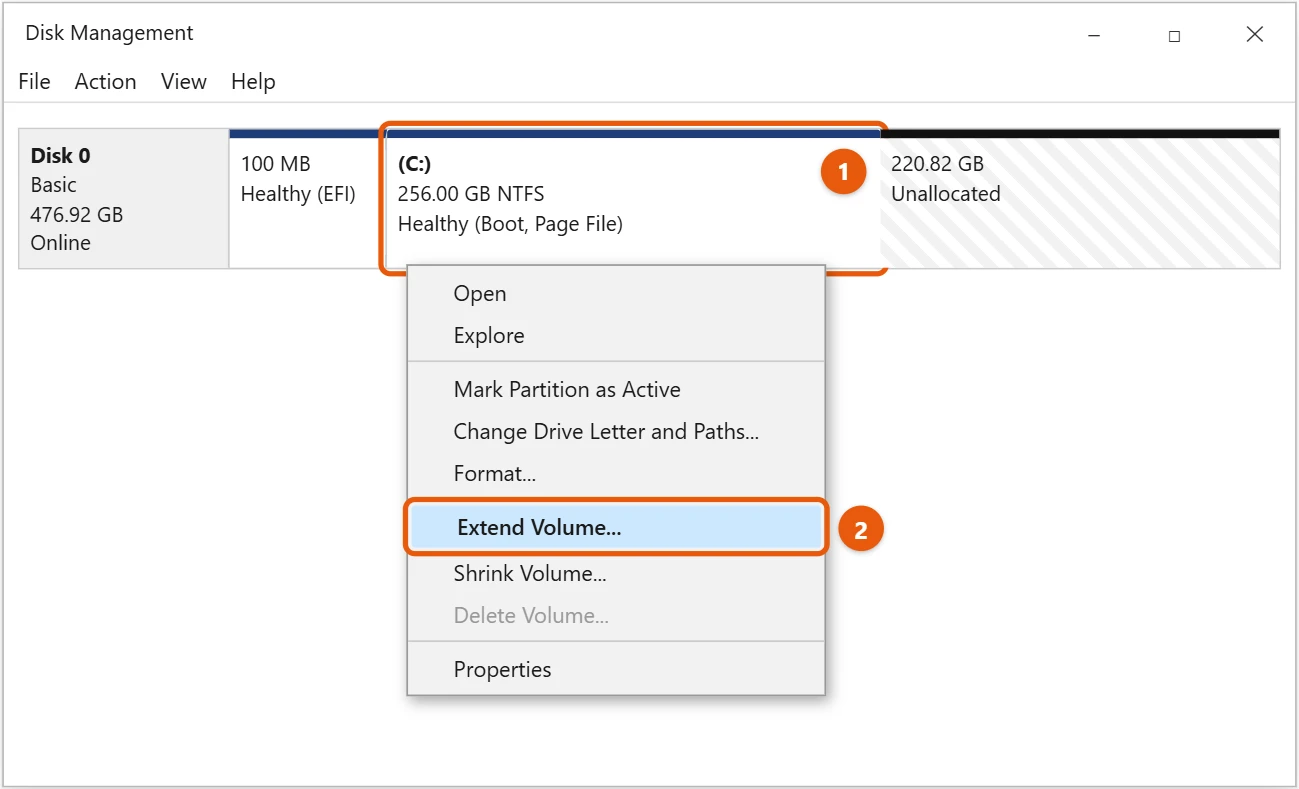
Right-click your C: drive and select “Extend Volume” to add the unallocated space.
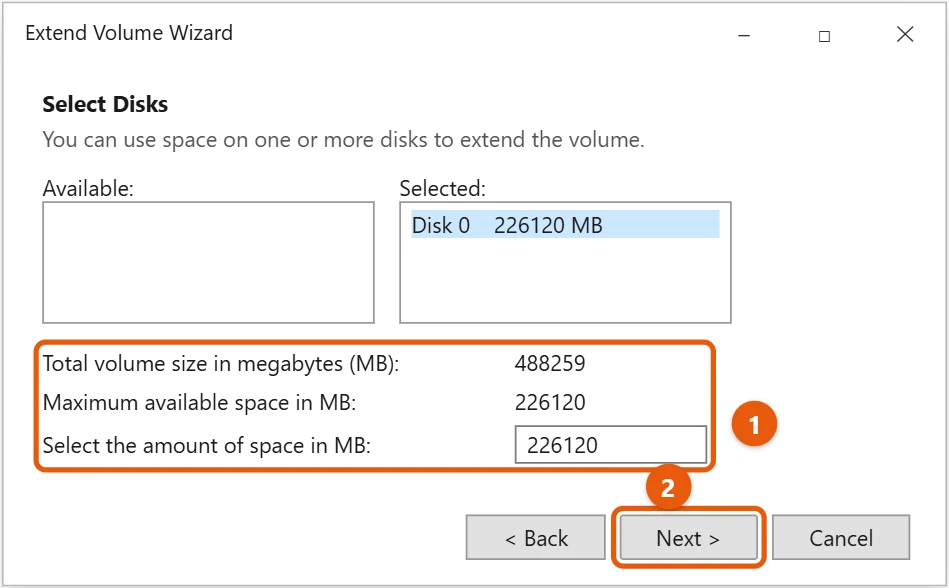
Now for the main event. Once you see the unallocated space immediately to the right of your C drive, right-click the C drive itself. You should now see an option labeled “Extend Volume” that is no longer grayed out. If it is still grayed out, it usually means the unallocated space is not directly adjacent to your C: drive, or you do not have any. Follow the on-screen wizard to add the unallocated space to your C: drive. It is a straightforward process: click “Next” a few times, confirm your choices, and you are good to go.
Step 5: Complete the Process
Follow the prompts in the Extend Volume Wizard to finalize adding the unallocated space to your C drive.
The wizard will guide you through the final steps, asking you to confirm how much space you want to add, which should be the unallocated space you just created or found. Once you click “Finish,” Windows will begin expanding your C: drive. This usually happens very quickly, and you will see the C: drive’s size update immediately in the Disk Management window, showing its new larger capacity.
After you complete these steps, your C drive will instantly have more available space. You will see the updated size reflected in File Explorer, and your computer will have more free space. This can lead to better performance, fewer “low disk space” warnings, and more capacity for your applications and personal files, making your computing experience much smoother.
Smart Tips for Extending C Drive in Windows 10
- Backup Your Data First: Always, always, always back up any important files before making changes to your disk partitions. While this process is generally safe, unexpected issues can happen, and you do not want to lose your precious memories or work. Think of it as wearing a seatbelt, a small precaution for a potentially big problem.
- Understand Unallocated Space Placement: For the “Extend Volume” option to be available for your C drive, the unallocated space must be immediately adjacent to it, on its right side. If it is not, and there is a recovery partition in between, you might need to move partitions with third-party software, which is more advanced and requires extra caution.
- Do Not Shrink Too Much: When shrinking another partition, ensure you leave sufficient free space on that partition for its own operations. Shrinking it to almost nothing can cause issues for installed programs, making them unstable or preventing updates.
- Consider a Larger Drive Upgrade: If you constantly run out of space, even after extending, it might be a sign that your hard drive is simply too small for your needs. Upgrading to a larger Solid State Drive, or SSD, can provide a massive boost in both space and speed, giving your whole system a new lease on life.
- Regularly Clean Up Your Drive: Extending your C drive is great, but regular maintenance, like deleting temporary files, uninstalling unused programs, and emptying your Recycle Bin, is essential to keep it from filling up again too quickly. Windows’ built-in Disk Cleanup tool is a good place to start for this, as it helps you clear out digital clutter.
Common Questions About Extending C Drive in Windows 10
Can I extend my C drive if there’s no unallocated space?
Yes, you absolutely can. If you do not have any unallocated space readily available, you will need to create some. The most common way to do this is to shrink an existing partition, preferably one with a lot of free space and located next to your C drive. Right-click the partition, select “Shrink Volume,” and follow the instructions to free up space; the freed space will appear as unallocated.
Why is the “Extend Volume” option grayed out for my C drive?
This is a very common issue that many people encounter. The “Extend Volume” option will be grayed out if there is no unallocated space immediately to the right of your C drive. Windows Disk Management requires this space to be contiguous, meaning it must be directly next to the C: drive without any other partitions between them. If, for example, a recovery partition or another data partition sits between your C: drive and the unallocated space, you cannot extend it directly with Disk Management.
Do I need to restart my computer after extending the C drive?
Usually, no, you do not need to restart your computer. For most simple extensions using Windows Disk Management, the changes are applied immediately when the wizard finishes. You can typically check File Explorer immediately and see the updated, larger size of your C: drive reflected there without needing a reboot.
Is it safe to extend the C drive?
Yes, extending the C: drive using Windows’ built-in Disk Management tool is generally safe, provided you follow the steps carefully and do not rush. However, as with any operation that modifies your hard drive’s partitions, there is always a tiny theoretical risk. That is precisely why we always recommend backing up your important data beforehand, just in case something unforeseen happens. It is always better to be safe than sorry, right?
Can I use third-party software to extend my C drive?
Absolutely, you can. Many reputable third-party partition management tools can perform this task, and some offer features more advanced than Windows’ built-in Disk Management. For instance, these tools can move partitions, allowing you to extend your C: drive even if the unallocated space is not directly adjacent to it. Just make sure to choose well-known, reputable software and be extra cautious when using them, as powerful tools require careful handling.
Quick Summary of How to Extend C Drive
- Open Disk Management.
- Find unallocated space.
- Shrink another partition if needed.
- Right-click C drive, select “Extend Volume.”
- Complete the Extend Volume Wizard.
Wrapping Up Your C Drive Expansion
Well, there you have it, folks. We have covered the ins and outs of how to extend C drive in Windows 10, transforming it from a cramped digital closet into a spacious storage solution. It is a common problem, isn’t it? You start with a brand new computer, everything feels fast and free, and then, before you know it, that dreaded “low disk space” warning pops up, usually on your C drive. It can feel like your computer is gasping for air, slowing down, and generally making your life a bit more complicated with constant file management. But as you have seen, it is not a terrifying monster lurking in your system settings. It is a manageable task, one that you, armed with a little knowledge and confidence, can tackle head-on.
Think of your C drive as the main living room of your computer’s house. When it gets too cluttered, everything feels cramped and hard to move around, making it hard to relax or get things done. By extending it, you are essentially knocking down a wall and adding more space, allowing everything to breathe and function more smoothly. This means faster program loading, more room for those essential Windows updates, and the freedom to download new software or save important files without constantly playing digital Jenga, trying to decide what to delete. We used Windows’ own Disk Management tool, a powerful utility that is right there at your fingertips, proving you do not always need fancy, expensive software to get the job done.
Remember these key takeaways: always back up your important files before making any changes, understand where your unallocated space must be for the “Extend Volume” option to work, and do not be afraid to shrink another partition if it means giving your C drive the room it desperately needs. This knowledge is not just about fixing a problem; it is about taking control of your computer’s health and performance, making you a more confident user. So, go ahead, give your C drive the space it deserves. Your computer will thank you for it with improved speed and reliability, and you will enjoy a smoother, more efficient computing experience. Keep these tips in mind, and you will be a pro at managing your disk space in no time, ensuring your digital life stays organized and frustration-free. Happy computing!

Matt Jacobs has been working as an IT consultant for small businesses since receiving his Master’s degree in 2003. While he still does some consulting work, his primary focus now is on creating technology support content for SupportYourTech.com.
His work can be found on many websites and focuses on topics such as Microsoft Office, Apple devices, Android devices, Photoshop, and more.