Most Bluetooth problems in Windows 10 come down to a few causes: Bluetooth is turned off, the device isn’t in pairing mode, the old pairing is stuck, or the driver is out of date. Work through the fixes below in order. Each one takes a minute or two, and you can stop as soon as your device connects.
Applies to: Windows 10. Menu names were checked against Microsoft Support on September 24, 2026.
1. Make sure Bluetooth is on
- Select Start > Settings > Devices > Bluetooth & other devices.
- Make sure the Bluetooth switch is On.
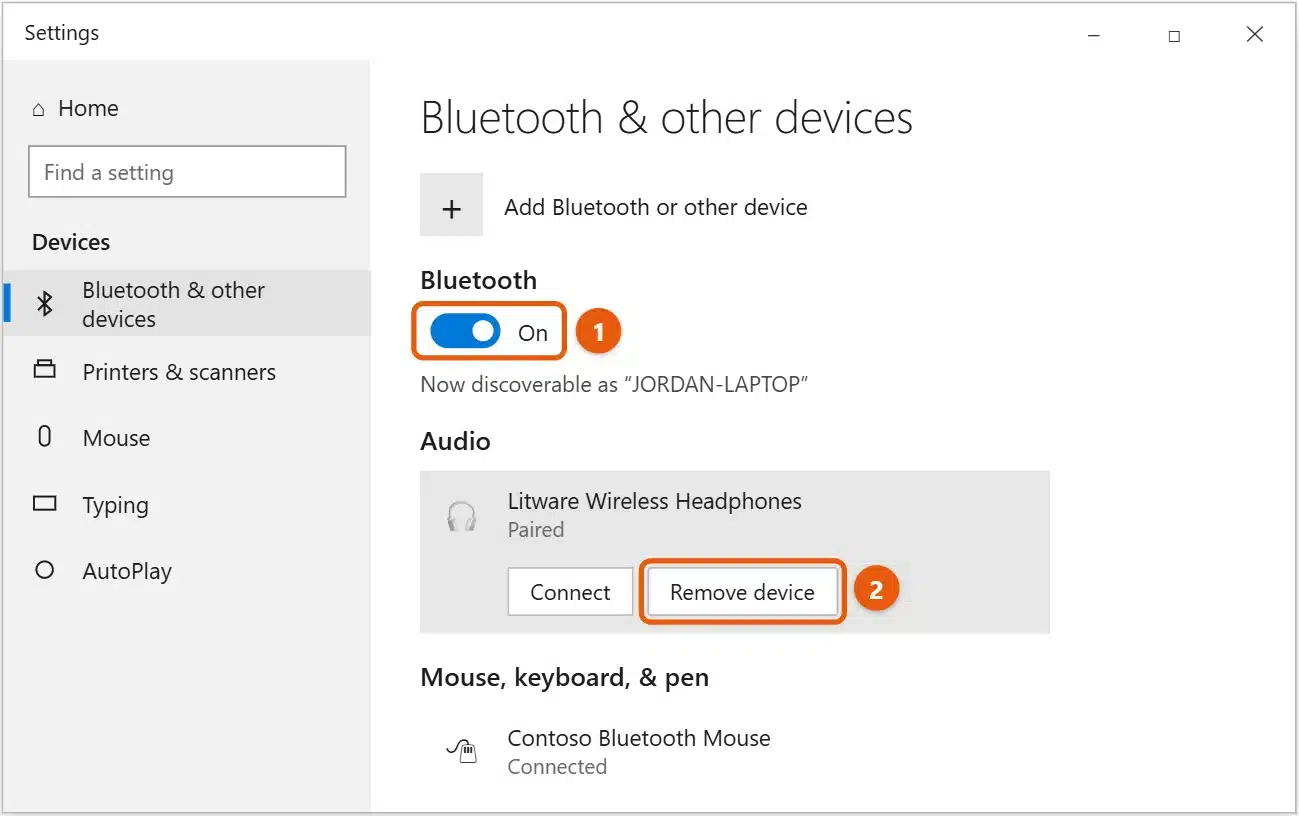
If there’s no Bluetooth switch at all, skip to fix 7 below. You can also check the Bluetooth tile in action center (the speech-bubble icon at the right end of the taskbar). Laptops with a physical wireless switch need that switch on too.
2. Turn airplane mode off
Select Start > Settings > Network & Internet > Airplane mode, and make sure Airplane mode is Off.
3. Check the device itself
- Turn the device off, wait a few seconds, and turn it back on.
- Charge it or replace the batteries.
- Put it in pairing mode. Usually you hold the power or Bluetooth button until a light flashes. The device’s manual has the exact steps.
- Move it closer to the PC, and away from USB 3.0 drives and hubs, Wi-Fi routers, and microwaves, which can interfere with Bluetooth.
- Disconnect it from your phone or other devices. Many headphones only connect to one device at a time.
4. Turn Bluetooth off and on
In Bluetooth & other devices, turn Bluetooth off, wait a few seconds, then turn it back on. Restarting the PC does the same thing more thoroughly.
5. Remove the device and pair it again
A stuck pairing is one of the most common causes.
- In Bluetooth & other devices, select the device, then Remove device > Yes.
- Put the device in pairing mode.
- Select Add Bluetooth or other device > Bluetooth, choose the device, and follow the prompts. If it asks for a PIN, try
0000or check the device’s manual.
6. Restart the Bluetooth Support Service
- Press Windows + R, type
services.msc, and press Enter. - Right-click Bluetooth Support Service and select Restart. If it’s stopped, select Start.
- Double-click it and make sure Startup type is Automatic or Manual, not Disabled.
7. Update or reinstall the Bluetooth driver
An outdated or damaged driver is a frequent cause, especially after a Windows update.
- Right-click Start and select Device Manager.
- Expand Bluetooth, and right-click your Bluetooth adapter. Its name often includes “Bluetooth” or “Wireless,” and sometimes “radio.”
- Select Update driver > Search automatically for drivers, and restart if asked.
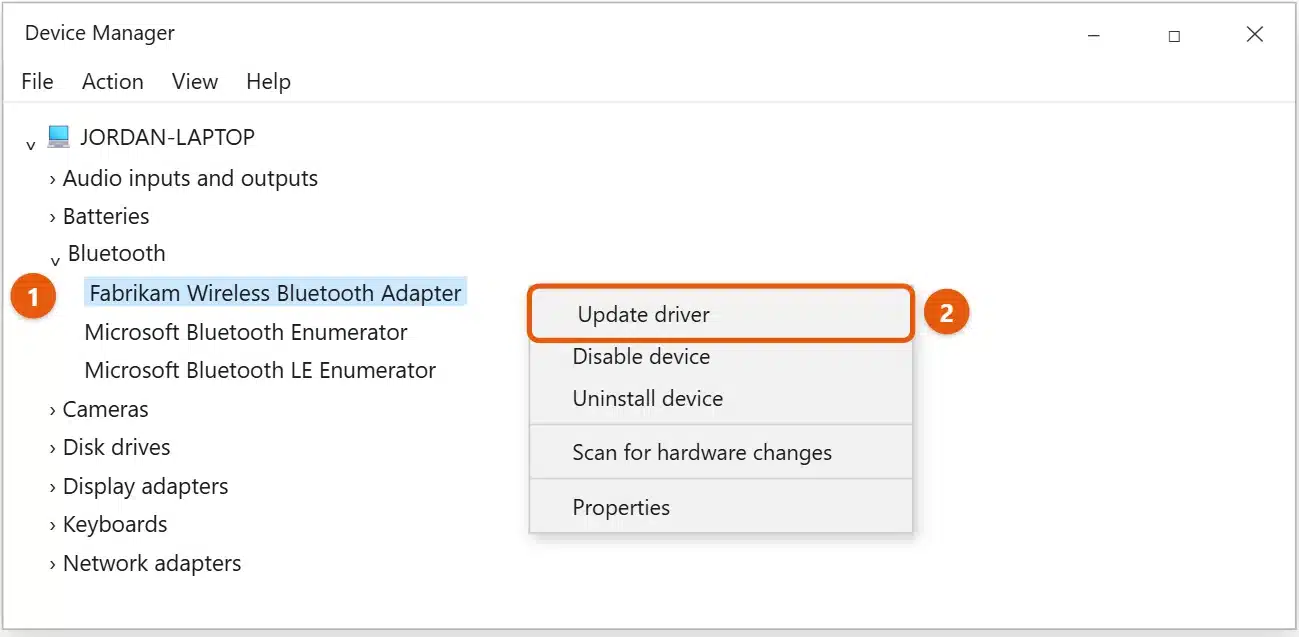
If Windows doesn’t find a newer driver, download the latest Bluetooth driver from your PC or motherboard maker’s support site. If the adapter shows a yellow warning icon, see how to reinstall the Bluetooth driver in Windows 10.
8. Stop Windows turning Bluetooth off to save power
If Bluetooth drops out after the PC sleeps:
- In Device Manager, right-click your Bluetooth adapter and select Properties.
- On the Power Management tab, clear Allow the computer to turn off this device to save power.
- Select OK.
9. Run the Bluetooth troubleshooter
Select Start > Settings > Update & Security > Troubleshoot. Under Additional troubleshooters (called Find and fix other problems on some versions), select Bluetooth, then Run the troubleshooter. On newer Windows 10 updates, the troubleshooter opens in the Get Help app instead.
10. Fix audio problems with Bluetooth headphones
- Connected, but no sound: open Settings > System > Sound and choose the headphones under Choose your output device.
- Sound is poor or muffled during calls: Windows switches to a Hands-Free mode when the microphone is in use. Pick the Stereo or Headphones version of the device as your output when you only want to listen.
- Sound lags behind the video: see how to fix sound delay on Bluetooth headphones in Windows 10.
Still not working?
- The Bluetooth switch is missing: your PC may not have Bluetooth. See how to check if a laptop has Bluetooth in Windows 10, or add a USB Bluetooth adapter.
- Only one device fails: test it with a phone. If it fails there too, the problem is the device, not Windows.
- It broke after a Windows update: in Device Manager, open the adapter’s Properties, and on the Driver tab select Roll Back Driver if it’s available.
Frequently asked questions
Why does my Bluetooth keep disconnecting?
The usual causes are distance, interference, a low battery, or power saving turning the adapter off. Try fixes 3 and 8 first.
Can I connect two Bluetooth headphones at once?
Windows 10 normally plays sound through one Bluetooth audio device at a time (the one set as the default audio device). There’s a workaround in how to play 2 Bluetooth speakers at once on Windows 10.
Is Windows 10 still supported?
Windows 10 reached end of support on October 14, 2025, and newer Bluetooth devices may not get Windows 10 drivers. See how to enroll in Windows 10 Extended Security Updates if you plan to keep using it.
To update or reinstall the driver, see how to update the Bluetooth driver in Windows 10.
To turn Bluetooth on or pair a new device, see how to turn on Bluetooth in Windows 10.
To pair wireless earbuds, see how to connect AirPods to Windows 10. The steps work for most earbuds.
On Windows 11, if Bluetooth headphones sound muffled when the mic is in use, see how to disable hands-free audio in Windows 11.
Microsoft’s guide is Fix Bluetooth problems in Windows. More help is on our Windows Help & Guides page.
Related: how to send files from iPhone to Windows 10.

Matt Jacobs has been working as an IT consultant for small businesses since receiving his Master’s degree in 2003. While he still does some consulting work, his primary focus now is on creating technology support content for SupportYourTech.com.
His work can be found on many websites and focuses on topics such as Microsoft Office, Apple devices, Android devices, Photoshop, and more.