Press F11 to make your browser or File Explorer fill the whole screen. Press F11 again to go back. To make any other window as big as possible, press Windows logo key + Up arrow or double-click its title bar.
Applies to: Windows 11. Checked against Microsoft Support on September 29, 2026.
Full screen or maximized?
- Maximized makes a window as big as the screen, but the taskbar and the window’s title bar stay visible. Every app can do this.
- Full screen hides the taskbar and toolbars so only the content shows. Browsers, File Explorer, video players and games support it.
Go full screen in Microsoft Edge or another browser
- Press F11.
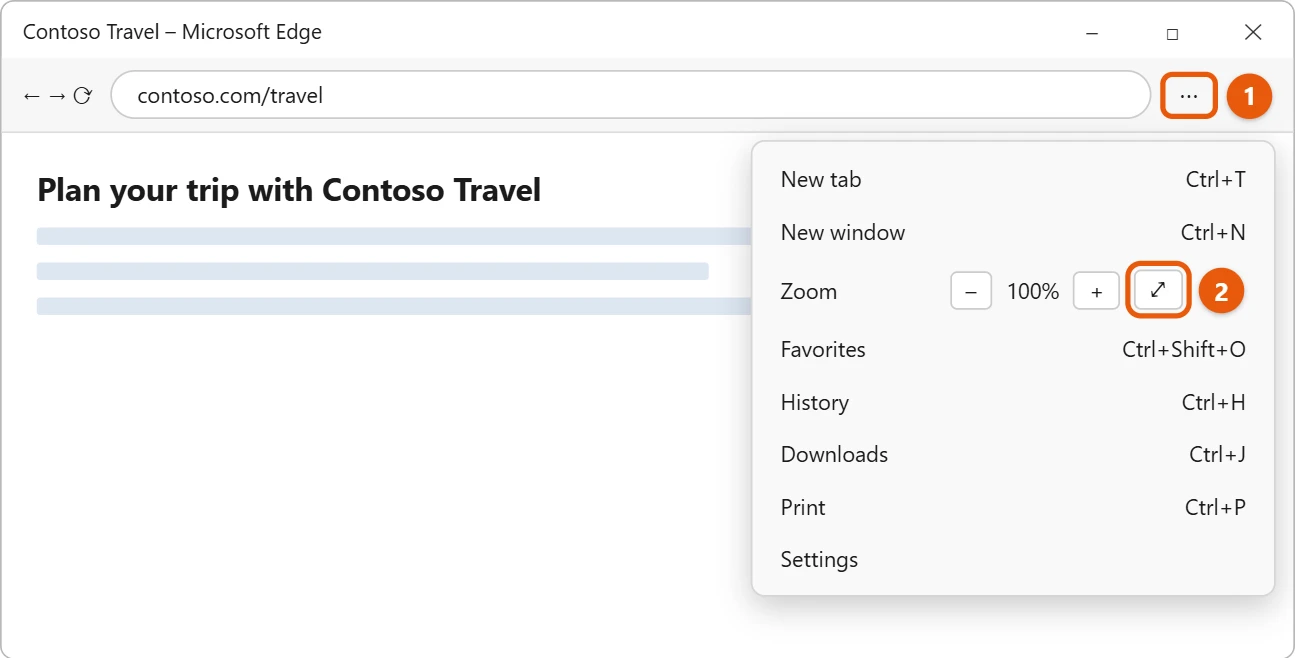
- Or select Settings and more (…) in Edge, then select the Full screen button next to Zoom.
On a laptop, you may need to hold Fn while pressing F11.
Exit full screen
- Press F11 again, or Esc in videos and some apps.
- In a browser, move the pointer to the top of the screen and select the X that appears.

Maximize any window
- Press Windows logo key + Up arrow.
- Double-click the window’s title bar.
- Select the Maximize button (the square) in the top-right corner.
Press Windows logo key + Down arrow to restore the window to its earlier size.
Full screen in videos and games
- Videos: select the full screen button in the player, usually in the bottom-right corner, or double-click the video.
- Games: most games have a Display mode or Full screen option in their settings. Many also switch with Alt + Enter.
Full screen in other apps
- Microsoft Store apps: many apps from the Store go full screen with Windows + Shift + Enter. Press it again to go back.
- File Explorer: press F11 to hide the taskbar and give the folder the whole screen.
- Word: select View > Focus to hide everything except your document. Press Esc to leave.
- PowerPoint: press F5 to start the slide show from the beginning, or Shift + F5 to start from the current slide.
Full screen in Terminal, Remote Desktop, and virtual machines
- Windows Terminal and Command Prompt: press F11 or Alt + Enter. Press it again to go back.
- Remote Desktop Connection: press Ctrl + Alt + Break to switch between full screen and a window. You can also choose the display size on the Display tab before you connect.
- Hyper-V: in the Virtual Machine Connection window, press Ctrl + Alt + Break, or select View > Full Screen Mode.
- VirtualBox: press the host key (usually Right Ctrl) + F.
Game display modes explained
Most PC games offer two or three display options. Picking the right one fixes most full-screen problems:
- Fullscreen (exclusive): the game takes over the display. It can be slightly faster, but switching away with Alt + Tab may be slow or flicker.
- Borderless window (or Fullscreen windowed): looks full screen but runs as a window. Switching apps and using a second monitor is smooth. This is the best choice for most people.
- Windowed: the game runs in a normal window you can resize.
To stop pop-ups from interrupting a full-screen game or video, select the clock on the taskbar and turn on Do not disturb.
Get a full-screen feel in any app
For apps without a full-screen mode, maximize the window and hide the taskbar. Go to Settings > Personalization > Taskbar, expand Taskbar behaviors, and check Automatically hide the taskbar. The taskbar slides away until you move the pointer to the bottom of the screen.
If F11 doesn’t work
- The function keys are set to media controls. Many laptops make F11 change volume or brightness by default. Hold Fn and press F11, or press Fn + Esc (on many laptops) to lock the function keys.
- The app doesn’t support it. F11 only works in apps that have a full screen mode. Maximize the window instead and turn on taskbar auto-hide.
- The taskbar still shows over a full-screen video. Restart File Explorer: press Ctrl + Shift + Esc, right-click Windows Explorer, and select Restart.
- A game has black bars on the sides. The game is using a different resolution or shape than your screen. Set the game’s resolution to match the one in Settings > System > Display.
Frequently asked questions
Why can I still see the taskbar?
The window is maximized, not full screen. Use F11 in apps that support it, or turn on auto-hide. See how to hide the taskbar in Windows 11.
Can I see two apps at once instead?
Yes. See how to split screen in Windows 11.
How do I make an app always open maximized?
Right-click the app’s desktop shortcut, select Properties, set Run to Maximized, and select OK. Most apps also remember their size from the last time you closed them.
Can I go full screen on a second monitor?
Yes. Drag the window to the other screen first, or press Windows + Shift + Left arrow or Right arrow to move it there. Then press F11 or use the app’s full screen button. Full screen fills whichever monitor the window is on.
Is there a keyboard shortcut to minimize everything?
Press Windows + D to show the desktop. Press it again to bring the windows back.
Does full screen work the same on Windows 10?
Yes. F11, Windows + Up arrow, and Alt + Enter in games all work the same way in Windows 10.
Games often have their own full-screen setting too. For an example, see how to make Roblox full screen on Windows 11.
Microsoft’s reference is Keyboard shortcuts in Windows. More help is on our Windows Help & Guides page.
Related: make a game full screen on Windows 11.
Related: how to go full screen on Windows 10.

Matt Jacobs has been working as an IT consultant for small businesses since receiving his Master’s degree in 2003. While he still does some consulting work, his primary focus now is on creating technology support content for SupportYourTech.com.
His work can be found on many websites and focuses on topics such as Microsoft Office, Apple devices, Android devices, Photoshop, and more.