Ever found yourself in a video call, trying to discreetly talk to someone in the room, or maybe just wanting a moment of quiet without everyone hearing your background noise? Muting your microphone on Windows 10 is a super handy skill to have, and honestly, it is pretty simple once you know where to look. You can quickly silence your mic through the system tray, dive into your sound settings, or even use specific app controls. We will walk through the most reliable ways to make sure your voice, and anything else, stays private when you need it to.
How to Mute Microphone Windows 10 Tutorial
Sometimes you just need to hit the mute button on your life, or at least on your microphone. This section will guide you through clear, simple steps to ensure your Windows 10 microphone stays silent until you are ready to speak again. We are going to tackle this head-on so you can control your audio input with confidence.
Step 1: Right-click the Speaker Icon
First things first, look at the bottom-right corner of your screen, right next to the clock. You will see a small speaker icon there. Take your mouse, move it over that speaker, and click the right mouse button. This action will pop up a small menu with several options for your sound.
This speaker icon is your quick access point for all things audio on your computer. Think of it as the main switchboard for your sound devices, letting you access important settings without digging through the control panel. Getting comfortable with this icon is a huge step in managing your audio experience.
Step 2: Select “Open Sound settings”
In the menu that appears after you right-click, you should see an option labeled “Open Sound settings.” Go ahead and click on this option. It will open up a new window specifically dedicated to all the sound inputs and outputs on your Windows 10 machine.
This “Sound settings” window is where all the magic happens for controlling your microphones, speakers, and other audio devices. It gives you a complete overview and control panel for what your computer hears and what it plays out. It is a central hub for managing all your audio hardware.
Step 3: Find your Input Device
Once the Sound settings window is open, look for a section titled “Input.” Underneath this, you should see a dropdown menu or a list that shows your active microphone, often labeled as “Microphone (Realtek High Definition Audio)” or something similar depending on your computer. Make sure the correct microphone you want to mute is selected or highlighted here.
It is important to identify the exact microphone you want to silence, especially if you have more than one connected, like a headset mic and a built-in laptop mic. Picking the right device ensures you mute the one actually picking up sound, preventing accidental audio leaks.
Step 4: Click “Device properties”
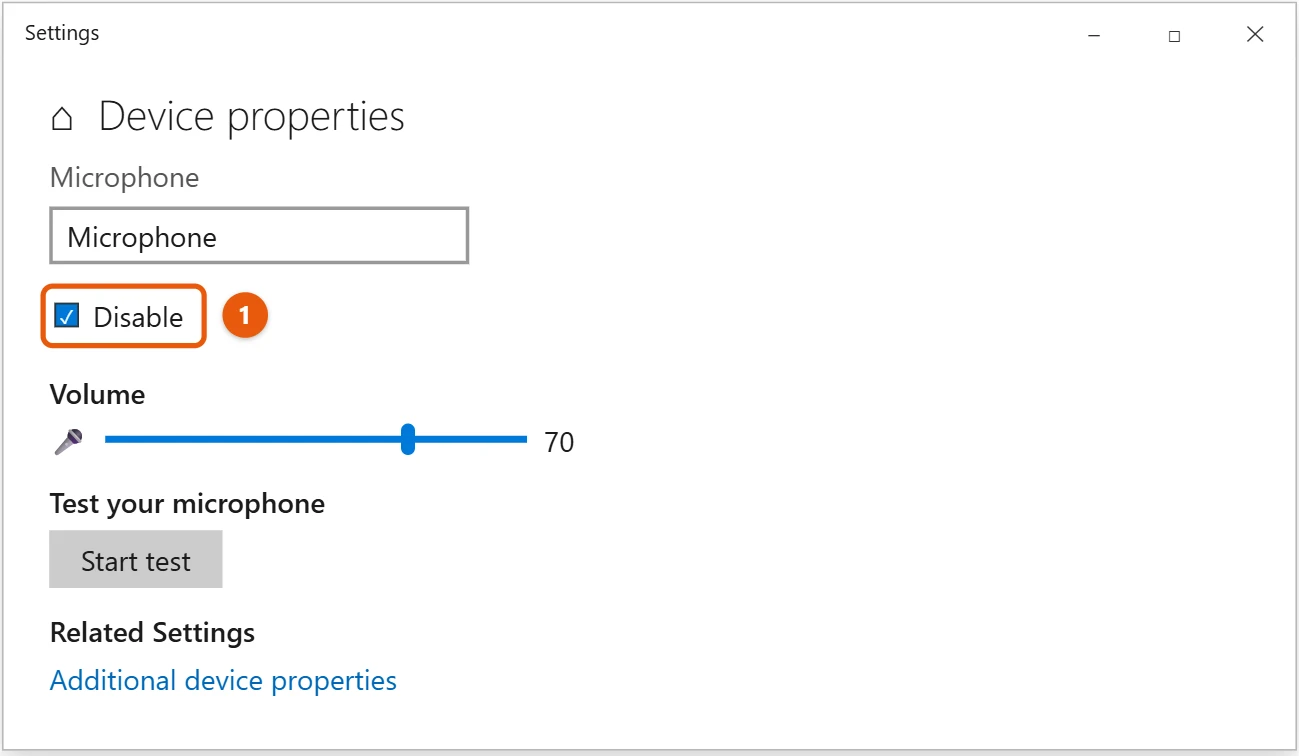
After you have selected your microphone, you will see a button nearby, usually right below the input section, that says “Device properties.” Click this button to open a new window with more detailed settings for your chosen microphone. This is where we will find the specific mute option.
The “Device properties” window gives you granular control over your microphone, letting you adjust things like volume levels, sound enhancements, and, of course, the mute function. It is like going from a general sound control panel to the specific settings for one particular microphone.
Step 5: Check the “Disable” or “Mute” box
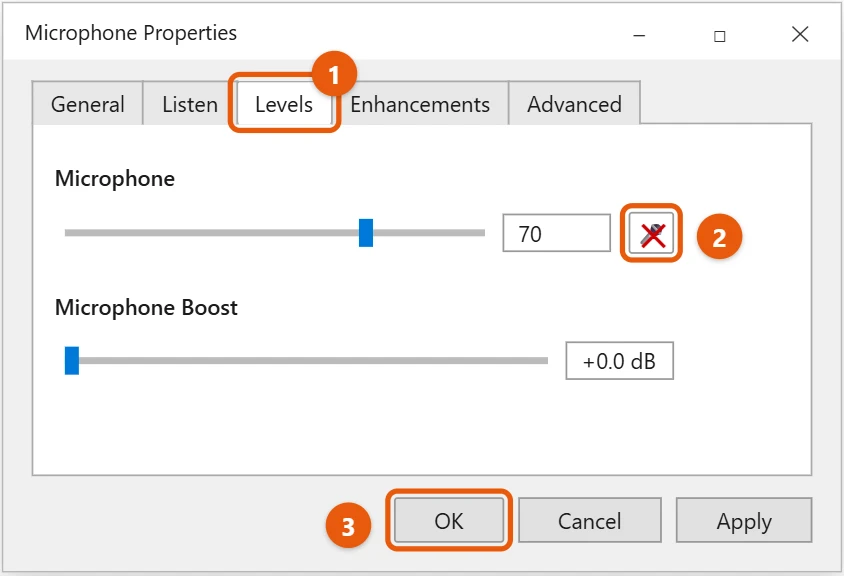
Inside the “Microphone Properties” window, navigate to the “Levels” tab. Here, you will see a volume slider for your microphone. Right next to this slider, there should be a small speaker icon. If this icon has a red circle with a line through it, your microphone is already muted. If it does not, click on that speaker icon to mute your microphone. The icon will change to show the red circle, confirming it is muted.
Clicking that speaker icon is like flipping a switch that cuts off the sound input from your microphone. When it is muted, no sound will be picked up by that device, providing you with instant privacy and silence. Remember, you can always click it again to unmute when you are ready to speak.
Once you have completed these steps, your selected microphone will no longer pick up any sound. This means when you are in a call, recording, or just chilling, no one will be able to hear what is happening on your end through that specific microphone until you decide to unmute it. It is like putting your microphone to sleep.
Tips for Muting Your Microphone on Windows 10
- Always check your application settings: Many video conferencing apps like Zoom, Teams, or Google Meet have their own mute buttons within the app itself, which can be quicker for temporary muting during a call.
- Look for a physical mute button: If you are using a headset or an external microphone, it might have a physical mute button directly on the device or its cable, offering the fastest way to mute without touching your computer.
- Use keyboard shortcuts: Some headsets or keyboards come with dedicated mute keys. Check your device’s manual or software to see if you can program a hotkey for microphone muting.
- Check the microphone privacy settings: Windows 10 lets you control which apps can access your microphone. You can find this by going to Settings> Privacy> Microphone.
- Test your mute: After muting, it is a good idea to quickly test it. Some apps will show a mute indicator, or you can try speaking and asking someone on the other end if they can hear you, just to be sure.
Frequently Asked Questions About Microphone Muting
How do I know if my microphone is truly muted?
You can usually tell if your microphone is muted by looking for a visual cue. In Windows Sound settings, the speaker icon next to the microphone volume slider will have a red circle with a line through it. Many applications, such as video conferencing tools, also display a microphone icon with a slash through it when you are muted in that app. A quick test, like recording a short voice memo or asking a friend on a call, can also confirm it.
Can I mute my microphone for specific applications only?
Yes, you absolutely can control microphone access for individual applications through Windows 10’s privacy settings. Go to Settings, then Privacy, and then select “Microphone” from the left-hand menu. Here, you will see a list of apps that have requested microphone access, and you can toggle access on or off for each one. This prevents specific apps from ever hearing you, even if your system-wide microphone is active.
What if I accidentally muted my microphone and cannot unmute it?
If you find yourself stuck with a muted microphone, revisit the “Device properties” window in Sound settings, just like we did to mute it. On the “Levels” tab, click the speaker icon next to the volume slider again. This should remove the red circle with the line through it and unmute your microphone. Also, check any physical mute buttons on your headset or external mic, as they can override software settings.
Does muting my microphone in Windows 10 stop all apps from using it?
Yes, generally, muting your microphone directly through the Windows 10 Sound settings, as described in our tutorial, will prevent all applications from receiving audio input from that specific device. It is a system-wide mute for that particular microphone. However, if you have multiple microphones, you might need to ensure you have muted the correct one.
Is there a quicker way to mute and unmute than going through settings?
Many users find that the quickest way to mute and unmute is to use the physical button on their headset or, if their external microphone has one, the button on it. Another quick method is to use the mute button directly within the app you are using, such as a video call app. While not universal, some keyboards also feature dedicated mute keys that can be incredibly convenient for instant control.
Quick Mute Summary
- Right-click speaker icon.
- Choose “Open Sound settings.”
- Select your microphone under “Input.”
- Click “Device properties.”
- Click speaker icon next to volume slider to mute.
Final Thoughts on Microphone Control
Taking control of your microphone on Windows 10 is more than just a tech trick, it is a fundamental aspect of managing your digital privacy and maintaining a sense of calm in your online interactions. Think of your microphone as a direct line into your personal space, a gateway that, if left open, can broadcast everything from your dog barking to a private conversation you are having with someone in the room. Knowing how to mute microphone Windows 10 gives you the power to close that gateway whenever you need to, ensuring that what happens in your world stays in your world, until you decide otherwise.
In an age when we are constantly connected, whether for work meetings, gaming with friends, or just catching up with family, having the ability to silence your audio input immediately is invaluable. It is not just about preventing embarrassing moments, though those definitely happen, but also about creating boundaries. Imagine being in a virtual classroom and needing to speak to a family member, or perhaps you just want to take a sip of coffee without the slurping sound being broadcast to everyone. These small acts of control add up to a much more comfortable and secure online experience.
So, do not just learn these steps and forget them. Practice them, internalize them, and make them a part of your digital habits. Explore the different ways to mute, whether through system settings, a physical button on your device, or an in-app control. Each method offers a slightly different level of convenience and control, and understanding them all will make you a master of your own audio domain. Remember, your peace of mind is worth the few seconds it takes to ensure your microphone is properly muted. Stay in control, stay private, and enjoy a quieter, more secure digital life.

Matt Jacobs has been working as an IT consultant for small businesses since receiving his Master’s degree in 2003. While he still does some consulting work, his primary focus now is on creating technology support content for SupportYourTech.com.
His work can be found on many websites and focuses on topics such as Microsoft Office, Apple devices, Android devices, Photoshop, and more.