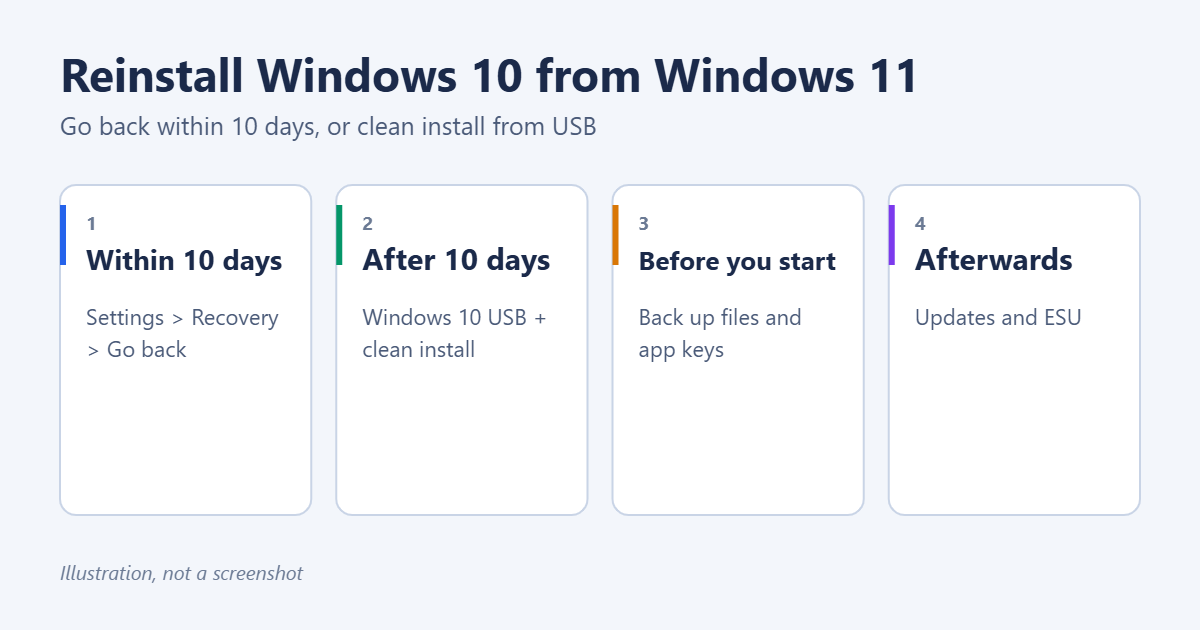
There are two ways to go from Windows 11 back to Windows 10. If you upgraded within the last 10 days, go to Settings > System > Recovery and click Go back. Windows 10 returns with your files and most apps. After 10 days, that option disappears, and the only way back is a clean install of Windows 10 from a USB drive, which erases the drive. Before you do either, remember that Windows 10 reached end of support on October 14, 2025, so it no longer gets security updates unless you enroll in Extended Security Updates. Here are both methods and what to consider first.
Should you go back?
Going back makes sense for a short-term reason, such as an essential app or device that doesn’t work on Windows 11. For most people, fixing the specific problem on Windows 11 is safer in the long run, because Windows 10 is out of support. Microsoft’s Windows 10 end of support page explains what that means. If you do go back, plan to enroll in Extended Security Updates. See how to enroll in Windows 10 ESU.
Before you start
- Back up your files to an external drive or OneDrive, even for Go back.
- Note any app license keys, and export browser bookmarks and passwords.
- Plug in a laptop and keep it on mains power throughout.
- If you set a new password or PIN after upgrading, know your old Windows 10 password. Go back restores the old sign-in.
Method 1: Go back (within 10 days of upgrading)
- Open Settings > System > Recovery.
- Under Recovery options, click Go back.
- Choose a reason, then click No, thanks when offered updates instead.
- Read the warnings, click Next, and then click Go back to Windows 10.
The PC restarts and restores Windows 10. It usually takes 15 to 60 minutes. Apps or settings you added after upgrading may need reinstalling. Microsoft explains the feature in go back to the previous version of Windows.
Why the Go back button is missing or greyed out
- More than 10 days have passed since the upgrade.
- Disk Cleanup or Storage Sense deleted the Windows.old folder or the previous Windows installation files.
- Windows 11 was installed with a clean install, not an upgrade.
In any of these cases, use Method 2.
Method 2: Clean install Windows 10 from a USB drive
This erases everything on the drive, including apps and files.
- On any PC, download the Media Creation Tool from Microsoft’s Windows 10 download page and create a Windows 10 USB drive (8 GB or more). See how to create a bootable Windows 10 USB drive. A guide to downloading Windows 10 is also available.
- Plug the USB into the PC and boot from it using the boot menu key (often F12, F9, F11 or Esc). See how to boot from USB.
- Choose your language, click Install now, and choose I don’t have a product key if the PC had Windows 10 before. It reactivates with its digital license.
- Pick the same edition you had before (Home or Pro), then choose the custom option to install Windows only.
- Delete the partitions on the main drive, select the unallocated space and click Next.
- Complete setup, then restore your files from the backup.
After reinstalling
- Run Windows Update until no more updates are found.
- Install drivers from your PC maker’s website if anything is missing.
- Enroll in Extended Security Updates.
- To stop Windows 11 from being offered again, decline the upgrade when Windows Update shows it. On Pro, you can also set a target version in Group Policy.
To move files back from your backup, see how to restore a backup to a new computer.
Alternative: reset Windows 11 instead
If Windows 11 is slow or unstable, rather than incompatible, a reset often fixes it without losing support. See how to reset Windows 11.
Summary
- Within 10 days: Settings > System > Recovery > Go back.
- After that: back up, make a Windows 10 USB drive, and clean install.
- Run Windows Update and enroll in Extended Security Updates.
Related: how to find your digital license in Windows 10.

Matt Jacobs has been working as an IT consultant for small businesses since receiving his Master’s degree in 2003. While he still does some consulting work, his primary focus now is on creating technology support content for SupportYourTech.com.
His work can be found on many websites and focuses on topics such as Microsoft Office, Apple devices, Android devices, Photoshop, and more.