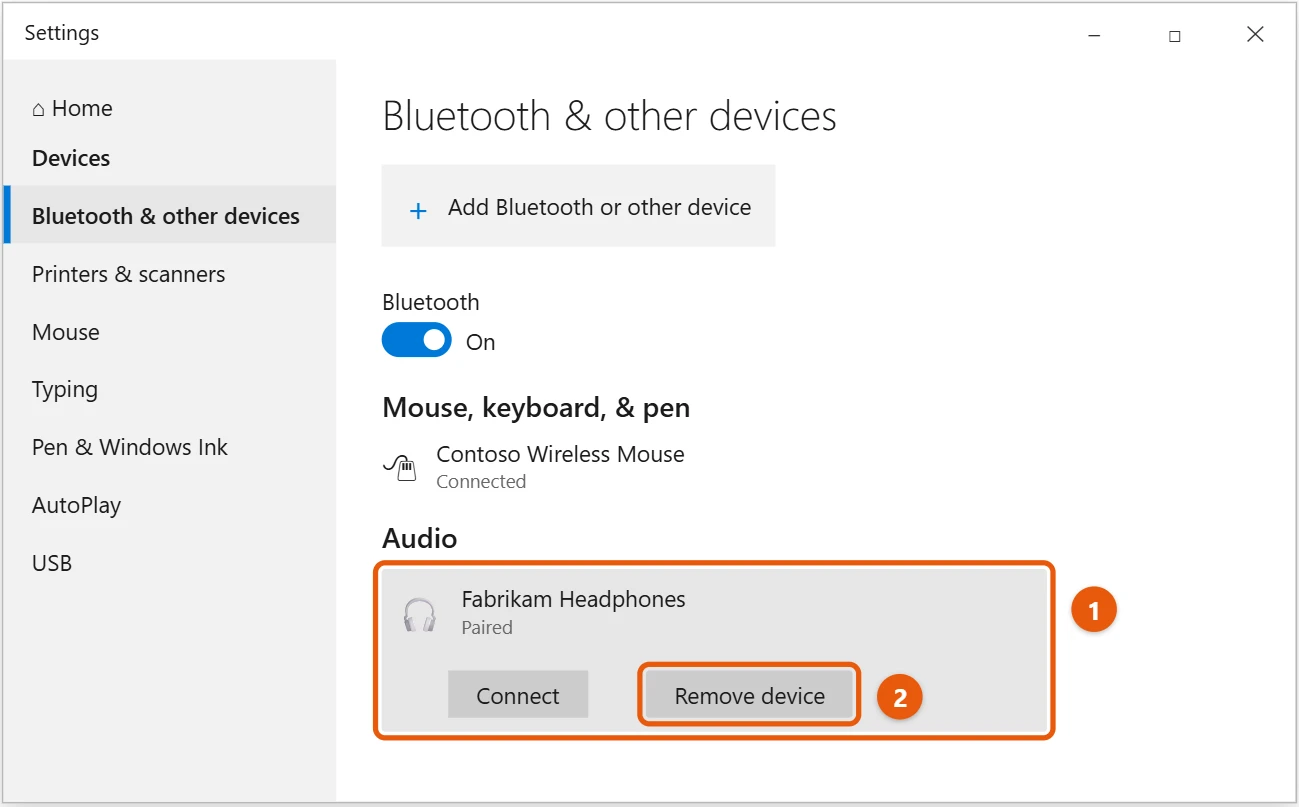
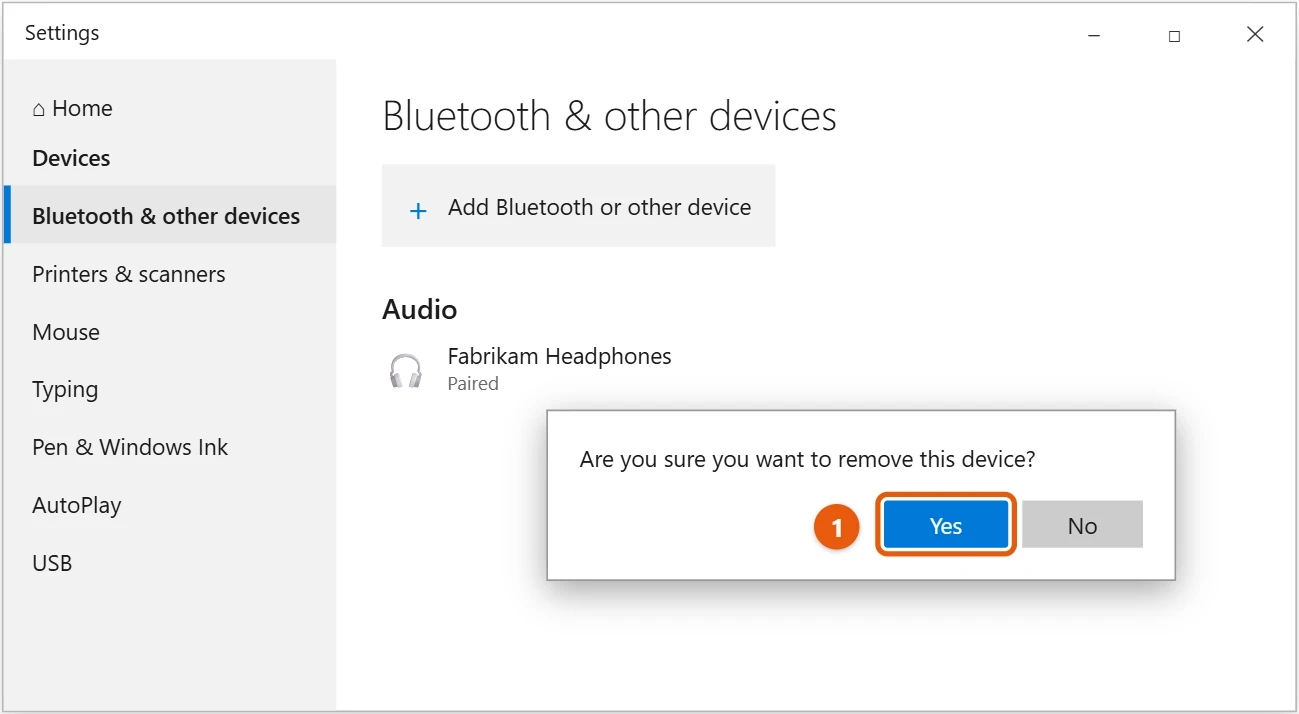
To remove a Bluetooth device in Windows 10, select Start > Settings > Devices > Bluetooth & other devices. Select the device, select Remove device, and then select Yes. The device is unpaired, so you’ll need to pair it again to use it with this PC.
Applies to: Windows 10. Checked against Microsoft Support on September 26, 2026.
Removing and pairing a device again is also one of Microsoft’s fixes for Bluetooth devices that won’t connect.
Remove a Bluetooth device
- Select Start > Settings > Devices > Bluetooth & other devices.
- Select the device you want to remove.
- Select Remove device.
- Select Yes to confirm.
Remove several devices
Windows 10 has no option to remove all Bluetooth devices at once. Repeat the steps above for each one. Devices you haven’t used in a while are usually listed as Paired rather than Connected.
If a device won’t remove
- Turn Bluetooth off and back on in Bluetooth & other devices, then try again.
- Restart the PC and try again.
- Open Device Manager (right-click Start and select Device Manager), expand Bluetooth, right-click the device, and select Uninstall device.
- Run the Bluetooth troubleshooter: Settings > Update & Security > Troubleshoot > Additional troubleshooters > Bluetooth.
Pair the device again
Put the device in pairing mode, then select Add Bluetooth or other device > Bluetooth and pick it from the list. For step-by-step help, see how to turn on Bluetooth in Windows 10 and connect a device.
Frequently asked questions
Does removing a device delete anything from it?
No. It only removes the pairing on this PC. The device keeps its settings and any other pairings.
My headphones still don’t play sound after pairing again. What now?
See how to fix no sound in Windows 10.
To pair earbuds again after removing them, see how to connect AirPods to Windows 10.
To give a device a clearer name instead, see how to rename a Bluetooth device in Windows 10.
Microsoft’s guide is Fix Bluetooth problems in Windows. More help is on our Windows Help & Guides page.

Matt Jacobs has been working as an IT consultant for small businesses since receiving his Master’s degree in 2003. While he still does some consulting work, his primary focus now is on creating technology support content for SupportYourTech.com.
His work can be found on many websites and focuses on topics such as Microsoft Office, Apple devices, Android devices, Photoshop, and more.