To rename a Bluetooth device in Windows 10, open Control Panel > Hardware and Sound > Devices and Printers. Right-click the device, select Properties, and type a new name on the Bluetooth tab. Then select Apply. The new name shows up in Settings too.
Applies to: Windows 10. Windows 10 reached end of support on October 14, 2025, and only PCs enrolled in Extended Security Updates still get security fixes, through October 12, 2027.
Rename a paired device
The device must already be paired. If it isn’t, turn on Bluetooth and connect the device first.
- Press Windows key + R, type
control printers, and press Enter. This opens Devices and Printers. - Right-click the Bluetooth device and select Properties.
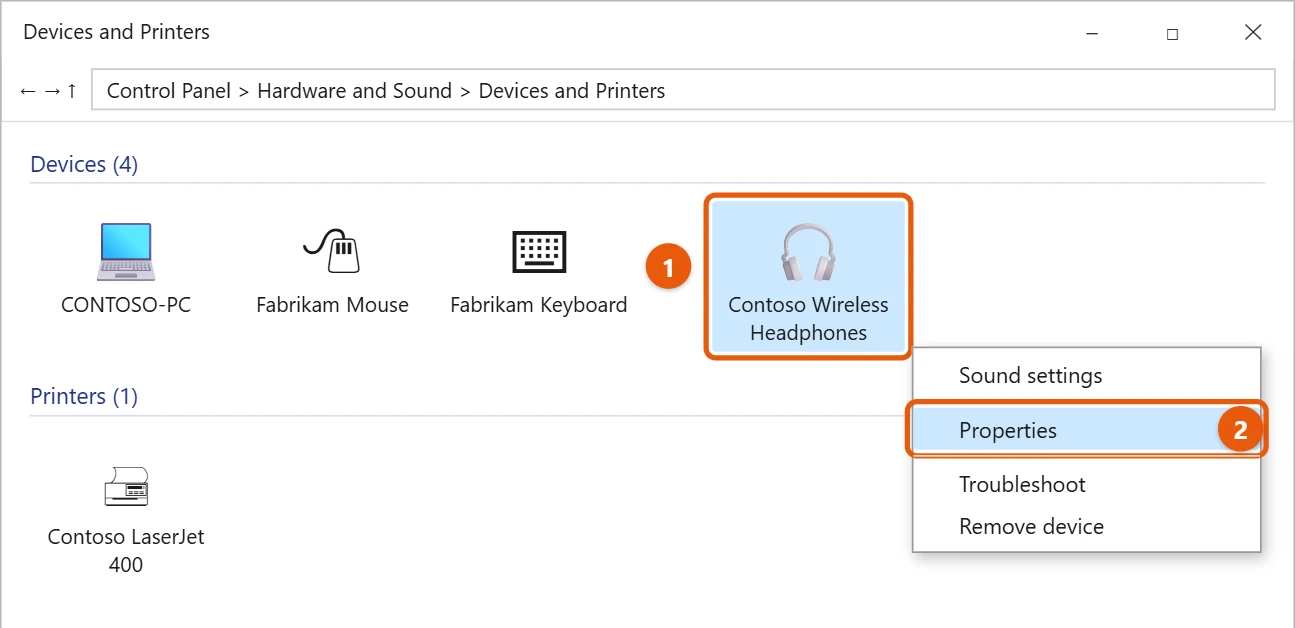
- Select the Bluetooth tab.
- Type the new name in the box at the top.
- Select Apply, then OK.
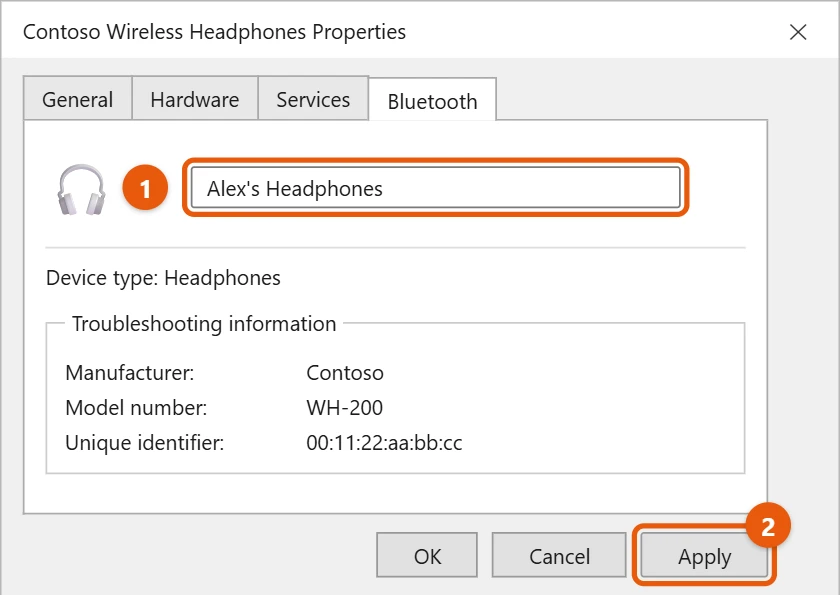
If the old name comes back, turn the device off and on, or turn Bluetooth off and on in Settings > Devices > Bluetooth & other devices. The name only changes on your PC. Other phones and PCs still see the name the device gives itself.
Rename Bluetooth speakers or headphones in the sound list
Renaming in Devices and Printers doesn’t always change the name in your sound output list. To change that name too:
- Right-click the speaker icon on the taskbar and select Sounds.
- On the Playback tab, select your Bluetooth headphones or speaker, then select Properties.
- On the General tab, type a new name in the box at the top and select OK.
Do the same on the Recording tab if the device has a microphone. This is handy when you have two of the same headphones and need to tell them apart.
Change the name every device sees
Windows can only change the name on your PC. Some headphones, speakers, and earbuds let you change the name they broadcast in the maker’s phone app. That new name then shows up on every phone and PC that pairs with them.
Change your PC’s Bluetooth name
Other devices see your PC by its computer name. To change it, select Start > Settings > System > About, select Rename this PC, and restart. More detail is in changing your PC name in Windows 10.
If renaming doesn’t work
- There’s no Bluetooth tab in Properties. Some devices don’t support renaming there. Try renaming its entry in the Sound control panel instead, as shown above.
- The old name came back. Removing and pairing the device again resets its name. Rename it again after you pair.
- The name changed but an app still shows the old one. Close and reopen the app, or restart the PC.
- The device isn’t in Devices and Printers. The list can take a few seconds to load. If the device still isn’t there, it isn’t paired with this PC yet, so pair it first.
Frequently asked questions
Why can’t I rename it in Settings?
Windows 10 Settings doesn’t have a rename option for Bluetooth devices. Use Devices and Printers instead.
How do I remove a Bluetooth device?
The steps are in removing a Bluetooth device in Windows 10.
My Bluetooth device isn’t showing up. What should I do?
Work through fixing Bluetooth problems in Windows 10.
Can I rename a Bluetooth mouse or keyboard?
Yes, the same way. Open Devices and Printers, right-click the mouse or keyboard, select Properties, and change the name on the Bluetooth tab if it has one.
Will renaming a device affect how it connects?
No. Windows still recognizes the device by its hardware address, not its name. It pairs, connects, and works exactly as before.
How do I get the original name back?
Remove the device in Settings > Devices > Bluetooth & other devices, then pair it again. Windows uses the name the device gives itself.
Why would I rename a Bluetooth device?
Renaming helps when you have two of the same model, such as two game controllers or two pairs of headphones, or when a device has a confusing name made of letters and numbers.
Pairing and PC naming are explained on Pair a Bluetooth device in Windows and Rename your Windows device.

Matt Jacobs writes and maintains the guides on Support Your Tech, which he started in 2017. He spent most of his career keeping small-business PCs running and still takes the occasional consulting job, so the steps here come from fixing the same problems on other people’s computers. Every guide is checked on his own Windows 11, Windows 10, Mac, iPhone and iPad before it goes up.