Insert the CD and open Windows Media Player Legacy. Choose a file type under Rip settings > Format (MP3 works almost everywhere), then select Rip CD. The songs are copied to your Music folder.
Applies to: Windows 11 PCs with a CD or DVD drive.
Before you start
- You need a CD or DVD drive. Many new laptops don’t have one, but a USB CD drive works.
- Stay connected to the internet so the player can fill in the album, artist and song names.
Rip the CD
- Put the music CD in the drive. A stuck tray on an HP desktop has its own fixes in opening the CD drive on an HP desktop.
- Select Start, type Windows Media Player Legacy and open it.
- Select the CD on the left. Your songs appear with a check box next to each one.
- Clear the check box for any song you don’t want to copy.
- Select Rip CD at the top.
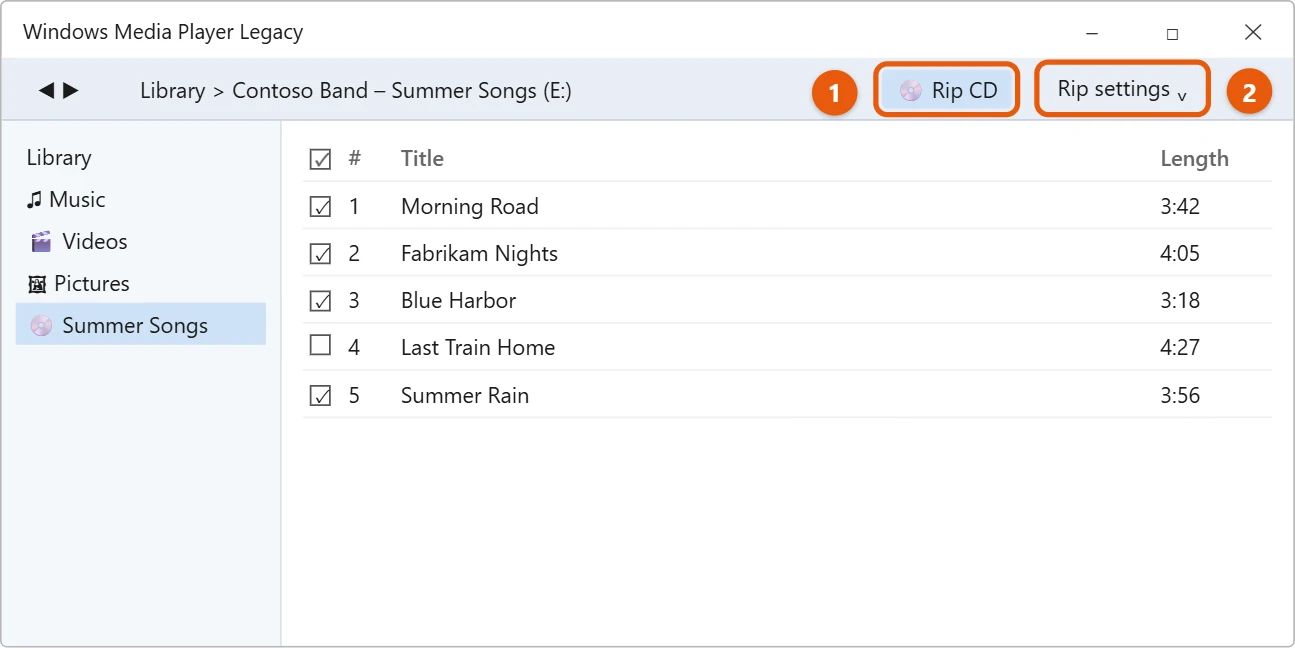
The Rip status column shows each song as it’s copied. When it says Ripped to library, you’re done.
Choose MP3 or another format
Do this before you rip.
- Select Rip settings > Format.
- Choose a format:
- MP3: plays on almost any phone, car or music player.
- Windows Media Audio: smaller files, mostly for Windows.
- WAV (Lossless) or FLAC: full CD quality, but bigger files.
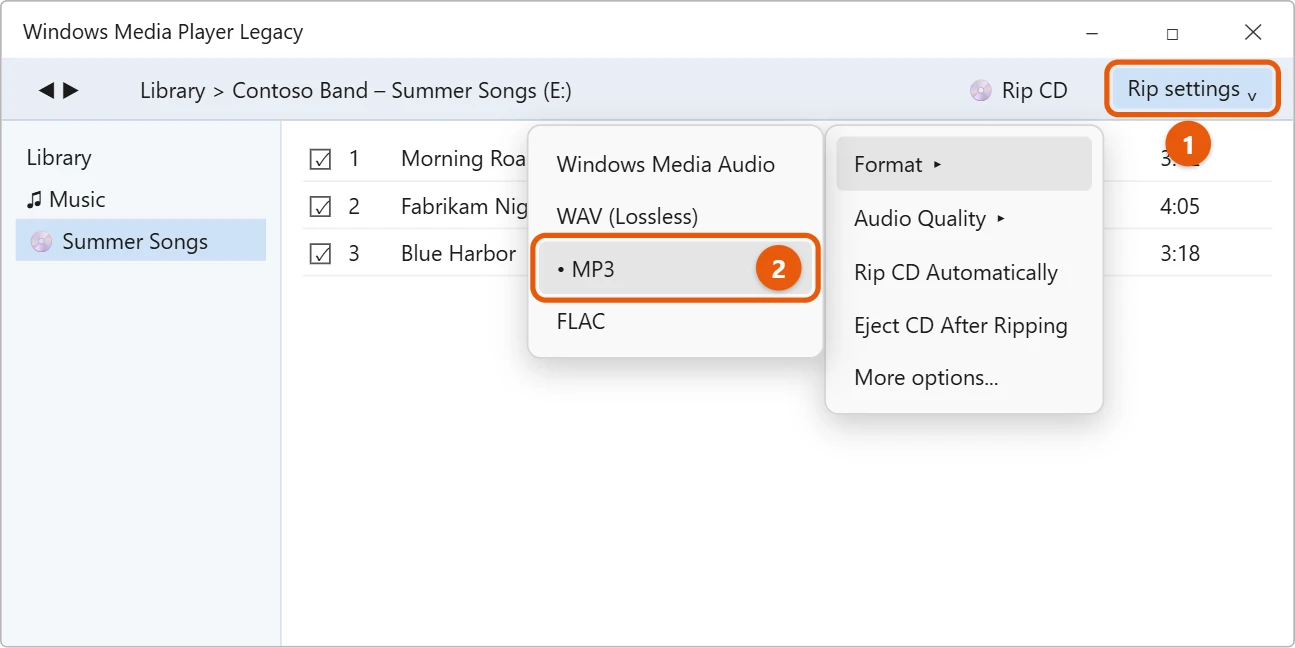
Use Rip settings > Audio Quality to pick a higher quality if you have the space.
Find the ripped songs
Open File Explorer and go to Music. Each album has its own folder, sorted by artist. The songs also show in the Media Player app.
Rip with the newer Media Player app
If you prefer the modern app, put the CD in, open Media Player, and select the CD in the left pane. Select Rip CD at the top. To choose the format first, open Settings in Media Player and pick a format, such as AAC, FLAC, ALAC, or WMA, and a bit rate. FLAC and ALAC are lossless, so they sound exactly like the CD but take more space.
Change where songs are saved and how they’re named
In Windows Media Player Legacy, select Organize > Options and open the Rip Music tab. Under Rip music to this location, select Change to pick another folder or drive. Select File Name to choose what goes in each file name, such as track number, song title, and artist, and in what order.
Rip a stack of CDs faster
If you’re copying a whole collection, open Rip settings and turn on Rip CD automatically and Eject CD after ripping. Then you only need to swap discs: each one starts copying as soon as it’s inserted and pops out when it’s done.
Other free ripping tools
Windows’ players are fine for most people. If you want error-checked copies that are verified against an online database of other people’s rips, free tools such as Exact Audio Copy or foobar2000 do that, at the cost of a more complicated setup. Download them only from their official sites.
Back up your ripped music
Once a collection is ripped, keep a second copy. Copy the Music folder to an external drive, or move it into OneDrive so it’s backed up and available on your other devices.
If ripping doesn’t work
- The songs are called Track 1, Track 2. The player couldn’t find the album online. Check your internet connection, then right-click the album and select Find album info (in Windows Media Player Legacy), or type the names yourself before ripping.
- The CD drive doesn’t appear. Open Device Manager and look under DVD/CD-ROM drives. For a USB drive, plug it straight into the PC; some need two USB ports for power.
- Ripping stops or songs skip. The disc may be scratched. Clean it with a soft cloth, wiping from the center outward. In Windows Media Player Legacy, go to Organize > Options > Devices, select the drive, choose Properties, and check Use error correction.
- Rip CD is grayed out. You may have selected a data CD or DVD rather than a music CD. Data discs are opened in File Explorer instead.
Frequently asked questions
Can the newer Media Player app rip CDs?
Yes. On current versions of Windows 11, the Media Player app can also rip CDs, as described in the Media Player section above. The main steps here use Windows Media Player Legacy.
Is it legal to rip my CDs?
Copying CDs you own for your own use is allowed in many places, but the rules vary. Don’t share the files.
How do I do this on Windows 10?
The Windows 10 steps are in copying a CD to your PC in Windows 10.
How much space does a ripped CD take?
At the default MP3 or AAC quality, an album is usually around 60 to 100 MB. In a lossless format such as FLAC, expect 250 to 400 MB.
Can I rip a DVD the same way?
No. Windows Media Player only rips music CDs, and Windows 11 doesn’t include a DVD player.
Have a movie DVD instead of a music CD? Here’s how to play a DVD on Windows 11.
For burning discs as well as ripping, read Burn and rip CDs.

Matt Jacobs has been working as an IT consultant for small businesses since receiving his Master’s degree in 2003. While he still does some consulting work, his primary focus now is on creating technology support content for SupportYourTech.com.
His work can be found on many websites and focuses on topics such as Microsoft Office, Apple devices, Android devices, Photoshop, and more.