Ever wondered how to get a bit more privacy online, or access stuff that’s usually off-limits where you are? Setting up a Virtual Private Network, or VPN, on your Windows 10 computer is like giving your internet connection a secret disguise and a private tunnel. It’s not as tricky as it sounds, I promise. You just need to dive into your computer’s network settings, punch in a few details from your chosen VPN service, and then hit connect. It’s a straightforward process that lets you build a secure connection, making your online activities much more private and safe from prying eyes. Think of it as putting on an invisibility cloak for your digital self.
Tutorial – How to Set Up VPN on Windows 10
Alright, let’s get down to business. These steps will walk you through creating a VPN connection right on your Windows 10 PC, using its built-in tools. This means you won’t need any extra software to get the basic connection going. We’re essentially teaching your computer how to find and use that secure, private tunnel.
Step 1: Open your Network & Internet settings.
Click on the Start button, then select “Settings,” and from there, choose “Network & Internet.”
This is your central command center for everything related to how your computer talks to the internet. It’s where all the Wi-Fi, Ethernet, and yes, VPN, configurations live. You can think of it as the main switchboard for your PC’s online life.
Step 2: Select “VPN” from the left menu.
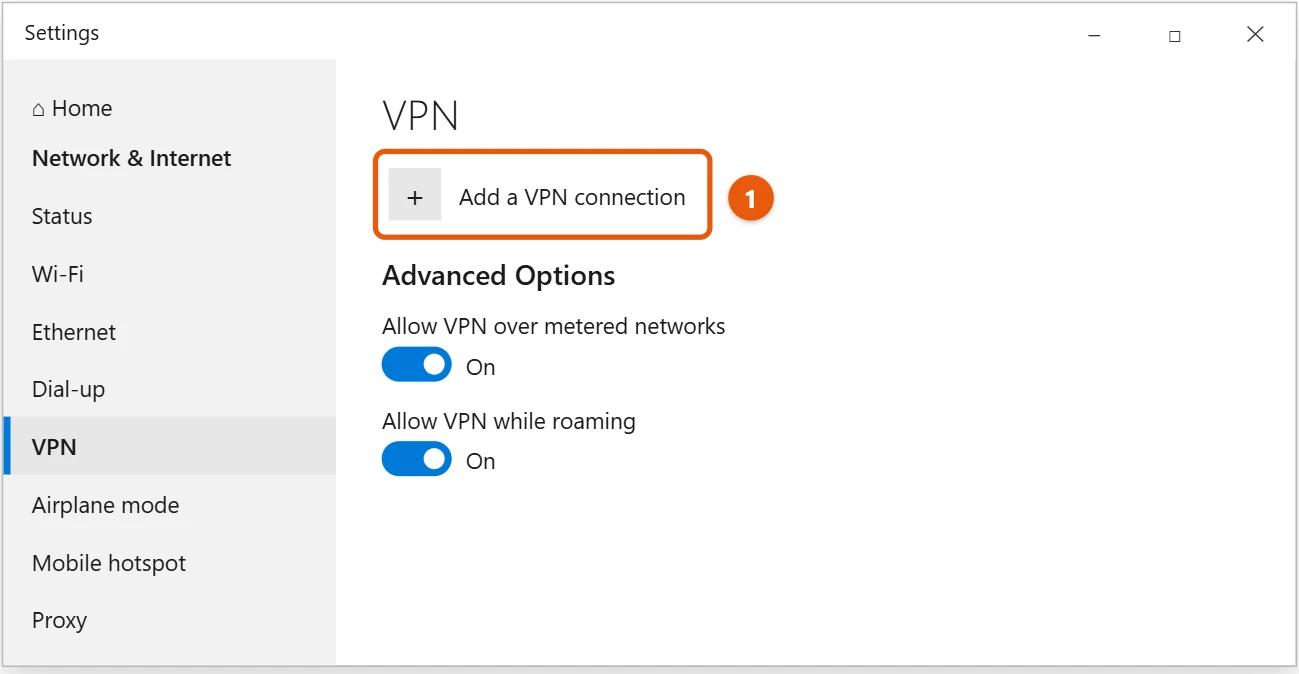
Once you are in the Network & Internet settings, look to the left side and click on the “VPN” option.
This section is dedicated specifically to managing all your virtual private networks. It’s where you’ll add new connections, edit existing ones, and generally control your secure tunnels.
Step 3: Click “Add a VPN connection.”
You’ll see a button that says “Add a VPN connection” at the top of the VPN screen. Click that to begin.
You’re essentially telling Windows, “Hey, I want to create a new secure pathway here.” This action opens a new window where you will enter all the necessary details for your VPN.
Step 4: Fill in the VPN connection details.
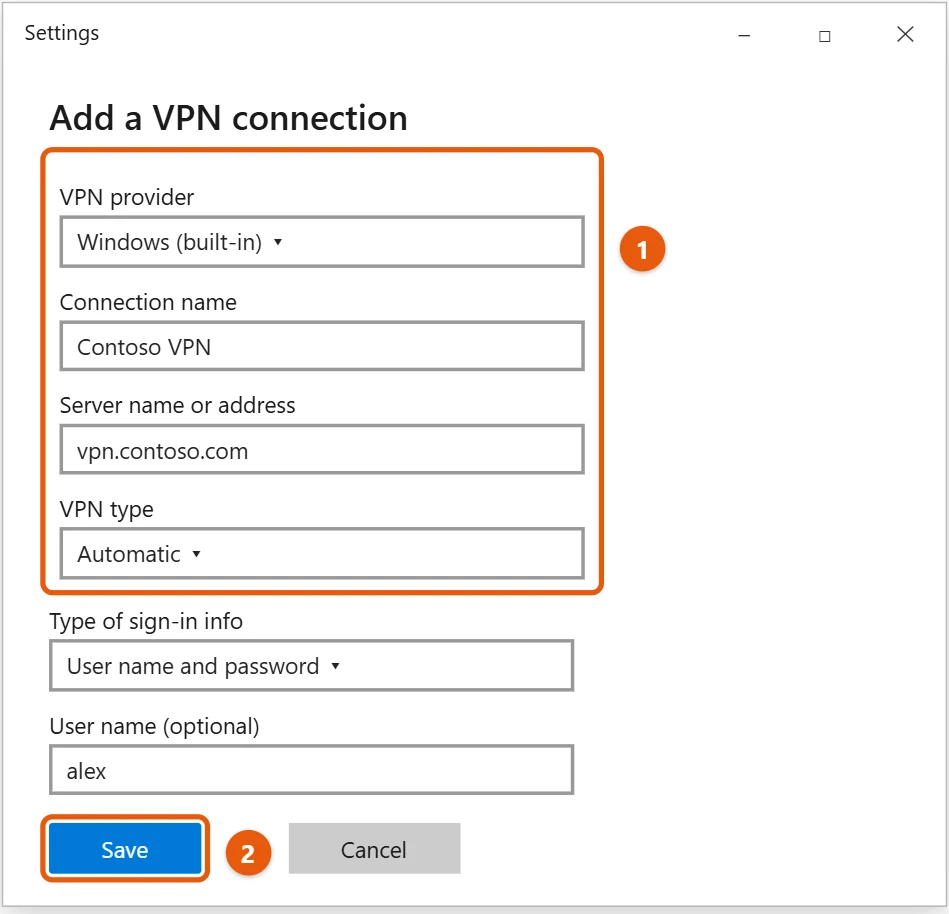
In the pop-up window, you’ll need to input specific information provided by your VPN service, including the VPN provider, connection name, server address, and VPN type.
This step is super important, and you’ll need to get these details directly from your VPN service provider. They’re like the address and secret knock for your private tunnel. For “VPN provider,” you’ll usually select “Windows built-in.” Then give your connection a memorable “Connection name,” such as “My Secure VPN.” The “Server name or address” is a crucial piece of information that your provider provides. For “VPN type,” you might choose “Point to Point Tunneling Protocol (PPTP),” “L2TP/IPsec with pre-shared key,” or “IKEv2,” depending on what your service supports and recommends for built-in connections.
Step 5: Enter your username and password.
For the “Type of sign-in info,” select “Username and password,” then enter the credentials your VPN provider gave you.
These are your personal keys to the secure tunnel. Without them, you can’t get in. Make sure you type them in exactly as your provider gave them to you, paying attention to any capitalization or special characters.
Step 6: Save the connection.
After you’ve filled in all the details, click the “Save” button to create your VPN profile.
This action tells your computer to remember all the settings you just put in, so you don’t have to re-enter them every time. It’s like bookmarking the location of your secret tunnel for future use.
Step 7: Connect to your VPN.
Go back to the VPN settings screen, click on your newly created VPN connection, and then click the “Connect” button.
Now you’re initiating the connection process. Windows will try to establish the secure tunnel using the details you provided. Once it’s connected, you’ll see a “Connected” status, and your internet traffic will start flowing securely through the VPN.
After you successfully connect to your VPN, all your internet traffic, from browsing websites to sending emails, will be encrypted and routed through the secure server of your VPN provider. This means your online activities become much more private, shielded from your internet service provider, potential hackers, and other snoops. It’s like you’ve just put on an invisibility cloak for your entire digital presence.
Tips for How to Setup VPN Windows 10
- Choose a reputable VPN provider: Not all VPNs are created equal. Opt for a well-known service with a good privacy policy and strong security features. This is like choosing a trusted guide for your secret tunnel.
- Keep your system updated: Ensure your Windows 10 operating system is always up to date. Updates often include security patches that can improve your VPN’s stability and protection.
- Understand VPN protocols: While Windows’ built-in VPN supports basic protocols like PPTP, L2TP/IPsec, and IKEv2, some dedicated VPN apps offer more advanced protocols like OpenVPN or WireGuard, which are often considered more secure. Knowing the difference helps you choose wisely.
- Verify your connection: After connecting, always double-check that your VPN is working correctly. You can do this by searching “What is my IP address” on Google before and after connecting to see if your IP address has changed to one associated with your VPN server.
- Be mindful of speed: Routing your internet traffic through an additional server can sometimes slow down your connection. If speed is critical, try connecting to a server closer to your physical location.
- Consider a kill switch: Some advanced VPN services offer a “kill switch” feature. This automatically disconnects your internet connection if the VPN connection drops, preventing any of your data from being accidentally exposed.
Frequently Asked Questions About How to Setup VPN Windows 10
Do I need a VPN service to set this up?
Yes, you generally do. Windows 10 provides the tools to connect to a VPN, but you still need an actual VPN server to connect to. Think of Windows as having a car, but you still need to buy gas and have a destination in mind provided by a service. Your VPN provider gives you the server address, username, and password.
Is the built-in Windows VPN secure enough?
It depends on what you’re trying to protect and the specific protocol you choose. While convenient, built-in options often support older protocols like PPTP, which are no longer considered the most secure. For top-tier security and privacy, many people prefer dedicated VPN client software, which typically uses more robust protocols like OpenVPN or WireGuard. It’s like choosing between a basic lock and a high-tech security system.
Can I use this setup to access geo-restricted content?
Absolutely, yes. If your VPN service has servers in the region where the content you want to access is available, connecting to one of those servers will make it appear as if you are browsing from that location. This effectively “teleports” your internet presence, allowing you to bypass geographical restrictions.
Why is my internet slower with a VPN?
Routing your internet traffic through an additional server, especially one that’s far away, and encrypting it all, naturally adds a bit of overhead to your connection. This extra step can slightly reduce your internet speed. It’s a trade-off for the enhanced privacy and security you gain.
What if my VPN connection keeps dropping?
A constantly dropping VPN connection can be frustrating, but there are a few common culprits. It could be an unstable internet connection on your end, interference from your firewall or antivirus software, or even issues with the VPN server itself. Try restarting your router, temporarily disabling your firewall (with caution), or contacting your VPN provider’s support team. Sometimes, switching to a different VPN protocol in your settings can also help stabilize the connection.
Summary
- Open Network & Internet settings.
- Go to the VPN section.
- Add a new VPN connection.
- Enter VPN details from your provider.
- Input your username and password.
- Save the connection.
- Connect to your VPN.
Conclusion
So, there you have it, setting up a VPN on your Windows 10 machine isn’t some dark art reserved for tech wizards. It’s a straightforward process that puts powerful online privacy and security tools right at your fingertips. By following the steps we’ve laid out, you’re not just configuring a piece of software; you’re actively taking control of your digital footprint, deciding who can see your online activities and who can’t. Think of it as putting a sturdy, opaque shield around your internet connection to keep your personal data personal.
The beauty of Windows 10’s built-in VPN capability is its simplicity. You don’t need to download extra programs or navigate complex installations to get a basic, functional VPN up and running. This means more people can access a fundamental layer of online protection without feeling overwhelmed. However, it’s worth remembering that while the built-in option is a great starting point, dedicated VPN client applications often offer more advanced features, stronger encryption protocols, and a wider selection of servers. They can be like upgrading from a basic lock to a state-of-the-art home security system.
Choosing a reputable VPN provider is paramount. They are the guardians of your digital tunnel, so you want to pick one you can trust. Do your homework, read reviews, and check their privacy policies. A good provider will be transparent about their practices and offer reliable support. Once you’re connected, you’ll quickly notice the peace of mind that comes with knowing your online adventures are more secure. Whether you’re worried about public Wi-Fi security, want to protect your browsing from your internet service provider, or just need to access content from another region, a VPN is your ally.
Understanding how to setup VPN Windows 10 truly empowers you. It’s a foundational skill in today’s interconnected world, much like learning to lock your front door in the physical world. It’s not just for the super security-conscious, but for anyone who values their online space and wants to ensure their data isn’t freely available to anyone looking. So, go ahead, give it a try. Experience the freedom and security that a VPN brings, and take that essential step towards a more private online life. The internet is a vast place, and with a VPN, you can explore it with confidence and peace of mind.

Matt Jacobs has been working as an IT consultant for small businesses since receiving his Master’s degree in 2003. While he still does some consulting work, his primary focus now is on creating technology support content for SupportYourTech.com.
His work can be found on many websites and focuses on topics such as Microsoft Office, Apple devices, Android devices, Photoshop, and more.