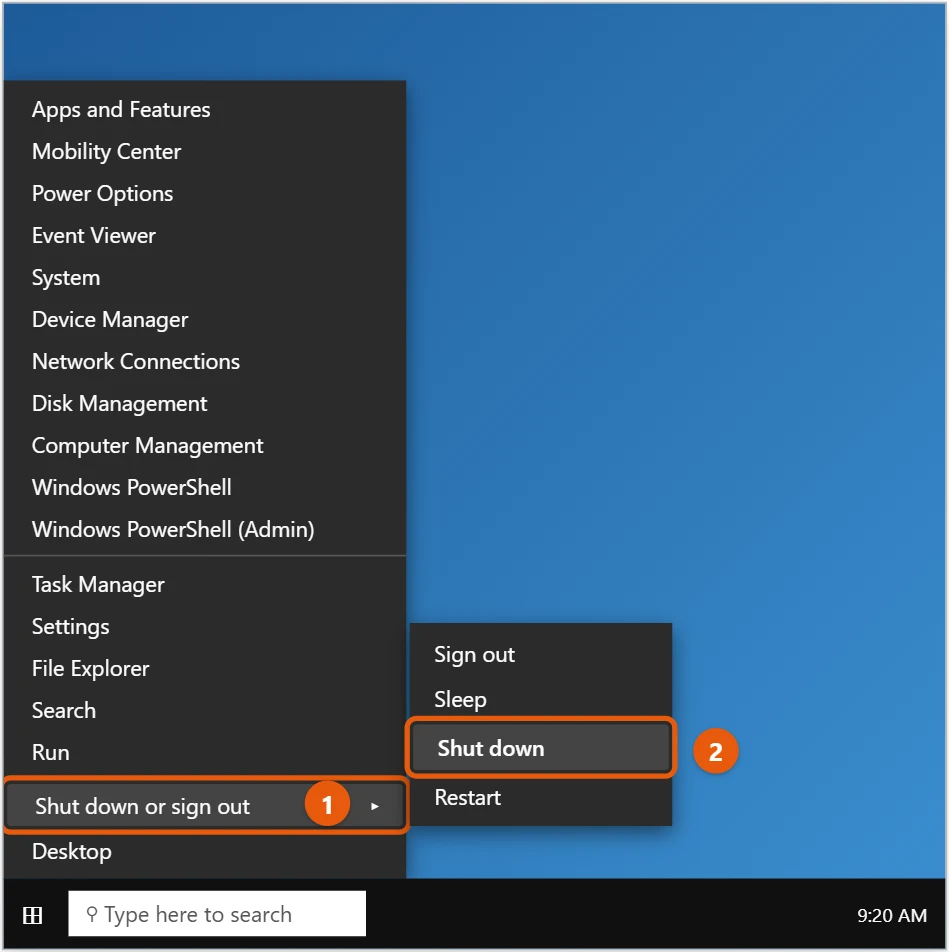
To shut down Windows 10, select Start > Power > Shut down. With the keyboard, press Windows logo key + X, then U, then U again.
Save your work first. Windows closes all open apps when it shuts down.
Applies to: Windows 10. Checked against Microsoft Support on September 25, 2026.
Select Start > Power > Shut down. If you see Update and shut down, Windows installs waiting updates first.
Shut down with the keyboard
- Windows logo key + X: opens the menu on the Start button. Press U to open Shut down or sign out, then U again for Shut down.
- Alt + F4: press Windows logo key + D to go to the desktop, press Alt + F4, make sure Shut down is selected, and press Enter.
- Ctrl + Alt + Delete: select the Power icon in the lower-right corner, then Shut down.
Do a full shutdown
Windows 10 uses fast startup, which saves part of Windows when you shut down so the PC starts faster. To turn the PC off completely, for example before changing hardware:
- Hold Shift while you select Shut down, or
- Type
shutdown /s /t 0in Command Prompt or the Run box and press Enter.
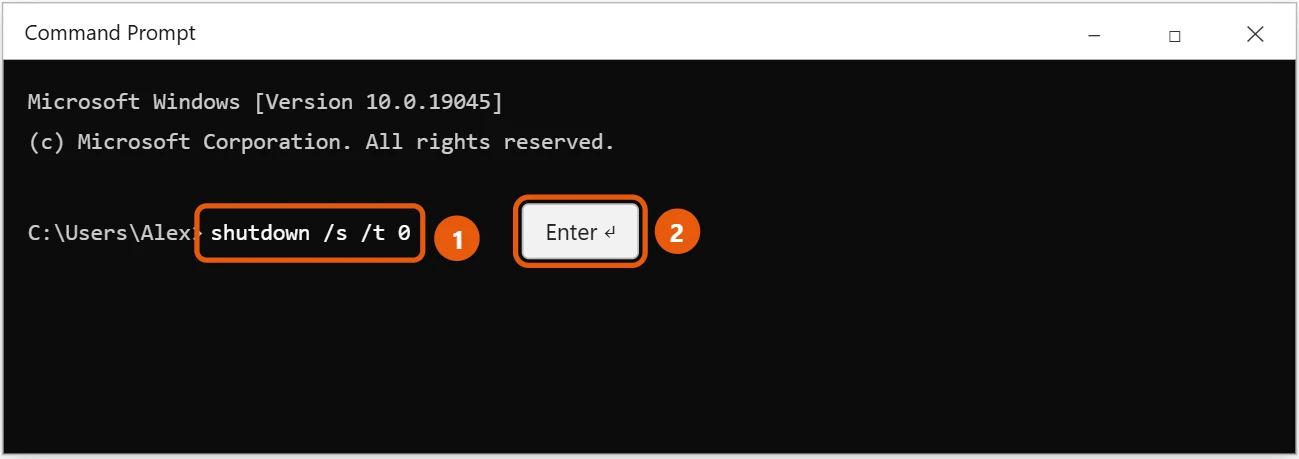
Using shutdown /r /t 0 instead restarts the PC. See how to restart Windows 10.
Schedule or cancel a shutdown
- To shut down later, type
shutdown /s /t 3600in the Run box. The number is seconds, so 3600 is one hour. - To cancel it, type
shutdown /abefore the time runs out.
Make a shutdown shortcut
- Right-click the desktop and select New > Shortcut.
- Type
shutdown /s /t 0and select Next. - Name it, for example Shut down, and select Finish. Double-click it to turn the PC off.
Other ways to shut down
- Ctrl + Alt + Delete: select the power icon in the bottom-right corner, then Shut down.
- The power button: choose what it does in Control Panel > Hardware and Sound > Power Options > Choose what the power buttons do.
Force a frozen PC off
Press and hold the power button for about 10 seconds. Unsaved work is lost, so use this only when nothing else responds.
If the PC won’t shut down properly
- It restarts instead: open Control Panel > Power Options > Choose what the power buttons do, select Change settings that are currently unavailable, clear Turn on fast startup, and save.
- It’s stuck on “Shutting down”: Windows may be finishing updates. Give it time. If nothing changes for over an hour, hold the power button.
- It always says Update and shut down: an update is waiting. Let it install, or check Settings > Update & Security > Windows Update.
Frequently asked questions
What’s the difference between shut down, sleep, and hibernate?
Shut down closes everything and turns the PC off. Sleep uses a little power and resumes right where you left off. Hibernate saves your session to the drive and uses no power. Not every PC offers hibernate.
My PC won’t shut down. What now?
Close any app that’s stuck with Task Manager, then try again. If Windows is installing updates, let it finish.
What happens to apps with unsaved work?
Windows asks them to close. If one has unsaved changes, you’ll see a screen listing it. Select Cancel to go back and save, or Shut down anyway to lose those changes.
Is it bad to leave my PC on all the time?
It won’t harm the PC, but sleep uses much less power when you’re away. Restart at least once a week so updates can finish.
To keep the screen from turning off while you work, see how to change the screen timeout in Windows 10.
If an app stops responding, see how to force close an app in Windows 10.
To turn the PC off on a timer, see how to schedule a shutdown in Windows 10.
On Windows 11, see how to fully shut down your PC in Windows 11.
On Windows 11, see how to put a power button on the taskbar.
Microsoft’s guide is Shut down, sleep, or hibernate your PC. More help is on our Windows Help & Guides page.

Matt Jacobs has been working as an IT consultant for small businesses since receiving his Master’s degree in 2003. While he still does some consulting work, his primary focus now is on creating technology support content for SupportYourTech.com.
His work can be found on many websites and focuses on topics such as Microsoft Office, Apple devices, Android devices, Photoshop, and more.