Press Windows logo key + Shift + S, then drag over the part of the screen you want. The screenshot is copied so you can paste it anywhere, and Snipping Tool saves it in your Pictures > Screenshots folder.
Applies to: Windows 11. Checked against Microsoft Support on September 29, 2026.
Take a screenshot of part of the screen
- Press Windows logo key + Shift + S. The screen dims and a small toolbar appears at the top.
- Choose a shape on the toolbar. Rectangle is the default.
- Drag over the area you want to capture.
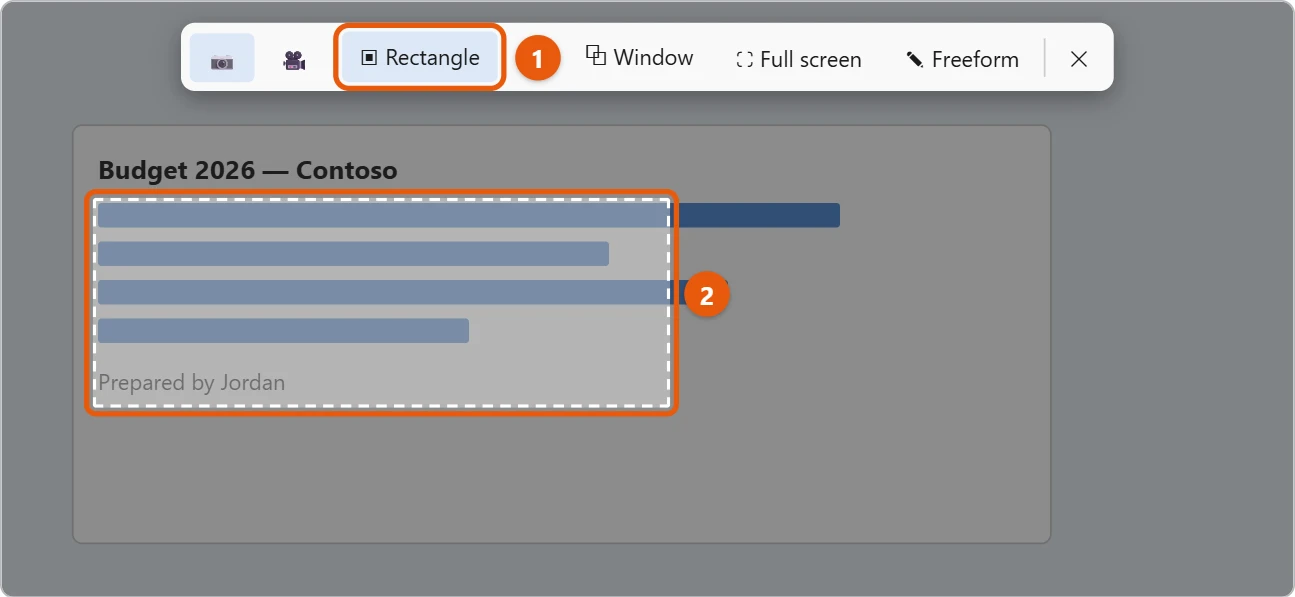
A notice pops up in the corner. Select it to open the screenshot in Snipping Tool, where you can draw on it, crop it, or save a copy. Snipping Tool can also capture video, which is covered in how to record your screen, audio, or video in Windows 11.
This is also the quickest way to take a cropped screenshot: only the area you drag over is captured.
Other ways to take a screenshot
- Print Screen (PrtSc): copies the whole screen. Paste it into an app with Ctrl + V. On up-to-date PCs, Print Screen opens the Snipping Tool toolbar instead, because that’s now the default. To choose which of the two it does, change the Print Screen setting in Windows 11.
- Windows logo key + Print Screen: saves the whole screen straight to Pictures > Screenshots. The screen dims for a moment when it works.
- Alt + Print Screen: copies only the window you’re using.
- Windows logo key + Alt + Print Screen: uses the Xbox Game Bar to save the active window as a PNG in Videos > Captures. Press Windows logo key + G to open Game Bar and see your captures. It must be turned on under Settings > Gaming.
- Tablet or Surface: press Power + Volume up together to save the whole screen to Pictures > Screenshots.
- No Print Screen key: use Windows logo key + Shift + S, which works on any keyboard.
- Snipping Tool app: select Start, type
snipping tool, and open it. Pick a mode, then select New.
The Snipping Tool modes are Rectangle, Window, Full screen and Freeform. To capture a menu that closes when you click away, set a delay of a few seconds before you select New. For a shorter walkthrough of capturing just one area, see how to clip your screen on a Windows 11 PC.
Edit and save a screenshot
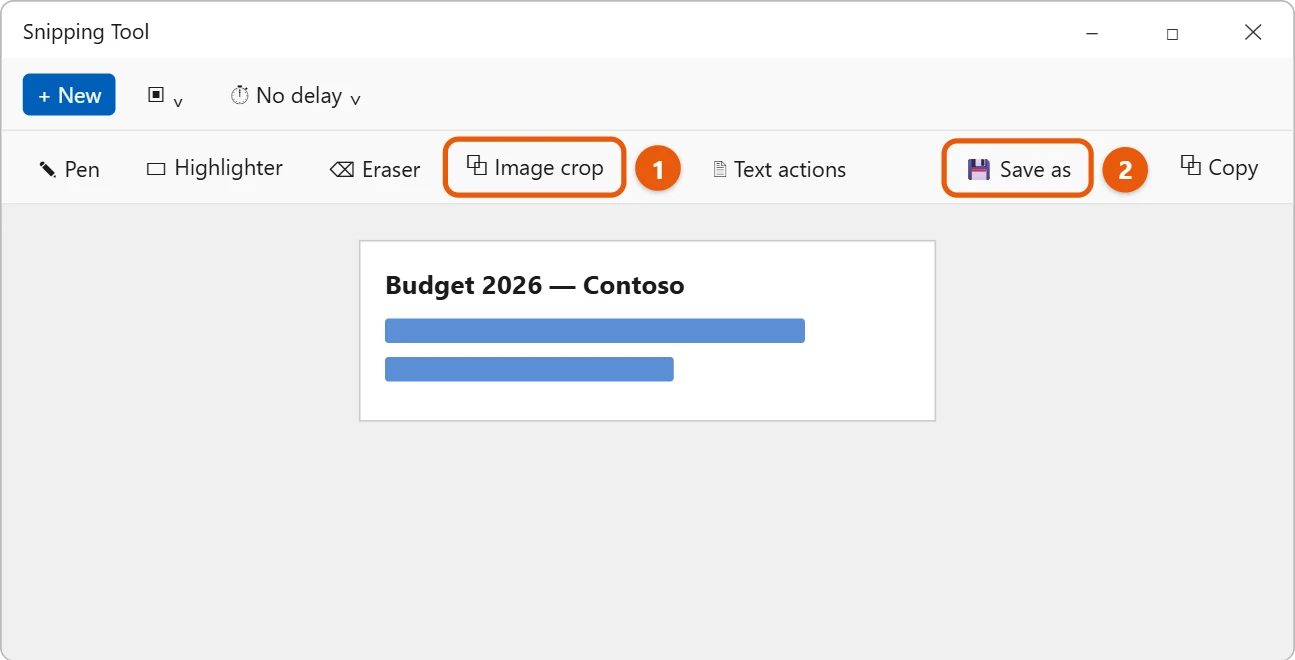
After you take a screenshot, open it in Snipping Tool. You can:
- Draw or highlight with the Pen and Highlighter.
- Cut off the edges with Image crop.
- Copy words from the picture with Text actions.
- Save a copy somewhere else with Save as.
Where are screenshots saved?
Snipping Tool and Windows logo key + Print Screen save to Pictures > Screenshots. If OneDrive backs up your Pictures folder, look in OneDrive instead. See how to find the OneDrive folder in Windows 11.
If Print Screen is set to copy the whole screen, those screenshots aren’t saved as files. They’re only copied until you paste them. If a capture seems to be missing, see how to find screenshots on Windows 11.
If a screenshot doesn’t work
- Nothing happens when you press the keys. Some laptops need the Fn key with Print Screen. Also check that another app, like OneDrive or a game overlay, hasn’t taken over the Print Screen key.
- Windows + Shift + S does nothing. Restart the PC first. If it still fails, go to Settings > Apps > Installed apps, select the three dots next to Snipping Tool, choose Advanced options, and select Repair.
- The screenshot is black. Some video apps block screenshots of protected content. That’s expected and can’t be changed in Windows.
- You can’t find the file. Open Snipping Tool and check its settings. Automatically save screenshots must be on for snips to be saved.
Frequently asked questions
My laptop doesn’t have a Print Screen key. What can I use?
Use Windows logo key + Shift + S. It works on every Windows 11 PC.
Can I record a video of my screen instead?
Yes. Snipping Tool can record too. See how to record your screen in Windows 11.
Can I take a screenshot of a whole webpage?
Not with Windows itself. In Microsoft Edge, press Ctrl + Shift + S and choose Capture full page.
To paste something you copied earlier, see how to use the clipboard in Windows 11.
For more on marking up and saving snips, see how to use Snipping Tool in Windows 11.
Want to clean up part of a screenshot? You can paste it into Paint and make the eraser bigger to clear large areas fast.
Looking for screenshots taken inside a game? See how to find Minecraft screenshots on Windows 11, which covers the game’s own screenshot folders.
Microsoft’s reference is Use Snipping Tool to capture screenshots. More help is on our Windows Help & Guides page.
Related: draw on your screen in Windows 10.
Related: how to take a scrolling screenshot in Windows 10.
Related: how to freeze your screen on Windows 11.

Matt Jacobs has been working as an IT consultant for small businesses since receiving his Master’s degree in 2003. While he still does some consulting work, his primary focus now is on creating technology support content for SupportYourTech.com.
His work can be found on many websites and focuses on topics such as Microsoft Office, Apple devices, Android devices, Photoshop, and more.