Uninstalling Google Chrome from your Windows 10 computer is a straightforward process. You’ll need to access the Control Panel, find Google Chrome in the list of installed programs, and then follow the prompts to remove it. Once completed, Chrome will be uninstalled from your system, freeing up space and potentially improving your computer’s performance.
How to Uninstall Chrome Windows 10
Here’s a simple guide to help you remove Google Chrome from your Windows 10 computer. These steps will ensure Chrome is completely uninstalled and won’t leave any lingering files.
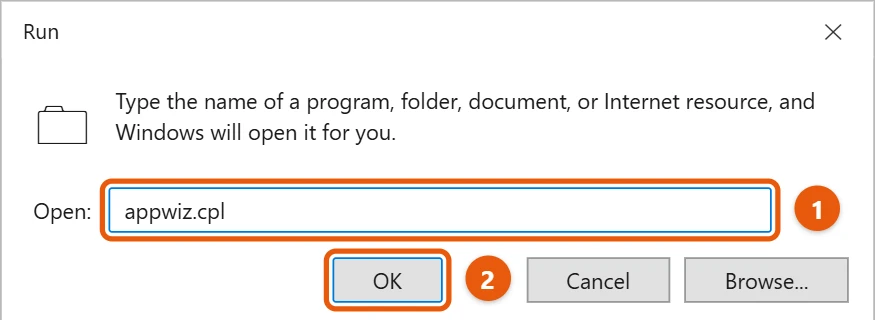
Step 1: Open the Control Panel
First, click the Start button and type “Control Panel” to open it.
The Control Panel is the hub where you can manage programs, settings, and system preferences. Finding it is as easy as searching for it on your computer.
Step 2: Navigate to ‘Programs and Features’
Next, select “Programs” and then “Programs and Features.”
This section lists all the software installed on your device. You’ll see everything from games to essential productivity software here.
Step 3: Find Google Chrome in the List
Scroll through the list to locate Google Chrome.
You might find this list a bit long, but it’s alphabetically sorted, making it easier to spot Chrome. Look for its familiar icon if you’re unsure.
Step 4: Select and Uninstall
Click on Google Chrome and then hit the “Uninstall” button at the top of the list.
A pop-up will appear asking if you’re sure. Confirm your decision to proceed. This is the critical moment where Chrome starts disappearing from your computer.
Step 5: Follow the On-Screen Instructions
A wizard will guide you through the process. Follow its prompts.
The instructions are straightforward. You’ll mostly be clicking “Next” or confirming choices. Pay attention to any checkbox options, like saving your browsing data.
After completing these steps, Google Chrome will be removed from your system. You won’t see its icon on your desktop or taskbar, and it won’t be listed in your program files.
Tips for Uninstalling Chrome Windows 10
- Make sure to back up any bookmarks or data you want to keep before uninstalling.
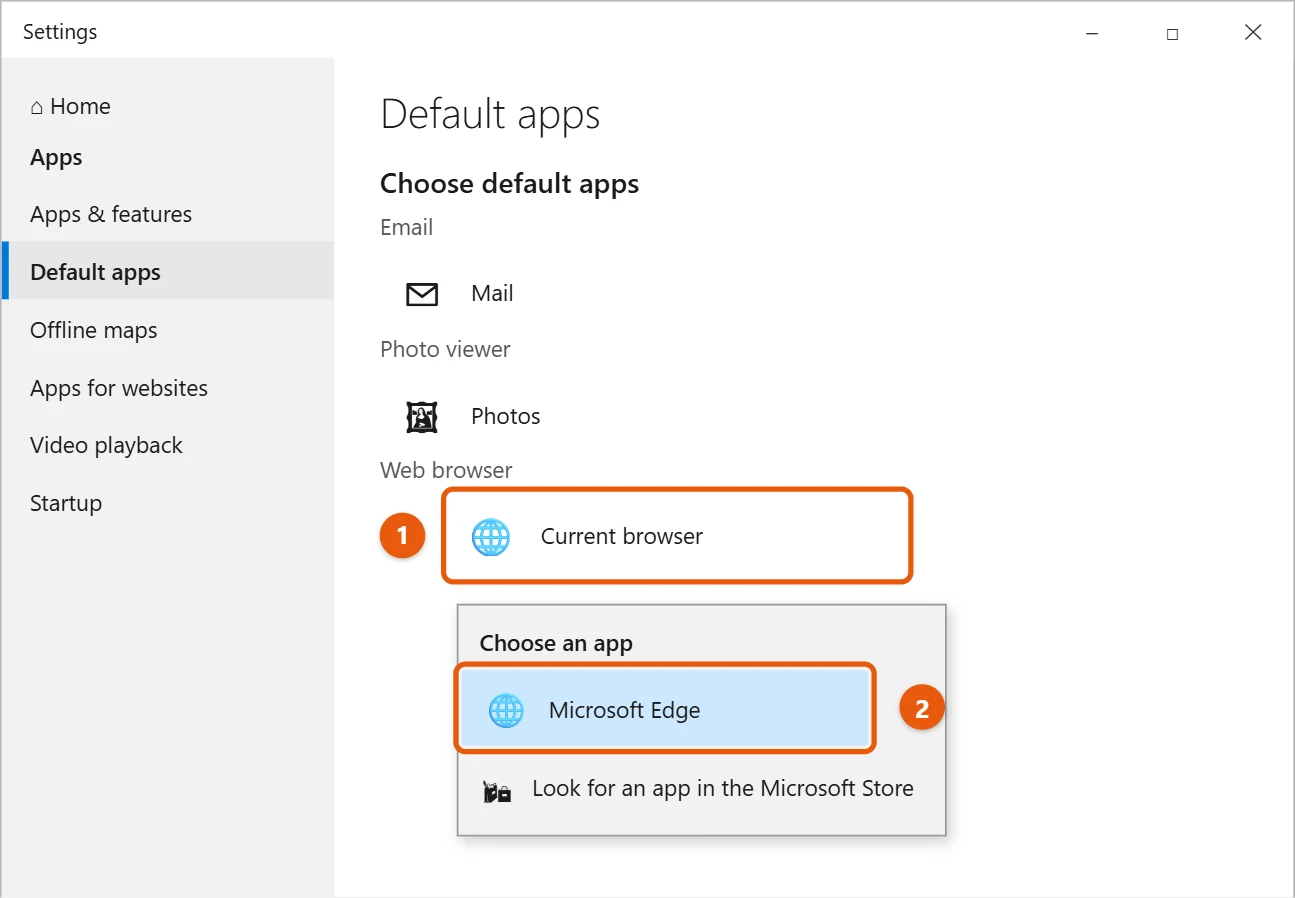
- If Chrome is your default browser, consider setting a new one before removal.
- Use a third-party uninstaller for a more thorough cleanup.
- Check for any leftover files in the Program Files directory.
- Consider reinstalling Chrome if you encounter issues with other browsers.
Frequently Asked Questions
Can I reinstall Chrome after uninstalling it?
Yes, you can reinstall Chrome anytime by downloading it from the official website.
Will uninstalling Chrome delete my bookmarks?
Uninstalling won’t delete bookmarks if you sync them with your Google account.
Is it safe to uninstall Chrome?
Yes, it’s safe and won’t affect your system stability.
How long does it take to uninstall Chrome?
The process typically takes a few minutes.
Can I use the Edge browser instead?
Absolutely, Microsoft Edge is a good alternative and comes pre-installed on Windows 10.
Summary
- Open the Control Panel.
- Navigate to ‘Programs and Features.’
- Find Google Chrome in the list.
- Select and uninstall.
- Follow the on-screen instructions.
Conclusion
Uninstalling Chrome Windows 10 is like giving your PC a little spring cleaning. It frees up space and possibly boosts performance, especially if Chrome was bogging things down. Plus, it’s always a good idea to know how to control what software is running on your computer.
If you’re removing Chrome to switch browsers, make sure you choose one that fits your needs. Or maybe you’re just giving Chrome a fresh start—sometimes a reinstall can solve pesky bugs. Whatever your reason, understanding how to uninstall programs is a handy skill in the digital age.
Staying informed about these processes not only empowers you but also keeps your technology running smoothly. If you’re curious about more Windows 10 tips or need help with other software, there are countless resources and communities online. Keep exploring, keep learning, and enjoy a more streamlined tech experience!

Matt Jacobs has been working as an IT consultant for small businesses since receiving his Master’s degree in 2003. While he still does some consulting work, his primary focus now is on creating technology support content for SupportYourTech.com.
His work can be found on many websites and focuses on topics such as Microsoft Office, Apple devices, Android devices, Photoshop, and more.