To update your graphics driver in Windows 10, run Windows Update and install any display driver under View optional updates. You can also right-click Start, open Device Manager, expand Display adapters, right-click your graphics card, and select Update driver. For the newest driver, download it from your graphics card or PC maker.
Applies to: Windows 10. Checked against Microsoft Support on September 27, 2026.
A graphics driver, also called a display or video driver, lets Windows talk to your graphics card. New drivers can fix screen glitches, crashes in games, and display problems.
Find out which graphics card you have
Right-click Start, select Device Manager, and expand Display adapters. You’ll see one or two names. Laptops often have both a built-in graphics chip and a separate graphics card. For more ways, see how to check your graphics card in Windows 10.
Update with Windows Update
- Select Start > Settings > Update & Security > Windows Update.
- Select Check for updates.
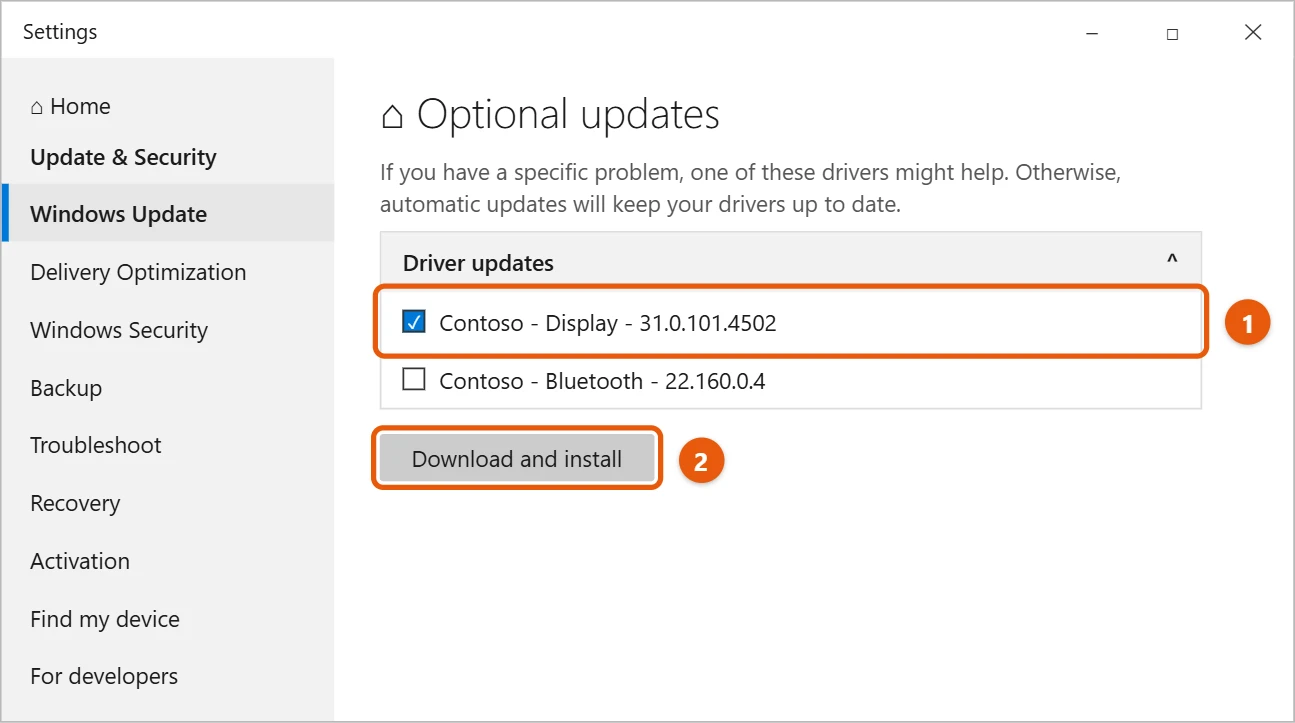
- Select View optional updates if it appears, then open Driver updates.
- Check the display driver, select Download and install, and restart when asked.
Update in Device Manager
- Right-click Start and select Device Manager.
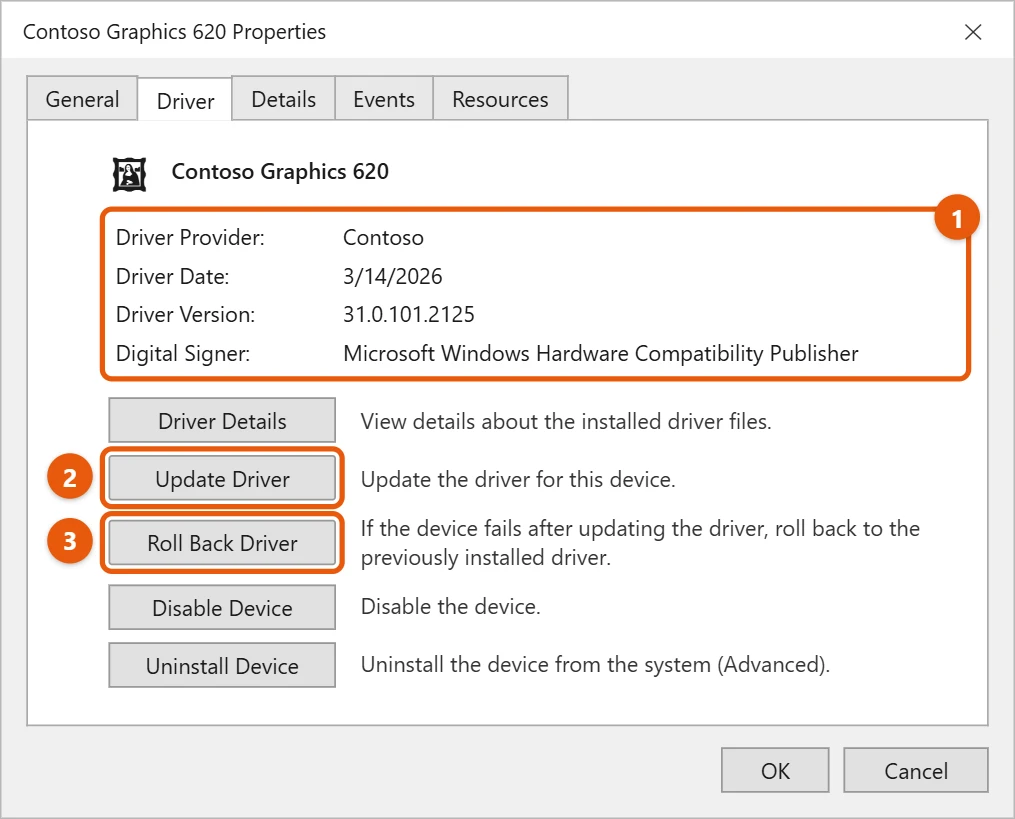
- Expand Display adapters, right-click your graphics card, and select Properties.
- On the Driver tab, note the Driver Version and Driver Date.
- Select Update Driver, then Search automatically for drivers.
- Restart your PC if asked.
Your screen may flicker or go black for a moment while the driver installs. That’s expected.
Download the driver from the maker
Windows Update doesn’t always have the newest graphics driver, which matters most for new games.
- Go to the support site for your graphics card maker, such as NVIDIA, AMD, or Intel. On a laptop, check your laptop maker’s site first, because some laptops need its version.
- Pick your graphics card model and Windows 10 (64-bit on most PCs).
- Download the driver, run it, and follow the prompts.
- Restart your PC.
Only download drivers from the maker’s official site.
Roll back a driver that causes problems
If the screen, games, or apps act up after an update, go back to the old driver. Open the graphics card’s Properties in Device Manager, select the Driver tab, and select Roll Back Driver. Choose a reason, select Yes, and restart. If the button is greyed out, there’s no older driver to go back to.
Frequently asked questions
How do I know if my graphics driver is up to date?
Compare the Driver Version on the Driver tab with the newest version on your graphics card maker’s site.
Should I update all my drivers at the same time?
You can, but updating one at a time makes problems easier to trace. See how to update all drivers on Windows 10.
Why does Windows say the best driver is already installed?
Windows only checks its own driver list. The maker’s site may still have a newer version.
If a game asks for a certain DirectX version, see how to check your DirectX version in Windows 10.
To see which driver version you have now, see how to check your graphics driver version in Windows 10.
To find new games to play, see how to download games on a Windows 10 PC.
If a new graphics driver causes problems, see how to roll back NVIDIA drivers on Windows 10.
After updating the driver, you can check your VRAM in Windows 11 to confirm Windows sees all of your graphics memory.
Microsoft’s guide is Update drivers through Device Manager in Windows. More help is on our Windows Help & Guides page.

Matt Jacobs has been working as an IT consultant for small businesses since receiving his Master’s degree in 2003. While he still does some consulting work, his primary focus now is on creating technology support content for SupportYourTech.com.
His work can be found on many websites and focuses on topics such as Microsoft Office, Apple devices, Android devices, Photoshop, and more.