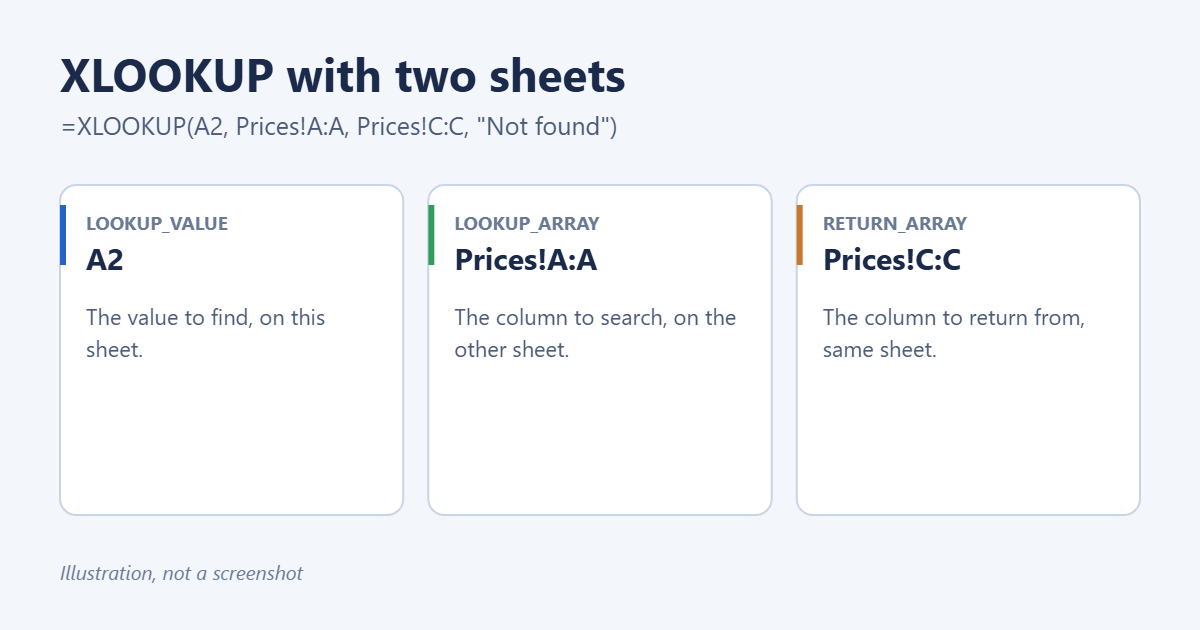
To use XLOOKUP with two sheets, write the formula on the sheet where you want the result and point the lookup and return ranges at the other sheet: =XLOOKUP(A2,Prices!A:A,Prices!C:C,”Not found”). Excel finds the value in A2 in column A of the Prices sheet and returns the matching value from column C. Click the other sheet’s tab while typing and Excel adds the sheet names for you.
Applies to: Excel for Microsoft 365, Excel 2024 and 2021 on Windows and Mac, and Excel for the web. XLOOKUP isn’t available in Excel 2019 or earlier; use VLOOKUP or INDEX/MATCH there. Last reviewed October 8, 2026.
Step-by-step
Example: Orders has product codes in column A. Prices has codes in column A and prices in column C.
- On Orders, click B2 and type =XLOOKUP(
- Click A2 and type a comma.
- Click the Prices tab, select column A (or A2:A500), and type a comma. The formula shows Prices!A:A.
- Still on Prices, select column C and type a comma.
- Type “Not found” and ), then press Enter. Excel jumps back to Orders.
- Double-click the fill handle to copy the formula down.
Whole-column references like A:A don’t need dollar signs, because they don’t shift when copied down. If you use ranges such as A2:A500, press F4 to make them absolute: Prices!$A$2:$A$500.
Why XLOOKUP beats VLOOKUP across sheets
- The return column can be to the left of the lookup column.
- Inserting a column on the Prices sheet doesn’t break the formula, because there’s no column number.
- It defaults to an exact match and has a built-in “if not found” value.
If you’re on an older version, see how to do a VLOOKUP between two sheets.
Sheet names with spaces
Excel puts single quotes around names with spaces: =XLOOKUP(A2,’Price List’!A:A,’Price List’!C:C). Clicking the tab adds them for you. For other ways to reference sheet names, see how to reference a tab name in Excel.
Return several columns at once
Select a multi-column return range and XLOOKUP spills the results across:
=XLOOKUP(A2,Prices!A:A,Prices!B:D)This returns columns B, C and D for the matching row. Make sure the cells to the right are empty, or you’ll get a #SPILL! error.
Look up on two criteria
=XLOOKUP(1,(Prices!A:A=A2)*(Prices!B:B=B2),Prices!C:C,"Not found")This finds the row where both the code and the size match. For more matching techniques, see how to match data from two worksheets.
Look up from another workbook
Open both files and click across to the other workbook while writing the formula. Excel writes [Prices.xlsx]Sheet1!A:A. If that file is later closed, the full path appears and the values update when you open it.
Example: a price lookup for an order form
Keep one sheet called Prices as your master list and never type prices on the order sheet. On Orders, column A holds the product code, column B the quantity:
- Product name in C2: =XLOOKUP(A2,Prices!A:A,Prices!B:B,”Check code”)
- Unit price in D2: =XLOOKUP(A2,Prices!A:A,Prices!C:C,0)
- Line total in E2: =B2*D2
When a price changes, update it once on Prices and every order line recalculates. Using 0 as the not-found value for the price keeps the totals from showing errors while a code is still being typed, and “Check code” in the name column flags the mistake. Add a drop-down of valid codes in column A with Data Validation pointing at Prices!A:A to stop typos altogether.
Hide the lookup sheet
To keep the price list out of the way, right-click the Prices tab and choose Hide. XLOOKUP still reads hidden sheets. To stop others changing prices, protect that sheet from Review > Protect Sheet before hiding it.
Troubleshooting
#N/A or your “Not found” text
The value isn’t on the other sheet, or it’s stored differently: numbers as text, or extra spaces. Use TRIM or convert the text to numbers on both sheets.
#VALUE!
The lookup and return ranges are different sizes, for example A2:A500 and C2:C400. Make them match.
#NAME?
Your version of Excel doesn’t have XLOOKUP. Use INDEX/MATCH instead: =INDEX(Prices!C:C,MATCH(A2,Prices!A:A,0)).
Formulas are slow
Limit whole-column ranges to the rows you need, or turn the price list into a table with Ctrl+T and use table references.
Frequently asked questions
Can XLOOKUP search from the bottom up?
Yes. Add -1 as the sixth argument to find the last match instead of the first.
Where can I learn XLOOKUP basics?
See how to do an XLOOKUP in Excel, and how to reference a cell from another sheet for plain cross-sheet references.
Related: how to do a VLOOKUP in Excel.
Related: VLOOKUP for multiple columns.
Related: how to create a relationship in Excel.

Matt Jacobs has been working as an IT consultant for small businesses since receiving his Master’s degree in 2003. While he still does some consulting work, his primary focus now is on creating technology support content for SupportYourTech.com.
His work can be found on many websites and focuses on topics such as Microsoft Office, Apple devices, Android devices, Photoshop, and more.