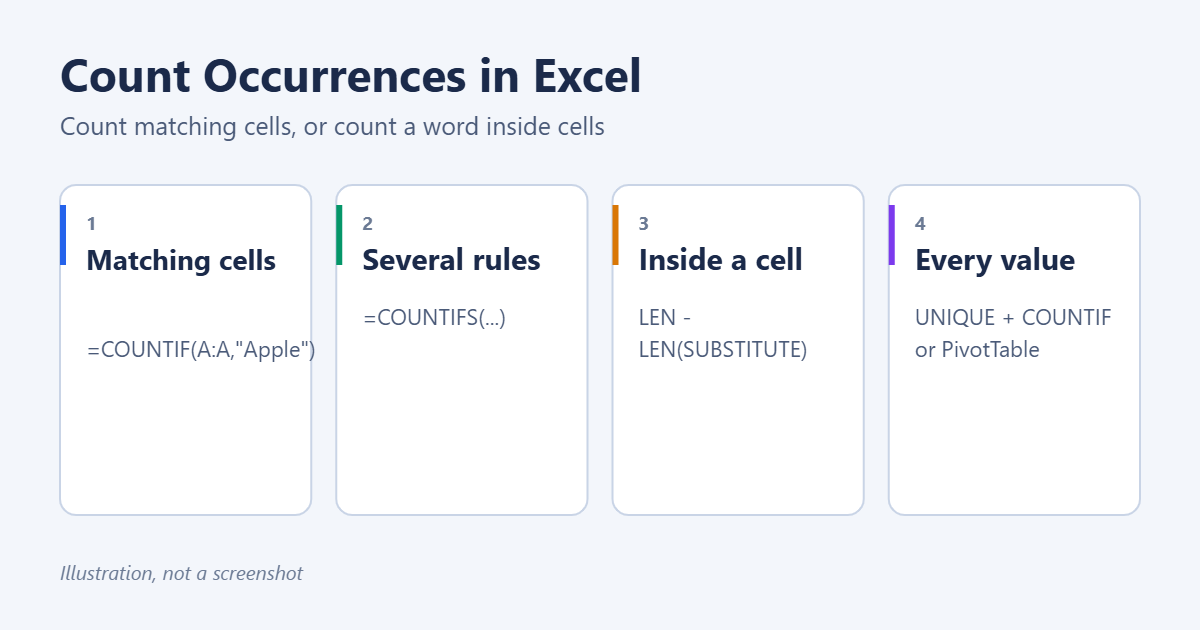
To count the number of occurrences of a value in Excel, use COUNTIF. For example, =COUNTIF(A2:A100,"Apple") counts how many cells in A2:A100 contain exactly Apple. Use "*Apple*" to count cells that contain the word anywhere, and COUNTIFS when there’s more than one condition. To count how many times a word or character appears inside cells, for example several times in one sentence, use LEN with SUBSTITUTE. To count every distinct value at once, use UNIQUE with COUNTIF, or a PivotTable. Each method is explained below with examples.
Count cells that match a value (COUNTIF)
=COUNTIF(range, criteria)
- Exact text:
=COUNTIF(A2:A100,"Apple") - Value in another cell:
=COUNTIF(A2:A100,D2). Change D2 to count something else. - Contains a word:
=COUNTIF(A2:A100,"*apple*") - Starts with:
=COUNTIF(A2:A100,"app*") - Numbers over a limit:
=COUNTIF(B2:B100,">100") - Non-blank cells:
=COUNTIF(A2:A100,"<>"), or=COUNTA(A2:A100)
COUNTIF isn’t case-sensitive, so apple, Apple and APPLE all count. In wildcards, * means any characters and ? means one character.
Count with several conditions (COUNTIFS)
=COUNTIFS(A2:A100,"Apple",B2:B100,"East") counts rows where column A is Apple and column B is East. Add more pairs of range and criteria as needed. All the ranges must be the same size.
For dates, combine conditions: =COUNTIFS(C2:C100,">="&DATE(2026,1,1),C2:C100,"<"&DATE(2026,2,1)) counts entries in January 2026.
To count “this or that”, add two COUNTIFs together: =COUNTIF(A2:A100,"Apple")+COUNTIF(A2:A100,"Pear").
Case-sensitive count
=SUMPRODUCT(--EXACT(A2:A100,"Apple")) counts only cells that match Apple with the same capital letters.
Count a word or character inside cells
COUNTIF counts cells, so a cell containing “apple, apple, pear” counts once. To count every appearance:
In one cell
=(LEN(A2)-LEN(SUBSTITUTE(A2,"apple","")))/LEN("apple")
SUBSTITUTE removes every “apple”, and the difference in length divided by the word’s length gives the count. For “apple, apple, pear”, it returns 2. SUBSTITUTE is case-sensitive, so wrap the text in LOWER to ignore case: =(LEN(A2)-LEN(SUBSTITUTE(LOWER(A2),"apple","")))/LEN("apple").
Across a range
=SUMPRODUCT((LEN(A2:A100)-LEN(SUBSTITUTE(A2:A100,"apple",""))))/LEN("apple")
Count a single character
To count commas in A2, use =LEN(A2)-LEN(SUBSTITUTE(A2,",","")). Add 1 to get the number of items in a comma-separated list.
Note that these formulas also count the word inside longer words, so “apple” is found in “pineapple”. Add spaces around the word in both places if you need whole words only.
Count every value in a list
UNIQUE and COUNTIF (Microsoft 365 and Excel 2021+)
- In D2, type
=UNIQUE(A2:A100). It lists each distinct value once. - In E2, type
=COUNTIF(A2:A100,D2#). The # refers to the whole spilled list, so you get one count per value. - Optionally, sort by count with
=SORTBY(D2#,E2#,-1).
In the newest versions of Microsoft 365, =GROUPBY(A2:A100,A2:A100,COUNTA) does all of this in one formula. See how to use GROUPBY in Excel.
PivotTable (any version)
- Click inside your data and go to Insert > PivotTable > OK.
- Drag the column you want to count into Rows.
- Drag the same column into Values. It shows as Count of the column.
Sort the count column from largest to smallest to see the most common values first. See how to make a pivot table in Excel.
Count duplicates and unique values
- Values that appear more than once: in B2, type
=COUNTIF($A$2:$A$100,A2)>1and copy it down. TRUE marks duplicates. - Number of distinct values:
=COUNTA(UNIQUE(A2:A100)). In older versions, use=SUMPRODUCT(1/COUNTIF(A2:A100,A2:A100)), provided the range has no blank cells. - Values that appear exactly once:
=COUNTA(UNIQUE(A2:A100,,TRUE))
Worked example: a sales list
Say column A lists products, column B lists regions and column C lists order dates, in rows 2 to 500. Here’s how you’d answer some common questions:
| Question | Formula |
|---|---|
| How many Apple orders? | =COUNTIF(A2:A500,"Apple") |
| How many Apple orders in the East? | =COUNTIFS(A2:A500,"Apple",B2:B500,"East") |
| How many orders mention “juice”? | =COUNTIF(A2:A500,"*juice*") |
| How many orders this month? | =COUNTIFS(C2:C500,">="&EOMONTH(TODAY(),-1)+1,C2:C500,"<="&EOMONTH(TODAY(),0)) |
| How many different products? | =COUNTA(UNIQUE(A2:A500)) |
Put the product name in a cell, such as F1, and refer to it (=COUNTIF(A2:A500,F1)) to make a reusable counter. You can then use a drop-down in F1 to switch between products.
Excel for Mac, the web and Google Sheets
COUNTIF, COUNTIFS, LEN and SUBSTITUTE work the same way in every version of Excel and in Google Sheets. UNIQUE works in Microsoft 365, Excel 2021 and later, and Google Sheets. In Google Sheets, refer to the whole UNIQUE result with a normal range instead of the # symbol, or use =QUERY to group and count.
Troubleshooting
The count is lower than expected
Look for extra spaces or slightly different spellings. Clean the data with =TRIM(A2), or use a wildcard such as "*Apple*".
Numbers aren’t counted
Numbers stored as text don’t match a number criterion. Convert them with Data > Text to Columns > Finish, or use the Convert to Number warning.
COUNTIF returns 0 with a long ID
COUNTIF treats long numeric text as a number, and only the first 15 digits matter. Use =SUMPRODUCT(--(A2:A100=D2)) for exact matches on long IDs.
Related guides
- How to make an attendance sheet in Excel, a practical COUNTIF example
- How to create a word cloud in Excel, which uses word counts
Summary
- Matching cells:
=COUNTIF(range,"value"), with * wildcards for partial matches. - Several conditions: COUNTIFS.
- Repeats inside a cell: LEN minus LEN(SUBSTITUTE), divided by the word’s length.
- Every value: UNIQUE with COUNTIF, GROUPBY or a PivotTable.
Related: calculate a weighted average in Excel.
Related: count the number of rows in Excel.
Related: count highlighted cells in Excel.
Related: count the number of cells in Excel.

Matt Jacobs has been working as an IT consultant for small businesses since receiving his Master’s degree in 2003. While he still does some consulting work, his primary focus now is on creating technology support content for SupportYourTech.com.
His work can be found on many websites and focuses on topics such as Microsoft Office, Apple devices, Android devices, Photoshop, and more.