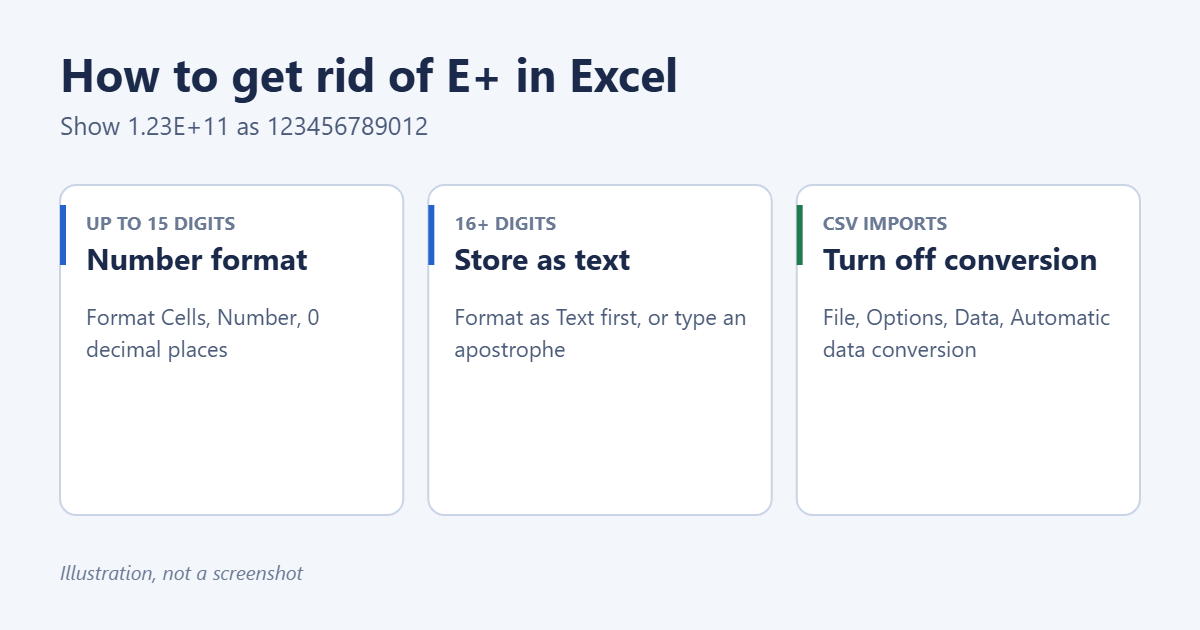
To get rid of E+ in Excel, select the cells, press Ctrl + 1, choose Number, set Decimal places to 0, and select OK. Excel then shows the full number, such as 123456789012 instead of 1.23457E+11. This works for numbers up to 15 digits. For longer values, such as credit card numbers, tracking numbers or IDs, format the cells as Text before you type or paste, because Excel permanently changes every digit after the 15th to zero.
Applies to: Excel for Microsoft 365, Excel 2024, 2021 and 2019 on Windows and Mac, and Excel for the web. Last reviewed October 7, 2026.
Why Excel shows E+
E+ is scientific notation. 1.23E+11 means 1.23 × 10¹¹, or 123,000,000,000. Excel switches to it in two situations:
- The number has 12 or more digits and the cell uses the default General format.
- The column is too narrow to show the whole number.
The full value is usually still there. Select the cell and look at the formula bar to see it. The exception is any number longer than 15 digits: Excel only stores 15 significant digits, so a 16-digit number like 1234567890123456 is saved as 1234567890123450. Microsoft explains this in its guide to keeping leading zeros and large numbers.
Method 1: Apply a Number format
- Select the cells or the whole column.
- Press Ctrl + 1 (Command + 1 on a Mac), or right-click and choose Format Cells.
- On the Number tab, select Number.
- Set Decimal places to 0. Clear Use 1000 Separator (,) if you don’t want commas.
- Select OK.
If you see #### afterward, the column is too narrow. Double-click the right edge of the column heading to widen it.
Faster: use a custom format
In Format Cells, choose Custom, type 0 in the Type box, and select OK. This shows the whole number with no decimals and no commas, which suits IDs and barcodes.
Method 2: Store long numbers as text
For values that are identifiers rather than amounts, such as credit card numbers, IMEI numbers, account numbers or barcodes, store them as text. Text isn’t rounded or converted, and you’ll never need to do math on these values anyway.
Before you type or paste
- Select the empty column.
- On the Home tab, open the Number Format list (it usually says General) and choose Text.
- Type or paste your numbers. They stay exactly as entered.
For a single entry
Type an apostrophe before the number, such as '1234567890123456. The apostrophe doesn’t appear in the cell, and Excel keeps all 16 digits.
Numbers already entered
If the number has 15 digits or fewer, you can convert it to text with a formula. In an empty column, enter =TEXT(A2,"0"), fill it down, then copy the results and use Paste Special > Values to replace the originals. If the number had more than 15 digits, the extra digits are already lost and you’ll need to re-enter or re-import them.
Method 3: Turn off automatic conversion
Newer versions of Excel let you stop the conversion before it happens. This is available in Excel for Microsoft 365 and Excel 2024 on Windows and Mac.
- Select File > Options > Data. On a Mac, select Excel > Preferences > Edit.
- Under Automatic data conversion, clear Keep first 15 digits of long numbers and display in scientific notation if required.
- Clear Convert digits surrounding the letter “E” to a number in scientific notation if you work with codes like 12E5.
- Select OK.
With this off, Excel keeps long numbers as text when you type, paste or open a CSV file. The setting applies to Excel on that PC, not to the workbook, so other people opening your file may still see E+.
Method 4: Import a CSV file without losing digits
Opening a CSV file by double-clicking it converts long numbers immediately. Import it instead so you can choose the column type:
- Open a blank workbook and select Data > From Text/CSV.
- Choose the file and select Import.
- Select Transform Data to open Power Query.
- Select the column header with the long numbers, then choose Data Type > Text on the Home tab. Select Replace current if asked.
- Select Close & Load.
Which method should you use?
- Prices, totals or any number you calculate with: Method 1, the Number format.
- IDs, codes and numbers longer than 15 digits: Method 2, store as text.
- You regularly paste or open data with long numbers: Method 3, turn off automatic conversion.
- CSV exports from another system: Method 4, import with Power Query.
Troubleshooting
The last digits turned into zeros
The number had more than 15 digits and was stored as a number. Excel can’t recover the lost digits. Undo with Ctrl + Z if you just entered it, or re-enter or re-import the data with the column formatted as text.
E+ comes back after I save and reopen a CSV
CSV files don’t store formatting. When Excel opens the CSV again, it converts the numbers again. Save the file as an Excel workbook (.xlsx) to keep the formatting, or use Method 3 or 4 each time.
Formatting as Text didn’t change anything
Changing the format of a number that’s already entered doesn’t convert it. After setting the Text format, press F2 and Enter in each cell, or use the TEXT formula method above.
A green triangle appears in the cells
Excel is warning you that a number is stored as text. That’s expected for IDs. Select the cells, select the warning icon, and choose Ignore Error to hide it.
My product codes like 1E5 became 100000
Excel read the letter E as scientific notation. Format the column as text before entering codes, or turn off the “letter E” conversion in Method 3.
Frequently asked questions
How do I remove E+ in Excel permanently?
Turn off automatic data conversion in File > Options > Data if your version has it. Otherwise, format columns as Number or Text in each workbook.
Why does Excel limit numbers to 15 digits?
Excel stores numbers using a standard format that holds about 15 significant digits. That’s plenty for calculations, but not for long identifiers, which is why those should be stored as text.
How do I keep leading zeros too?
Formatting as text also keeps leading zeros. See how to stop Excel removing leading zeros.
Does this work in Google Sheets?
Google Sheets also uses scientific notation for long numbers. Select the cells, then Format > Number > Number or Plain text.
Related: How to Apply the Comma Style Number Format in Excel.
Related: change the number format in Excel.

Matt Jacobs has been working as an IT consultant for small businesses since receiving his Master’s degree in 2003. While he still does some consulting work, his primary focus now is on creating technology support content for SupportYourTech.com.
His work can be found on many websites and focuses on topics such as Microsoft Office, Apple devices, Android devices, Photoshop, and more.