To put a list in alphabetical order in Excel, click one cell in the column you want to sort (not the whole column), open the Data tab and click Sort A to Z. Excel finds the edges of your list, leaves the header row at the top and moves every row as a unit, so each name keeps its own phone number, email or total. Click Sort Z to A for reverse order.
Applies to: Excel for Microsoft 365, Excel 2024, 2021, 2019 and 2016 on Windows, Excel for Mac and Excel for the web. The SORT and SORTBY formulas near the end need Excel for Microsoft 365, Excel 2024 or Excel 2021. Menu names below follow Microsoft’s guide to sorting data in a range or table.
Which method should you use?
- Sort A to Z button: the quickest route for a normal list sorted by one column. It changes the order of the data in place.
- Sort dialog: use it when Excel gets the header row wrong, when you need a second sort column (last name, then first name), or when you want to sort a row from left to right.
- Filter arrows or a table: handy if you sort the same list often, because every heading gets its own sort menu.
- SORT or SORTBY formula: leaves the original list untouched and builds a sorted copy that updates when the source changes.
Before you sort
A few seconds of checking prevents most sorting mistakes:
- Keep the list in one block. Excel treats a completely blank row or column as the end of your data. Delete empty rows and columns inside the list, or select the full range yourself.
- Use one header row. Give each column a single heading in row 1 of the list (for example Name, Department, Phone). Excel recognizes headings more reliably when they’re formatted differently, such as bold.
- Unhide everything. Hidden rows and columns don’t move when you sort, so unhide them first or they’ll end up mismatched.
- Want a way back? Add a column called “Order” and number the rows 1, 2, 3 before sorting. Sorting by that column later restores the original order, even after you’ve saved and closed the file.
Method 1: Sort A to Z with one click
Say you have a staff list in A1:C20 with the headings Name, Department and Phone, and you want the names in alphabetical order.
- Click a single cell in the column you want to alphabetize, such as A2 (a name like Priya Shah). Don’t select the whole column; one cell is enough.
- Click the Data tab on the ribbon.
- In the Sort & Filter group, click Sort A to Z (the button with A above Z and a down arrow). Use Sort Z to A next to it for reverse order.
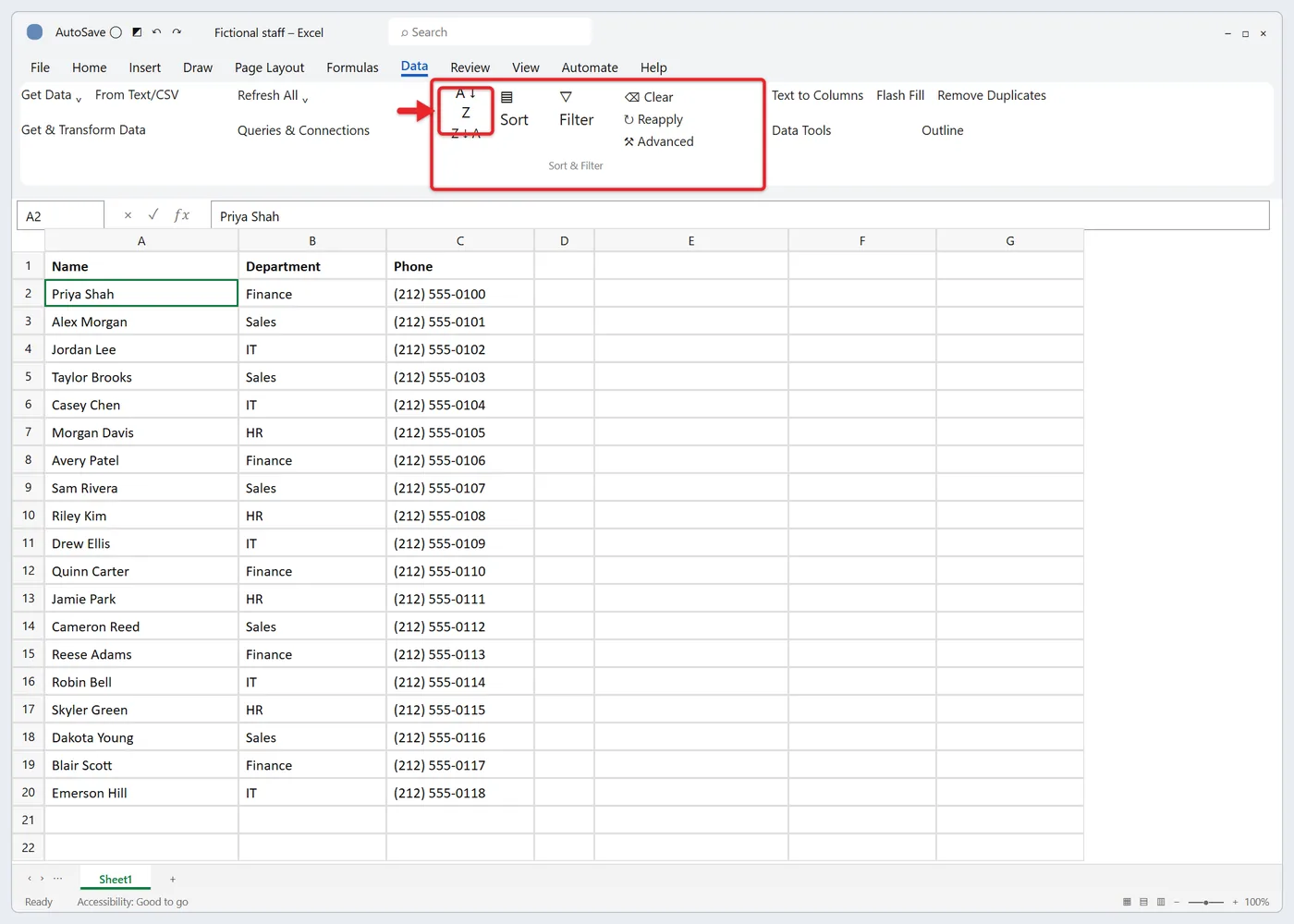
The names now run from A to Z, the headings are still in row 1, and each department and phone number has moved with its name. The same buttons are on the Home tab: click Sort & Filter in the Editing group and choose Sort A to Z.
If the result looks wrong, press Ctrl + Z (Command + Z on a Mac) right away to undo the sort.
If a Sort Warning box appears
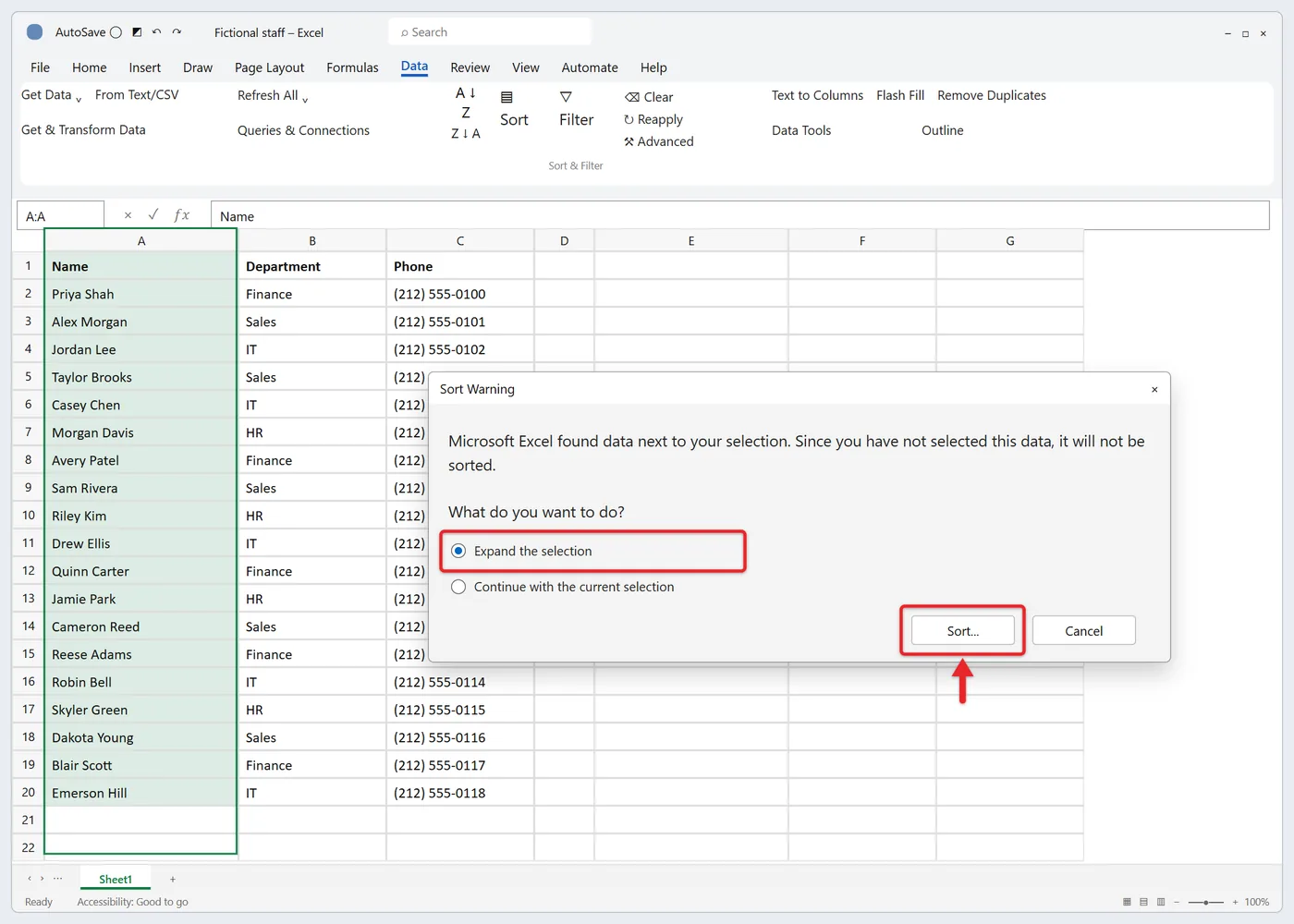
Excel shows the Sort Warning box when you’ve selected a whole column or part of a list and there’s more data right next to it. You get two choices:
- Expand the selection: sorts the entire list and keeps rows together. This is almost always the one you want.
- Continue with the current selection: sorts only the selected cells. Names get reordered while phone numbers stay where they were, which scrambles your records.
Choose Expand the selection, then click Sort. Only pick the second option for a column that is a standalone list.
Method 2: Use the Sort dialog for more control
The Sort dialog lets you tell Excel exactly which row holds the headings and which column to sort by.
- Click any cell inside your list.
- On the Data tab, click Sort (the large button between the two A-to-Z buttons). From the Home tab, the same dialog is Sort & Filter > Custom Sort.
- Check My data has headers if the first row contains headings. The Sort by list then shows heading names (Name, Department) instead of column letters.
- Under Sort by, choose the column to alphabetize.
- Leave Sort On set to Cell Values.
- Under Order, choose A to Z (or Z to A).
- Click OK.
The Sort On list can also sort by Cell Color, Font Color or Cell Icon, and the Order list includes Custom List for orders that aren’t alphabetical, such as Low, Medium, High.
Sort by more than one column
To sort by department and then alphabetically by name within each department:
- Open Data > Sort and set Sort by to Department, order A to Z.
- Click Add Level. A Then by row appears.
- Set Then by to Name, order A to Z.
- Click OK.
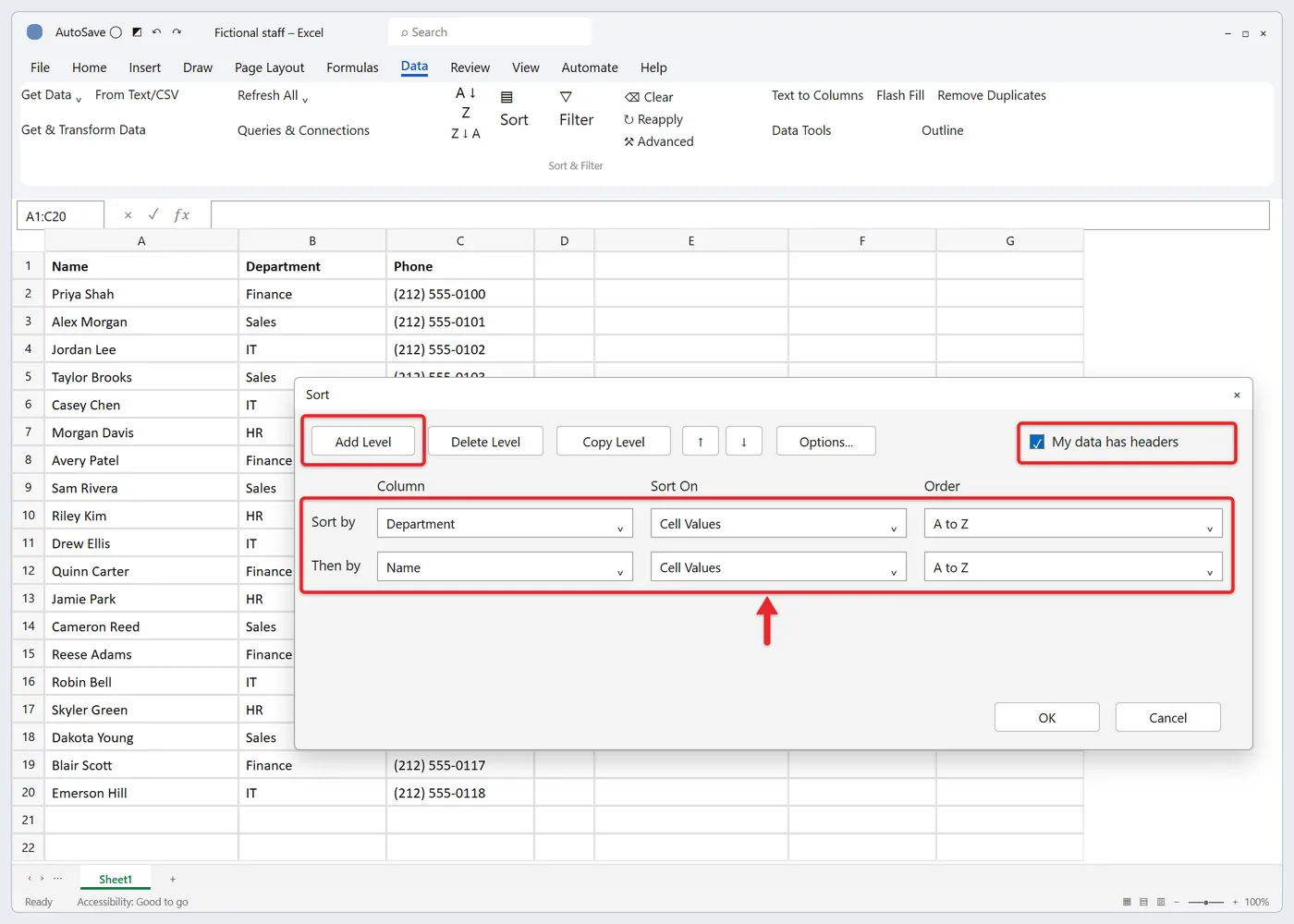
Excel sorts by the top level first and uses the next level only to order rows that tie. To change which level wins, select a level and use the up and down arrows next to Options. There’s a fuller walkthrough of sorting by two columns in Excel, and if full names sit in one cell, see how to sort a list by last name instead of by first name.
Case-sensitive and left-to-right sorting
Click Options in the Sort dialog to open Sort Options:
- Case sensitive: Excel ignores capitals by default, so “alex” and “Alex” count as the same. Check this box to separate them.
- Sort left to right: alphabetizes columns across a row instead of rows down a column. After choosing it, click OK, then pick the row number (usually Row 1, your headings) in Sort by and choose A to Z.
Left-to-right sorting doesn’t work inside an Excel table. Convert the table to a normal range first (Table Design > Convert to Range; on a Mac, the Table tab), sort, then turn it back into a table if you like.
Method 3: Sort from the filter arrows or an Excel table
If your list is formatted as a table, every heading already has a drop-down arrow. For a plain range, add the arrows with Data > Filter or press Ctrl + Shift + L.
- Click the arrow on the heading of the column you want to sort.
- Choose Sort A to Z (or Sort Z to A).
A small arrow on the heading shows which column the list is sorted by. Tables are worth setting up for lists that grow, because new rows join the table automatically and are included the next time you sort. If you haven’t made one before, here’s how to create a table in Excel. Click Filter again to remove the arrows from a plain range.
Method 4: Keep a sorted copy with SORT or SORTBY
The Sort buttons rearrange your data permanently. The SORT function instead returns a sorted copy in another spot and updates it whenever you edit the original. Microsoft lists it for Excel for Microsoft 365, Excel 2024 and Excel 2021 on Windows and Mac. Excel 2019 and 2016 don’t have it, so the formula shows a #NAME? error there.
Click an empty cell to the right of your list, such as E2, and type:
=SORT(A2:C20)
Press Enter. The sorted rows “spill” into the cells below and to the right. Leave the header row out of the range, and type your own headings above the result. The full syntax is =SORT(array, sort_index, sort_order, by_col):
| Argument | What it does | Example |
|---|---|---|
array | The cells to sort, without headings | A2:C20 |
sort_index | Which column of the range to sort by; 1 (the first) if left out | 2 |
sort_order | 1 for A to Z (the default), -1 for Z to A | -1 |
by_col | FALSE (the default) sorts rows; TRUE sorts columns left to right | TRUE |
So =SORT(A2:C20,2,1) sorts the list A to Z by Department, the second column.
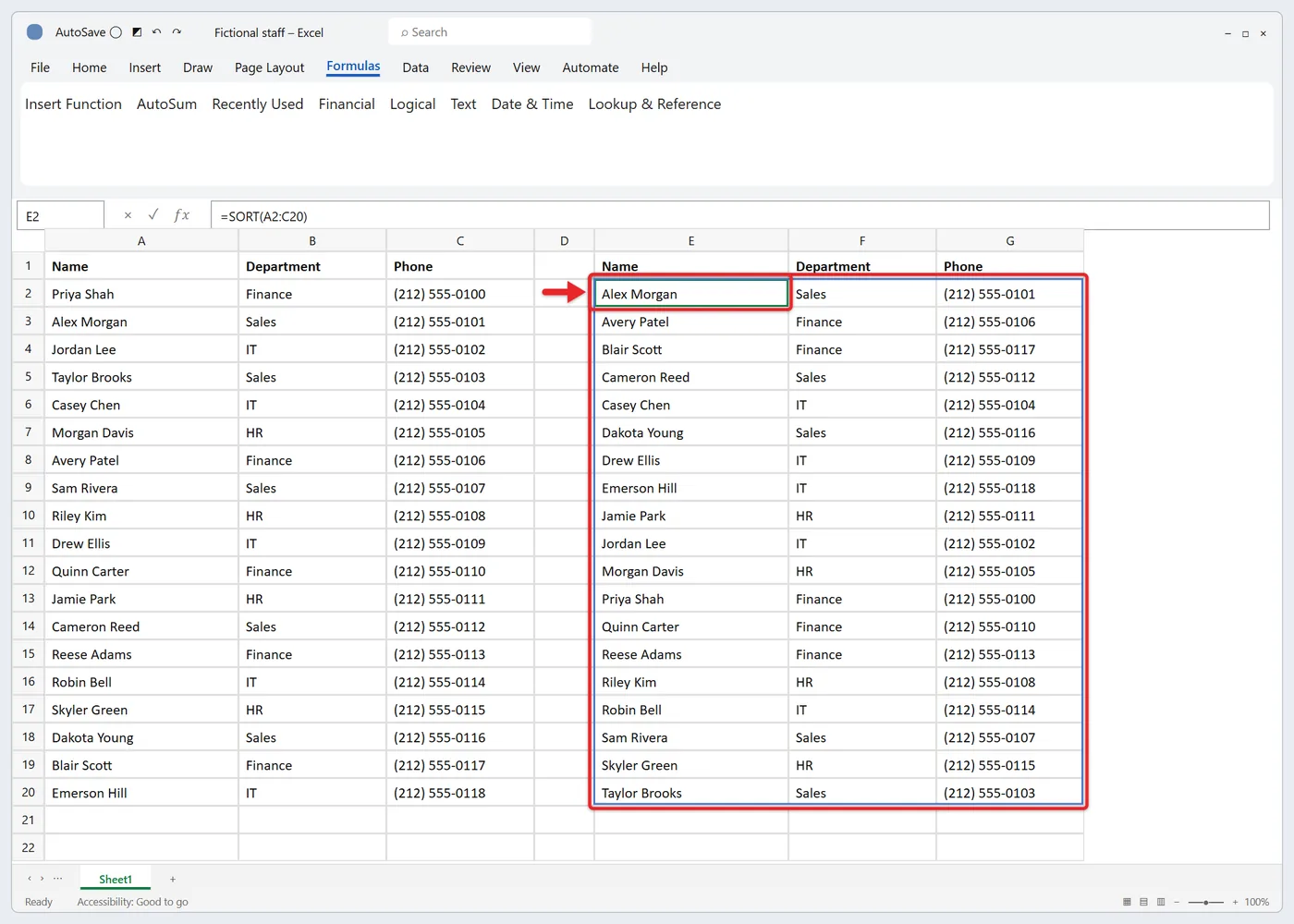
For more than one sort column, SORTBY is easier to read because you point at the columns themselves. This formula sorts by Department, then by Name, both A to Z:
=SORTBY(A2:C20,B2:B20,1,A2:A20,1)
Each sort range must be the same height as the data range. Two things to know about both functions: you can’t type over or rearrange individual cells in the result, and if something is already in the way you’ll see a #SPILL! error until you clear those cells. If your source is an Excel table, use the table’s column references and the sorted copy grows as you add rows. To freeze the result as plain values, copy it and use Paste Special > Values.
Excel for Mac and Excel for the web
On a Mac, click a cell in the column and use the ascending (A to Z) or descending (Z to A) sort buttons on the Data tab. The Sort button opens the same dialog as on Windows, except the header checkbox is labeled My list has headers and Sort On shows Values. Options holds Case sensitive and Sort left to right. Microsoft’s Mac sorting page covers custom lists, which live under Excel > Preferences > Custom Lists (under Formulas and Lists).
In Excel for the web, the Data tab has the same one-click A-to-Z and Z-to-A buttons, and the custom sort option opens a Sort dialog with levels. Filter arrows work the same way as on Windows.
Fix sorting problems
The header row got sorted into the list
Excel didn’t recognize the first row as headings. Undo, open Data > Sort, check My data has headers and sort again. Bold headings help the one-click buttons spot them next time.
Names and details no longer match
Only one column was sorted, usually because Continue with the current selection was chosen or a blank column split the list. Undo immediately with Ctrl + Z. If you’ve already saved and closed the file, the original order can’t be rebuilt unless you had a numbered “Order” column or an earlier copy, so restore from a backup or a previous version if you have one.
Some entries jump to the top out of order
Those cells most likely start with a space or another invisible character, which sorts ahead of letters. In a helper column, type =TRIM(A2) (or =TRIM(CLEAN(A2)) for non-printing characters from imported data), fill it down, copy the results and paste them back over the originals with Paste Special > Values. More cleanup options are in removing a space before text in Excel.
Numbers sort as 1, 10, 100, 2
The numbers are stored as text, so Excel compares them character by character. Select the cells, click the warning icon that appears beside them (or press Alt + Shift + F10) and choose Convert to Number. Microsoft’s page on converting numbers stored as text also shows the VALUE function method. Keep in mind that in an ascending sort, Excel places real numbers before text, so codes like 100 and 2B won’t interleave the way they would in a dictionary.
An error says the merged cells need to be the same size
Excel can’t sort a range where some cells are merged and others aren’t, or where merged cells are different sizes. Microsoft documents the message as “This operation requires the merged cells to be identically sized,” and current versions may word it as “To do this, all the merged cells need to be the same size.” Select the list, click Home > Merge & Center to unmerge, then sort. Unmerging can shift the layout, so check the sheet afterward. The merged-cell sorting error page describes the cause in detail.
Only part of the list was sorted
A blank row or column split the data, so Excel saw two separate lists. Delete the empty row or column, or select the whole range yourself before clicking Sort A to Z.
The SORT formula shows #NAME? or #SPILL!
#NAME? means your version of Excel doesn’t include SORT (Excel 2019 or earlier), so use the Sort buttons instead. #SPILL! means data is sitting in the cells the result needs; clear them or move the formula.
FAQ
Does sorting change my data?
Sorting moves whole rows but doesn’t edit any values. Formulas that refer to cells in other rows can return different results after the rows move, so recheck totals or lookups that point into the sorted list.
Can I alphabetize by last name when the full name is in one cell?
Yes, but you need the last name in its own column first. You can split the cell by separating names into two columns, then sort by the new last-name column.
Will the list stay sorted when I add new names?
No. The Sort buttons sort once, so new entries land wherever you type them. Sort again after adding rows, or use the SORT function, which reorders automatically.
How do I alphabetize a list in Word instead?
Word has its own Sort button on the Home tab for lists and paragraphs, covered in alphabetizing in Word.
Next steps
For a quick list, one click on Data > Sort A to Z does the job. Switch to the Sort dialog when you need a second level, and use SORT when the original order must stay intact. Sorting dates or numbers rather than names? Try arranging dates in ascending order or ranking values from highest to lowest.

Matt Jacobs has been working as an IT consultant for small businesses since receiving his Master’s degree in 2003. While he still does some consulting work, his primary focus now is on creating technology support content for SupportYourTech.com.
His work can be found on many websites and focuses on topics such as Microsoft Office, Apple devices, Android devices, Photoshop, and more.