To change the default PDF viewer in Windows 11, right-click any PDF file and select Open with > Choose another app. Select the app you want, then select Always. From then on, PDFs open in that app instead of Microsoft Edge.
You can also go to Settings > Apps > Default apps, search for .pdf, and pick a new app.
Applies to: Windows 11. Checked against Microsoft Support on September 24, 2026.
Before you start
Install the PDF app you want to use and open it once. Windows only lists apps that are installed. Some PDF apps ask to become the default the first time they start. If yours does, you can say yes and skip the steps below.
Change it from a PDF file
- Press Windows + E to open File Explorer and find any PDF file.
- Right-click the file and select Open with > Choose another app.
- Select the PDF app you want to use. If it isn’t listed, select Choose an app on your PC and find it.
- Select Always.
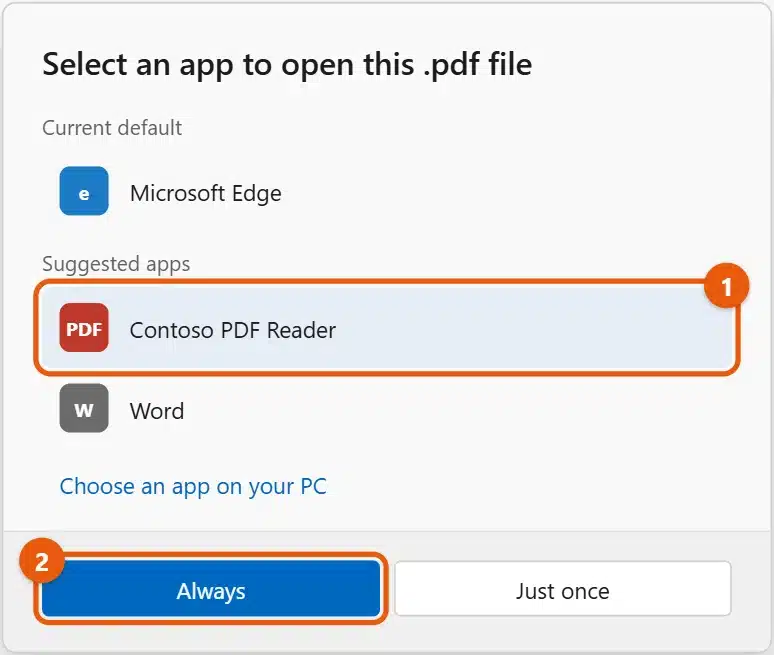
Just once opens only that file in the app and keeps your current default.
Change it in Settings
- Press Windows + I and select Apps > Default apps.
- In the box under Set a default for a file type or link type, type
.pdf. - Select the app shown under .pdf.
- Choose the new app and select Set default.
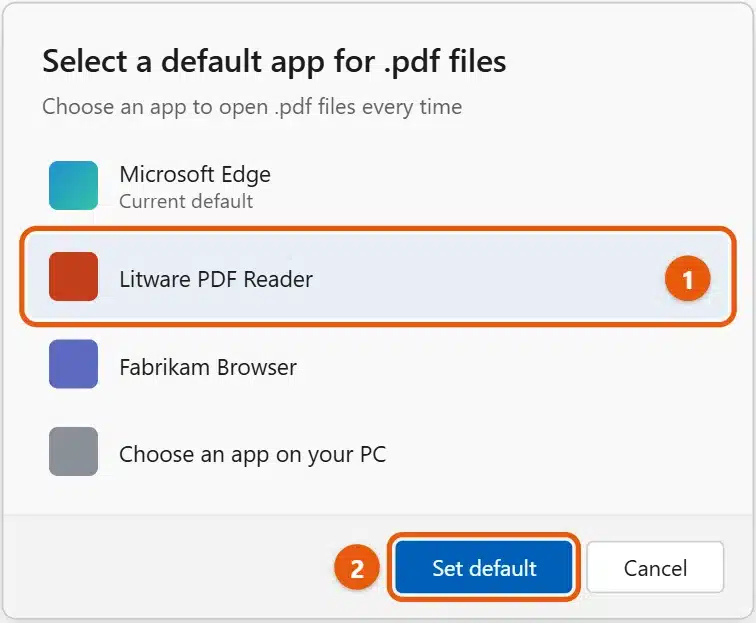
Close Settings and double-click a PDF to check that it opens in the new app.
If your PDF app isn’t in the list
- Select Choose an app on your PC and browse to the app’s program file. Most apps are in
C:\Program FilesorC:\Program Files (x86). - Restart the PC after installing the app, then try again.
- Reinstall the app if it still doesn’t appear. Some apps only register for PDF files during setup.
If Edge keeps opening PDFs
- PDFs from websites open in Edge. A PDF link opens in the browser, not in your PDF app. To change that in Edge, go to Settings > Cookies and site permissions > PDF documents and turn on Always download PDF files. Then open the downloaded file.
- Updates can reset defaults. If PDFs switch back to Edge after an update, repeat the steps above.
- On a work or school PC, your organization may choose the default PDF app. Ask your IT team.
Go back to Edge
Repeat either method and choose Microsoft Edge. Edge is built into Windows 11, so it’s always in the list.
Frequently asked questions
Do I need to pay for a PDF app?
No. Microsoft Edge opens, prints, and fills in most PDF forms for free. Many other PDF readers also have free versions.
Can I use Word as my PDF viewer?
Word can open PDFs, but it converts them into editable documents, and the layout may change. It’s better for editing than for reading.
Does changing the default change my browser?
No. The default browser is a separate setting. See how to change the default browser in Windows 11.
To change other file types, see how to set default apps in Windows 11 and how to change file associations in Windows 11. On Windows 10, see how to change the default PDF viewer in Windows 10. Microsoft’s guide is Change default apps in Windows. More help is on our Windows 11 Help & Guides page.
To check whether a file really ends in .pdf, see how to show file extensions in Windows 11.
If a file opens in the wrong app because of its extension, see how to change a file extension in Windows 11.
To turn pictures into PDFs, see how to convert JPG to PDF on Windows 11.
How do I open one PDF in a different app just once?
Right-click the PDF, select Open with, and choose the app. Don’t select Always if the window asks, and your default stays the same.
Why do PDFs from email open in my browser?
Web-based email such as Outlook.com and Gmail shows attachments in the browser’s own viewer. That isn’t controlled by the Windows default. Download the PDF first, then open it from your Downloads folder to use your default app.

Matt Jacobs has been working as an IT consultant for small businesses since receiving his Master’s degree in 2003. While he still does some consulting work, his primary focus now is on creating technology support content for SupportYourTech.com.
His work can be found on many websites and focuses on topics such as Microsoft Office, Apple devices, Android devices, Photoshop, and more.