Select the network, speaker, or battery icon on the taskbar and select the VPN tile to turn it off. Or go to Start > Settings > Network & internet > VPN, select the connection, and select Disconnect. If you use a VPN app, turn it off in that app.
Applies to: VPN connections set up in Windows 11. Checked against Microsoft Support on September 29, 2026.
Turn off the VPN from the taskbar
- Select the network, speaker, or battery icon next to the time.
- Select the VPN tile so it’s no longer highlighted.
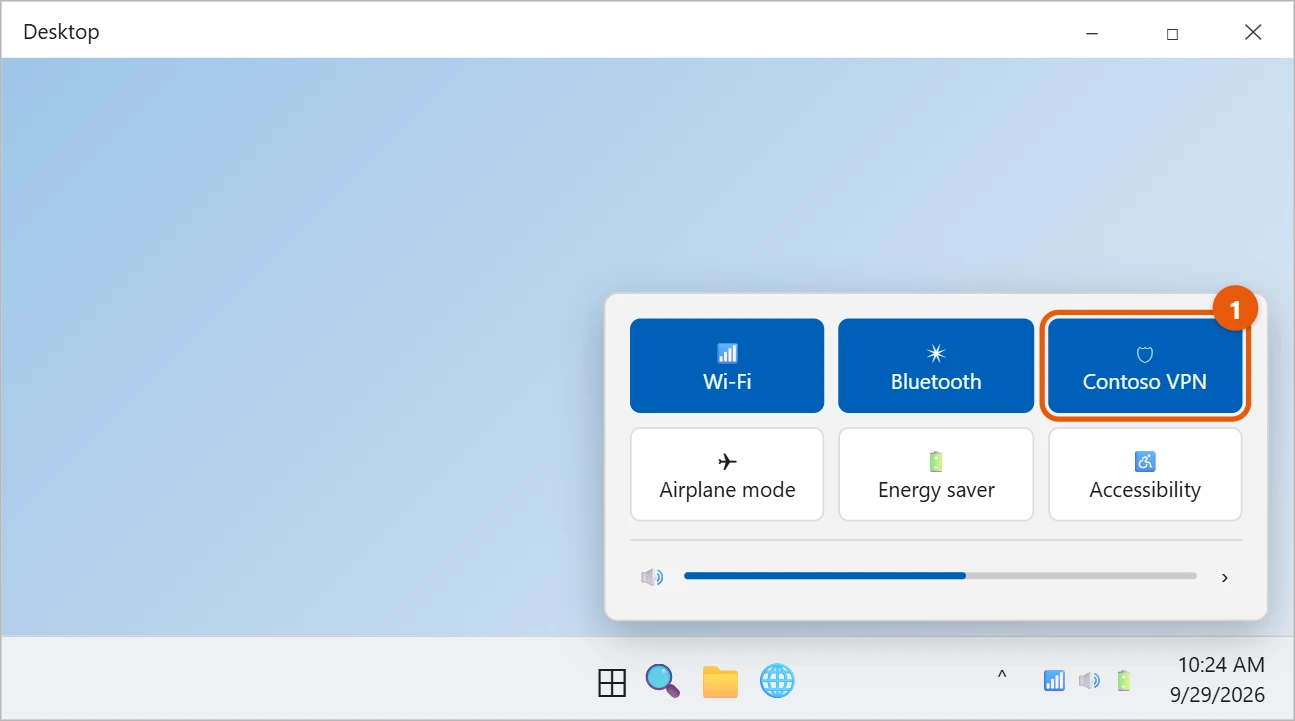
If you don’t see a VPN tile, the VPN may be run by an app. See the section on VPN apps below.
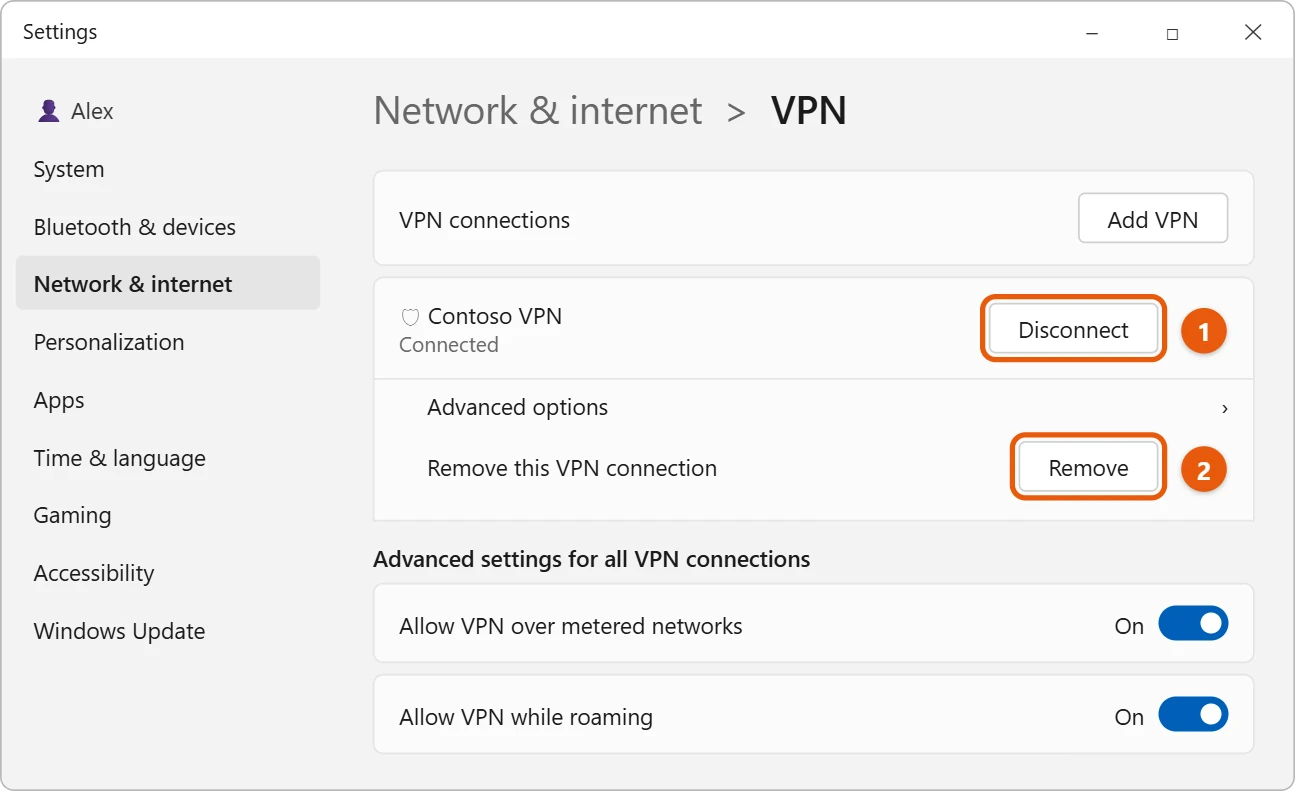
Disconnect in Settings
- Select Start > Settings > Network & internet > VPN.
- Select the VPN connection.
- Select Disconnect.
Stop it from connecting again
- Remove it: On the same page, select the connection and select Remove. You’d need the VPN settings again to add it back.
- Limit when it runs: Turn off Allow VPN over metered networks or Allow VPN while roaming so it won’t connect on those networks.
VPN apps
Many VPN services use their own app instead of Windows settings. Open the app from the Start menu or the icons next to the clock, then select Disconnect or turn off the switch. To stop it from starting with Windows, look for a startup option in the app’s settings.
If it’s a work or school VPN, ask your IT team before you change or remove it.
Disconnect with a command
For VPNs set up in Windows Settings, you can disconnect from Command Prompt or Terminal. Run rasdial on its own to see which connections are active, then:
rasdial "Work VPN" /disconnectReplace Work VPN with your connection’s name. This doesn’t work for VPN apps, which have their own controls.
Check that the VPN is really off
Open a “what is my IP” website before and after you disconnect. If the location or address changes back to your own internet provider, the VPN is off. In Settings > Network & internet > VPN, the connection should no longer say Connected.
If the VPN won’t turn off or the internet stops
- The app has a kill switch. Many VPN apps block all internet when the VPN disconnects, to protect your privacy. Turn off the kill switch (sometimes called Network Lock or Internet Kill Switch) in the app’s settings, or quit the app completely.
- It reconnects by itself. Look for auto-connect or “connect on startup” options in the VPN app and turn them off. Also check the app isn’t set to connect on untrusted Wi-Fi.
- A proxy was left behind. Some VPN apps set a proxy. Go to Settings > Network & internet > Proxy and turn off any manual proxy you didn’t set.
- You uninstalled the app and still have problems. Restart the PC. If that doesn’t fix it, go to Settings > Network & internet > Advanced network settings > Network reset. You’ll need to re-enter Wi-Fi passwords afterward.
Frequently asked questions
How do I know if a VPN is on?
Open Settings > Network & internet > VPN. A connected VPN says Connected. The VPN tile in Quick Settings is also highlighted.
My internet stopped working after I turned off the VPN. What now?
Restart the laptop first. If it still won’t connect, see how to reset network settings in Windows 11.
How do I set a VPN up again?
The steps are the same as on older versions. See how to set up a VPN on Windows 10.
Is it safe to turn off a VPN?
At home, usually yes. Your connection is still encrypted on most websites, which use HTTPS. On public Wi-Fi in cafés or airports, a VPN adds protection, so consider leaving it on there. On a work PC, follow your company’s rules.
Will turning off the VPN make the internet faster?
Often, yes. A VPN sends traffic through an extra server, which adds delay. Turning it off can speed up downloads and games.
Microsoft’s reference is Connect to a VPN in Windows. More help is on our Windows Help & Guides page.

Matt Jacobs has been working as an IT consultant for small businesses since receiving his Master’s degree in 2003. While he still does some consulting work, his primary focus now is on creating technology support content for SupportYourTech.com.
His work can be found on many websites and focuses on topics such as Microsoft Office, Apple devices, Android devices, Photoshop, and more.