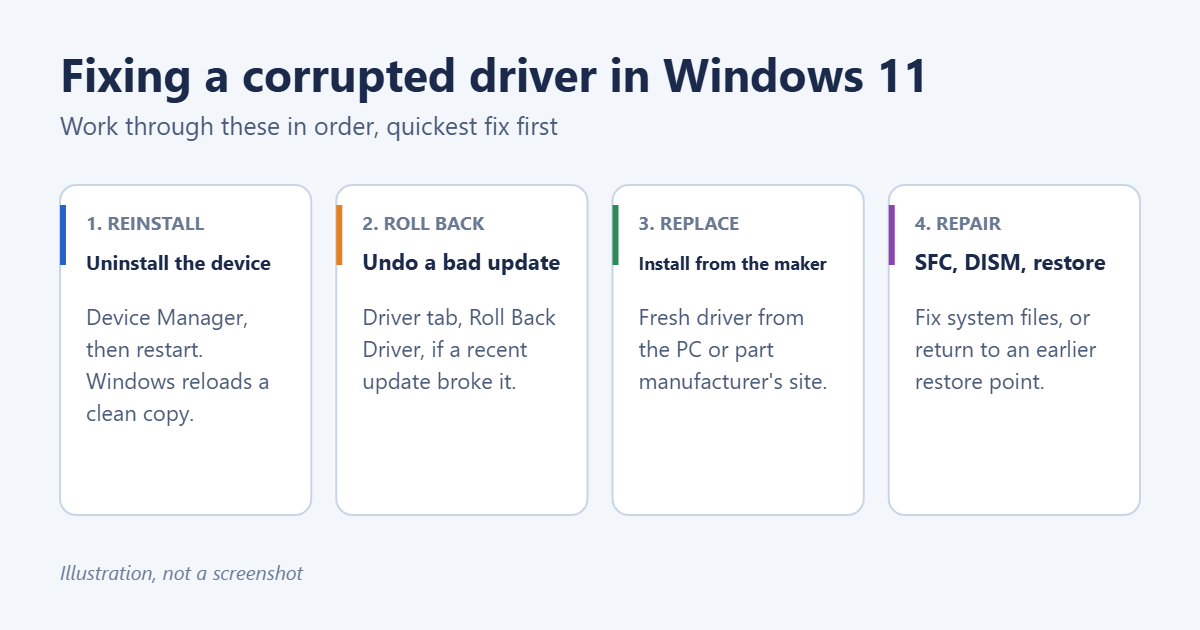
A corrupted driver usually shows up as one device that suddenly stops working: no sound, no Wi-Fi, a flickering screen, a Bluetooth mouse that won’t connect, or a blue screen that names a .sys file. The fix in most cases is to remove the damaged driver and let Windows 11 install a clean copy. If that doesn’t work, roll back a recent update, install the driver from the manufacturer, and finally repair Windows’ own system files. Work through the steps below in order, since the first one fixes most problems.
Signs a driver is corrupted
- A device worked yesterday and doesn’t today, often after a Windows update or a crash.
- Device Manager shows a yellow warning triangle next to the device.
- The device’s status shows an error such as Code 39 (“Windows cannot load the device driver for this hardware. The driver may be corrupted or missing”), Code 10 (the device cannot start), or Code 43 (Windows stopped the device because it reported problems).
- Blue screen errors that mention a driver file, such as
nvlddmkm.sysfor NVIDIA graphics.
Step 1: Find the problem device in Device Manager
- Right-click the Start button (or press Windows + X) and choose Device Manager.
- Look for a yellow triangle. If you don’t see one, expand the category for the device that isn’t working, such as Display adapters, Network adapters, Bluetooth, or Sound, video and game controllers.
- Double-click the device. The Device status box on the General tab shows the error code, if there is one.
Step 2: Uninstall the driver and let Windows reinstall it
This replaces the damaged files with a fresh copy and fixes most corrupted drivers.
- In Device Manager, right-click the device and choose Uninstall device.
- If you see a box labeled Attempt to remove the driver for this device, tick it. This deletes the driver package as well, so Windows can’t reload the same damaged copy.
- Click Uninstall.
- Restart your PC. Windows detects the device on startup and installs a driver for it. You can also click Action > Scan for hardware changes in Device Manager instead of restarting.
If you’re fixing the network adapter, download the replacement driver from the manufacturer before you uninstall, in case Windows can’t find one without an internet connection. For a Bluetooth device, see how to reinstall the Bluetooth driver in Windows 11.
Step 3: Roll back a driver that broke after an update
If the trouble started right after a driver update, go back to the previous version.
- In Device Manager, double-click the device and open the Driver tab.
- Click Roll Back Driver. If the button is greyed out, Windows doesn’t have an older version stored, so skip to step 4.
- Pick a reason, click Yes, and restart.
Step 4: Install a fresh driver
From Windows Update
- Open Settings > Windows Update > Advanced options > Optional updates.
- Expand Driver updates, tick the driver for your device if it’s listed, and click Download & install.
Our guide on how to update drivers in Windows 11 covers this in more detail.
From the manufacturer
The most reliable driver comes from the company that made your PC (Dell, HP, Lenovo, and so on) or the part itself (Intel, AMD, NVIDIA, Realtek). Go to the support section of their website, enter your model or serial number, and download the Windows 11 driver for that device. Run the installer and restart. For graphics cards, see how to update GPU drivers in Windows 11.
Avoid “driver updater” utilities from third parties. They often install the wrong version and some bundle unwanted software.
Step 5: Repair Windows system files
If drivers keep breaking, the problem may be damaged Windows files rather than the driver itself. Two built-in tools fix that.
- Click Start, type Terminal, right-click Terminal, and choose Run as administrator.
- Type
DISM /Online /Cleanup-Image /RestoreHealthand press Enter. This repairs the Windows image that SFC uses as its source. It can take 10 to 20 minutes. - When it finishes, type
sfc /scannowand press Enter. - Restart when both are done, then repeat step 2 for the device.
See how to run an SFC scan in Windows 11 for what the results mean, and how to fix corrupted files in Windows 11 for other repairs.
Step 6: Use System Restore
System Restore puts your drivers and system settings back to how they were on an earlier date, without touching your documents or photos.
- Click Start, type rstrui, and press Enter.
- Click Next, choose a restore point from before the problem started, and follow the prompts.
This only works if System Protection was turned on and a restore point exists. Programs installed after that date will need reinstalling.
If Windows won’t start properly
A bad graphics or storage driver can stop Windows from reaching the desktop. Boot into Safe Mode, which loads only basic drivers, and do steps 2 and 3 from there. Our guide on how to get into Safe Mode in Windows 11 shows how, including from the recovery screen that appears after two or three failed startups. If nothing else works, resetting Windows 11 will replace every driver.
Frequently asked questions
What causes drivers to become corrupted?
Common causes are an update interrupted by a crash or power loss, two versions of a driver conflicting, a failing drive with bad sectors, or malware. If the same driver keeps breaking, run a full scan in Windows Security and check your drive’s health.
Is it safe to uninstall a driver?
Yes, for nearly all devices. Windows reinstalls a working driver at the next restart. The device just won’t work in the minutes between uninstalling and restarting.
Can I fix all corrupted drivers at once?
There’s no single button for it. Running DISM and SFC repairs the drivers that ship with Windows, and checking Optional updates catches most others. For anything still flagged in Device Manager, use step 2.
How do I know which driver caused a blue screen?
The blue screen often lists a file name next to What failed. Search for that file name to find which device it belongs to, then reinstall that device’s driver.
Summary
Open Device Manager, uninstall the device that’s flagged, and restart. If that doesn’t fix it, roll back the driver, install a fresh one from the manufacturer, and run DISM and SFC. System Restore and Safe Mode are there for the stubborn cases.

Matt Jacobs has been working as an IT consultant for small businesses since receiving his Master’s degree in 2003. While he still does some consulting work, his primary focus now is on creating technology support content for SupportYourTech.com.
His work can be found on many websites and focuses on topics such as Microsoft Office, Apple devices, Android devices, Photoshop, and more.