To turn off Efficiency mode in Windows 11, press Ctrl + Shift + Esc to open Task Manager, select Processes, find the app with a green leaf icon, expand it, select the process and choose Efficiency mode in the toolbar (or right-click it and choose Efficiency mode) to remove the check mark. The change lasts until the process closes. Browsers such as Edge and Chrome put background tabs into Efficiency mode automatically, so for them you’ll also want to change the browser’s own settings.
Applies to: Windows 11, version 22H2 and later. Last reviewed October 7, 2026.
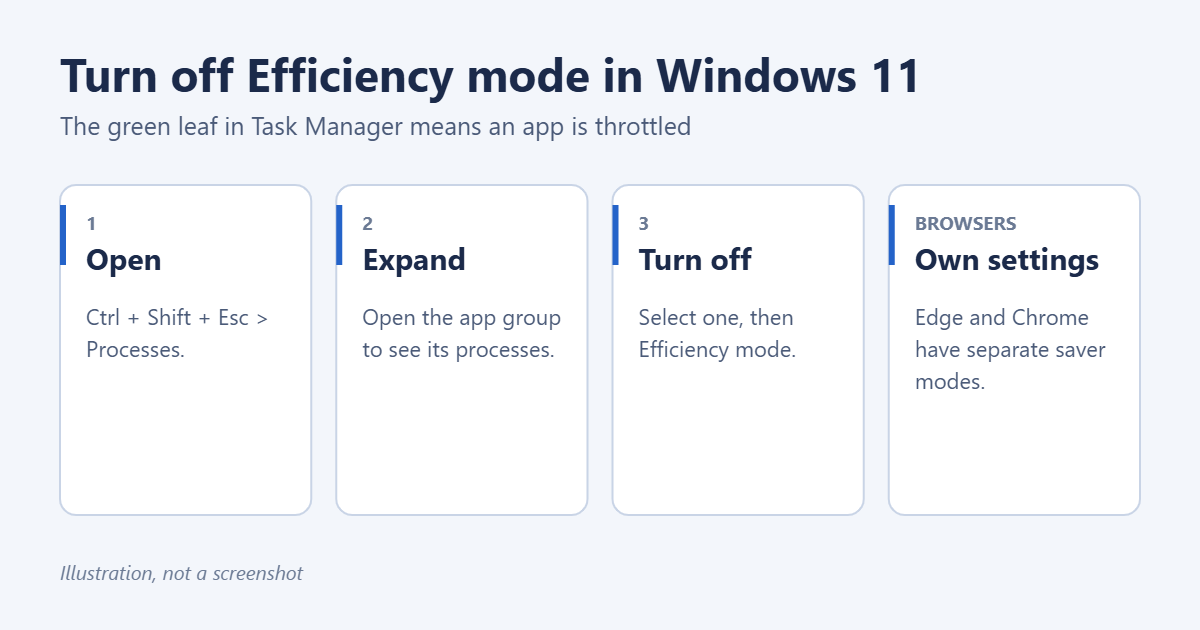
What Efficiency mode does
Efficiency mode lowers a process’s priority and tells the processor to run it in a power-saving way. That leaves more power for the app you’re using and saves battery. The process keeps running, just more slowly. In Task Manager, a green leaf icon in the Status column shows which apps are in Efficiency mode.
It’s usually harmless. Turn it off if a background job, such as an export, download or sync, is taking much longer than it should.
Turn off Efficiency mode for an app
- Press Ctrl + Shift + Esc to open Task Manager. See how to open Task Manager in Windows 11 for other ways.
- Select Processes in the left menu.
- Find the app with a leaf in the Status column. If you don’t see a Status column, right-click any column heading and choose Status.
- Select the arrow next to the app to expand it. The leaf usually appears on individual processes inside the group.
- Select a process with a leaf and choose Efficiency mode in the toolbar at the top. You can also right-click the process and select Efficiency mode.
- Repeat for the other processes in the group if needed.
The leaf disappears. If you turn Efficiency mode on for an app yourself, Windows asks you to confirm, because it may make the app less stable.
Why it keeps turning back on
Turning Efficiency mode off in Task Manager only applies to that running process. When the app restarts or opens a new process, the app or Windows can turn it on again. Many apps do this deliberately for background work:
- Microsoft Edge and Google Chrome put tabs you aren’t looking at into Efficiency mode.
- Some Microsoft Store apps and background services use it while minimized.
There’s no Windows setting that turns Efficiency mode off for every app. For browsers, change the browser’s settings instead.
Turn off the browser’s own saver modes
Microsoft Edge
- Open Edge and go to Settings > System and performance.
- Under Performance, turn off Efficiency mode or set it to activate only on battery. You can also turn off Sleeping tabs, or add sites that should never sleep.
Google Chrome
- Open Chrome and go to Settings > Performance.
- Turn off Energy saver, and turn off Memory saver or add sites to Always keep these sites active.
These settings stop tabs from being frozen or slowed. Chrome and Edge may still lower the priority of background tabs in Task Manager, which has little effect on what you see.
Check Windows power settings too
Battery saver (called Energy saver in newer versions of Windows 11) slows background activity across the whole PC. Open Settings > System > Power & battery, turn off Energy saver, and set Power mode to Balanced or Best performance while you’re plugged in.
Troubleshooting
Efficiency mode is greyed out
You’ve selected the app’s group rather than a single process, or the process is part of Windows. Expand the group and select a single process. Core Windows processes can’t be changed.
The PC is still slow after turning it off
Efficiency mode rarely causes general slowness. Check Task Manager’s CPU and Memory columns for the app using the most, and see how to clear memory (RAM) on Windows 11.
Frequently asked questions
Is Efficiency mode bad?
No. It’s designed to save power and keep the app you’re using fast. Turn it off only for a background app you need to finish quickly.
Does Efficiency mode close apps?
No. The app keeps running and keeps its data. It just gets less processor time.

Matt Jacobs has been working as an IT consultant for small businesses since receiving his Master’s degree in 2003. While he still does some consulting work, his primary focus now is on creating technology support content for SupportYourTech.com.
His work can be found on many websites and focuses on topics such as Microsoft Office, Apple devices, Android devices, Photoshop, and more.