Right-click the file or folder and select Compress to > ZIP File. Windows creates a zipped copy with the same name in the same folder. To unzip, right-click the ZIP file and select Extract All.
Applies to: Windows 11. Checked against Microsoft Support on September 29, 2026.
Zip a file or folder
- Open File Explorer and find the file or folder.
- Right-click it and select Compress to.
- Select ZIP File.
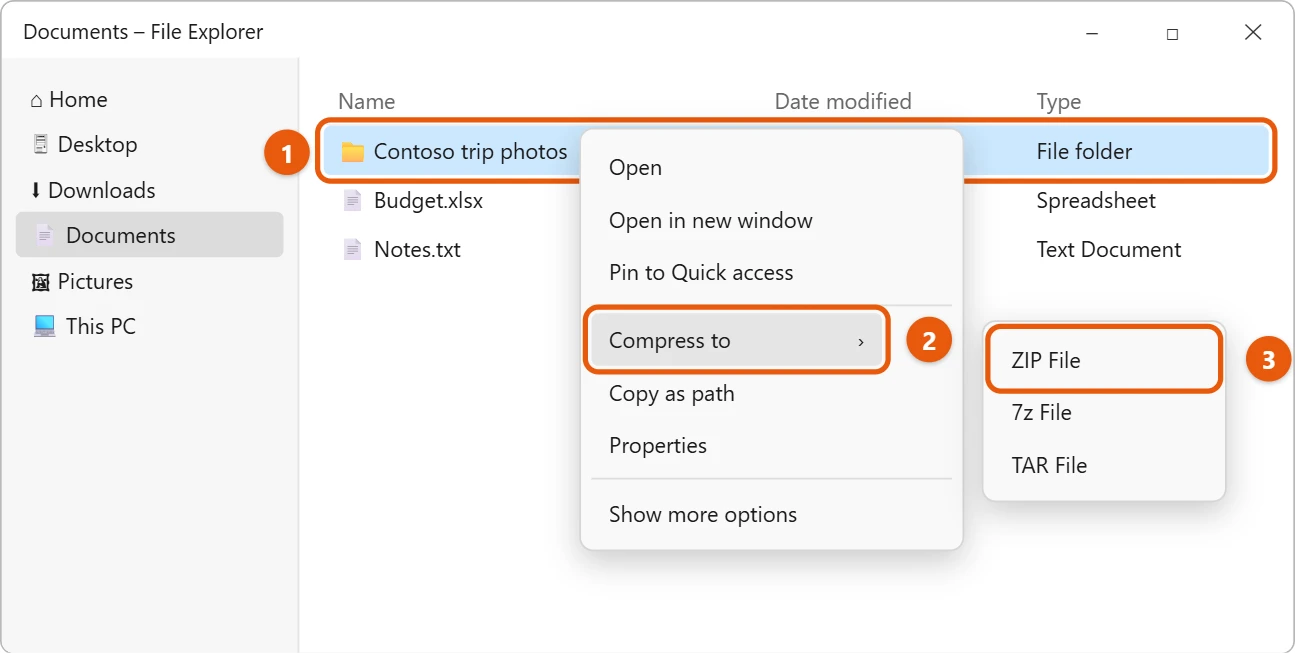
A new ZIP file appears next to the original. Type a new name, or press Enter to keep it.
On some versions of Windows 11 the menu says Compress to ZIP file. If you don’t see either, select Show more options > Send to > Compressed (zipped) folder.
Zip several files together
Select all the files first (hold Ctrl and select each one), then right-click one of them and follow the same steps. To add more files later, drag them onto the ZIP file.
Unzip (extract) files
- Right-click the ZIP file and select Extract All.
- Check the folder where the files will go, or select Browse to pick another one.
- Select Extract.
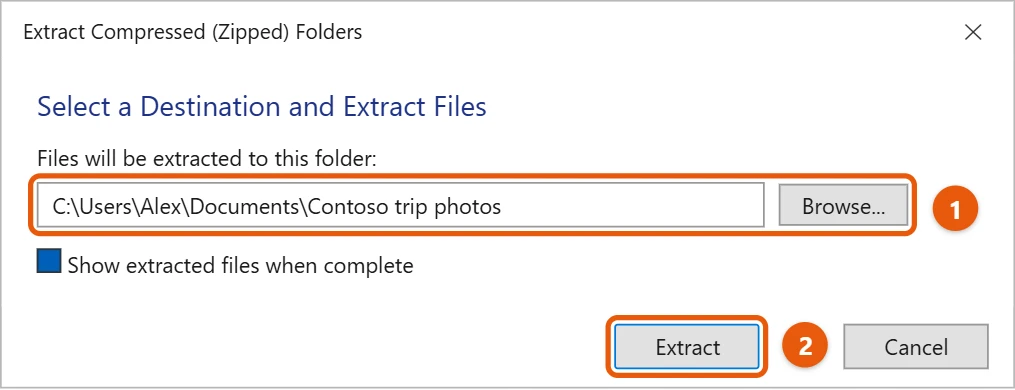
To take out just one file, double-click the ZIP file to open it, then drag the file to another folder. For more, see how to extract files in Windows 11.
Frequently asked questions
Why is my ZIP file almost the same size?
Some files, such as photos and videos, are already compressed, so zipping them saves little space. Zipping still helps you send many files as one.
Where do downloaded ZIP files go?
Usually to your Downloads folder. See how to find downloads on Windows 11. On Windows 10, see how to zip a file in Windows 10.
To make a folder to zip, see how to create a new folder in Windows 11.
Microsoft’s reference is Zip and unzip files. More help is on our Windows Help & Guides page.

Matt Jacobs has been working as an IT consultant for small businesses since receiving his Master’s degree in 2003. While he still does some consulting work, his primary focus now is on creating technology support content for SupportYourTech.com.
His work can be found on many websites and focuses on topics such as Microsoft Office, Apple devices, Android devices, Photoshop, and more.