Windows 11 doesn’t have one setting for a default camera. Each app picks its own. In the Camera app, select Change camera at the top right. In Microsoft Teams and most video apps, open the app’s settings, go to Devices, and choose the camera from the Camera list. The app remembers your choice.
Applies to: Windows 11 with more than one camera. Checked against Microsoft Support on September 29, 2026.
Switch cameras in the Camera app
- Select Start, type Camera, and open it.
- Select Change camera (the two arrows) at the top right.
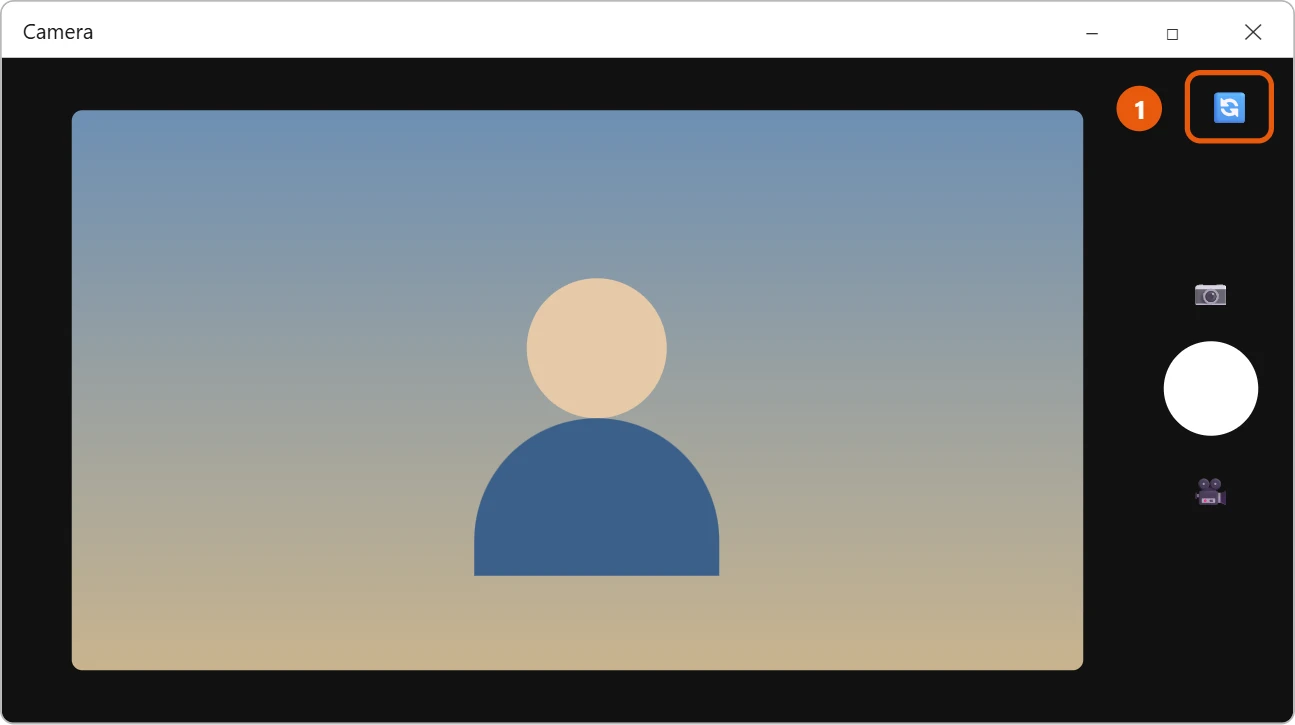
- Select it again to go back. The Camera app uses the last camera you picked next time.
Choose the camera in Teams
- In Microsoft Teams, select Settings and more (…) > Settings.
- Select Devices.
- Under Camera, open the list and pick the camera you want.
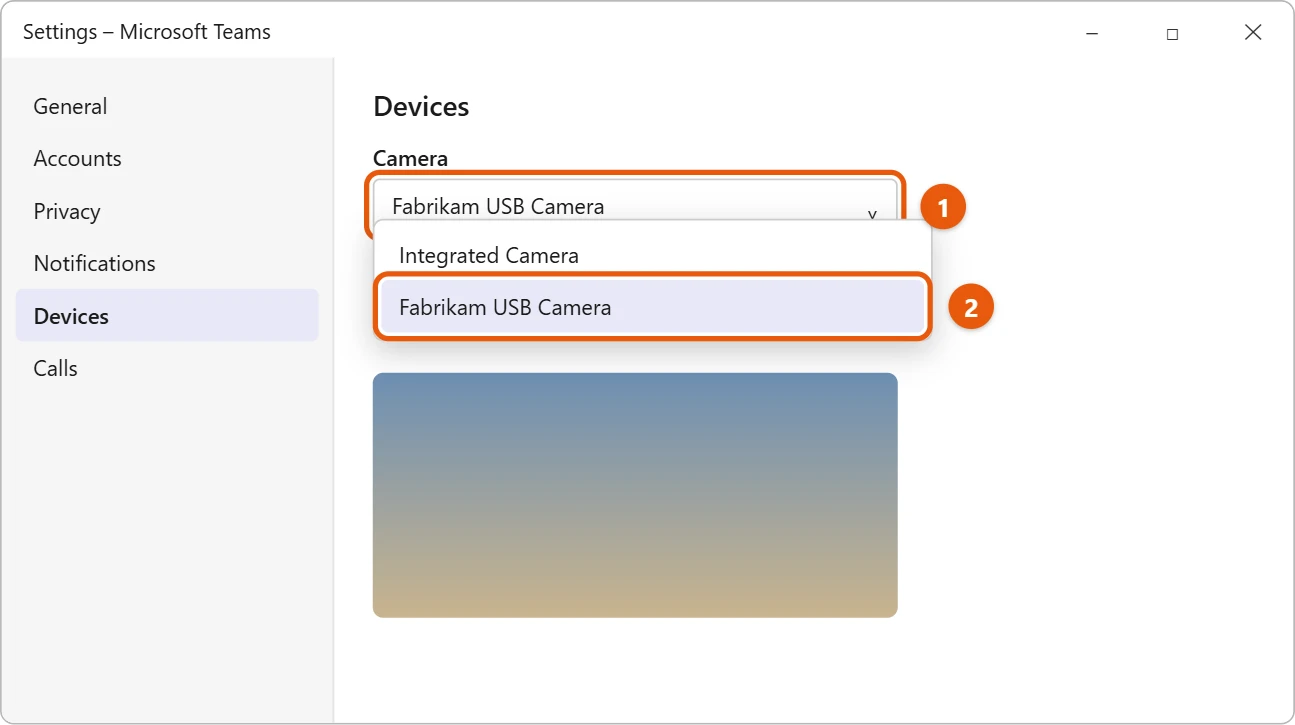
Most other video call apps have the same kind of setting, usually under Settings > Video or Audio & video.
Choose the camera on a website
When a website asks to use your camera in Microsoft Edge, select the camera icon in the address bar to pick which camera it uses.
Adjust each camera’s picture
Select Start > Settings > Bluetooth & devices > Cameras, then select a camera. You can change its brightness and contrast, and the changes are saved for that camera.
Frequently asked questions
Why doesn’t my external camera show up?
Unplug it and plug it into a different USB port, then check Settings > Bluetooth & devices > Cameras. Also check Settings > Privacy & security > Camera to make sure apps are allowed to use it. See how to test your camera on Windows 10; the steps are much the same.
Can I make one camera the only choice?
You can unplug the camera you don’t want, or close the laptop lid if you use an external monitor and camera. For older camera settings, see how to change camera settings in Windows 10.
Microsoft’s references are How to use the Windows Camera app and Manage cameras with Camera settings in Windows 11. More help is on our Windows Help & Guides page.
Related: How to enable a disabled camera in Windows 11.
Related: How to zoom out your webcam in Windows 11.

Matt Jacobs has been working as an IT consultant for small businesses since receiving his Master’s degree in 2003. While he still does some consulting work, his primary focus now is on creating technology support content for SupportYourTech.com.
His work can be found on many websites and focuses on topics such as Microsoft Office, Apple devices, Android devices, Photoshop, and more.