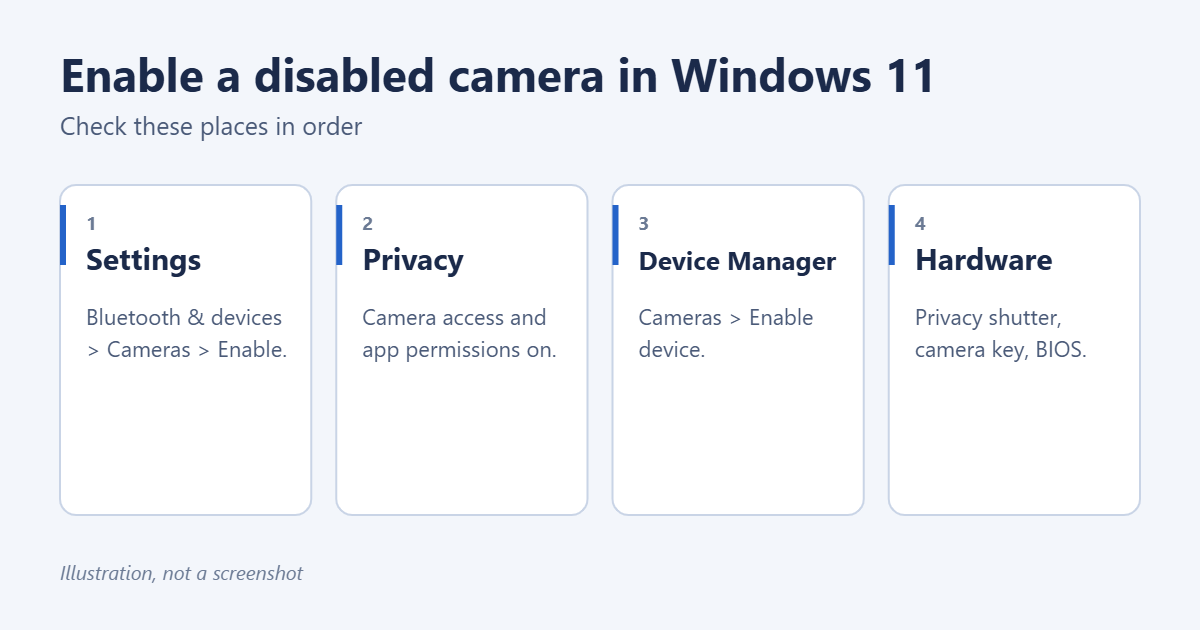
To enable a disabled camera in Windows 11, open Settings > Bluetooth & devices > Cameras, find your camera under Disabled cameras and select Enable. If it isn’t listed there, check Settings > Privacy & security > Camera to make sure camera access is on, then look in Device Manager. Many laptops also have a physical privacy shutter or a camera key that blocks the camera regardless of Windows settings.
Applies to: Windows 11, version 22H2 and later, with built-in or USB webcams. Last reviewed October 7, 2026.
Step 1: Enable the camera in Settings
- Press Windows key + I to open Settings.
- Select Bluetooth & devices > Cameras.
- Under Disabled cameras, select Enable next to your camera and confirm.
The camera moves to Connected cameras. Select it to see a preview and adjust brightness and other settings. If you have more than one camera, see how to change the default camera in Windows 11.
Step 2: Turn on camera access in Privacy settings
A camera can be enabled but still blocked for apps.
- Open Settings > Privacy & security > Camera.
- Turn on Camera access.
- Turn on Let apps access your camera, and check that the app you want, such as Teams or Zoom, is on in the list.
- For apps installed from outside the Microsoft Store, such as browsers, turn on Let desktop apps access your camera at the bottom.
In a browser, you also need to allow the website: select the camera icon or lock icon in the address bar and set Camera to Allow.
Step 3: Enable it in Device Manager
- Right-click Start and select Device Manager.
- Expand Cameras. On some PCs it’s under Imaging devices.
- If the camera has a small down arrow on its icon, right-click it and select Enable device.
- If it has a yellow warning icon, right-click it and choose Update driver, or Uninstall device and restart so Windows reinstalls it.
If there’s no camera in Device Manager at all, select Action > Scan for hardware changes. If it still doesn’t appear, the camera is switched off in hardware or in the BIOS.
Step 4: Check the shutter, camera key and BIOS
- Privacy shutter: many laptops have a small slider above the screen that covers the lens. If the camera shows a black image or a crossed-out camera, slide it open.
- Camera key: some laptops, including many HP and Lenovo models, have a key with a camera icon, often on the F-key row, that turns the camera off electronically. Press it, or press it with Fn.
- BIOS setting: restart, enter the BIOS (often F2, F10 or Delete at startup) and look for a camera, webcam or integrated camera option under Security, Advanced or Device configuration. Set it to Enabled.
- USB webcam: unplug it and plug it into a different USB port, ideally directly on the PC rather than through a hub.
Step 5: Check security software
Some antivirus apps have webcam protection that blocks apps from using the camera. Open your antivirus, look for Webcam protection or Privacy, and allow the app you need. On work PCs, your organization may disable cameras by policy; ask your IT department.
Test the camera
Open the Camera app from the Start menu. If you see yourself, the camera works and any problem is in the app you’re trying to use. Close other apps that might be using the camera, because only one app can use it at a time on many PCs. To change how you look on calls, see how to change your webcam background in Windows 11 or how to zoom out your webcam.
Troubleshooting
The camera works but the picture looks blurred or the background changes
Windows Studio Effects or an app’s background effects are on. See how to turn off Windows Studio Effects in Windows 11.
Error 0xA00F4244 “We can’t find your camera”
Windows can’t see the camera. Check the camera key, the BIOS setting and Device Manager, in that order.
The camera was working and stopped after an update
In Device Manager, right-click the camera, choose Properties > Driver > Roll Back Driver if available, or install the latest driver from your PC maker’s support site.
Frequently asked questions
How do I disable the camera again?
Go to Settings > Bluetooth & devices > Cameras, select the camera and choose Disable. Or close the privacy shutter.
Does disabling the camera also turn off the microphone?
No. The microphone is a separate device with its own settings under Privacy & security > Microphone.

Matt Jacobs has been working as an IT consultant for small businesses since receiving his Master’s degree in 2003. While he still does some consulting work, his primary focus now is on creating technology support content for SupportYourTech.com.
His work can be found on many websites and focuses on topics such as Microsoft Office, Apple devices, Android devices, Photoshop, and more.