Windows 11 has no single setting that swaps your webcam background for a picture. You change it inside the video app you are using: in Microsoft Teams, select Effects and avatars on the pre-join screen; in Zoom, open Settings > Video & effects > Virtual backgrounds. Windows itself can only blur the background, and only on PCs that support Windows Studio Effects.
Applies to: Windows 11 with the Microsoft Teams desktop app, the Zoom desktop app, or Google Meet in a browser; Windows Studio Effects on Copilot+ PCs. Checked against Microsoft Support, Zoom Support and Google Meet Help on October 7, 2026.
Which method should you use?
The right place to change the background depends on what you want and which app is showing your camera. A replacement image always comes from the meeting app. A blur can come from either the app or, on supported hardware, from Windows.
| What you want | Where to set it | What you need |
|---|---|---|
| A picture behind you in Teams | Teams: Effects and avatars | Teams desktop app (not Linux, not optimized virtual desktops) |
| A picture or video behind you in Zoom | Zoom: Settings > Video & effects > Virtual backgrounds | A PC that meets Zoom’s virtual background requirements |
| A blur or picture in Google Meet | Meet: Backgrounds and effects | A recent version of Chrome, Edge or Firefox |
| A blur set in Windows instead of in one app | Windows: Studio effects in quick settings | A PC with a neural processing unit, such as a Copilot+ PC |
Before you start
- Make sure the camera works. If the app shows a black preview, fix that first. Our guide on how to turn on the camera in Windows 11 covers the privacy switches that block it.
- Pick a suitable image. Teams accepts .JPG, .PNG and .BMP files for custom backgrounds. A wide, landscape picture fits a video frame best.
- Tidy up anyway. Microsoft warns that blurring or replacing your background may not prevent sensitive information from being visible, so move anything private out of the camera’s view.
Change your webcam background in Microsoft Teams
Teams lets you choose a background on the screen that appears before you join, so nobody sees your room first.
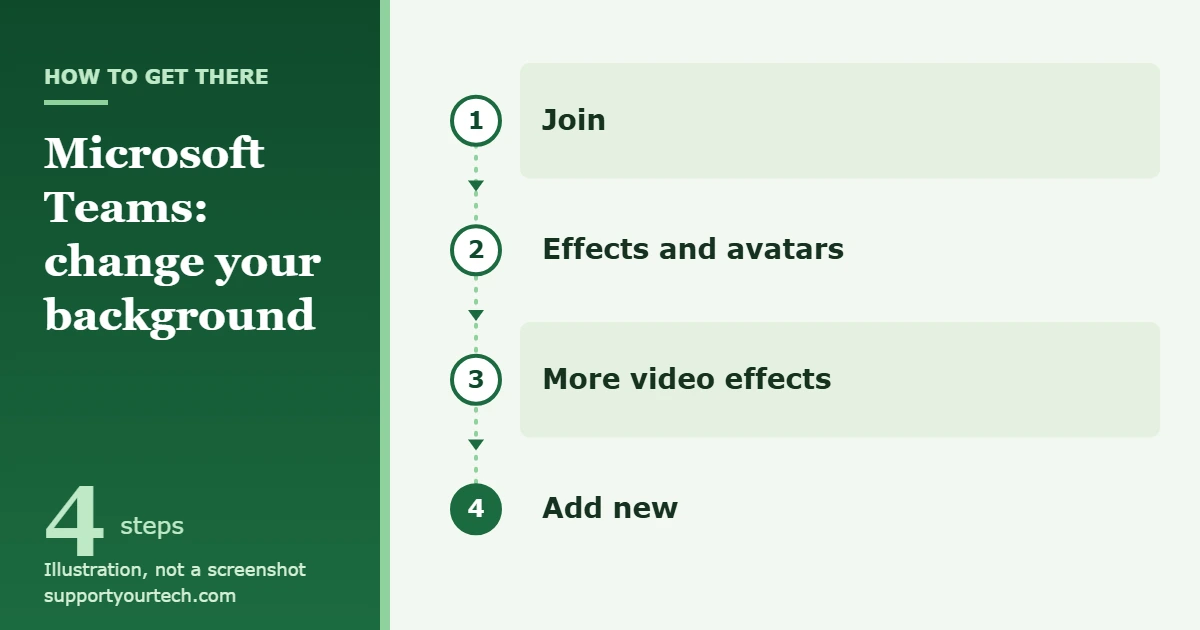
- Open Teams and go to your Teams calendar.
- Select a meeting, then select Join. The pre-join screen opens with a preview of your camera.
- Select Effects and avatars. A panel of video effects appears.
- Choose a blur or pick one of the background images. For blur, Teams offers Standard blur and Portrait blur.
- To use your own picture, select More video effects > Add new, then choose a .JPG, .PNG or .BMP file from your computer.
- Check the preview, then join the meeting with the background already in place.
Change the Teams background during a meeting
- In the meeting controls, select More actions > Video effects and settings.
- Select Video effects.
- Choose a blur, a background image, or upload a new image.
- Select Preview to see how it looks before anyone else does. This step is optional.
- Select Apply. The new background replaces the old one for everyone in the meeting.
Microsoft documents these steps in Change your background in Microsoft Teams meetings.
Change your webcam background in Zoom
Zoom calls the feature a virtual background. You can set it from the app’s settings before any meeting starts.
- Sign in to the Zoom desktop app.
- In the top-right corner, click your profile picture, then click Settings.
- Click the Video & effects tab.
- Click the Virtual backgrounds tab. Your camera preview appears with the available backgrounds below it.
- Click one of the default images, or click Blur to blur your real background. To use your own picture or video, click the add icon and choose the file.
- If you have a physical green screen behind you, turn on the I have a green screen toggle. Leave it off otherwise.
To change it during a meeting, click the arrow icon next to Video in the meeting controls, click Video & effect settings, then click the Virtual backgrounds tab below your video preview and choose from the same options.
Zoom lists the supported processors in its virtual background system requirements. On Windows 11, a virtual background without a green screen needs a reasonably modern processor, for example an Intel Core i3 from the 5000 series or later, or an AMD Ryzen 5, 7 or 9.
Change your webcam background in Google Meet
Google Meet runs in the browser, so there is nothing to install.
- Open your meeting link. Before you join, look at the bottom right of your video preview.
- For a quick blur, click Blur.
- For other options, click Backgrounds and effects, then pick a background.
- Join the meeting when the preview looks right.
If you are already in the meeting, click Video settings at the bottom, next to the microphone control. Click Blur background for a one-click blur, or open the Backgrounds tab to choose something else. Google’s Meet Help page on backgrounds and effects says the feature needs a current browser, such as Chrome or Edge version 114 or later, or Firefox 110 or later.
Blur your background in Windows 11 with Windows Studio Effects
Windows Studio Effects is a set of camera and microphone effects built into Windows 11. It needs a neural processing unit (NPU), a chip that handles AI tasks, and Microsoft says the full set of effects is for Copilot+ PCs with an NPU rated above 40 TOPS. The background options are two kinds of blur. There is no option to insert a picture, so use the app methods above for that.
The advantage is that the setting lives in Windows, as a default for that camera, instead of inside one meeting app.
- Select the battery, network or volume icon on the taskbar to open quick settings.
- Select Studio effects. If the button is not there, your PC most likely lacks the NPU the feature requires.
- Under Background effects, choose Standard Blur for a light blur, or Portrait Blur for a stronger one that looks like a camera’s portrait mode.
You can reach the same controls through Settings > Bluetooth & devices > Cameras. Select your camera under Connected cameras, then turn on the effect you want. That page also holds the camera’s basic defaults, which can include brightness, contrast, saturation and sharpness, depending on the camera.
The other Studio Effects are Automatic framing, Portrait light, Eye contact, Creative filters and Voice focus. Microsoft describes each one on its Windows Studio Effects page.
How to confirm it worked, and how to undo it
Every method above shows a live preview, and that preview is what other people will see. Check the edges around your hair and shoulders, and wave a hand to see how the effect copes with movement.
- Teams: go back to Video effects and pick a different option.
- Zoom: in the Virtual backgrounds tab, click None.
- Google Meet: click Turn off visual effects, then Remove all.
- Windows Studio Effects: select Studio effects in quick settings, then Reset Effects. We have a separate walkthrough on how to turn off Windows Studio Effects in Windows 11.
Avoid stacking effects. If Windows is blurring the camera and the meeting app is also replacing the background, two tools are processing the same video. Use one or the other.
Troubleshooting
There is no Studio effects button in quick settings
Microsoft lists an NPU as a requirement for Windows Studio Effects, so a PC without one does not show the button. That is a hardware requirement, not a setting you can switch on. Use the background feature in your meeting app instead.
Teams has no background option
Microsoft lists two cases where the feature is unavailable: Teams on Linux, and Teams running through optimized virtual desktop infrastructure (VDI), which is a setup some employers use for remote desktops. On a work or school account, your organization’s IT team also controls which Teams features you get, so ask them if the option is missing on an ordinary Windows 11 PC.
Zoom has no Virtual backgrounds tab, or it will not turn on
Zoom requires three things: a PC that meets its virtual background system requirements, a desktop app at or above its minimum supported version, and the Virtual background setting enabled for your account. Update the app first. If the account belongs to your workplace, the setting may have been switched off by an administrator.
The app shows a black screen or cannot find the camera
Check that Windows is letting the app use the camera. Select Start > Settings > Privacy & security > Camera, then make sure Camera access and Let apps access your camera are on. Teams and Zoom are desktop apps, so Let desktop apps access your camera must be on too. Windows cannot switch camera access on or off for one desktop app at a time; that switch covers all of them. Microsoft explains each switch in Manage app permissions for a camera in Windows.
Your camera is not listed in Windows camera settings
Microsoft notes that some cameras never appear on the Cameras page, including the infrared cameras used for Windows Hello sign-in and cameras that rely on the older DirectShow technology. Those cameras can still work in meeting apps, so set the background in the app.
The edges flicker or parts of you disappear
The software has to work out where you end and the room begins. Give it an easier job: put a light in front of you instead of behind you, sit a little way from the wall, and wear a color that differs from the wall and from the background image. If a picture still looks rough, switch to a blur, which hides mistakes better.
Frequently asked questions
Can I change the background in the Windows 11 Camera app?
Not to a picture. The only background effect Windows provides is the Studio Effects blur, and only on PCs with a supported NPU. For a replacement image, use a meeting app such as Teams, Zoom or Google Meet.
Do I need a green screen?
No. Teams, Zoom and Google Meet can all separate you from the room without one. Zoom has an I have a green screen toggle for people who own one, and it should stay off if you do not.
Does Windows 11 Home or Pro make a difference?
Microsoft’s requirements for Windows Studio Effects are about hardware, specifically the NPU, and the meeting apps set their own requirements. None of the documentation checked for this article lists the Windows 11 edition as a requirement.
Will my background stay on for the next meeting?
Windows saves camera settings for each camera and each user account, so a Studio Effects blur stays on until you turn it off. For meeting apps, check the preview before you join, since that takes a second and removes the doubt.
Is it safe to install a webcam background program?
Some programs create a virtual camera that adds a background before the video reaches your meeting app. If you go that route, download only from the developer’s own website or the Microsoft Store, and remember that the program will see everything your camera sees. Most people do not need one, because the meeting apps already include the feature.
Next step: open the app you use most, set a background once from its settings, and check the preview before your next call so there are no surprises when you join.
Related: How to enable a disabled camera in Windows 11.
Related: How to zoom out your webcam in Windows 11.

Matt Jacobs has been working as an IT consultant for small businesses since receiving his Master’s degree in 2003. While he still does some consulting work, his primary focus now is on creating technology support content for SupportYourTech.com.
His work can be found on many websites and focuses on topics such as Microsoft Office, Apple devices, Android devices, Photoshop, and more.