To turn on noise suppression in Windows 11, select Start > Settings > System > Sound, select your microphone under Input, and set Voice focus to On. Voice focus is part of Windows Studio Effects and needs Windows 11 version 24H2 or later. On a Copilot+ PC, you can also turn it on from Quick Settings > Studio effects. If you don’t see Voice focus, keep Audio enhancements turned on, check your microphone driver’s settings, or use the noise setting in your calling app.
Applies to: Windows 11. Checked against Microsoft Support on September 30, 2026.
Which noise suppression can you use?
Windows 11 doesn’t have one noise switch that every PC shares. What you see depends on your Windows version, your PC’s hardware and your microphone driver:
- Voice focus isolates your voice and reduces background noise such as typing, fans and people talking nearby. Microsoft lists it as a Windows Studio Effects feature. Copilot+ PCs run it on the neural processing unit (NPU), and many other PCs on version 24H2 or later get a software version.
- Audio enhancements turns on the sound processing that your PC maker or microphone driver provides, which often includes noise and echo reduction.
- Driver settings in the Sound Control Panel sometimes include separate Noise Suppression and Acoustic Echo Cancellation check boxes.
- App settings. Most calling and meeting apps have their own noise filter.
Start with Method 1. If the option isn’t there, work down the list.
Method 1: Turn on Voice focus in Settings
- Select Start > Settings > System > Sound.
- Under Input, select your microphone to open its Properties page.
- Make sure Audio enhancements is set to Device Default Effects.
- Set Voice focus to On. Some PCs show a toggle instead, and some offer Automatic, which lets Windows decide when to use it.
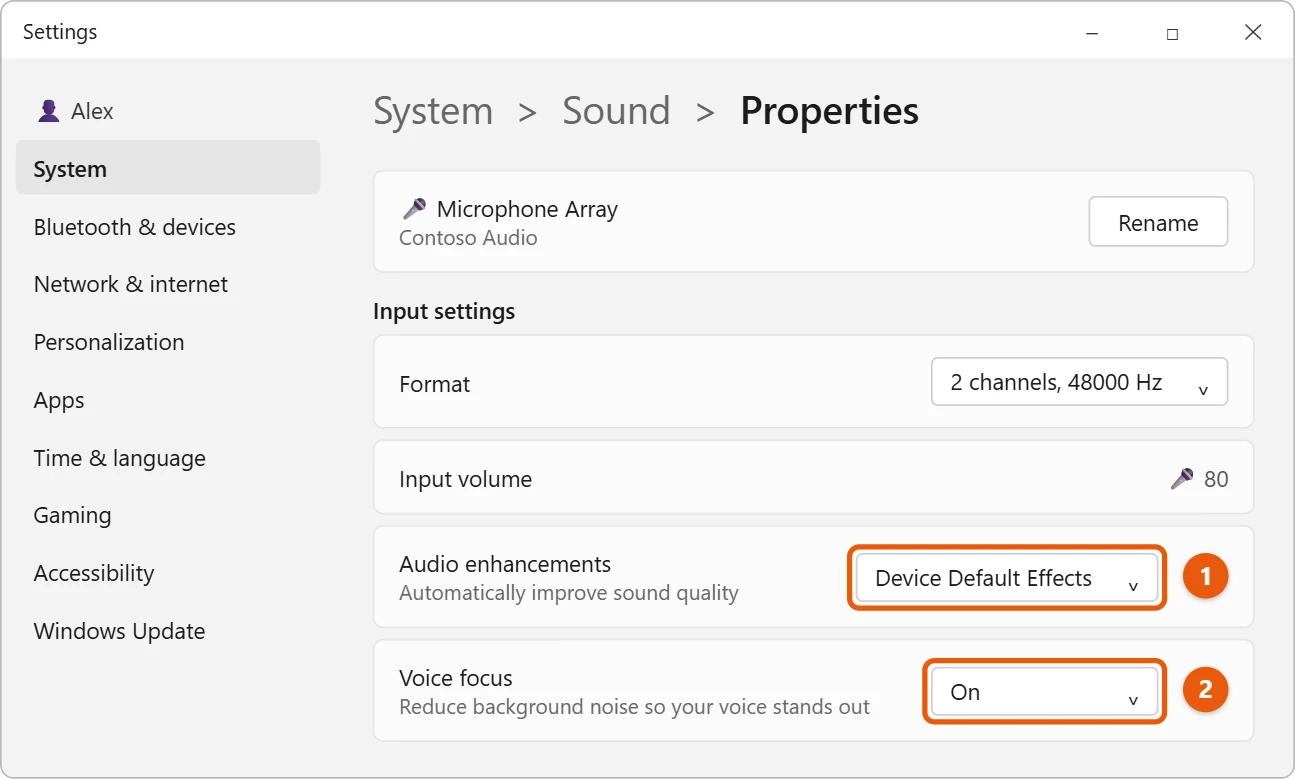
The setting applies to that microphone in every app. If you switch to a headset or USB microphone, open its properties and turn Voice focus on there too.
To hear the difference, select Start test on the same page, or record yourself with Sound Recorder. See how to record audio in Windows 11.
Method 2: Use Studio effects in Quick Settings (Copilot+ PCs)
On PCs with Windows Studio Effects, you can switch Voice focus on and off without opening Settings, which is handy during a call.
- Select the Network, Sound or Battery icon next to the clock on the taskbar, or press Windows logo key + A.
- Select the Studio effects tile.
- Under Microphone, turn on Voice focus.
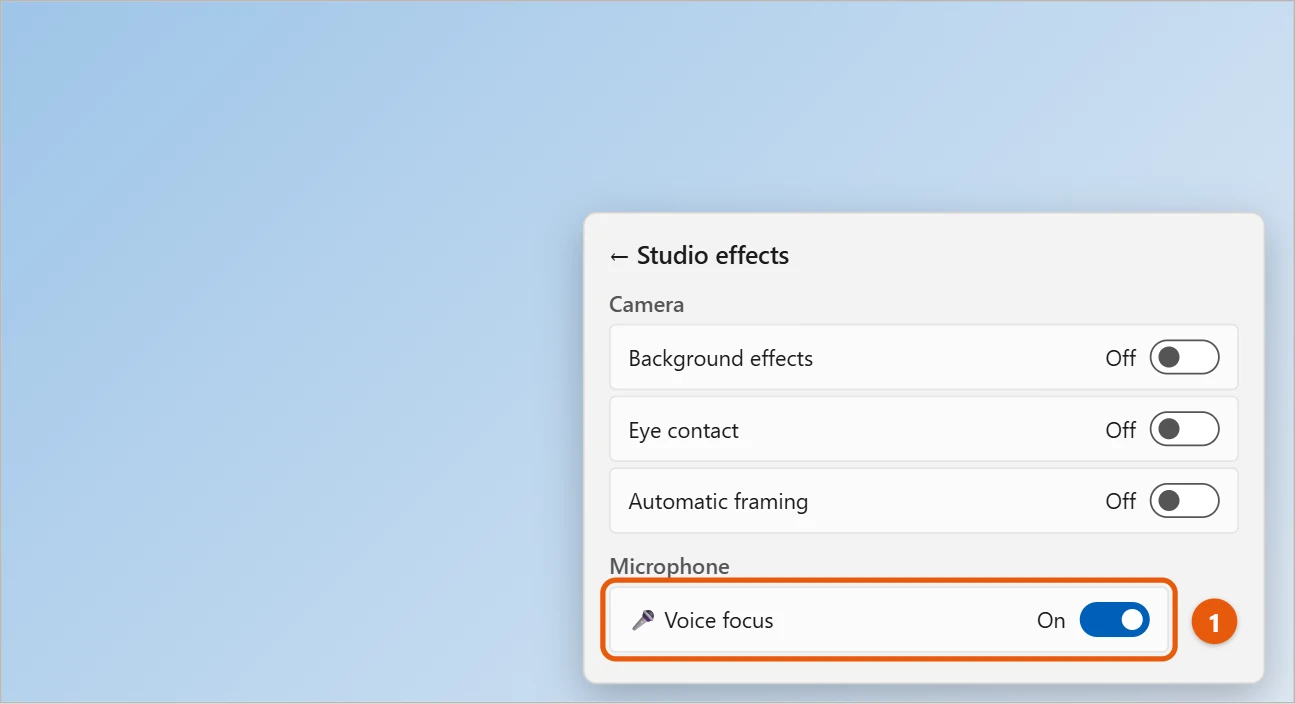
If there’s no Studio effects tile, select Edit quick settings (the pencil icon) and then Add to look for it. Microsoft says that if it still isn’t available, your PC might not have an NPU. Use Method 1 instead. The camera effects on the same panel, such as background blur, are covered in how to change the default camera in Windows 11.
Method 3: Turn on your microphone driver’s noise suppression
Many laptops and sound cards include their own noise filter. You’ll find it in the older Sound Control Panel.
- Select Start > Settings > System > Sound, then select More sound settings at the bottom. See how to open the Sound Control Panel in Windows 11 for other ways.
- Select the Recording tab.
- Select your microphone, then Properties.
- Look on the Enhancements or Advanced tab for Noise Suppression or Acoustic Echo Cancellation, select the check box, and then select OK.
Not every driver has these options. If the tabs aren’t there, your microphone relies on Voice focus or on the app you use.
While you’re in the microphone’s Properties, check the Levels tab. A high Microphone Boost makes background noise louder along with your voice, so lower it if it’s set above +10 dB. For more on mic levels, see how to turn up mic volume in Windows 10; the steps are the same in Windows 11.
Method 4: Use the noise setting in your calling app
Apps such as Microsoft Teams process your microphone on their own, and their setting works on any PC. In Teams, open Settings > Devices and choose a Noise suppression level. Other calling, meeting and game chat apps have a similar option in their audio or voice settings.
Use one filter at a time. Turning on Voice focus, a driver filter and an app filter together can make your voice sound robotic or cut out. If that happens, turn off all but one.
Other ways to reduce background noise
- Use a headset microphone. A mic close to your mouth picks up much less of the room.
- Move away from noise. Fans, air conditioners and open windows are hard for any filter to remove.
- Turn down speakers on calls. Sound from your speakers can loop back into the mic. Headphones stop this.
- Update Windows. Voice focus arrives with Windows updates. Select Settings > Windows Update > Check for updates.
When to turn noise suppression off
Noise filters are built for speech. If you record music, sing, or stream game sound through a microphone, they can make it sound muffled or cut notes out. Set Voice focus to Off and Audio enhancements to Off for that microphone while you record, and turn them back on for calls.
If noise suppression doesn’t work
- Voice focus isn’t listed. Your PC may not support it, or it isn’t on version 24H2 or later. Use Methods 3 and 4.
- Your voice sounds muffled or robotic. You probably have two filters on. Turn off the one in your app or in Windows.
- Your microphone isn’t picking up anything. See how to fix a microphone not working in Windows 10; most steps also apply to Windows 11.
- You want to hear what others hear. See how to hear yourself on your mic in Windows 11.
Frequently asked questions
Does Windows 11 have built-in noise cancellation?
Yes. Voice focus reduces background noise on your microphone on Windows 11 version 24H2 and later, on supported PCs. Many microphone drivers add their own filter as well.
Is Voice focus the same as Voice clarity?
No. Voice clarity is a separate feature on some PCs that works automatically in supported calling apps, without a switch. Voice focus is the setting you turn on yourself.
Does noise suppression reduce noise in my headphones?
No. It filters your microphone, so the people you talk to hear less background noise. Noise-canceling headphones reduce the noise you hear.
Do I need a Copilot+ PC?
Not for the software version of Voice focus. The NPU version and the Studio effects tile need a Copilot+ PC or another PC with a supported NPU.
Next steps
For more mic tips, see how to reduce background noise on a mic in Windows 10. Microsoft explains Voice focus and the other effects in Windows Studio Effects.

Matt Jacobs has been working as an IT consultant for small businesses since receiving his Master’s degree in 2003. While he still does some consulting work, his primary focus now is on creating technology support content for SupportYourTech.com.
His work can be found on many websites and focuses on topics such as Microsoft Office, Apple devices, Android devices, Photoshop, and more.