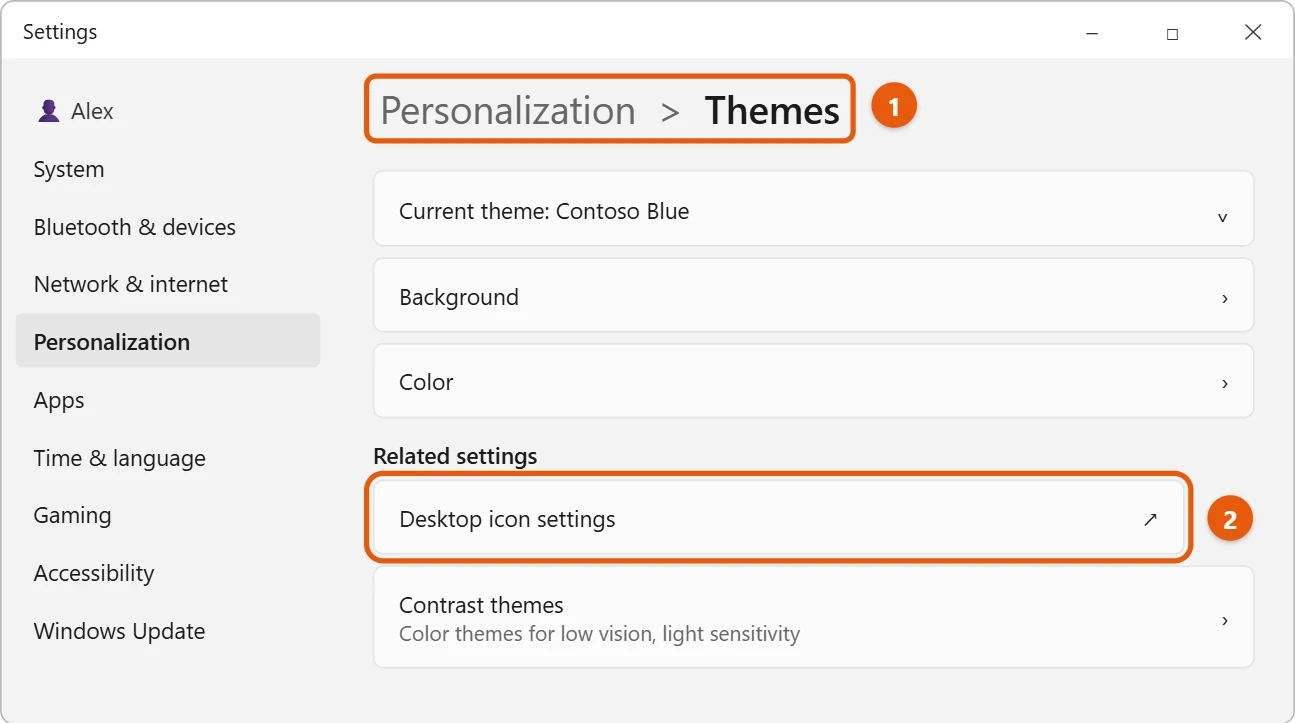
Select Start > Settings > Personalization > Themes > Desktop icon settings. Select the icon you want to change, such as This PC or Recycle Bin, then select Change Icon, pick a new one and select OK.
Applies to: Windows 11. Checked against Microsoft Support on September 29, 2026.
Change a system icon (This PC, Recycle Bin, Network)
- Select Start > Settings > Personalization > Themes.
- Under Related settings, select Desktop icon settings.
- Select the icon you want to change, then select Change Icon.
- Pick a new icon and select OK, then OK again.
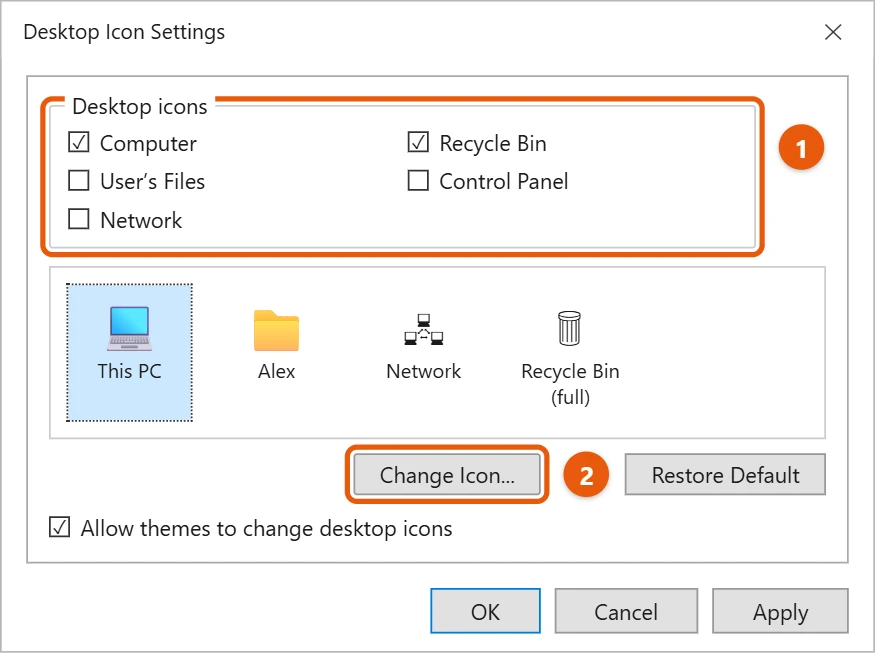
To go back to the original, select the icon and choose Restore Default.
Show or hide desktop icons
In the same Desktop Icon Settings window, check the icons you want on the desktop, such as Computer (This PC), Recycle Bin and Network. Uncheck the ones you don’t want. For more, see how to show This PC on the desktop in Windows 11.
To hide every desktop icon at once, right-click the desktop and select View > Show desktop icons.
Change the icon for a shortcut
- Right-click the shortcut on the desktop and select Properties.
- On the Shortcut tab, select Change Icon.
- Pick an icon and select OK, then OK again.
Make desktop icons bigger or smaller
Right-click the desktop, select View, then choose Large icons, Medium icons or Small icons. You can also hold Ctrl and scroll the mouse wheel on the desktop.
Use your own icon or a built-in icon set
In the Change Icon window, select Browse to pick a different file. Windows keeps most of its icons in two files you can browse to:
C:\Windows\System32\imageres.dllhas the modern icons used in Windows 11.C:\Windows\System32\shell32.dllhas older and more varied icons.
To use your own picture, it must be an .ico file. A PNG won’t work directly; convert it to ICO with an image editor first. Keep the .ico file somewhere permanent, because the shortcut points to it.
More built-in icon files to try
- C:\Windows\System32\DDORes.dll has icons for devices such as printers, phones, and cameras.
- C:\Windows\System32\moricons.dll has classic, older-style program icons.
- Many apps also contain their own icons. Browse to the app’s .exe file in Program Files to see them.
Turn a picture into an icon
Start with a square image, ideally 256 by 256 pixels, with a simple shape that still reads at small sizes. Save it as an .ico file with an image editor that supports the format, such as GIMP, or a reputable online converter. Store the finished icons in one folder, such as Documents\Icons, so shortcuts don’t lose them.
Change an icon pinned to the taskbar
Taskbar pins are shortcuts too. Press Windows + R, paste %AppData%\Microsoft\Internet Explorer\Quick Launch\User Pinned\TaskBar, and press Enter. Right-click the app’s shortcut, select Properties > Change Icon, and pick a new one. If the taskbar doesn’t update, restart Windows Explorer from Task Manager. Microsoft Store apps can’t have their icons changed this way.
Change a folder’s icon
Right-click a folder, select Properties, open the Customize tab, and select Change Icon. Pick an icon and select OK twice. Select Restore Defaults on the same screen to go back to the normal folder icon.
If icons look blank or show the wrong picture
Windows keeps a cache of icons, and it sometimes gets out of date. Rebuilding it usually fixes blank or mismatched icons:
- Open Task Manager with Ctrl + Shift + Esc, right-click Windows Explorer, and select End task. The taskbar disappears for now.
- In Task Manager, select Run new task, type
cmd, and press Enter. In that window, rundel /a %localappdata%\Microsoft\Windows\Explorer\iconcache*. - Back in Task Manager, select Run new task again and type
explorerto bring the taskbar back.
Frequently asked questions
Why did my icons change back?
A theme may be changing them. In Desktop Icon Settings, uncheck Allow themes to change desktop icons. If the icons are moving rather than changing, see how to lock desktop icons in place in Windows 11.
Can I hide just the Recycle Bin?
Yes. See how to hide the Recycle Bin from the desktop in Windows 11.
How do I get the original icons back?
For This PC, Recycle Bin, and other system icons, open Desktop Icon Settings, select the icon, and choose Restore Default. For a shortcut, open Change Icon and pick the first icon in the program’s own list.
To get to your desktop icons quickly, see how to show the desktop in Windows 11.
To get rid of app shortcuts, see how to remove desktop shortcuts in Windows 11.
If your icons disappeared altogether, see how to get missing desktop icons back in Windows 11.
To add an app to the desktop first, see how to move apps from the taskbar to the desktop in Windows 11.
To make your desktop icons bigger or smaller, see how to change desktop icon size in Windows 11.
Microsoft’s reference is Customize the desktop icons in Windows. More help is on our Windows Help & Guides page.
Related: how to make an icon for Windows 10.

Matt Jacobs has been working as an IT consultant for small businesses since receiving his Master’s degree in 2003. While he still does some consulting work, his primary focus now is on creating technology support content for SupportYourTech.com.
His work can be found on many websites and focuses on topics such as Microsoft Office, Apple devices, Android devices, Photoshop, and more.