Windows 10 doesn’t have a setting to change the system font, which is Segoe UI. What you can change easily is the text size: select Start > Settings > Ease of Access > Display and move the Make text bigger slider. You can also install new fonts in Settings > Personalization > Fonts and use them in your apps.
Applies to: Windows 10. Checked against Microsoft Support on September 26, 2026.
Make text bigger
- Select Start > Settings > Ease of Access > Display.
- Drag the slider under Make text bigger until the sample text is easy to read.
- Select Apply.
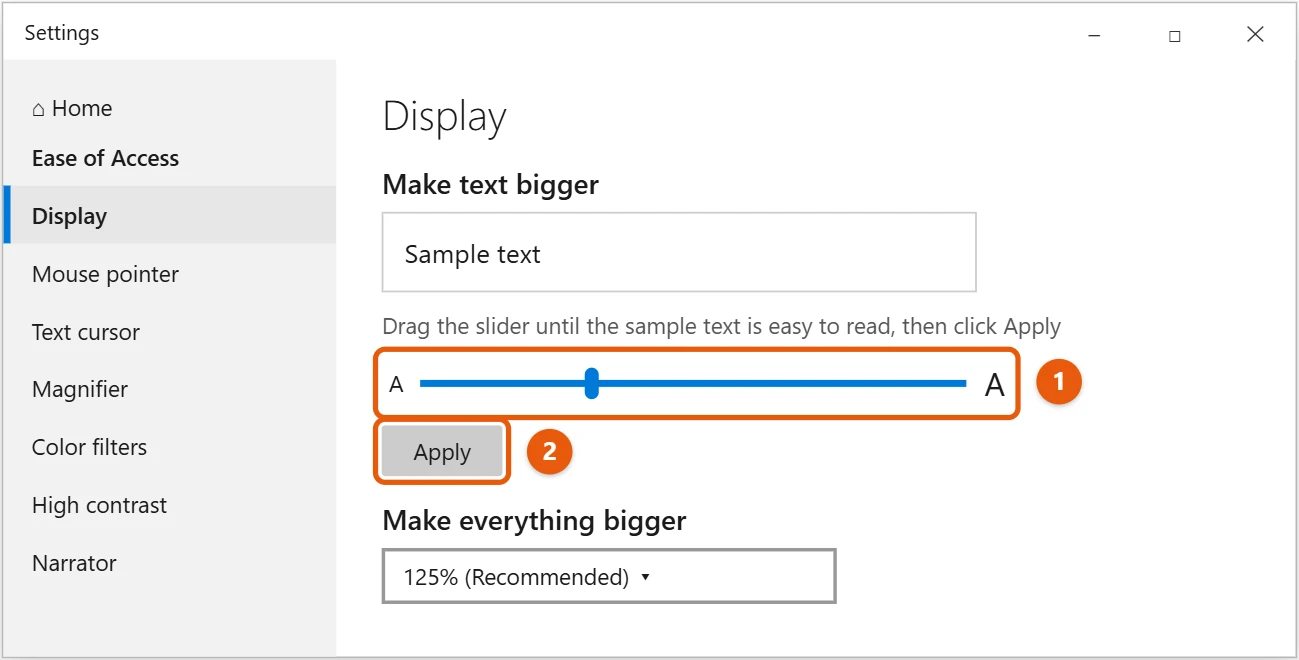
To make text, apps, and icons bigger together, choose a size under Make everything bigger instead. See how to change screen resolution in Windows 10 if things look blurry afterward.
Install or remove fonts
- Select Start > Settings > Personalization > Fonts.
- Drag font files (.ttf or .otf) onto Drag and drop to install. Or right-click a font file and select Install.
- To remove a font, select it in Available fonts and select Uninstall.
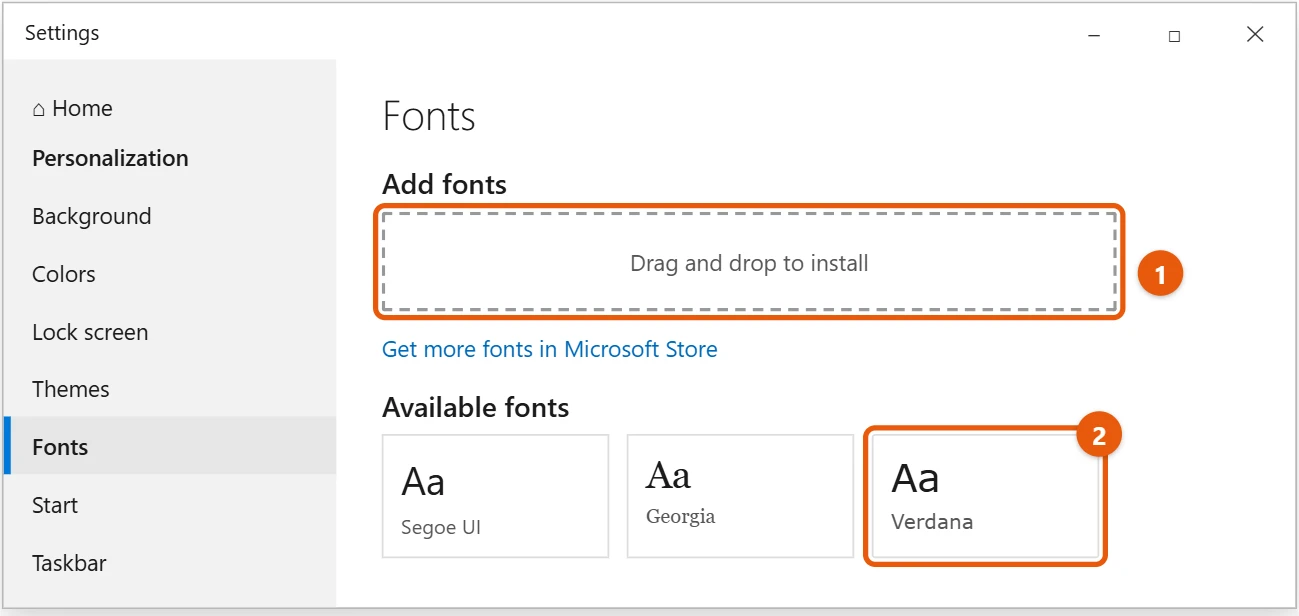
Download fonts only from trusted sites or the Microsoft Store. Installed fonts show up in the font list of apps like Word and Paint. Many languages also need their own fonts, which Windows adds when you install that language.
Change the font in apps
Most apps set their own font. In Word or other Office apps, choose a font on the Home tab, or change the default for new documents. In Notepad, select Format > Font. In a web browser, look under Settings > Appearance > Fonts.
About changing the system font
Changing the Windows 10 system font means editing the registry to swap Segoe UI for another font. Microsoft doesn’t offer this as a setting, and a mistake can make menus hard to read or cause problems. If you still want to try, prepare first:
- Create a restore point first. See how to create a restore point in Windows 10.
- Back up the registry key before you change it, so you can undo the change by opening the backup file.
- To go back to the normal font, restore the backup or use the restore point.
For most people, making text bigger or turning on High contrast in Ease of Access is a safer way to make Windows easier to read.
Swap the system font with a registry file
- Go to Settings > Personalization > Fonts, select the font you want, and note its exact name, such as Verdana.
- Open Notepad and paste the following, replacing NEW FONT NAME with that name:
Windows Registry Editor Version 5.00

[HKEY_LOCAL_MACHINE\SOFTWARE\Microsoft\Windows NT\CurrentVersion\Fonts]
"Segoe UI (TrueType)"=""
"Segoe UI Bold (TrueType)"=""
"Segoe UI Bold Italic (TrueType)"=""
"Segoe UI Italic (TrueType)"=""
"Segoe UI Light (TrueType)"=""
"Segoe UI Semibold (TrueType)"=""
"Segoe UI Symbol (TrueType)"=""

[HKEY_LOCAL_MACHINE\SOFTWARE\Microsoft\Windows NT\CurrentVersion\FontSubstitutes]
"Segoe UI"="NEW FONT NAME"
- Select File > Save as, set Save as type to All files, and name it
newfont.reg. - Double-click the file, select Yes to confirm, then restart the PC.
Menus, title bars, and most of Windows will use the new font. Some apps and parts of Windows have their own fonts and won’t change.
To go back to Segoe UI, save this as restorefont.reg, double-click it, and restart:
Windows Registry Editor Version 5.00

[HKEY_LOCAL_MACHINE\SOFTWARE\Microsoft\Windows NT\CurrentVersion\Fonts]
"Segoe UI (TrueType)"="segoeui.ttf"
"Segoe UI Bold (TrueType)"="segoeuib.ttf"
"Segoe UI Bold Italic (TrueType)"="segoeuiz.ttf"
"Segoe UI Italic (TrueType)"="segoeuii.ttf"
"Segoe UI Light (TrueType)"="segoeuil.ttf"
"Segoe UI Semibold (TrueType)"="segoeuisb.ttf"
"Segoe UI Symbol (TrueType)"="seguisym.ttf"

[HKEY_LOCAL_MACHINE\SOFTWARE\Microsoft\Windows NT\CurrentVersion\FontSubstitutes]
"Segoe UI"=-
Preview a font before installing
Double-click a font file to open a preview window showing the alphabet and sample sizes. Select Install at the top if you like it, or just close the window if you don’t.
If a new font won’t install or doesn’t appear
- “Not a valid font file.” Fonts often download as a ZIP file. Right-click it, select Extract All, and install the .ttf or .otf file inside. Web fonts ending in .woff or .woff2 can’t be installed in Windows.
- The font doesn’t show in an app. Close and reopen the app; most only read the font list when they start.
- It shows in some apps but not others. Dragging a font onto Settings installs it just for your account, and a few older apps only see fonts installed for everyone. Right-click the font file and select Install for all users, which needs administrator rights.
- “The font is already installed.” A version is there already. Uninstall it in Settings > Personalization > Fonts, then install the new one.
- Windows text looks fuzzy after changes. Search Start for Adjust ClearType text and follow the steps to tune how text appears on your screen.
Frequently asked questions
What is the default font in Windows 10?
Segoe UI.
Why do some fonts look blurry?
Turn on ClearType. Select Start, type ClearType, and open Adjust ClearType text. Then follow the steps.
Can I change the font on the desktop icons only?
Not in Windows 10 settings. Icon text follows the system font and the Make text bigger size.
Want more fonts to choose from? Here’s how to install fonts on Windows 11.
Microsoft’s guide is Change the size of text in Windows. More help is on our Windows Help & Guides page.
Related: desktop icon text color in Windows 10.
Related: how to change the font in Windows 11.

Matt Jacobs has been working as an IT consultant for small businesses since receiving his Master’s degree in 2003. While he still does some consulting work, his primary focus now is on creating technology support content for SupportYourTech.com.
His work can be found on many websites and focuses on topics such as Microsoft Office, Apple devices, Android devices, Photoshop, and more.