To change your PIN in Windows 10, go to Settings > Accounts > Sign-in options. Select Windows Hello PIN > Change, enter your current PIN, then type and confirm the new one. Select OK.
Your PIN works only on this PC. Changing it doesn’t change your Microsoft account password. If you no longer remember the current PIN, reset your Windows 10 PIN instead.
Applies to: Windows 10. Checked on September 24, 2026.
Change your PIN
- Press Windows + I and select Accounts > Sign-in options.
- Select Windows Hello PIN, then Change.
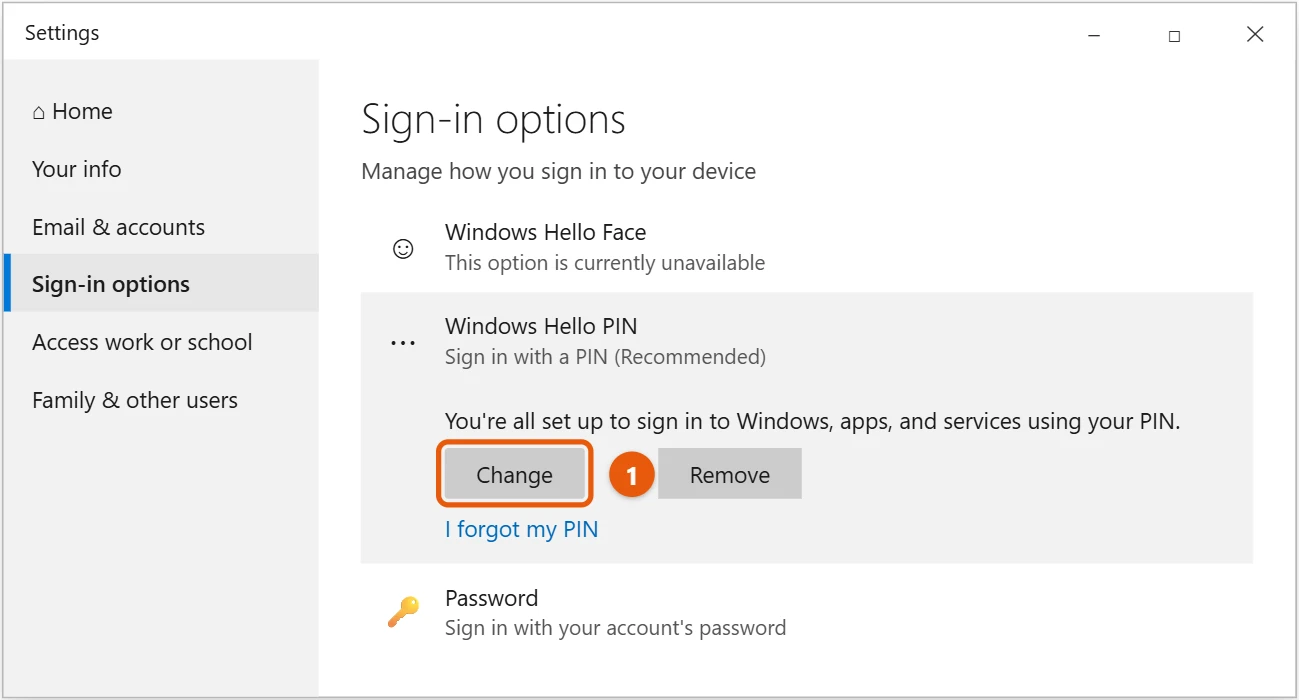
- Enter your current PIN, then your new PIN twice.
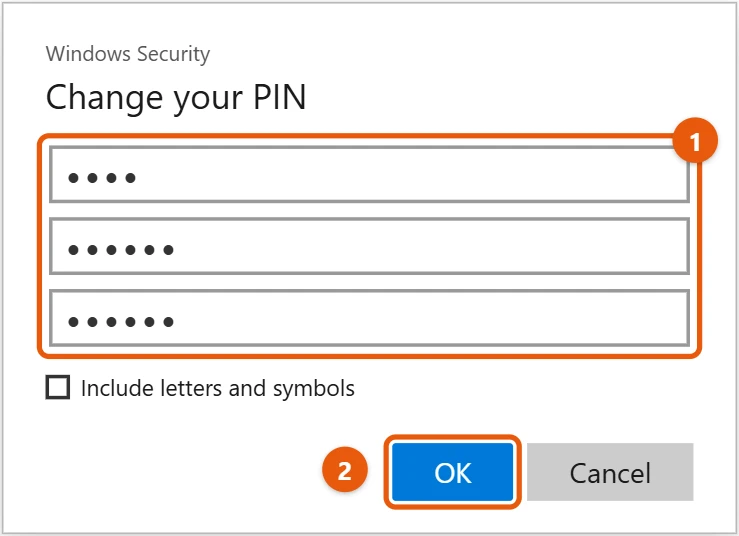
- Select OK. Use the new PIN the next time you sign in.
Add a PIN if you don’t have one
- Go to Settings > Accounts > Sign-in options.
- Select Windows Hello PIN > Add.
- Confirm your account password, then type your new PIN twice and select OK.
You need a PIN before you can set up fingerprint or face sign-in.
Use letters and symbols
In the Change your PIN box, check Include letters and symbols. Your PIN can then include letters and symbols, which makes it harder to guess. A longer PIN is also stronger.
If you forgot your PIN
- On the sign-in screen, select I forgot my PIN under the PIN box.
- Sign in with your Microsoft account password when asked, and complete any security check.
- Set a new PIN.
You can also do this from Settings > Accounts > Sign-in options > Windows Hello PIN > I forgot my PIN while you’re signed in.
With a local account, you need to answer your security questions or sign in with your password instead.
Remove or turn off the PIN
In Sign-in options, select Windows Hello PIN > Remove, then confirm with your account password. You’ll sign in with your password after that.
If Remove is grayed out, turn off Require Windows Hello sign-in for Microsoft accounts in the same page, then try again.
If PIN options aren’t available
- “This option is currently unavailable”: restart the PC, then try again.
- On a work PC, your organization may set PIN rules, such as a minimum length. Ask your IT team.
- Set a password first. A PIN needs a password on the account.
If your new PIN doesn’t work
- Check Num Lock: if you type the PIN on the number pad, Num Lock has to be on.
- Check letters: if your PIN includes letters, they’re case-sensitive, so check Caps Lock.
- “Your PIN is no longer available”: sign in with your password, then remove the PIN in Sign-in options and add it again.
- Another keyboard language is selected: the language switcher on the sign-in screen can change which characters you type. Switch it back and try again.
Frequently asked questions
Is a PIN safer than a password?
For signing in to this PC, yes. The PIN only works on this device, so someone who learns it can’t use it anywhere else.
How long can my PIN be?
At least 4 characters, and up to 127 by default. You can make it much longer, and include letters and symbols.
Does changing my PIN change my password?
No. They’re separate. To change your password, go to Sign-in options > Password > Change.
Do I need a PIN to use fingerprint or face sign-in?
Yes. Windows Hello uses the PIN as a backup when your fingerprint or face isn’t recognized, so Windows may not let you remove the PIN while those are set up.
Can I see my current PIN?
No. Windows doesn’t show it anywhere. If you’ve forgotten it, use I forgot my PIN to set a new one.
Can I use the same PIN on my other PCs?
Yes, you can choose the same digits. Each PC still stores its own PIN, so changing it on one PC doesn’t change it on the others.
To lock your PC when you step away, see how to lock your screen in Windows 10.
On Windows 11, see how to change your password in Windows 11. More help is on our Windows Help & Guides page.
Related: lock your PC screen with a password in Windows 10.

Matt Jacobs has been working as an IT consultant for small businesses since receiving his Master’s degree in 2003. While he still does some consulting work, his primary focus now is on creating technology support content for SupportYourTech.com.
His work can be found on many websites and focuses on topics such as Microsoft Office, Apple devices, Android devices, Photoshop, and more.