To set a PIN in Windows 11, open Settings > Accounts > Sign-in options, select PIN (Windows Hello) and choose Set up. Confirm your account password, type your new PIN twice and select OK. From then on, you can sign in with the PIN instead of your password. A PIN only works on that one PC, so even if someone learns it, they can’t use it to get into your Microsoft account online.
Applies to: Windows 11 Home and Pro, with a Microsoft account or a local account.
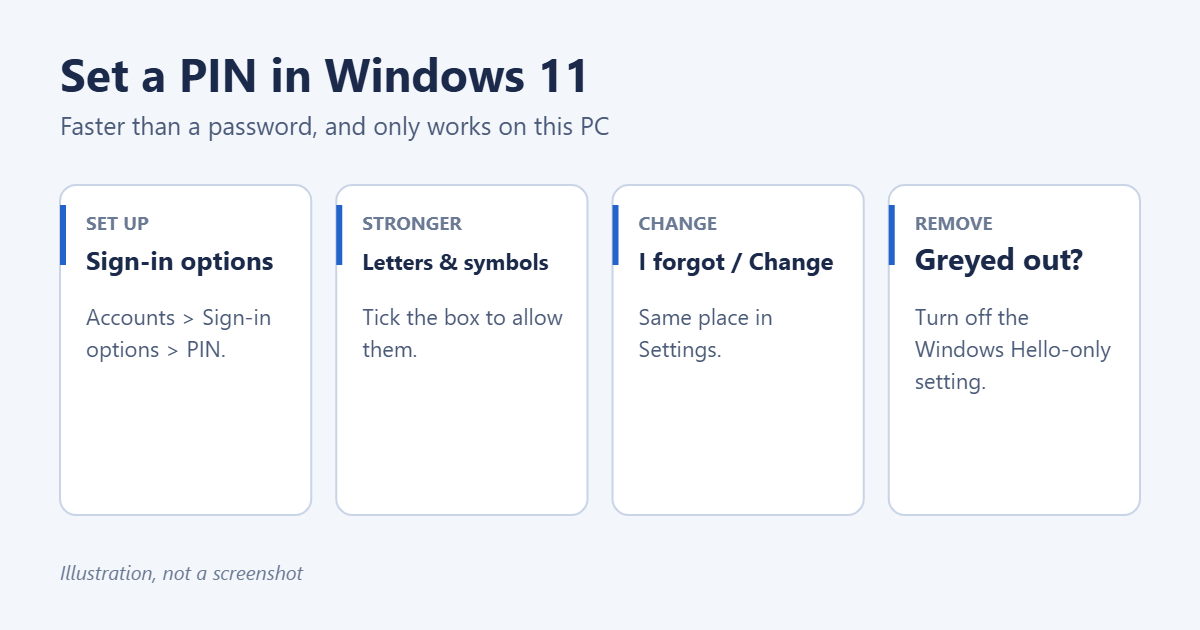
Set up a PIN
- Press Windows key + I to open Settings.
- Select Accounts > Sign-in options.
- Select PIN (Windows Hello), then Set up.
- Enter your current account password and select OK.
- Type a PIN of at least 4 digits in New PIN and again in Confirm PIN.
- To use letters and symbols as well as numbers, tick Include letters and symbols.
- Select OK.
Lock the PC with Windows key + L to try it. The sign-in screen now asks for your PIN. To switch to your password, select Sign-in options below the PIN box.
Choose a good PIN
- Use at least 6 digits, or include letters, so it’s harder to guess.
- Avoid patterns like 1234, 1111 or your birth year.
- Don’t reuse your bank card PIN.
Windows locks the PIN after too many wrong tries and asks you to type a phrase to continue, which slows down anyone guessing.
Change your PIN
- Open Settings > Accounts > Sign-in options > PIN (Windows Hello).
- Select Change PIN.
- Enter your current PIN, then the new one twice, and select OK.
If you forgot your PIN
- On the sign-in screen: select I forgot my PIN, confirm your Microsoft account password or answer your security questions, then set a new PIN.
- While signed in: go to Settings > Accounts > Sign-in options > PIN (Windows Hello) and select I forgot my PIN.
Forgotten your password as well? You can still unlock your laptop when you forgot the password.
Remove the PIN
- Open Settings > Accounts > Sign-in options.
- If Remove is greyed out, turn off For improved security, only allow Windows Hello sign-in for Microsoft accounts on this device under Additional settings, then close and reopen Settings.
- Select PIN (Windows Hello) > Remove, confirm, and enter your password.
With a Microsoft account, you’ll then sign in with your Microsoft password. Extra cases are covered in removing a PIN in Windows 11.
Why use a PIN instead of a password?
- It stays on the device. A PIN is tied to this PC’s security chip (TPM). Stealing it doesn’t give anyone access to your email or OneDrive.
- It’s quicker. Short and easy to type, especially on a touch screen.
- It enables other Windows Hello options. You need a PIN before you can set up fingerprint or face sign-in, and for passkeys in Windows 11. On an HP laptop with a fingerprint reader or IR camera, the Windows 11 HP laptop password guide walks through the password, PIN and Windows Hello setup in order.
Troubleshooting
“Something went wrong” or the PIN option is unavailable
Restart the PC and try again. If it keeps failing, the PIN data may be damaged: remove the PIN (as above) and set it up again.
PIN setup is blocked on a work or school PC
Your organization controls Windows Hello. Ask your IT department.
Frequently asked questions
Does a PIN replace my lock screen password?
It replaces typing your password at sign-in, but your account password still exists for recovery and remote access. To require it when the PC wakes, put a password on the lock screen in Windows 11. On a local account, that password is also what Windows asks for when you change your security questions, so keep it somewhere safe even if you sign in with the PIN every day.
Is a 4-digit PIN safe?
It’s safer than it sounds because it only works on this PC and locks after a few wrong attempts, but a longer PIN is better.
For more ways to keep your PC private, learn to stop someone accessing your computer remotely.

Matt Jacobs has been working as an IT consultant for small businesses since receiving his Master’s degree in 2003. While he still does some consulting work, his primary focus now is on creating technology support content for SupportYourTech.com.
His work can be found on many websites and focuses on topics such as Microsoft Office, Apple devices, Android devices, Photoshop, and more.