To change the screen timeout in Windows 11, go to Settings > System > Power & battery (or Power on a desktop PC). Expand Screen, sleep, & hibernate timeouts and choose a time under Turn my screen off after. Laptops have separate times for On battery power and When plugged in. Pick Never to keep the screen on.
Applies to: Windows 11. Checked against Microsoft Support on September 24, 2026.
Change the screen timeout in Settings
- Press Windows + I to open Settings.
- Select System > Power & battery. On a desktop PC, it’s called Power.
- Expand Screen, sleep, & hibernate timeouts. On older versions of Windows 11, it’s called Screen and sleep.
- Under Turn my screen off after, choose a time for When plugged in and, on a laptop, On battery power.
- Under Make my device sleep after, check that sleep isn’t set to a shorter time than you want. When the PC sleeps, the screen turns off too.
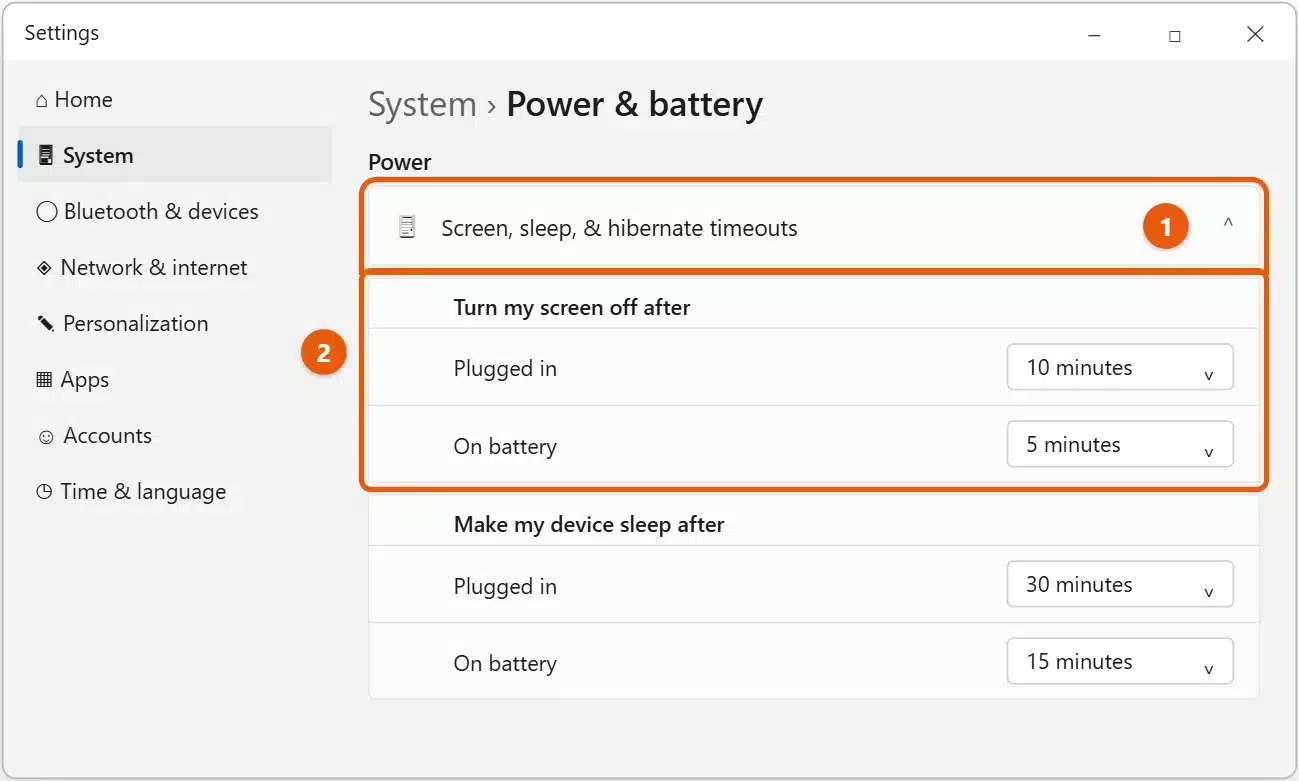
Changes save straight away. A short screen timeout on battery, such as 3 to 5 minutes, helps a laptop battery last longer.
Screen timeout, sleep, and lock: what’s the difference?
- Screen timeout: the display turns off, but everything keeps running. Move the mouse or press a key to turn it back on.
- Sleep: the whole PC pauses to save power. It wakes in a few seconds with your apps still open.
- Lock: Windows asks for your PIN or password when you come back. Whether that happens after the screen turns off is set in Settings > Accounts > Sign-in options, under If you’ve been away, when should Windows require you to sign in again? See how to change the screen lock time on Windows 11.
Change it in Control Panel instead
- Select Start, type
control panel, and open Control Panel. - Select Hardware and Sound > Power Options.
- Select Change plan settings next to your power plan.
- Choose times next to Turn off the display, then select Save changes.
Change it with a command
- Right-click Start and select Terminal.
- Type one of these commands and press Enter. The number is in minutes, and
0means never.
powercfg /change monitor-timeout-ac 10sets 10 minutes when plugged in.powercfg /change monitor-timeout-dc 5sets 5 minutes on battery.
If the screen still turns off too soon
- Check the sleep time. If Make my device sleep after is shorter than the screen timeout, the PC sleeps first.
- Check the screen saver. Select Start, type
screen saver, and open Change screen saver. If a screen saver is on with On resume, display logon screen checked, it can look like the screen is locking early. - Check your PC maker’s app. Some laptops have their own power or battery app, such as a battery saver mode, that shortens the timeout.
- Turn off battery saver. Select the battery icon on the taskbar and turn off Energy saver or Battery saver if it’s on.
- Work or school PC: your organization may set a maximum timeout. If the setting is grayed out, ask your IT support team.
If the screen never turns off
An app or device can keep the screen awake, such as a video player, a game, or a presentation. Right-click Start, select Terminal (Admin), type powercfg /requests, and press Enter. Anything listed under DISPLAY is keeping the screen on. Close that app and check again.
Frequently asked questions
Is it bad to set the screen timeout to Never?
Not for the PC, but the screen uses more power, and a laptop battery drains faster. If you only need the screen on for a while, raise the timeout and set it back later.
How do I keep the screen on when the laptop lid is closed?
That’s a lid setting, not the screen timeout. See how to close your laptop and keep using a monitor in Windows 11.
Why can’t I find Screen, sleep, & hibernate timeouts?
You may be on an older version of Windows 11, where the section is called Screen and sleep. It has the same settings.
Using Windows 10? See how to change the screen timeout in Windows 10. To control sleep and hibernate too, see how to enable hibernate in Windows 11. Microsoft’s guide is Shut down, sleep, or hibernate your PC. More help is on our Windows 11 Help & Guides page.
To keep the whole PC awake, not just the screen, see how to stop your computer from sleeping in Windows 11.
To make the screen dimmer or brighter, see how to change the brightness in Windows 11.
Shorter timeouts save power. To see how much your PC uses, see how to check PC power consumption in Windows 11.

Matt Jacobs has been working as an IT consultant for small businesses since receiving his Master’s degree in 2003. While he still does some consulting work, his primary focus now is on creating technology support content for SupportYourTech.com.
His work can be found on many websites and focuses on topics such as Microsoft Office, Apple devices, Android devices, Photoshop, and more.