To check your PC’s performance in Windows 10, press Ctrl + Shift + Esc to open Task Manager and select the Performance tab. It shows how busy your CPU, memory, disk, network and graphics are right now. For more detail about which apps are using them, open Resource Monitor.
Applies to: Windows 10. Checked against Microsoft Support on September 28, 2026.
Check performance in Task Manager
- Press Ctrl + Shift + Esc. If you see a small window, select More details.
- Select the Performance tab.
- Select CPU, Memory, Disk, Ethernet or Wi-Fi, or GPU on the left to see its graph.
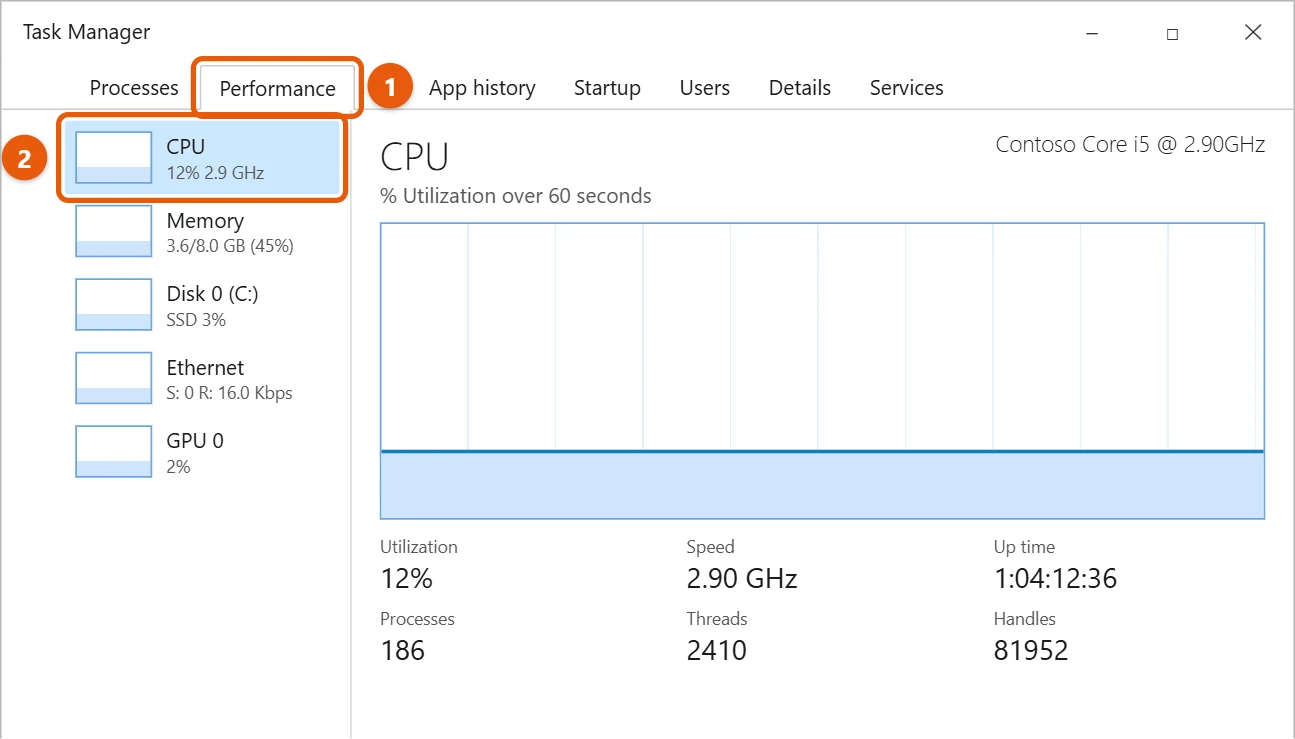
What the numbers mean
- CPU near 100% for a long time means the processor is working as hard as it can.
- Memory above about 80% means Windows may start to slow down while it swaps data to the disk.
- Disk at 100% makes apps slow to open and save.
- To see which app is causing it, select the Processes tab and select the CPU, Memory or Disk column to sort.
Get more detail in Resource Monitor
- On the Performance tab, select Open Resource Monitor at the bottom. Or press Windows key + R, type
resmon, and press Enter. - Look at the Overview tab. Each section lists the apps using that part of the PC.
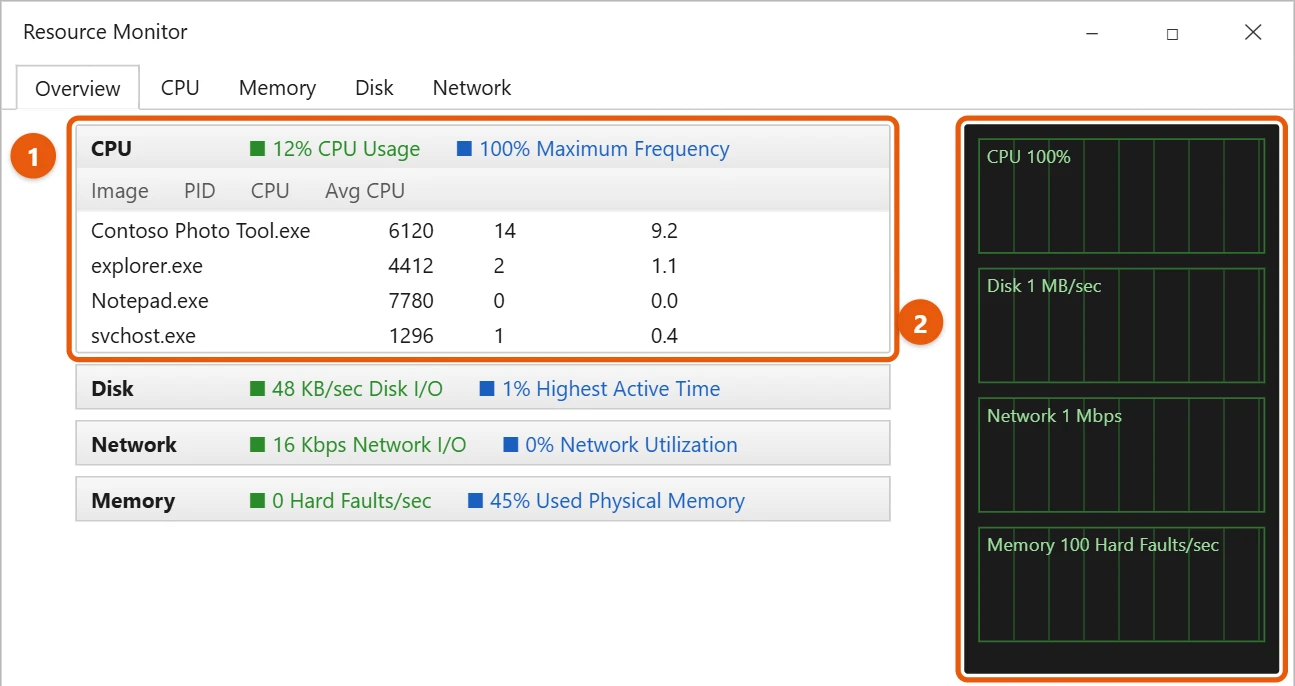
Get a full health report
Open Command Prompt as an administrator and run perfmon /report. After about a minute, Windows shows a System Diagnostics report with warnings about anything that needs attention.
Check what slows down startup
Open Task Manager with Ctrl + Shift + Esc, select More details if needed, and open the Startup tab. The Startup impact column shows which apps add the most delay. Right-click an app you don’t need at startup and select Disable. It still runs when you open it yourself.
Check for crashes and errors with Reliability Monitor
Press Windows key + R, type perfmon /rel and press Enter. The chart shows a stability score for each day. Red X icons mark app crashes and Windows failures. Select a day to see what went wrong. Repeated crashes from one app or driver often explain a PC that freezes or feels sluggish.
Check device health in Windows Security
Open Windows Security from the Start menu and select Device performance & health. The health report flags problems with storage capacity, battery life, apps and drivers, and the Windows Time service.
Check your drive and memory
- Drive health. Open PowerShell and run
Get-PhysicalDisk | Select FriendlyName, MediaType, HealthStatus. Anything other than Healthy means you should back up your files soon. - Hard drive or SSD. The MediaType column shows HDD or SSD. A PC that still boots from a hard drive will feel much slower than one with an SSD.
- Memory errors. Press Windows key + R, type
mdschedand choose to restart and check now. Windows tests the RAM and shows the result after you sign in again.
Get a performance score
Windows 10 still includes the Windows System Assessment Tool. Open Command Prompt as an administrator and run winsat formal. It takes a few minutes. Then open PowerShell and run Get-CimInstance Win32_WinSAT to see scores for the CPU, memory, graphics and disk. Scores go up to 9.9. The lowest score is usually the part holding the PC back.
What to look for
- CPU near 100% for a long time with nothing open usually points to a background app, an update or malware. Sort the Processes tab by CPU to find it.
- Memory above about 80% in normal use means Windows is swapping to disk. Close browser tabs and startup apps, or add RAM.
- Disk at 100% active time on a hard drive is a common cause of slowness. Moving to an SSD helps the most.
- High temperatures can make the CPU slow itself down. Clean dust from vents and fans.
Frequently asked questions
My PC is slow. What should I do next?
See how to speed up a Windows 10 computer. To dig into one part, see how to check CPU usage or how to check RAM.
Task Manager won’t open. What else can I try?
See how to open Task Manager in Windows 10 for other ways.
Is there a built-in benchmark in Windows 10?
Yes. Run winsat formal from an administrator Command Prompt, as shown above. For gaming, a free tool such as 3DMark gives a more detailed graphics score.
If games stutter, check whether your graphics card is running out of memory. Here’s how to check VRAM in Windows 11.
Microsoft’s reference is Tips to improve PC performance in Windows. More help is on our Windows Help & Guides page.
Related: how to turn on Ultimate Performance in Windows 10.

Matt Jacobs has been working as an IT consultant for small businesses since receiving his Master’s degree in 2003. While he still does some consulting work, his primary focus now is on creating technology support content for SupportYourTech.com.
His work can be found on many websites and focuses on topics such as Microsoft Office, Apple devices, Android devices, Photoshop, and more.