To copy a music CD to your Windows 10 PC, insert it, open Windows Media Player, and select the CD in the left pane. Then select Rip CD. The songs are saved to your Music folder. To get MP3 files that play almost anywhere, set Rip settings > Format > MP3 first.
Applies to: Windows 10. Keep in mind that Windows 10 support ended on October 14, 2025. Security updates now come only through the Extended Security Updates program, which stops on October 12, 2027.
Copying songs from a CD to a PC is called ripping. You need a CD or DVD drive; an external USB drive works on laptops without one. Only copy CDs you own or have permission to copy.
Choose the format before you rip
Windows Media Player saves songs as Windows Media Audio (WMA) unless you change it. Settings apply only to songs you rip after the change.
- Insert the CD. If the tray on an HP desktop will not open, try the tips for opening the CD drive on an HP desktop.
- Select Start, type Windows Media Player, and open it. If the window is small, maximize it so every button shows.
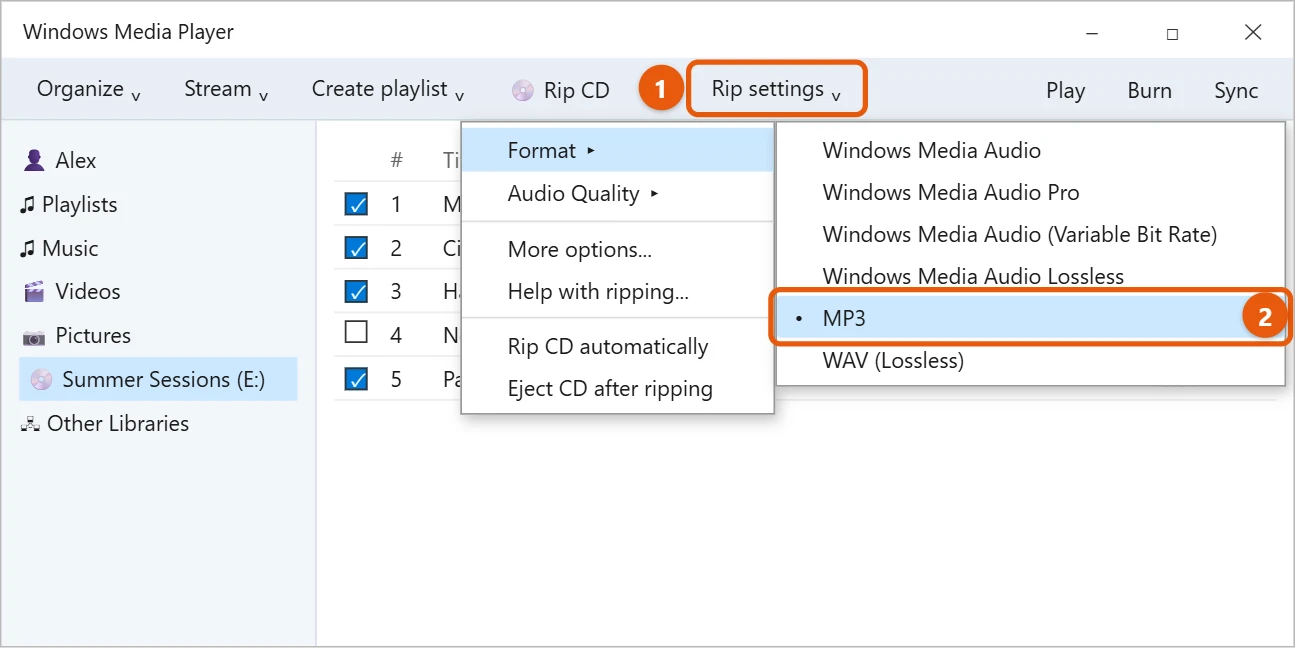
- Select Rip settings > Format, then choose MP3. Pick WAV (Lossless) instead if you want full CD quality and don’t mind much larger files.
- To change file size and quality, select Rip settings > Audio Quality and pick a bit rate. Higher numbers sound better and use more space.
Rip the CD
- Connect to the internet if you can. Windows Media Player then looks up the album, artist, and track names.
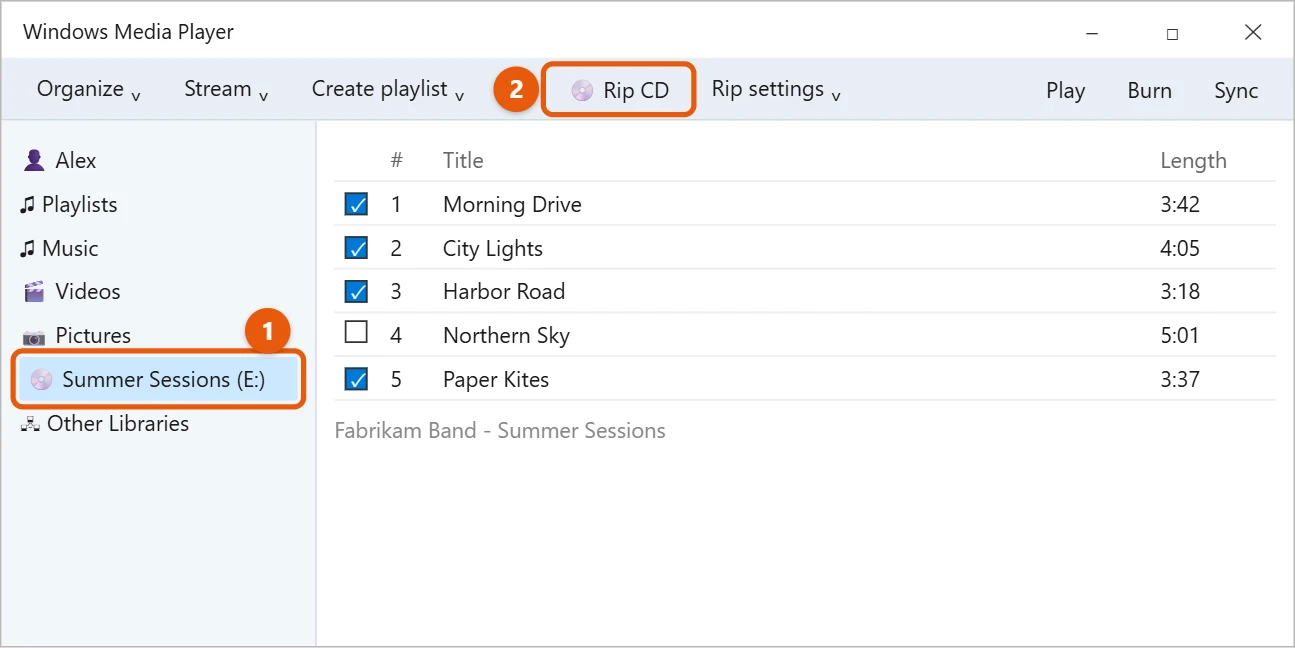
- Select the CD in the left pane.
- Clear the check box next to any song you don’t want to copy.
- Select Rip CD. A progress status appears next to each song.
- When the status shows Ripped to library for every song, eject the CD.
The songs are in Music in File Explorer, in a folder for the artist and album. To save them somewhere else, select Rip settings > More options and change the location on the Rip Music tab.
Fix missing song names
If the tracks show as Unknown album or Track 1, right-click the album in the library and select Find album info. Pick the right match, or type the details yourself. If you see a privacy message, select Organize > Options > Privacy, and check Update music files by retrieving media info from the Internet.
Set up ripping for a stack of CDs
If you’re copying a whole collection, a few settings in Windows Media Player save a lot of clicks. Select Rip settings and turn on:
- Rip CD automatically, so ripping starts as soon as you insert a disc.
- Eject CD after ripping, so you know when to put in the next one.
Under Rip settings > More options > Rip Music, select File Name to choose how files are named, such as track number, then song title, so they sort in album order. The same tab shows where songs are saved and lets you change the folder, for example to an external drive.
Back up your ripped music
Once a collection is ripped, the files only exist on your PC. Copy the Music folder to an external drive or to OneDrive. Type shell:My Music in the File Explorer address bar to open it quickly.
Copy a data CD
A CD with documents or photos isn’t ripped. Open File Explorer, select the CD drive under This PC, and copy the files to a folder on your PC like any other files.
If it doesn’t work
- There’s no Rip CD button. Maximize the window, then make sure the CD is selected in the left pane.
- Windows Media Player is missing. Go to Settings > Apps > Apps & features > Optional features > Add a feature, and add Windows Media Player.
- A song fails to rip. The disc may be scratched. The scratched CD question below explains how to clean it and turn on error correction.
Frequently asked questions
Can I copy a CD to a blank CD?
Yes, in two steps. Rip it to your PC, then burn the songs to a blank CD in Windows 10.
How do I play the CD without copying it?
Insert it and use the steps for playing a CD on Windows 10.
Can I change the format of songs I already ripped?
Not in Windows Media Player. Change the format in Rip settings and rip the CD again.
How much space does a ripped CD use?
An album is about 60 to 100 MB as MP3 at normal quality, and around 250 to 400 MB in a lossless format such as WMA Lossless or FLAC.
Can I rip a scratched CD?
Often, yes. Clean it with a soft cloth from the center outward, and turn on Use error correction in Windows Media Player’s device properties. Badly scratched tracks may still skip or fail.
Using Windows 11? The steps to rip a CD on Windows 11 cover that version, and Microsoft’s own instructions are in Burn and rip CDs. Related: copying a DVD in Windows 10.

Matt Jacobs has been working as an IT consultant for small businesses since receiving his Master’s degree in 2003. While he still does some consulting work, his primary focus now is on creating technology support content for SupportYourTech.com.
His work can be found on many websites and focuses on topics such as Microsoft Office, Apple devices, Android devices, Photoshop, and more.