To show file extensions in Windows 10, open File Explorer, select the View tab, and check File name extensions in the Show/hide group. Every file then shows its extension, such as .docx or .jpg, after its name.
Applies to: Windows 10. Checked against Microsoft Support on September 25, 2026.
Show file extensions
- Open File Explorer (press Windows logo key + E).
- Select the View tab.
- In the Show/hide group, check File name extensions.
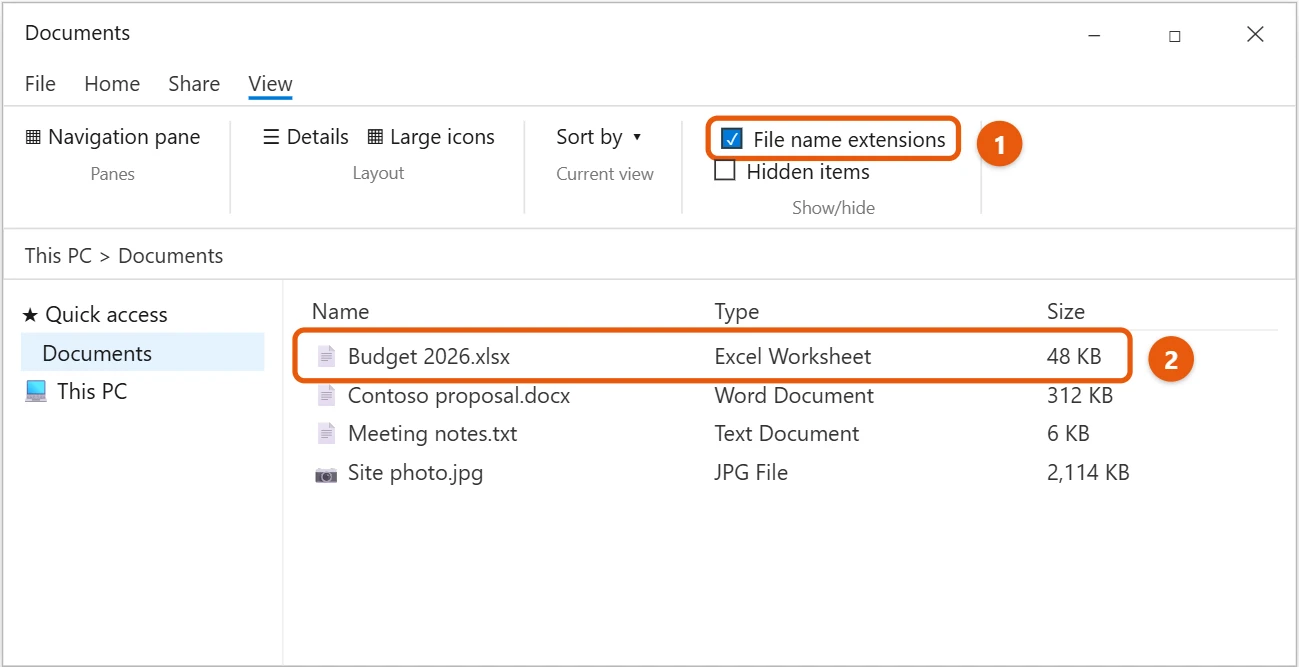
To hide them again, clear the check box. The setting applies to every folder.
Show extensions from Folder Options
- In File Explorer, select View > Options.
- Select the View tab.
- Clear Hide extensions for known file types, and select OK.
Check a file’s type without showing extensions
- Right-click the file and select Properties. Type of file on the General tab shows the extension.
- In File Explorer, select View > Details. The Type column describes each file, such as Microsoft Word Document.
Turn it on with a command
This is handy if you set up several PCs. In Command Prompt, type:
reg add "HKCU\Software\Microsoft\Windows\CurrentVersion\Explorer\Advanced" /v HideFileExt /t REG_DWORD /d 0 /f
Then restart File Explorer from Task Manager. Change the 0 to 1 to hide extensions again.
Common extensions
- .docx, .xlsx, .pptx: Word, Excel and PowerPoint files
- .pdf: PDF documents
- .jpg, .png, .heic: pictures
- .mp3, .mp4: music and video
- .zip: compressed folders
- .exe, .msi: programs and installers. Only open these if you trust where they came from.
Change a file’s extension
- Make sure extensions are showing.
- Right-click the file and select Rename, or select it and press F2.
- Change the letters after the last period, such as .txt to .csv, and press Enter.
- Select Yes to confirm.
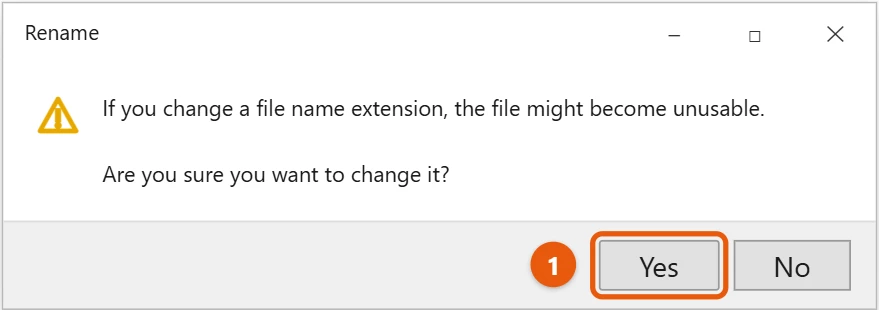
Changing the extension doesn’t convert the file. It only changes which app Windows tries to open it with. To really change the format, open the file in an app and use Save as or Export.
Rename many extensions at once
Open the folder in File Explorer, type cmd in the address bar, and press Enter. Then type ren *.txt *.csv to change every .txt file in that folder to .csv. As with a single file, this doesn’t convert anything.
If extensions still don’t show
- Shortcuts never show .lnk: Windows always hides the extension on shortcuts, even with this setting on.
- You renamed a file and now it’s file.txt.csv: extensions were hidden when you renamed it. Turn them on and rename it again.
- The setting turns itself off: on a work PC, your organization may control it.
Frequently asked questions
Why should I show extensions?
You can tell file types apart at a glance and spot fake files, such as invoice.pdf.exe, which is a program, not a PDF.
How do I choose which app opens a file type?
Right-click the file, select Open with > Choose another app, and check Always use this app. See how to set default programs in Windows 10.
Does this change the setting for other accounts?
No. It only applies to your account. Each person who signs in to the PC can choose for themselves.
Why does Windows hide extensions by default?
It keeps file names short and makes it harder to break a file by changing its extension by mistake. Many people still find it safer to show them.
Is it safe to show extensions?
Yes. It only changes how names look. Nothing about the files changes, and you can turn it off again at any time from the same View tab.
If you’re not sure how to open File Explorer, see how to open File Explorer in Windows 10.
To copy a file’s full name and location, see how to copy a file path in Windows 10.
To see pictures of your files instead of icons, see how to view thumbnails in Windows 10.
To turn a JFIF picture into a JPG, see how to change JFIF to JPG in Windows 10.
Showing extensions also helps when you save web pages you write yourself. See do you need to install JavaScript on Windows 10?
Microsoft’s guide is Common file name extensions in Windows. More help is on our Windows Help & Guides page.
Related: open BIN files in Windows 10.

Matt Jacobs has been working as an IT consultant for small businesses since receiving his Master’s degree in 2003. While he still does some consulting work, his primary focus now is on creating technology support content for SupportYourTech.com.
His work can be found on many websites and focuses on topics such as Microsoft Office, Apple devices, Android devices, Photoshop, and more.