To set up Wake on LAN in Windows 10, turn it on in your PC’s BIOS, then open Device Manager. Expand Network adapters, right-click your Ethernet adapter, and select Properties. On the Advanced tab, set Wake on Magic Packet to Enabled. On the Power Management tab, check Allow this device to wake the computer.
Then send a “magic packet” from another device on the same network to wake the PC.
Applies to: Windows 10 PCs connected by Ethernet. Most Wi-Fi adapters can’t wake a PC. Microsoft ended Windows 10 support on October 14, 2025, so a PC without Extended Security Updates no longer receives security fixes; that program runs until October 12, 2027.
Turn on Wake on LAN in BIOS
- Enter BIOS or UEFI (here’s how to enter BIOS or UEFI in Windows 10).
- Look under Power, Advanced, or Power Management for a setting like Wake on LAN, Power On by PCI-E, or Resume by LAN.
- Set it to Enabled, then save and exit.
Some PCs also need Deep Sleep or ErP turned off, or the network adapter won’t get power while the PC is off.
Set up the network adapter in Windows
- Right-click Start and select Device Manager.
- Expand Network adapters, right-click your Ethernet adapter, and select Properties.
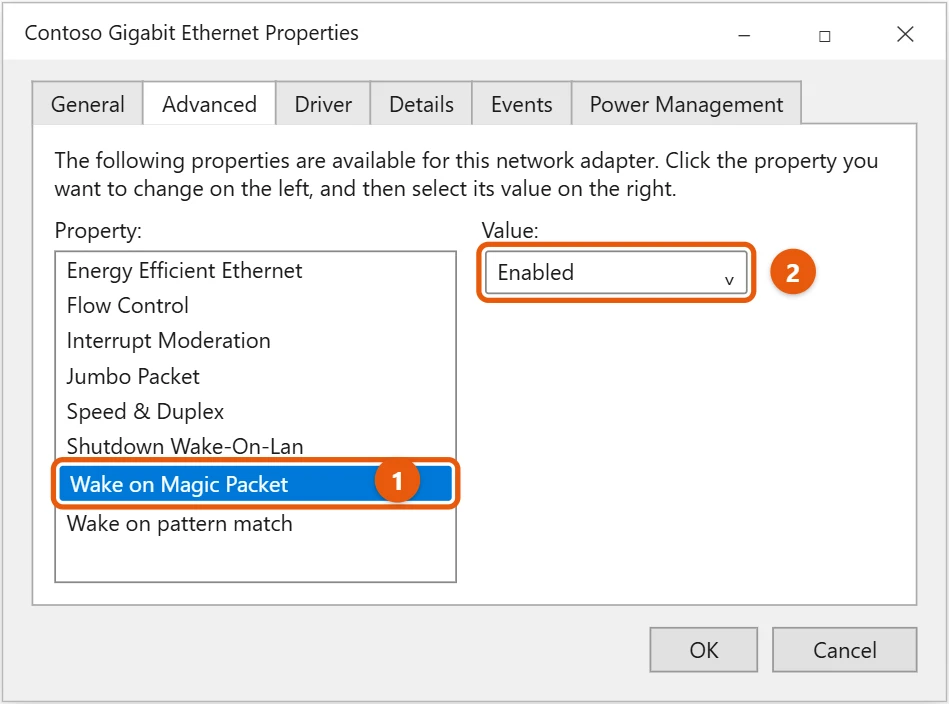
- On the Advanced tab, select Wake on Magic Packet and set Value to Enabled.
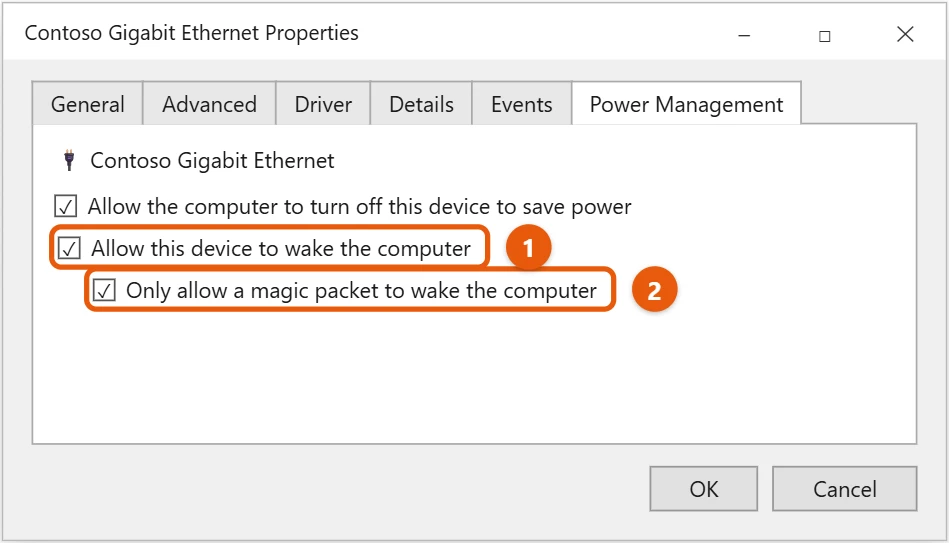
- On the Power Management tab, check Allow this device to wake the computer and Only allow a magic packet to wake the computer.
- Select OK.
Turn off fast startup
In Windows 10, a normal Shut down uses fast startup, and Windows doesn’t arm the network adapter for Wake on LAN in that state. Wake on LAN works from Sleep and Hibernate.
To wake a PC that’s shut down, turn off fast startup in Windows 10. Some PCs still won’t wake from a full shutdown, depending on their firmware.
Find the PC’s MAC and IP address
You need the target PC’s MAC address, and sometimes its IP address. Open Command Prompt and type ipconfig /all. Note the Physical Address of the Ethernet adapter. Other ways to get it are in finding your MAC address in Windows 10.
Giving the PC a fixed IP address makes it easier to find later. You can set one when you change your IP address in Windows 10.
Send a magic packet to test it
- Put the target PC to Sleep, or shut it down if you turned off fast startup.
- On another PC or phone on the same network, open a Wake on LAN app. Many free apps exist for Windows, Android, and iPhone. Some routers have a Wake on LAN button too.
- Enter the target PC’s MAC address and select Wake or Send.
The PC should turn on within a few seconds.
Wake a PC from another Windows PC without an app
You can send the magic packet with PowerShell on any other Windows PC on the same network. Replace the MAC address in the first line with the target PC’s Physical Address from ipconfig, then paste all the lines into PowerShell and press Enter:
$mac = 'AA-BB-CC-DD-EE-FF'
$bytes = $mac -split '[:-]' | ForEach-Object { [byte]('0x' + $_) }
[byte[]]$packet = (,0xFF * 6) + ($bytes * 16)
$udp = New-Object System.Net.Sockets.UdpClient
$udp.Connect([System.Net.IPAddress]::Broadcast, 9)
$udp.Send($packet, $packet.Length)
$udp.Close()
The packet is six bytes of FF followed by the MAC address repeated 16 times, sent to every device on your network on port 9. To reuse it, save the lines as a .ps1 file. Windows may block scripts until you allow them, so pasting the lines is the simplest way.
If the PC won’t wake
- It’s on Wi-Fi: use an Ethernet cable.
- It was shut down with fast startup on: try from Sleep, or turn fast startup off.
- No lights on the network port when it’s off: the adapter has no power. Check the BIOS settings above, including Deep Sleep or ErP.
- Wrong MAC address: copy it from the Ethernet adapter, not the Wi-Fi adapter.
- Sending from outside your home network: that needs router setup, such as a VPN into your network. Test on the same network first.
- Old driver: update the network adapter driver from your PC maker’s website.
Frequently asked questions
Does Wake on LAN work over Wi-Fi?
Rarely. Most Wi-Fi adapters don’t support waking a PC from sleep or shutdown.
Is Wake on LAN safe to leave on?
On a home network, yes. It only turns the PC on. It doesn’t let anyone sign in.
Can I wake my PC from anywhere?
Yes, with extra setup. Many people connect to their home network with a VPN first, then send the magic packet.
Does Wake on LAN work after a power cut?
Often not. After the power returns, many PCs stay fully off until you press the power button. Some BIOS settings, such as Restore on AC power loss, can turn the PC on automatically when power comes back.
Can I wake a laptop with Wake on LAN?
Sometimes, if it has an Ethernet port or a supported USB Ethernet adapter and is plugged into power. Many laptops only wake from Sleep, not from shutdown.
Prefer the keyboard or mouse? You can also wake up Windows 10 from sleep that way.
Microsoft documents the details in Wake on LAN (WOL) behavior in Windows 10.

Matt Jacobs has been working as an IT consultant for small businesses since receiving his Master’s degree in 2003. While he still does some consulting work, his primary focus now is on creating technology support content for SupportYourTech.com.
His work can be found on many websites and focuses on topics such as Microsoft Office, Apple devices, Android devices, Photoshop, and more.