Windows 10 stopped getting regular security updates on October 14, 2025. If you aren’t ready to move to Windows 11, Microsoft’s Extended Security Updates (ESU) program keeps sending critical and important security fixes to your PC through October 12, 2027. You enroll in Windows Update by selecting Enroll now, and it costs nothing if you sync your PC settings with a Microsoft account.
Already enrolled? Microsoft extended consumer ESU from its original October 13, 2026 end date to October 12, 2027. If your PC is already enrolled, your coverage continues automatically. You don’t need to do anything.
Applies to: Windows 10, version 22H2 — Home, Pro, Pro Education, and Pro for Workstations. Dates and prices were checked against Microsoft’s ESU page on September 23, 2026.
Check that your PC can enroll
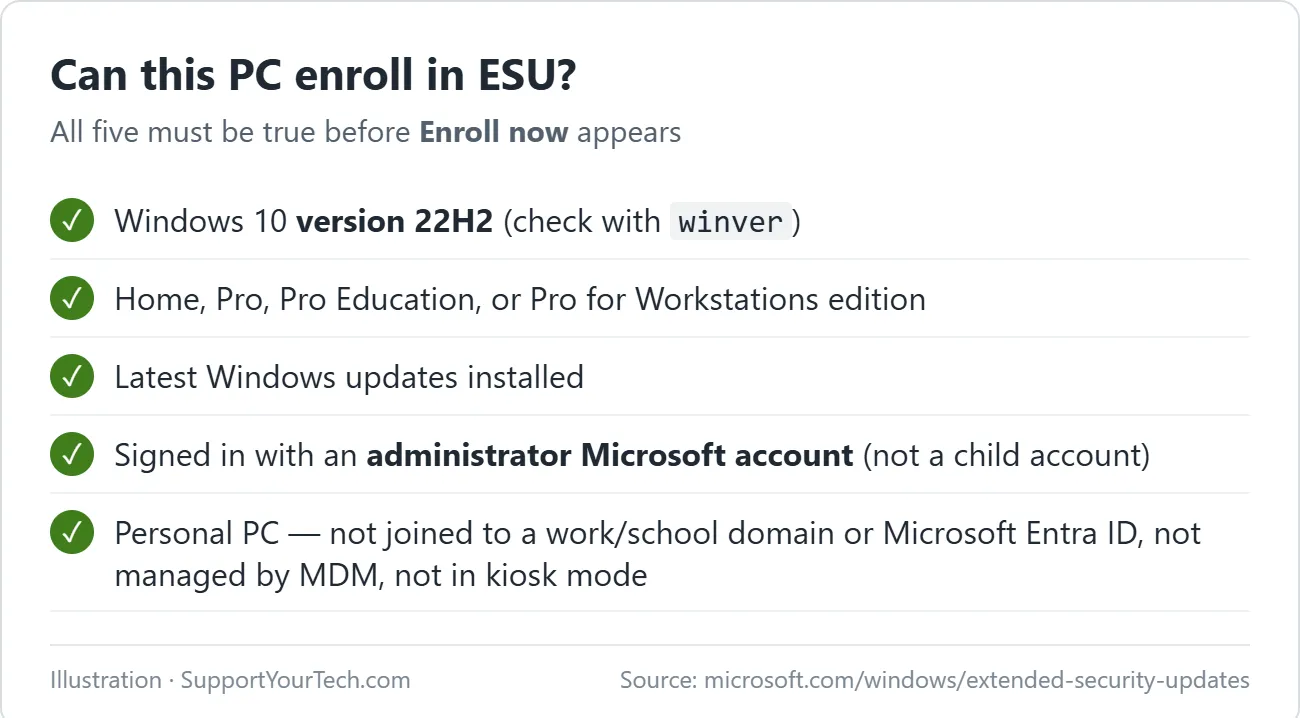
Your PC needs all of the following before the enrollment option appears:
- Windows 10 version 22H2. Press Windows key + R, type
winver, and press Enter. If you see an older version, update to Windows 10 22H2 first. Not sure which Windows you have? See how to tell if you have Windows 10 or 11. - The latest updates. Install everything waiting in Windows Update. Our guide to updating Windows 10 manually walks through it.
- An administrator Microsoft account. You must sign in with a Microsoft account to enroll. Child accounts can’t enroll.
- A personal PC. Consumer ESU isn’t available on PCs joined to a work or school domain, joined to Microsoft Entra ID, managed by device-management software, or set up in kiosk mode. Those PCs get ESU through their organization.
Choose how you’ll pay
Microsoft offers three ways to enroll. The wizard shows the ones available to you.
| Option | Cost | What you need |
|---|---|---|
| Sync your PC settings | No additional cost | A Microsoft account with PC settings syncing turned on (Windows Backup) |
| Microsoft Rewards | 1,000 points | A Rewards balance of at least 1,000 points |
| One-time purchase | $30 USD or local equivalent, plus tax | A payment method on your Microsoft account |
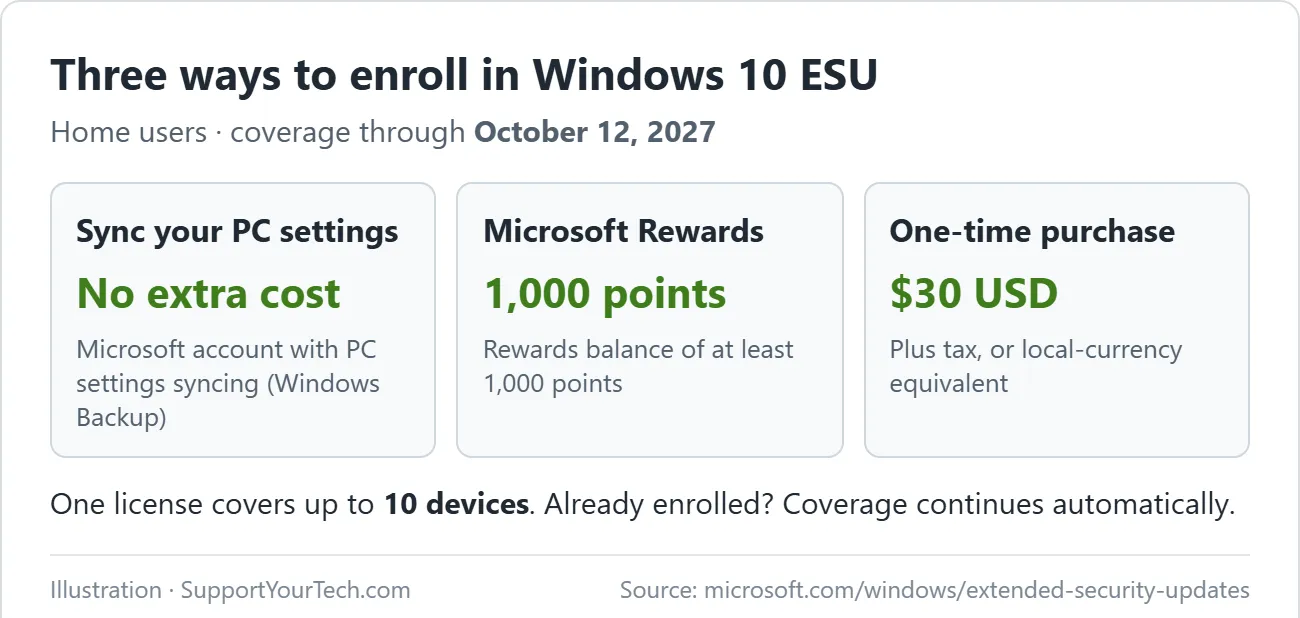
One ESU license can be used on up to 10 devices. Options and timing can differ by region, including in the European Economic Area.
Enroll in ESU
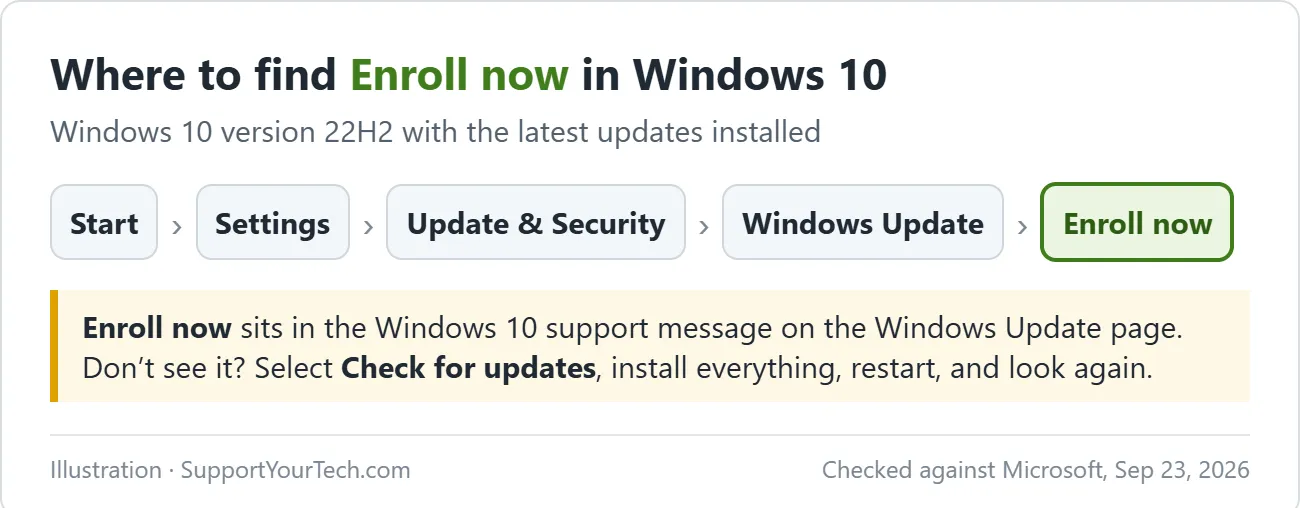
- Select Start, then Settings, then Update & Security, then Windows Update.
- Select Check for updates. Install anything that appears and restart if Windows asks.
- Go back to Windows Update and select Enroll now in the Windows 10 support message.
- If you’re signed in with a local account, sign in with your Microsoft account when prompted.
- Choose one of the offered options and follow the prompts to finish.
- Wait for the confirmation. Windows Update then shows that your PC is enrolled, and ESU security updates install through Windows Update like regular monthly updates.
If you don’t see Enroll now
- Check the version again. The option only appears on Windows 10 22H2 with current updates installed. Install all updates, restart, and check Windows Update again.
- Check the account. Sign in with an administrator Microsoft account. The option doesn’t work for child accounts.
- Check for work or school management. Go to Settings > Accounts > Access work or school. If an organization account is connected there and manages the PC, ask that organization’s IT team about ESU.
- Check your region. Enrollment options and timing may be different in your country or region.
If the option still doesn’t appear, use the help links on Microsoft’s ESU page.
What ESU covers
ESU sends critical and important security updates only. It doesn’t add new features, fix non-security bugs, or include technical support from Microsoft.
Plan your move before October 12, 2027
ESU buys time; it doesn’t keep Windows 10 current forever. Use the extra year to:
- Back up your files to an external drive.
- Check whether your PC can run Windows 11, then upgrade from Windows 10 to Windows 11 if it qualifies.
- Budget for a new PC if it doesn’t.
Businesses and schools
Organizations buy ESU through Microsoft volume licensing instead of the Windows Update wizard. Microsoft lists commercial pricing at $61 per device for the first year, doubling each year, for up to three years. See Microsoft Learn’s ESU overview.
For more Windows help, visit our Windows Help & Guides hub.

Matt Jacobs has been working as an IT consultant for small businesses since receiving his Master’s degree in 2003. While he still does some consulting work, his primary focus now is on creating technology support content for SupportYourTech.com.
His work can be found on many websites and focuses on topics such as Microsoft Office, Apple devices, Android devices, Photoshop, and more.