To remove your Microsoft account from Windows 10, first switch the PC to a local account: open Settings > Accounts > Your info and select Sign in with a local account instead. After you sign in with the new local account, the Microsoft account is no longer used to sign in to Windows. You can then remove it from other apps in Settings > Accounts > Email & accounts.
You can’t remove the Microsoft account you’re currently signed in with, which is why you switch first. Removing it from the PC doesn’t close or delete the account online.
Applies to: Windows 10. Checked against Microsoft Support on September 24, 2026.
Before you start
- Know your Microsoft account password or PIN. Windows asks you to confirm it before switching.
- Save your BitLocker or device encryption recovery key if your PC uses encryption. Windows can store that key in your Microsoft account, so keep a copy somewhere safe first. You’ll find it at account.microsoft.com/devices/recoverykey.
- Expect some things to stop syncing. A local account doesn’t sync settings or passwords across devices, and apps like the Microsoft Store and OneDrive ask you to sign in separately.
- Not sure which type you use? Check Settings > Accounts > Your info. An email address under your name means a Microsoft account. See how to tell if your Windows 10 login is local or a Microsoft account.
Switch to a local account
- Select Start > Settings > Accounts > Your info.
- Select Sign in with a local account instead.
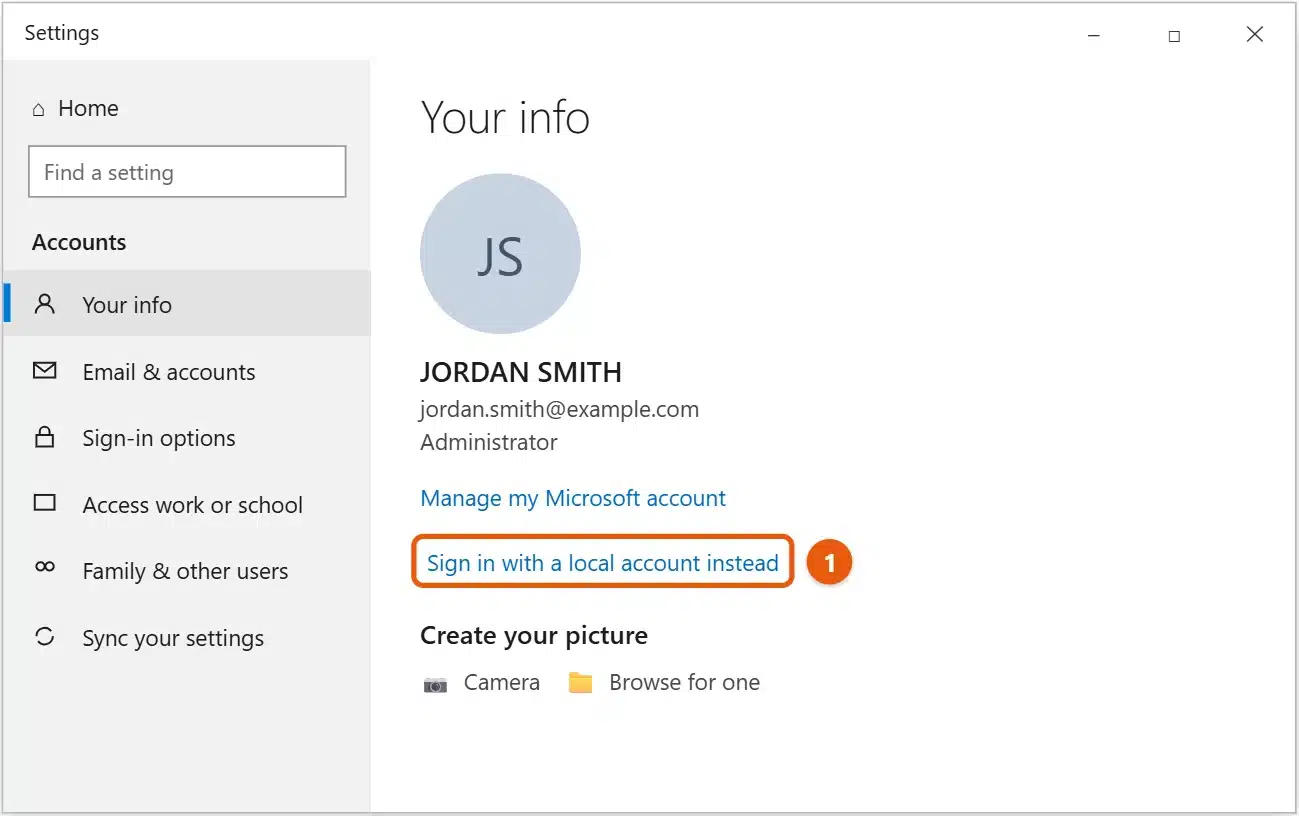
- Select Next, then enter your current PIN or password to confirm.
- Enter a user name, a password, and a password hint for the new local account, then select Next.
- Select Sign out and finish. Sign back in with the local account you just created.
Your files, desktop, and installed apps stay where they were. Only the way you sign in changes.
Remove the Microsoft account from apps
Signing in locally doesn’t stop apps like Mail or the Microsoft Store from using your Microsoft account. To remove it there:
- Select Start > Settings > Accounts > Email & accounts.
- Under Accounts used by other apps (or Accounts used by email, calendar, and contacts), select the Microsoft account.
- Select Remove, then Yes.
If Remove is missing, the account is still being used to sign in to Windows. Finish the switch above first.
For a work or school account, go to Settings > Accounts > Access work or school, select the account, and choose Disconnect.
Remove a different person’s Microsoft account
If someone else’s Microsoft account is on the PC, sign in with an administrator account, then:
- Select Start > Settings > Accounts > Family & other users.
- Under Other users, select the account and choose Remove.
- Select Delete account and data.
This deletes that person’s files on this PC, so back them up first. It doesn’t close or delete their Microsoft account online.
You can also remove an account from the User Accounts window: press Windows + R, type netplwiz, press Enter, select the account, and select Remove.
Selling or giving away the PC
Switching accounts isn’t enough before a PC changes hands. Instead:
- Back up your files.
- Go to Settings > Update & Security > Recovery and, under Reset this PC, select Get started > Remove everything. This erases your accounts and files.
- Sign in at account.microsoft.com/devices, find the PC, and select Remove device so it’s no longer linked to your account.
Frequently asked questions
Does this delete my Microsoft account?
No. It only stops using the account on this PC. Your email, OneDrive files, and purchases stay in your account online. To close the account completely, sign in at account.microsoft.com and follow Microsoft’s steps to close it.
Can I switch back later?
Yes. Go to Settings > Accounts > Your info and select Sign in with a Microsoft account instead.
Will I lose my files?
No. Switching to a local account keeps your user folder, including Documents, Desktop, and Pictures. Files that are only in OneDrive stay online and need you to sign in to OneDrive again.
Why is Sign in with a local account instead missing?
Your PC may be managed by your work or school, or you may be signed in with a work account. Ask your IT support team.
To delete another person’s account from this PC, see how to remove a user account in Windows 10.
To give someone their own account on the PC, see how to add a user in Windows 10.
To create a separate local account instead, see how to make a local account on Windows 10. On Windows 11, see how to remove a Microsoft account in Windows 11. Microsoft’s guide is Change from a local account to a Microsoft account in Windows. More Windows help is on our Windows Help & Guides page.
To change how you sign in instead, see how to change your PIN in Windows 10.
Related: how to change the Microsoft account on Windows 10.

Matt Jacobs has been working as an IT consultant for small businesses since receiving his Master’s degree in 2003. While he still does some consulting work, his primary focus now is on creating technology support content for SupportYourTech.com.
His work can be found on many websites and focuses on topics such as Microsoft Office, Apple devices, Android devices, Photoshop, and more.