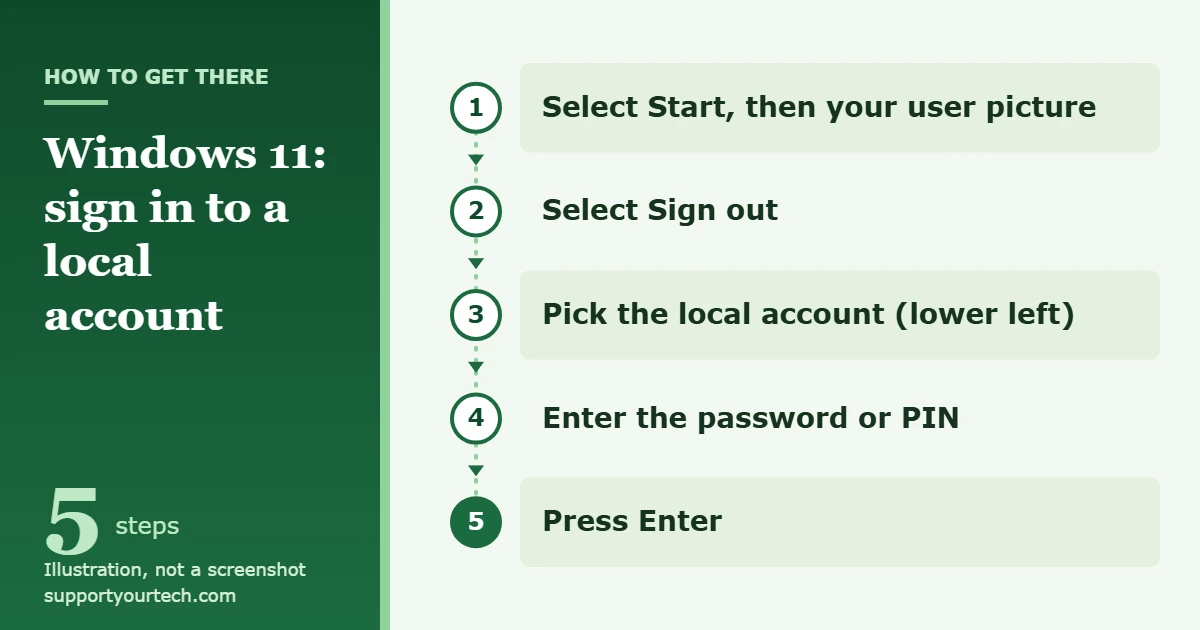
To sign in to a local account in Windows 11, go to the sign-in screen, select the local account from the list in the lower left, type its password or PIN, and press Enter. If you are already signed in as someone else, select Start, select your user picture, and choose Sign out first. If the PC only has a Microsoft account, you can convert it in Settings > Accounts > Your info > Sign in with a local account instead.
Applies to: Windows 11.
What a local account is
A local account exists on one PC only. Its user name and password are stored on that device, and it is not connected to Microsoft’s cloud services. A Microsoft account, by contrast, is the email-based account that works across several devices and Microsoft services and can sync settings and files between them. Still setting up a new PC? Read about installing Windows 11 without a Microsoft account to see which setup options are supported.
That difference decides which set of steps you need:
- The local account already exists. Use the sign-in screen steps in the next section.
- You sign in with a Microsoft account and want to stop. Convert that account to a local one in Settings. Your profile stays the same; only the way you sign in changes.
- You want a separate local account for yourself or someone else. Add it as another user, then sign in to it.
Not sure which type you use now? Open Settings > Accounts > Your info. If the page offers Sign in with a Microsoft account instead, you are on a local account. If it offers Sign in with a local account instead, you are on a Microsoft account.
Sign in to a local account that already exists
- Get to the sign-in screen. If you just turned the PC on, you are already there. If someone else is signed in, select Start, select the user picture or the Accounts icon, and select Sign out. Save any open work first, because signing out closes that person’s apps.
- Choose the local account. On the sign-in screen, select the account from the list in the lower left. If it is not in the list, select Other user and type that account’s user name.
- Enter the password or PIN for that account. A local account uses the password that was created for it on this PC, not a Microsoft account password.
- Press Enter or select the sign-in arrow. Windows loads that account’s desktop. The first sign-in to a brand-new account takes longer while Windows prepares it.
Switch without signing the other person out
If you want to leave the current session running, select Start, select the user picture or the Accounts icon, and then select the local account you want to switch to. Windows shows the sign-in screen for that account while the first person’s apps stay open in the background.
You can also press Windows key + L to lock the PC, or press Ctrl+Alt+Del and choose Lock or Sign out, and then pick the other account on the sign-in screen. The background and account picture shown there can be changed too; that is part of changing the login screen in Windows 11.
Switch your Microsoft account sign-in to a local account
Use this when you are the person signed in with a Microsoft account and you want to sign in to Windows with a local user name and password from now on. For most people, a Microsoft account is recommended because of its syncing and security features, so decide whether you rely on those before changing.
- Save your work and close your apps. The last step signs you out.
- Open Settings and select Accounts > Your info.
- Select Sign in with a local account instead.
- Type the user name, password, and password hint you want for the local account. Choose a password you will remember; a local account password cannot be recovered online.
- Select Next, then select Sign out and finish.
- On the sign-in screen, sign back in with the new local user name and password.
This does not delete your Microsoft account. It still exists online, and you can still sign in to individual apps with it. To take it off the PC completely, remove the Microsoft account in Windows 11 as well.
Create a new local account and sign in to it
You need to be signed in as an administrator to add accounts.
- Open Settings and select Accounts > Other user.
- Under Add other user, select Add account.
- Select I don’t have this person’s sign-in information.
- Select Add a user without a Microsoft account.
- Follow the instructions to give the account a user name and password and finish.
- Sign out, or switch users from Start, and choose the new account on the sign-in screen.
To change what the new account is allowed to do, go back to Accounts > Other user, open the drop-down for that account, select Change account type, pick the new type, and select OK. Keep the number of administrators small, because an administrator has complete control of the PC.
Confirm it worked, or go back
After you sign in, open Settings > Accounts > Your info. On a local account the page offers Sign in with a Microsoft account instead.
That same link is how you undo the change: select it, follow the prompts, select Next, then Sign out and finish, and sign back in with your Microsoft account. Both directions are described in Change from a local account to a Microsoft account in Windows.
Troubleshooting
The local account is not on the sign-in screen
Look at the list in the lower left of the sign-in screen, and if the name is missing, select Other user and type the account’s credentials. If neither appears, sign in with an administrator account and check Settings > Accounts > Other user to see whether the account exists on this PC at all. A local account made on a different computer does not carry over.
You forgot the local account password
Microsoft cannot reset a local account password for you online. Your options, in order:
- Security questions. If the password is rejected on the sign-in screen, select OK, then Reset password, and answer the security questions that were set up with the account.
- Password reset disk. If you made one earlier, select Use a password reset disk instead and follow the instructions.
- Another administrator. Someone with an administrator account on the same PC can open Computer Management, expand Local Users and Groups > Users, right-click your account, and select Set Password….
If none of those is available, the device has to be reset. The details are in Change or reset your local account password in Windows.
The password is right but sign-in still fails
Restart the PC from the Power button on the sign-in screen; a restart clears temporary errors that can block sign-in. If a PIN is the part that fails, note that Safe Mode accepts only the account password, not a PIN, face, or fingerprint, so make sure you know the password before you start troubleshooting there.
The “Sign in with a local account instead” link is missing
The link appears only when you are signed in with a Microsoft account. If you already use a local account, the page shows Sign in with a Microsoft account instead. On a PC that belongs to an employer or school, the account is managed by that organization, so ask its IT support before trying to change how you sign in.
There is no “Add account” button
Only administrators can add users. Sign in with an administrator account, or ask the PC’s owner to add the local account for you.
Frequently asked questions
Do I lose my files when I switch to a local account?
Converting your sign-in under Your info changes how you sign in to the same Windows profile, so you sign back in to the same desktop. Creating a separate local account is different: it starts as a new, empty profile.
Can I change the local account password later?
Yes. Open Settings > Accounts > Sign-in options, select Password > Change, and follow the instructions. You have to enter the old password to create a new one.
Can I rename a local account?
Yes. Follow the steps to change your user name in Windows 11.
Does a local account need the internet to sign in?
A local account is not connected to cloud services; its sign-in details are kept on the PC. Apps that rely on a Microsoft account, such as OneDrive or the Microsoft Store, still ask you to sign in to them separately.
Should I make a password reset disk?
Yes, it is recommended for local accounts. Without a reset disk, security questions, or a second administrator, a forgotten local password cannot be recovered.
Once you are signed in to the local account, open Settings > Accounts > Sign-in options and confirm you have a password you can remember and a recovery method in place.
Related: changing security questions in Windows 11 and signing out of a Microsoft account in Windows 11.

Matt Jacobs has been working as an IT consultant for small businesses since receiving his Master’s degree in 2003. While he still does some consulting work, his primary focus now is on creating technology support content for SupportYourTech.com.
His work can be found on many websites and focuses on topics such as Microsoft Office, Apple devices, Android devices, Photoshop, and more.