To remove the lock screen password in Windows 10, open Settings, go to Accounts > Sign-in options, select Password > Change, enter your current password, and leave the new password boxes empty. This works only for a local account. A Microsoft account always keeps its password, so the options there are to switch to a local account or to sign in with a PIN, fingerprint or face instead.
Applies to: Windows 10 with a local account or a Microsoft account. Checked against Microsoft Support on October 6, 2026.
Before you remove the password
Windows 10 has no separate “lock screen password.” The lock screen is the picture you see before signing in, and the password it asks for belongs to your user account. Removing it means changing the account itself, so check these points first.
- Find out which account type you have. Open Settings > Accounts > Your info. If you see the link Sign in with a local account instead, you are using a Microsoft account. If you see Sign in with a Microsoft account instead, you are using a local account.
- You need the current password. Windows asks for it before it lets you change anything. If you have forgotten it, see our guide on how to recover a Windows 10 administrator password safely.
- Anyone who can touch the PC can open it. Without a password, a person who picks up the computer can read your files, saved browser sign-ins and email. This matters most on a laptop that leaves the house and on an administrator account.
- Remote access changes. By default, Windows does not allow a local account with a blank password to be used for Remote Desktop or other network sign-ins. It can only be used at the keyboard of the PC itself.
- Work and school computers are usually managed by an organization that requires a password. Ask your IT administrator instead of trying to change it.
Remove the password from a local account
This is the method Microsoft describes for changing a local account password in Settings. Leaving the new password empty is what removes it.
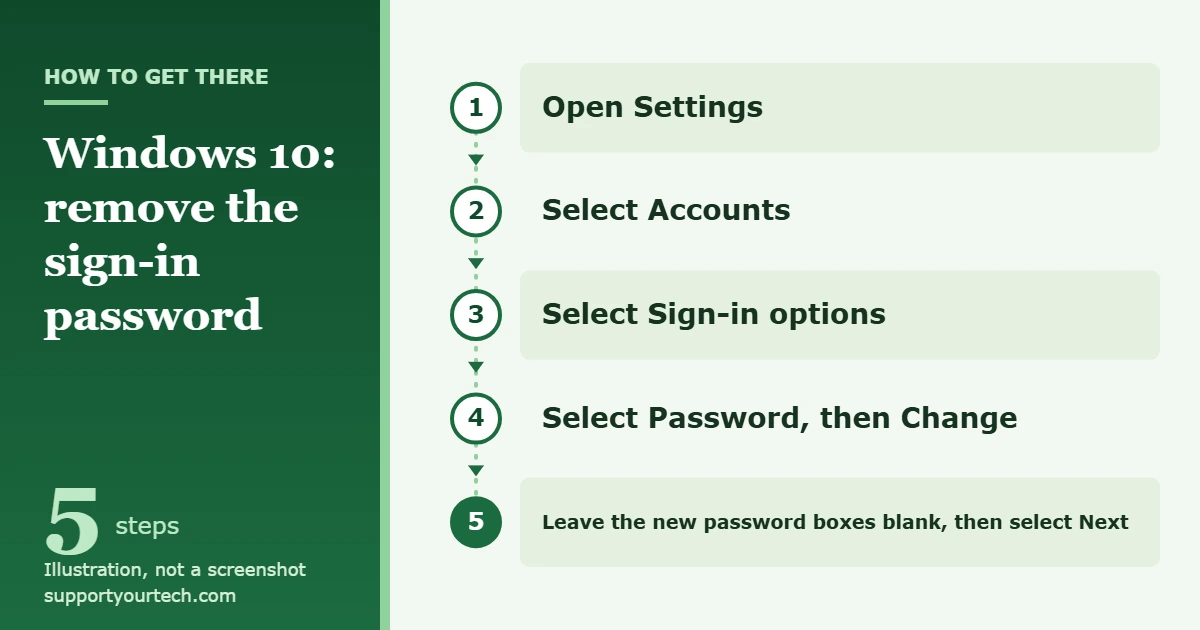
- Press Windows key + I to open Settings.
- Select Accounts.
- Select Sign-in options. This page lists the ways you can sign in to this device.
- Select Password, then select Change. A window asks for your current password.
- Type your current password and select Next. Windows now shows boxes for a new password.
- Leave the new password boxes blank and select Next.
- Select Finish. The account no longer has a password.
Microsoft’s own instructions for this screen are in Change or reset your local account password in Windows.
If you sign in with a Microsoft account
A Microsoft account password also protects your email, OneDrive and purchases online, so Windows will not let you set it to blank. You have two legitimate choices.
Option 1: Keep the password and sign in with Windows Hello
Windows Hello lets you sign in with a PIN, a fingerprint or face recognition instead of typing the account password. You set it up on the same Settings > Accounts > Sign-in options page. For most people this solves the real complaint, which is typing a long password every time, without leaving the PC open to anyone.
Option 2: Switch to a local account
- Open Settings and select Accounts > Your info.
- Select Sign in with a local account instead. This link appears only when you are using a Microsoft account.
- Type a user name, password and password hint for the new local account. The user name must be different from any other account on the device.
- Select Next, then select Sign out and finish.
- Sign back in with the new local account, then follow the local account steps above to remove its password.
Microsoft recommends a Microsoft account for security and for syncing across devices, so make this switch only if a password-free sign-in matters more to you than those features.
Keep the password but skip typing it at startup
Windows can also store your password and sign you in automatically when the PC starts. The account still has a password, which keeps network and remote sign-ins protected, but the PC opens without asking.
- Press Windows key + R, type netplwiz and press Enter. The User Accounts window opens.
- Select your account in the list.
- Clear the check box that says users must enter a user name and password to use this computer, then select Apply.
- Enter your current password to confirm.
Microsoft describes automatic logon as a convenience that can be a security risk: anyone with physical access to the computer gets everything on it, and the stored password can be read by someone with administrator rights. Use it only on a PC that stays in a physically secure place. To sign in as a different user on a PC set up this way, hold the Shift key while Windows restarts or after you sign out.
Confirm it worked, and how to undo it
Restart the PC, or lock it and wake it again. With a blank local password, Windows lets you in without asking for one. With automatic logon, the desktop appears after a restart without a prompt.
To put a password back, return to Settings > Accounts > Sign-in options, select Password and create a new one. To turn automatic logon off, open netplwiz again and select the same check box.
Troubleshooting
There is no Password option, or the netplwiz check box is missing
On the Sign-in options page, look for the setting Only allow Windows Hello sign-in for Microsoft accounts on this device (older Windows 10 builds word it slightly differently). When it is on, passwords are disabled for your Microsoft account on that PC. Turn it off, then reopen Settings or netplwiz.
Windows will not accept a blank password
Check Accounts > Your info again. A blank password is only possible on a local account. On a work or school PC, a password policy set by the organization can also block it.
You do not know the current password
For a local account, select Reset password on the sign-in screen and answer the security questions you chose when the account was created. If you are already signed in, Password > Change also offers I forgot my password. Microsoft Support cannot retrieve or bypass a lost password, so avoid tools that promise to do it.
You want to change another person’s account
An administrator can open Computer Management, expand Local Users and Groups > Users, right-click the account and select Set Password. Do this only on a PC you own or manage, and with that person’s knowledge.
Frequently asked questions
Is it safe to remove the Windows 10 password?
It is a trade-off. On a desktop PC at home that only you use, the main risk is someone in the house opening it. On a laptop, a lost or stolen device would give a stranger everything stored on it. A Windows Hello PIN is the safer way to get quick sign-in.
Can I remove the password from a Microsoft account?
Not in Windows. You can sign in with Windows Hello so you rarely type it, or switch to a local account and remove that account’s password.
Will removing the password delete my files?
No. Changing a password you know through Settings only changes how you sign in. Your documents, apps and settings stay where they are.
Does this stop Windows from locking when I step away?
The PC can still lock, but with a blank password anyone can unlock it. If you want the opposite, Dynamic lock on the Sign-in options page pairs with your phone over Bluetooth and locks the PC within about a minute after you walk out of range.
Is Windows 10 still supported?
Windows 10 reached the end of support on October 14, 2025. It still runs, but without new security fixes unless the PC is enrolled in Extended Security Updates, which protect it until October 12, 2027. That makes a missing password a bigger risk than it used to be; here is how to enroll in Windows 10 Extended Security Updates.
If quick sign-in is the goal, set up a Windows Hello PIN first and see whether that is enough before you remove the password entirely.
Related: how to remove the password on a Windows 10 laptop.
Related: how to unlock your computer screen in Windows 10.
Related: lock your PC screen with a password in Windows 10.

Matt Jacobs has been working as an IT consultant for small businesses since receiving his Master’s degree in 2003. While he still does some consulting work, his primary focus now is on creating technology support content for SupportYourTech.com.
His work can be found on many websites and focuses on topics such as Microsoft Office, Apple devices, Android devices, Photoshop, and more.