To sign out of Windows 11, select Start, select your account picture or name in the bottom-left corner, and choose Sign out. This closes your apps and returns to the sign-in screen, but your Microsoft account stays set up on the PC.
What you need depends on what you’re trying to do. The sections below cover signing out for now, stopping using a Microsoft account on this PC, removing an account that only apps use, and signing out on every device.
Applies to: Windows 11.
Sign out of Windows
- Save your work and close anything you’re using. Signing out closes all your apps.
- Select Start.
- Select your name or account picture in the bottom-left corner.
- Select Sign out.
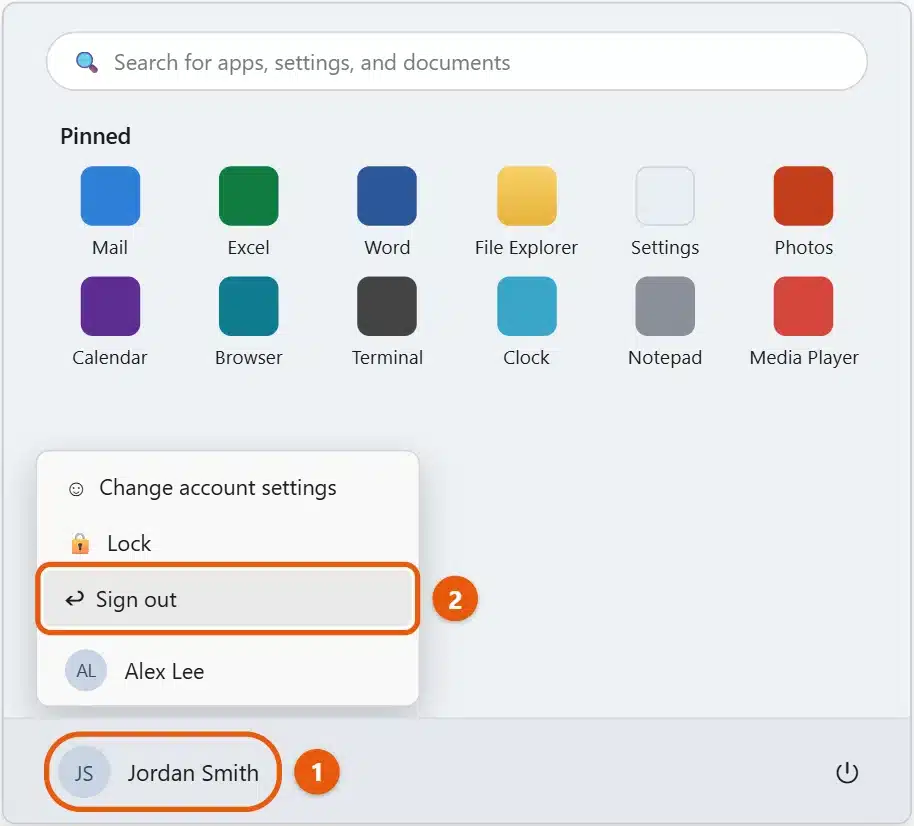
Other ways to sign out:
- Press Ctrl + Alt + Delete and select Sign out.
- Right-click Start and choose Shut down or sign out > Sign out.
- Press Alt + F4 on the desktop and choose Sign out from the list.
Let someone else use the PC without signing out
Select Start, select your account name, and choose the other person’s account from the list. Or press Windows + L to lock the PC and let them sign in from the lock screen. Your apps stay open in the background, so save your work first.
Stop using a Microsoft account on this PC
If you want to sign in to Windows without a Microsoft account, switch to a local account:
- Go to Settings > Accounts > Your info.
- Under Account settings, select Sign in with a local account instead.
- Select Next, then confirm your identity with your PIN or password.
- Enter a local user name, password, and password hint, then select Next.
- Select Sign out and finish.
Your files and apps stay where they are. You’ll lose features that rely on your Microsoft account, such as settings sync, OneDrive backup, and password recovery online. If your PC uses device encryption, save your BitLocker recovery key first from account.microsoft.com/devices/recoverykey, because it’s stored with your Microsoft account.
If Sign in with a local account instead doesn’t appear, your PC may be managed by an organization, or you may be signed in with a work or school account. Other options are covered in removing a Microsoft account in Windows 11.
Remove a Microsoft account that only apps use
If you added a second Microsoft account for Outlook, Calendar, or the Microsoft Store, remove it without changing how you sign in to Windows:
- Go to Settings > Accounts > Email & accounts.
- Select the account, then select Remove (or Manage, then Remove this account from this device).
For a work or school account, go to Settings > Accounts > Access work or school, select the account, and choose Disconnect.
Sign out of apps and the browser
- Microsoft Store: open it, select your profile picture, and select Sign out.
- Microsoft Edge: select your profile picture at the top left, then Sign out. Microsoft’s Sign out of Microsoft Edge page has more detail.
- Microsoft 365 apps such as Word: select your name at the top of the window, then Sign out. This signs you out of all Office apps on the PC.
Sign out of your Microsoft account everywhere
If you think someone else is using your account, or you’ve lost a device:
- Go to account.microsoft.com, sign in, and select Security.
- Open Advanced security options.
- Scroll to Sign out everywhere and select Sign out.
Within 24 hours, you’re signed out of browsers, apps, and devices. Xbox consoles need to be signed out separately. Change your password too if you think it’s been stolen.
Troubleshooting
Sign out is missing from the account menu
Press Ctrl + Alt + Delete and choose Sign out, or right-click Start and select Shut down or sign out > Sign out. On work or school PCs, an administrator may have hidden the option.
Windows signs straight back in
Automatic sign-in may be turned on. Go to Settings > Accounts > Sign-in options and turn off Use my sign-in info to automatically finish setting up after an update. If someone used netplwiz to remove the password requirement, open it again and tick Users must enter a user name and password to use this computer.
There is no Remove button for the account
In Settings > Accounts > Email & accounts, Windows only lets you remove accounts that apps use. The account you sign in to Windows with cannot be removed there. Switch to a local account first, as described above, or add another administrator account and remove this one from Settings > Accounts > Other users.
Frequently asked questions
What happens when I sign out of Windows 11?
Your open apps close and anything unsaved is lost. Your files, settings, and Microsoft account stay on the PC, and you sign back in with your PIN or password.
Why is there no Sign out option in the Start menu?
Select your account name, not the power button. Sign out is in the account menu. If it’s missing on a work or school PC, your organization may have hidden it.
How do I remove another person’s account from the PC?
Sign in as an administrator and go to Settings > Accounts > Other users, then follow the steps to remove an account from Windows 11.
The account-wide sign-out is also described on Microsoft’s How to sign out of your Microsoft account everywhere page.
If you share the PC, you can also switch users in Windows 11, or change the Microsoft account in Windows 11 that you sign in with.

Matt Jacobs has been working as an IT consultant for small businesses since receiving his Master’s degree in 2003. While he still does some consulting work, his primary focus now is on creating technology support content for SupportYourTech.com.
His work can be found on many websites and focuses on topics such as Microsoft Office, Apple devices, Android devices, Photoshop, and more.