To remove an account from Windows 11, sign in with an administrator account and go to Settings > Accounts > Other users. Select the account, select Remove next to Account and data, and confirm with Delete account and data. The account and all the files saved in it on this PC are deleted, so back up anything you need first.
Removing an account from the PC doesn’t close the person’s Microsoft account. They can still use it for email, OneDrive, and other PCs.
Applies to: Windows 11. Checked against Microsoft Support on September 24, 2026.
Before you start
- Sign in as an administrator. Only an administrator can remove other accounts.
- Sign in with a different account from the one you’re removing. Windows won’t remove the account that’s signed in.
- Back up their files. The account’s Desktop, Documents, Downloads, and Pictures folders on this PC are deleted. Copy anything important from
C:\Users\<their user name>to an external drive or another folder first. Files already in OneDrive stay in OneDrive.
Remove an account in Settings
- Press Windows + I to open Settings.
- Select Accounts > Other users. On older versions of Windows 11, it’s called Family & other users.
- Under Other users, select the account you want to remove.
- Next to Account and data, select Remove.
- Read the warning, then select Delete account and data.
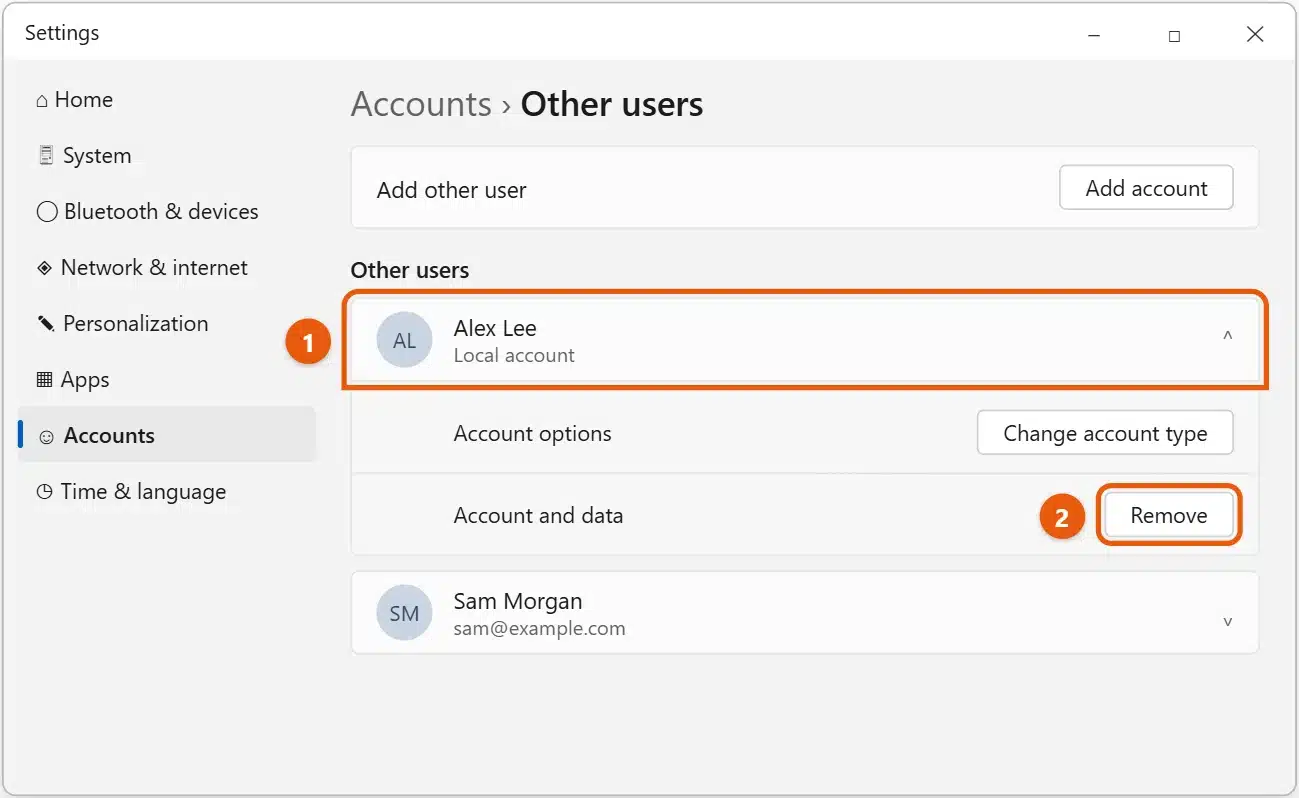
The account disappears from the list and from the sign-in screen.
Other ways to remove an account
Use the User Accounts window
- Press Windows + R, type
netplwiz, and press Enter. - Select the account under Users for this computer.
- Select Remove, then Yes.
Use Terminal
- Right-click Start and select Terminal (Admin).
- Type
net user "Alex Lee" /delete, replacing the name in quotes with the account’s user name, and press Enter.
This removes the account but leaves its folder in C:\Users. Delete that folder yourself once you’ve saved anything you need from it.
If you want to remove your own Microsoft account
You can’t remove the account you’re signed in with. To stop signing in to Windows with your Microsoft account, switch to a local account instead in Settings > Accounts > Your info > Sign in with a local account instead. See how to remove a Microsoft account in Windows 11.
If the Microsoft account was only added for apps such as Outlook or the Microsoft Store, go to Settings > Accounts > Email & accounts, select it, and choose Remove (or Manage).
If you want to remove a work or school account
Go to Settings > Accounts > Access work or school, select the account, and choose Disconnect. If your organization manages the PC, you may need your IT support team to do this. See how to remove a work or school account from Windows 11.
If you can’t remove an account
- There’s no Remove button: you’re not signed in as an administrator. Sign in with an administrator account, or ask the PC’s owner.
- The account isn’t under Other users: it may be a family member. Check Settings > Accounts > Family.
- It’s the last administrator account: make another account an administrator first. Select that account in Other users, choose Change account type, and pick Administrator.
Frequently asked questions
What happens if I remove a Microsoft account from Windows 11?
Its sign-in and files are removed from this PC only. The Microsoft account itself, with its email, OneDrive files, and purchases, isn’t deleted. The person can sign in to it on other devices or add it back to this PC later.
Can I remove an account but keep its files?
Not with the Settings method. Copy the files out of C:\Users\<their user name> first. The Terminal method removes the account but leaves the folder, which you can then keep or delete.
Why is the account still on the sign-in screen?
Restart the PC. If it’s still there, check Accounts > Email & accounts and Access work or school for a leftover connection.
Before you sell or give away the PC, see how to reset Windows 11.
To add someone instead, see how to add another user in Windows 11. Microsoft’s guide is Manage user accounts in Windows. More help is on our Windows 11 Help & Guides page.

Matt Jacobs has been working as an IT consultant for small businesses since receiving his Master’s degree in 2003. While he still does some consulting work, his primary focus now is on creating technology support content for SupportYourTech.com.
His work can be found on many websites and focuses on topics such as Microsoft Office, Apple devices, Android devices, Photoshop, and more.