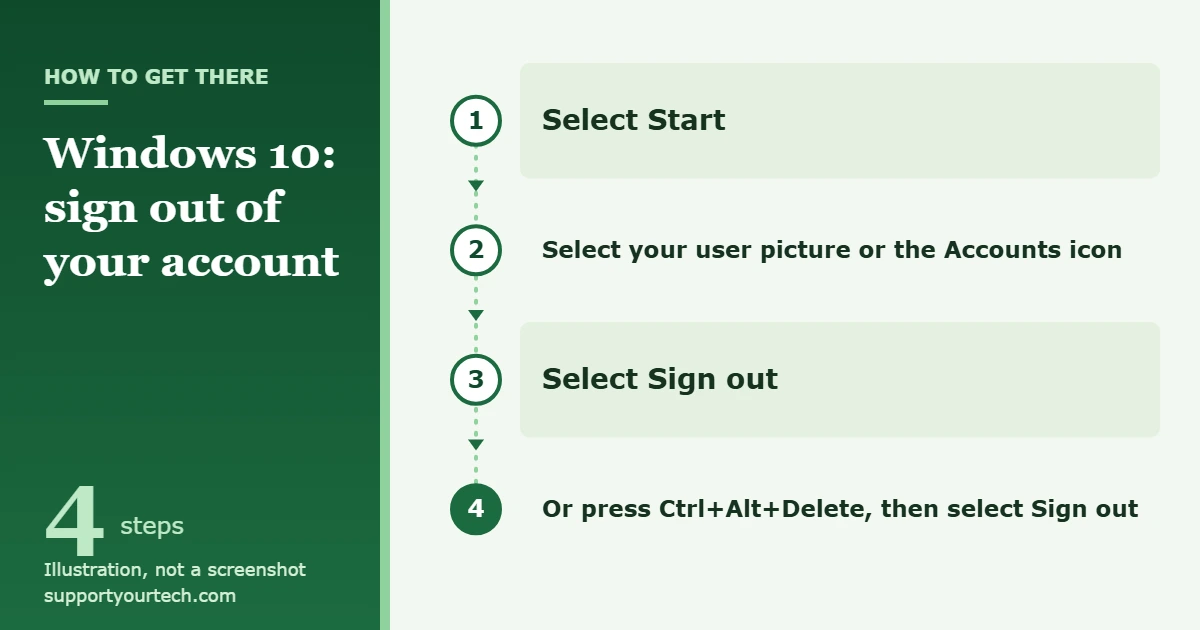
To sign out of your account in Windows 10, select Start, select your user picture or the Accounts icon, and then select Sign out. If you want the PC to stop using your Microsoft account for sign-in altogether, open Settings > Accounts > Your info and select Sign in with a local account instead.
Applies to: Windows 10 (Microsoft’s instructions for these account settings cover Windows 10 and Windows 11). Checked against Microsoft Support on October 7, 2026.
Which kind of sign-out do you need?
“Signing out of a Microsoft account” can mean several different things on a Windows 10 PC, and each one has its own steps. Pick the row that matches your goal before you change anything.
| Your goal | What to do | What it changes |
|---|---|---|
| Leave the PC so someone else can use it | Sign out from the Start menu | Ends your Windows session. Your account stays on the PC. |
| Stop signing in to Windows with a Microsoft account | Switch to a local account | Your files and apps stay, but you sign in with a user name and password stored only on this PC. |
| Take another person’s account off the PC | Remove the user in Settings | Removes that person’s sign-in information and data from the device. |
| Stop OneDrive from syncing with your account | Unlink OneDrive | Disconnects the local OneDrive folder from the cloud. |
| End sessions on a PC you no longer have | Sign out everywhere, or remove the device online | Signs your account out remotely or takes the PC off your device list. |
One note on Windows 10 itself: Microsoft ended support for Windows 10 Home and Pro on October 14, 2025. The account settings below are still present on existing Windows 10 PCs.
Before you start
- Save your work. Signing out ends your session, so save open documents and close your apps first.
- Know your Microsoft account password. You need it to sign back in later, and Windows may ask you to confirm who you are before it lets you change how you sign in.
- Check who owns the PC. On a work or school computer, account settings can be controlled by the organization, and some of the options in this article may be unavailable.
This is the everyday sign-out. It ends your session and returns the PC to the sign-in screen, where you or another person can sign in.
- Select Start on the taskbar. The Start menu opens.
- Select your user picture or the Accounts icon in the Start menu. A short menu of account options appears.
- Select Sign out. Windows ends your session and shows the sign-in screen.
Your Microsoft account is still set up on the PC after this. The next time you choose your name on the sign-in screen and enter your password or PIN, your desktop, files and settings come back as you left them. If you only want to step away for a few minutes, press Windows key + L instead. That locks the computer without closing anything.
Sign out with a keyboard shortcut or a command
Use these when the Start menu is not responding or when you prefer the keyboard.
Ctrl+Alt+Delete
- Press Ctrl+Alt+Delete. Windows switches to the security screen, where you can lock the desktop, switch user, sign out, change a password, or open Task Manager.
- Select Sign out. Your session ends and the sign-in screen appears.
The shutdown command
- Open Command Prompt.
- Type shutdown /l (the last character is a lowercase letter L) and press Enter.
Microsoft documents the /l option as signing out the current user immediately, with no time-out period, so there is no countdown and no chance to cancel. Save everything before you run it. The option works on its own and cannot be combined with other shutdown options.
How to stop signing in to Windows with a Microsoft account
If your goal is to disconnect your Microsoft account from the way you sign in to this PC, switch your Windows user account to a local account. A local account is a user name and password that exist only on this computer. Your files, apps and desktop stay where they are; only the sign-in method changes.
Before you switch: with a local account, nobody can reset a forgotten password for you online. Microsoft recommends creating a password reset disk for a local account, because without one a forgotten password cannot be recovered.
- Open the Settings app. Pressing Windows key + I opens it directly.
- Select Accounts, then Your info. This page shows the account you are currently signed in with.
- Select Sign in with a local account instead. This link is shown only when you are signed in with a Microsoft account.
- Type a user name, a password and a password hint for the new local account. The user name must be different from every other account on the PC.
- Select Next, then select Sign out and finish. Windows signs you out.
- Sign back in with the local user name and password you just created.
Microsoft’s own steps are on its page about changing between a local account and a Microsoft account. Switching does not delete your Microsoft account. It still exists online, and you can keep using it on the web and on other devices.
How to confirm it worked, and how to switch back
After a normal sign-out, you should be looking at the Windows sign-in screen. Nothing else needs checking.
After switching to a local account, open Settings > Accounts > Your info again. The link on that page should now read Sign in with a Microsoft account instead, which Windows shows only for local accounts.
To undo the change, select Sign in with a Microsoft account instead on that same page, follow the prompts to enter your Microsoft account details, select Next and then Sign out and finish, and sign back in with your Microsoft account.
Remove another person’s account from the PC
Signing out does not take anyone’s account off the computer. If a family member or previous user should no longer appear on the sign-in screen, remove their user account. This removes their sign-in information and their data from the device, so copy anything they need first.
- Open Settings and select Accounts, then Other user. On some Windows 10 PCs this page is grouped together with family accounts.
- Under Other users, select the account you want to remove to expand it.
- Next to Account and data, select Remove.
Removing an account this way does not delete the person’s Microsoft account; it only removes it from this device. We walk through that process step by step in our guide to removing an account in Windows 10. Microsoft’s reference for this is Manage User Accounts in Windows.
Sign your Microsoft account out of other places
Windows sign-in is only one place your Microsoft account can be active. These are the other common ones.
OneDrive on this PC
- Select the OneDrive cloud icon in the taskbar.
- Select Help & Settings, then Settings.
- On the Account tab, select Unlink this PC, then Unlink account.
According to Microsoft’s OneDrive unlink instructions, no data is lost by unlinking. The local folders are simply disconnected from the cloud until you link the account again.
A work or school account
- Open Settings and select Accounts, then Access work or school.
- Select the account to expand it and choose Disconnect.
- Select Yes to confirm.
Check with your IT department before you disconnect a work or school account, because it may remove your access to the organization’s resources on that PC.
Accounts that apps use
Mail, calendar and other apps can keep their own list of accounts. In Settings > Accounts > Email & accounts you can see the accounts that apps on the PC are using, separate from the account you use to sign in to Windows. Review that page after switching to a local account if you want your Microsoft account off the computer entirely.
Every device at once
If you left your account signed in on a PC you can no longer reach, use Microsoft’s remote sign-out.
- In a web browser, sign in to the Microsoft account security dashboard and open Advanced security options.
- Scroll down to Sign me out and select Sign me out.
Microsoft says this can take up to 24 hours to reach every browser, app and device, and that it does not sign you out of Xbox consoles. The details are on Microsoft’s page about signing out of your Microsoft account everywhere.
A PC you sold or gave away
- Sign in at account.microsoft.com/devices with your Microsoft account.
- Find the PC and select Remove device.
- Check the box to confirm, then select Remove.
This takes the PC off the device list of your Microsoft account. It is described on Microsoft’s Manage devices used with your Microsoft account page. It does not erase the PC, so if you still have the computer, switch it to a local account or remove your user account first.
Troubleshooting
“Sign in with a local account instead” is missing
Microsoft notes that this link is visible only when you are signed in with a Microsoft account. If Your info shows Sign in with a Microsoft account instead, the PC is already using a local account and there is nothing to disconnect. If neither link appears, you may be signed in with a work or school account that your organization manages; in that case, look under Accounts > Access work or school or ask your IT department.
You cannot find Sign out on the Start menu
The option sits behind your user picture or the Accounts icon in the Start menu. If the Start menu will not open at all, press Ctrl+Alt+Delete and select Sign out on the security screen.
Windows says the user name is already in use
When you switch to a local account, the new user name has to be different from every account that already exists on the PC. Choose another name and continue.
Someone else is still signed in
Signing out affects only your own session. Another person who used the PC earlier may still be signed in behind the scenes. They need to sign in and sign out themselves; our guide on switching users in Windows 10 explains how to move between accounts.
Your account still shows up in apps after you switched
That is expected. Switching the Windows sign-in to a local account does not sign you out of OneDrive or of the accounts listed under Email & accounts. Work through the sections above for each place you want the account removed.
Frequently asked questions
Does signing out of Windows 10 remove my Microsoft account from the PC?
No. Signing out only ends your current session. The account stays on the sign-in screen and you can sign back in at any time. To disconnect it from Windows sign-in, switch to a local account.
Will I lose my files if I switch to a local account?
Microsoft’s steps change only the way you sign in: you create a user name, password and hint, sign out, and sign back in to the same PC. Files stored in OneDrive remain in your Microsoft account online as well.
Is signing out the same as locking the PC?
No. Windows key + L locks the computer and keeps your session and apps running behind the lock screen. Signing out ends the session.
Does switching to a local account delete my Microsoft account?
No. The Microsoft account still exists online, and you can go back to it on the same PC by selecting Sign in with a Microsoft account instead in Settings > Accounts > Your info.
Can I sign out of a PC I no longer have access to?
Yes. Use Sign me out under Advanced security options on the Microsoft account security dashboard, and allow up to 24 hours for it to take effect. You can also remove the PC from your device list at account.microsoft.com/devices.
What happens to apps and windows I leave open when I sign out?
Signing out ends your session, so save your work first. If you want everything to stay open while someone else uses the PC, switch users or lock the PC instead.
If you are handing the PC to someone else for good, switch to a local account or remove your user account first, and then remove the PC from your Microsoft account’s device list.

Matt Jacobs has been working as an IT consultant for small businesses since receiving his Master’s degree in 2003. While he still does some consulting work, his primary focus now is on creating technology support content for SupportYourTech.com.
His work can be found on many websites and focuses on topics such as Microsoft Office, Apple devices, Android devices, Photoshop, and more.