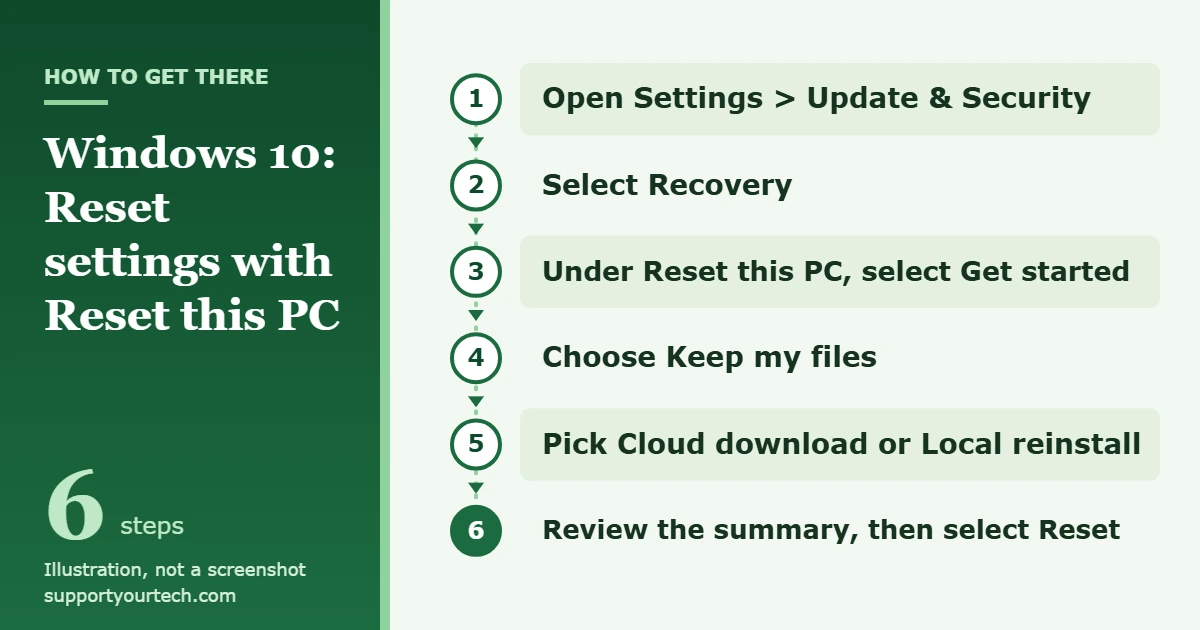
Windows 10 has no single button that resets every setting and leaves everything else alone. The closest built-in option is Settings > Update & Security > Recovery > Reset this PC > Get started > Keep my files, which reinstalls Windows, removes your apps and settings, and keeps your personal files. If only one area is misbehaving, such as the network or a single app, reset that area instead and save yourself hours of setup.
Applies to: Windows 10. Checked against Microsoft Support on October 6, 2026.
What “reset all settings” really means in Windows 10
Phones have an option that returns settings to their defaults without touching apps or data. Windows 10 does not. Its reset tool, called Reset this PC, reinstalls the operating system. Microsoft describes two versions of it:
- Keep my files reinstalls Windows and keeps your personal files, such as documents and photos. It removes apps and settings.
- Remove everything reinstalls Windows and removes your personal files, apps and settings. It is meant for a completely fresh start, or for a PC you are selling or giving away.
So the realistic choices are a full reset with Keep my files, or a smaller reset aimed at the part of Windows that is causing trouble. The table below can help you pick.
| Your situation | Best option | What you lose |
|---|---|---|
| Wi-Fi or Ethernet stopped working after settings changes | Network reset | Network adapters and their settings; VPN software may need to be set up again |
| One Microsoft Store app crashes or will not open | Reset that app | That app’s data, preferences and sign-in details |
| Problems began after a recent app, driver or update install | System Restore | Programs and system changes made after the restore point |
| Problems everywhere, cause unknown | Reset this PC with Keep my files | All installed apps and most settings |
| Selling, donating or recycling the PC | Reset this PC with Remove everything | Everything, including personal files |
Before you reset: what to prepare
A reset is hard to undo, so spend a few minutes on preparation first.
- Back up your files. Microsoft tells you to back up important files before you begin, even when you plan to keep them. Copy them to an external drive or to OneDrive. For an automatic copy, open Control Panel and, under System and Security, select Save backup copies of your files with File History, then select Turn on. Microsoft’s File History instructions cover choosing the drive.
- List your apps. Every app you installed yourself is removed, including apps from the Microsoft Store. Note which programs you use and make sure you have the installers, product keys and account sign-ins needed to put them back.
- Find your BitLocker recovery key. If the drive is encrypted, Microsoft says to have the BitLocker recovery key ready before a reset. Microsoft explains where to find your BitLocker recovery key.
- Plug in the power. On a laptop, connect the charger, because an interrupted reset can fail.
- Set aside time. Microsoft’s estimate for recovery is typically 30 minutes to 2 hours, depending on the method.
How to reset Windows 10 settings and keep your files
These steps use Reset this PC with Keep my files.
- Select the Start button, then select Settings (the gear icon). The Settings window opens.
- Select Update & Security. A list of categories appears on the left side.
- Select Recovery in that list. The right side now shows a section named Reset this PC.
- Under Reset this PC, select Get started. A window opens with two choices.
- Select Keep my files. Do not choose Remove everything unless you want your personal files deleted as well.
- Choose how Windows is reinstalled. Cloud download downloads a fresh copy of Windows, so you get the latest version; it is the better choice when local system files may be damaged. Local reinstall uses the files already on the PC, which helps on a slow or metered connection. Cloud download was added in Windows 10, version 2004, so older versions go straight to a local reinstall.
- Check the additional settings if they are offered. With Restore preinstalled apps turned on, the customizations from your PC’s manufacturer are applied again.
- Read the summary screen. It describes what will be removed. This is your last chance to cancel.
- Select Reset. Windows prepares the reset and restarts on its own.
- Wait. Microsoft warns that the screen might go black for a long time, occasionally upwards of 15 minutes, and that the device might restart itself. Do not turn the PC off or restart it yourself, because that can cause the reset to fail.
- Sign in when the sign-in screen returns. Your account is still there, and so are the files in your user folders.
Which settings survive Keep my files
Keep my files is not a pure settings wipe, and it is worth knowing what it leaves alone. According to Microsoft’s technical documentation for the feature, it preserves:
- User accounts (local, domain and Microsoft accounts) and their group memberships
- Most files and folders that are not part of a standard Windows installation, plus everything on drives other than the Windows drive
- Wireless network profiles, so the PC should rejoin known Wi-Fi networks
- Desktop themes and the lock screen background
- International (language and region) settings
- Library settings and Windows Update settings
- Privacy choices you control, such as location, camera and microphone
It does not preserve desktop programs you installed or apps you got from the Microsoft Store. The Windows, Program Files and ProgramData folders are replaced with fresh copies, and so are the AppData folders inside each user profile, which is where many programs store their own settings. Microsoft notes that the old AppData folders remain available in C:\Windows.old after the reset, which can help you recover a program’s saved data.
In practice, expect to redo anything that lived inside an app: browser extensions, email account setup, game settings, printer software and similar items.
Reset only the network settings
If the problem is limited to Wi-Fi, Ethernet or VPN connections, a network reset is far less disruptive. Microsoft says it removes any network adapters you have installed and the settings for them, and recommends it as the last step after other network fixes.
- Select the Start button, type settings, and select Settings.
- Select Network & internet.
- Select Status, then select Network reset.
- On the Network reset screen, select Reset now, then Yes to confirm.
- Wait for the PC to restart, then reconnect and check whether the problem is gone.
Afterward you might need to reinstall and set up networking software such as a VPN client. Microsoft also notes that a network reset might set your known connections to the public network profile, in which your PC is not discoverable to other devices on the network. The full procedure is in Microsoft’s guide to fixing network connection issues in Windows.
Reset a single app
Apps installed from the Microsoft Store, and many of the apps built into Windows, can be reset individually.
- Open Settings from the Start menu.
- Select Apps, then Apps & features.
- Select the app in the list, then select Advanced options. If that link is missing, the app does not support this kind of reset.
- Select Repair first. Repair keeps the app’s data while Windows tries to fix it.
- If the app still fails, select Reset, then select Reset again in the confirmation prompt.
Reset permanently deletes the app’s data and reinstalls it fresh, so the app loses its preferences and sign-in details.
Roll settings back with System Restore
System Restore is the nearest thing Windows 10 has to an undo button for system settings. It returns system files, registry settings and installed programs to an earlier point in time without affecting your personal files. It only works if a restore point exists from before the trouble started.
- Open Control Panel, select Recovery, then select Open System Restore. You can also press the Windows key + R, type rstrui.exe, and press Enter.
- In the Restore system files and settings box, select Next.
- Select a restore point dated before the problem began. Check Show more restore points if you need older ones.
- Optionally select Scan for affected programs to see what will be removed or brought back.
- Select Next, then Finish. Windows restarts and applies the restore point.
Our guide to restoring Windows 10 walks through System Restore and Reset this PC side by side.
Reset when Windows will not start or you cannot sign in
Reset this PC is also available from the Windows Recovery Environment (Windows RE), a repair menu that runs outside of normal Windows. Microsoft lists several ways to reach it:
- On the sign-in screen, press and hold the Shift key while you select Power > Restart.
- From inside Windows 10, go to Settings > Update & Security > Recovery and, next to Advanced startup, select Restart now.
- If Windows fails to start correctly several times in a row, it enters Windows RE automatically.
Once Windows RE loads, follow these steps:
- Select Troubleshoot.
- Select Reset this PC.
- Choose Keep my files or Remove everything, then follow the on-screen instructions.
If the drive is encrypted, you will need the BitLocker recovery key to use certain Windows RE tools. If you would rather try a repair before a reset, see our walkthrough on restoring Windows 10 from boot. Microsoft’s own steps are on its Reset your PC page.
Remove everything: for a PC you are giving away
Choose Remove everything in the reset window only when you want nothing left behind. The extra setting to know is Clean data: when it is enabled, Windows removes the files and also cleans the drive, which makes it much harder for someone else to recover your data. On a PC with more than one drive, Windows can remove data from the Windows drive only or from all drives, so read that screen carefully if a second drive holds files you want to keep.
Microsoft states that this data erasure is aimed at consumers and does not meet government and industry data erasure standards. A business PC that held regulated data should go through your organization’s IT process instead.
After the reset: confirm it worked and set up again
- Sign in and open your Documents and Pictures folders to confirm your files are present.
- Check whether the original problem is gone before you install anything. If it returns on a clean system, the cause is more likely hardware or a driver than a setting.
- Open Settings > Update & Security and install the available updates, which also brings back many device drivers.
- Reinstall your apps one at a time. If the problem comes back after a particular app, you have found the cause.
- Copy any files back from your backup if something is missing.
There is no undo for Reset this PC. Your backup, the list of apps you made and the C:\Windows.old folder are the ways back to what you had.
Troubleshooting
The reset stops or reports a problem
Run it again and pick the other reinstall method. Cloud download does not depend on the system files stored on your PC, so it is the one to try when a local reinstall fails. If the reset will not start from Settings at all, start it from Windows RE as described above. As a last resort, Microsoft documents how to create and use a recovery drive on a USB stick.
The screen is black and nothing seems to be happening
This is expected for part of the reset and can last upwards of 15 minutes. Leave the PC plugged in and alone.
Windows asks for a BitLocker recovery key
The drive is encrypted. Microsoft’s BitLocker recovery key page, linked in the preparation section above, lists the places the key may be stored. If the PC belongs to work or school, ask your organization’s IT administrator.
Cloud download is not offered
The choice between Cloud download and Local reinstall exists only in Windows 10, version 2004 and later. On an older version the reset uses the files on the PC.
The PC belongs to work or school
Ask your IT department before resetting. Keep my files preserves domain settings, but the apps and security tools your organization installed are removed, and company policy may not allow you to reset the device yourself.
Advanced options is missing for an app
Not every app offers the Repair and Reset buttons. Look for a reset option inside the program’s own settings, or uninstall and reinstall it.
Frequently asked questions
Can I reset all Windows 10 settings without losing my apps?
Not with Reset this PC; both of its options remove installed apps. To keep apps, use System Restore or one of the targeted resets. Microsoft also describes reinstalling Windows from installation media in a way that lets you keep personal files and apps, which is a repair rather than a settings reset.
Does Keep my files delete my documents and photos?
No. It keeps personal files and user accounts. Back up anyway, since Microsoft recommends a backup before any reset.
How long does resetting Windows 10 take?
Typically 30 minutes to 2 hours. Cloud download adds download time.
Do I need the internet to reset Windows 10?
Only for Cloud download. Local reinstall uses the files already on the PC, although it may leave you with more updates to install afterward.
Is it still worth resetting Windows 10 in 2026?
A reset still works, but Windows 10 reached end of support on October 14, 2025. Microsoft says a Windows 10 PC keeps working but no longer receives security updates unless it is enrolled in Extended Security Updates. If your PC meets the Windows 11 requirements, Microsoft offers the upgrade free through Windows Update, and that may be a better use of the time than a reset. Details are on Microsoft’s Windows 10 end of support page.
Is the reset different in Windows 11?
The options are the same, but the path is Settings > System > Recovery > Reset PC.
Start with the smallest reset that matches your problem, and move up to Reset this PC with Keep my files only if the smaller ones do not fix it. Whichever you choose, make the backup first.

Matt Jacobs has been working as an IT consultant for small businesses since receiving his Master’s degree in 2003. While he still does some consulting work, his primary focus now is on creating technology support content for SupportYourTech.com.
His work can be found on many websites and focuses on topics such as Microsoft Office, Apple devices, Android devices, Photoshop, and more.