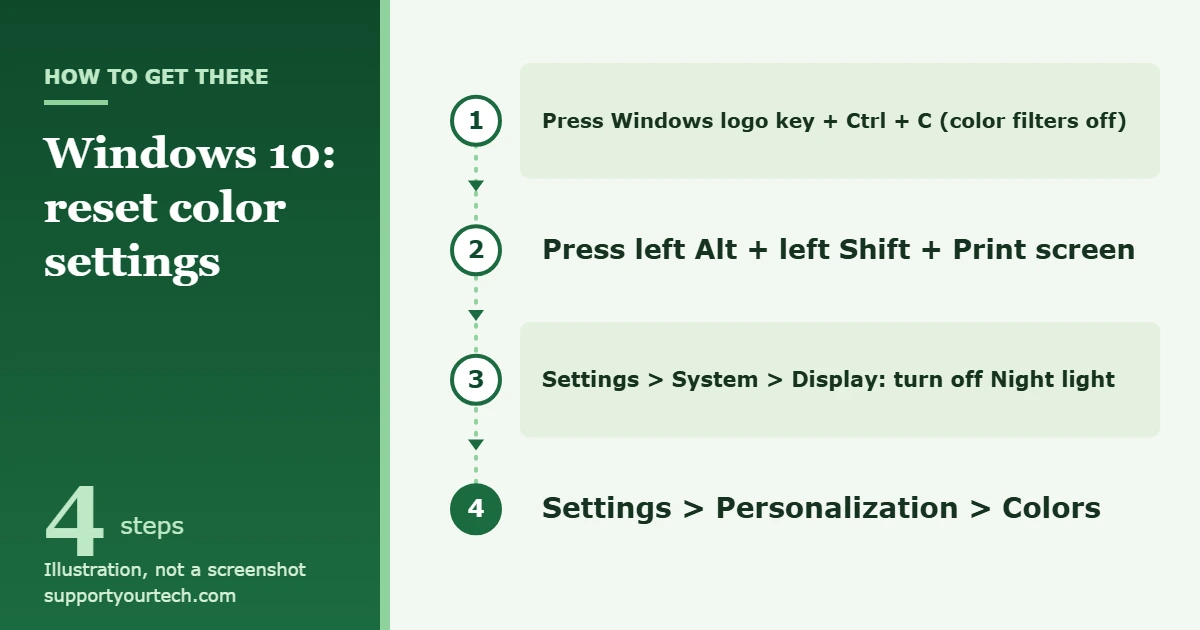
Windows 10 has no single button that resets every color setting. To get normal colors back, switch off the four features that change them, in this order: press Windows logo key + Ctrl + C to turn off color filters, press left Alt + left Shift + Print screen to turn off High Contrast, turn off Night light in Settings > System > Display, and then pick your mode and accent color again in Settings > Personalization > Colors.
Applies to: Windows 10. Checked against Microsoft Support on October 7, 2026.
Before you start
Several separate layers decide how color looks on a Windows 10 PC: accessibility features (color filters and High Contrast), Night light, the personalization colors, color profiles and calibration, the graphics driver, and the monitor’s own menu. A reset means putting each layer back to its normal state. Working from the top down finds the cause quickly, because the first three layers account for most sudden color changes.
The symptom usually points to the layer:
| What you see | Most likely cause |
|---|---|
| Everything is gray, or colors are inverted like a photo negative | A color filter |
| Black background with bright text and outlined buttons | High Contrast |
| A warm orange or yellow tint, mostly in the evening | Night light |
| Taskbar, Start or window borders are an unexpected color | Personalization colors |
| Colors look washed out or too strong on one screen only | Color profile, graphics driver or monitor settings |
Reset the Windows 10 color settings
- Turn off color filters. Press Windows logo key + Ctrl + C. If a filter such as Grayscale, Inverted or Grayscale inverted was on, normal color returns right away. The shortcut only works when it has been allowed in Settings, so if nothing happens, open Settings, select Ease of Access, select Color filters, and switch Turn on color filters off.
- Turn off High Contrast. Press left Alt + left Shift + Print screen. The standard Windows colors come back. If your keyboard has no Print screen key, press Windows logo key + U to open the accessibility settings and turn High Contrast off from its page there.
- Turn off Night light. Select Start > Settings > System > Display and switch Night light off. The warm tint fades out. If it returns every evening, open the Night light settings on the same page and turn off Schedule night light, or leave the schedule on and drag the Strength slider lower.
- Set the personalization colors again. Open Settings > Personalization > Colors. Choose Light, Dark or Custom as the color mode, then pick an accent color from Windows colors. If your title bars are a color you don’t want, clear Show accent color on title bars and window borders. Changes apply as soon as you select them; there is no Save button.
Stop as soon as the screen looks right. You don’t need to finish the list once the problem is gone.
Check color profiles and calibration
If the colors are still off after those four steps, the cause is probably below the everyday settings. A color profile is a small file that tells Windows how a particular screen reproduces color. Microsoft’s color management settings let you add or remove color profiles, set the default profile for each connected display, and open display calibration. A profile that doesn’t match your screen, or a calibration that was done by eye, can leave a permanent tint that none of the steps above will remove.
Search for color management from the taskbar to find the tool, select the affected display, and look at which profile is set as its default. Removing a profile you added yourself, or setting the profile that came with the monitor as the default, undoes that change. Running Calibrate display again and following its steps creates a new profile for that display, which replaces an earlier calibration that went wrong.
If your work depends on accurate color, such as photo editing or print design, use a hardware calibration device rather than adjusting by eye.
Check the graphics driver and the monitor
Graphics software from the maker of your graphics card can apply its own brightness, contrast and saturation on top of Windows. Open that software from the Start menu and use its option to restore the default color settings. Windows settings can’t reset those values for you.
The monitor is the last layer. Picture modes, color temperature and a factory reset option live in the on-screen menu that you open with the buttons on the monitor itself. A quick test tells you whether the monitor is at fault: take a screenshot and view it on another device. If the screenshot looks normal there, Windows is sending the right colors and the display hardware or its menu settings are responsible. A loose or damaged video cable can also cause a strong single-color tint, so reseat both ends.
If you have an HDR display, HDR is turned on and off in Settings > System > Display. Microsoft notes that colors can look over-saturated when Night light and HDR are on together, so turn Night light off first when you test.
How to confirm the reset worked
Open a web page with a white background and a photo you know well. White should look neutral, not gray, yellow or blue, and the photo should show its usual colors. Then check that the taskbar, Start menu and window title bars match the mode and accent color you picked. Restart the PC once and look again, because a profile or driver setting that loads at sign-in will show up at that point.
Every change in this guide can be undone by switching the same setting back on. If you rely on a color filter or High Contrast to read the screen more easily, turn it back on with the same shortcut. To change the overall look afterward, see how to turn on dark mode in Windows 10.
Troubleshooting
- The Night light switch is grayed out: Microsoft says you may need to update your display driver. Night light isn’t available at all with certain drivers, such as DisplayLink or Basic Display.
- The color filter shortcut does nothing: the shortcut has to be allowed on the Color filters page first. Turn the filter off with the switch on that page instead.
- The taskbar and Start menu won’t take the accent color: Light mode doesn’t color the Start menu, taskbar and action center. Microsoft makes that option available only in Dark and Custom modes.
- Colors change back after a restart: something is reapplying them at sign-in. Check the Night light schedule, the default color profile for the display, and the graphics software.
- Only one app looks wrong: some apps have their own light or dark setting that is separate from the Windows color mode. Change it inside that app.
- Settings are locked on a work or school PC: your organization may manage these options. Ask your IT administrator rather than trying to work around the restriction.
- Only the brightness is wrong: that is a different setting. See how to change the brightness in Windows 10.
Frequently asked questions
Is there one button that resets all color settings in Windows 10?
No. Color filters, High Contrast, Night light, personalization colors, color profiles, graphics software and the monitor are all separate, so each one is reset where it lives. Checking them in the order above is the fastest route.
Why did my screen suddenly turn black and white?
A grayscale color filter is the usual reason, and it is easy to switch on by accident with Windows logo key + Ctrl + C. Press the same keys again to turn it off.
Why does my screen look yellow or orange?
That is what Night light does: it reduces blue light and makes the display warmer. Turn it off in Settings > System > Display, or lower its strength if you like the effect but find it too strong.
Should I download a Registry file that promises to reset colors?
No. Color is controlled in several unrelated places, so one file can’t reliably reset them all, and importing a Registry file from an unknown source can change settings that have nothing to do with color. Use the built-in controls described here.
Will resetting the PC fix the colors?
It is rarely needed and it removes far more than color settings. It also can’t change anything stored in the monitor itself. Work through the settings in this guide first.
Do these steps still work now that Windows 10 support has ended?
Yes. The settings are part of Windows 10 and keep working. Microsoft ended Windows 10 support on October 14, 2025, so the system no longer gets software updates or security fixes unless it is enrolled in Extended Security Updates. Microsoft documents these features in Change display brightness and color in Windows and Windows keyboard shortcuts for accessibility.
Once the colors look right, restart the PC to make sure they stay that way. If a tint is still there after every step, connect a different monitor or cable to find out whether the screen itself needs service.

Matt Jacobs has been working as an IT consultant for small businesses since receiving his Master’s degree in 2003. While he still does some consulting work, his primary focus now is on creating technology support content for SupportYourTech.com.
His work can be found on many websites and focuses on topics such as Microsoft Office, Apple devices, Android devices, Photoshop, and more.